
TeamViewer: Assigning Licenses
What
The use of TeamViewer withinaccess in FileWave isdepends limited byon the administrator's FileWave permissions of the particular administrator, and byon the number of available TeamViewer licenses withinavailable thein your account. We'll show you in thisThis article howshows youwhere canto assign thesethose licenses.
When/Why
Whenever we want to use TeamViewer, we'll need to have a license available for the FileWave administrator. EachA TeamViewer license is assigned to onea andFileWave onlyadministrator or technician, not to a managed device or end user. Each license can be assigned to one FileWave admin,admin at a time and can only be changed once per every 6 months.months, so Givenreview this,assignments you'llbefore wantsaving to be very careful with license assignments.them.
How
To actually assign a TeamViewer license to an admin, you'llopen go into the Native Administrator → Assistants → Manage Administrators, assistant,then and click onselect the TeamViewer tab:tab.
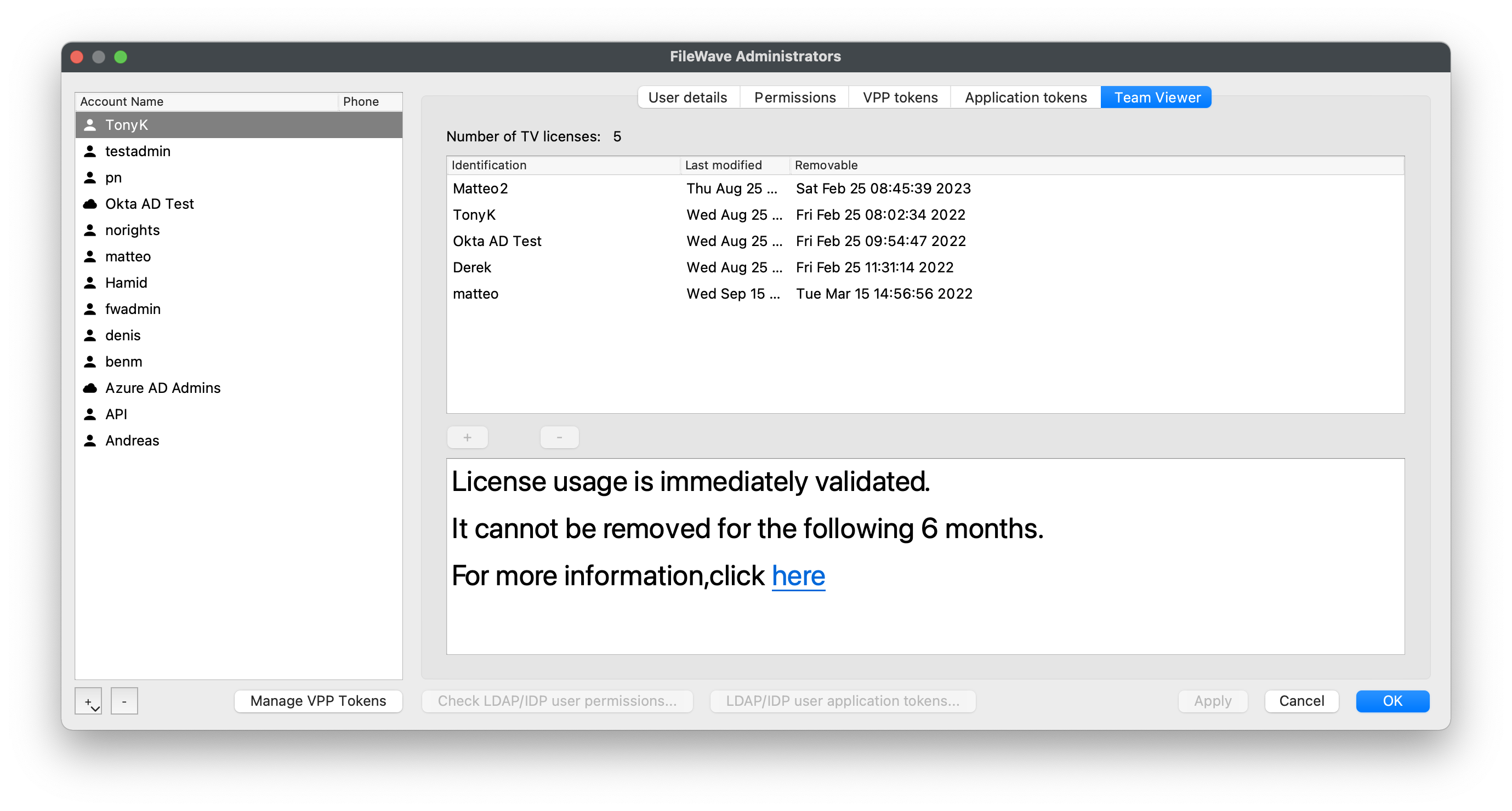
If youlicenses haveare availableavailable, licenses,click you'llthe beplus ablesign toand add administrators by entering in their login name or SMTP addressaddress. afterLogin clickingnames must match exactly, including case. In the plus sign. The user names will need to match specifically, including by case if a login name is specified (in theexample above, TonyK is correct,valid, but tonyk would not be).match. Note that genericGeneric accounts willcan be limited to usinguse TeamViewer in only one FileWave session.session at a time.
ConfirmationYou ofcan confirm the username may be observed from the Assistant >→ Administrators Online. window. Usernames is one of the columns displayedshown for each usersigned-in logged in.administrator.
In a later release of FileWave, several enhancements will be made to this interface to make it more elegant and easier to use, with proper validation.