TeamViewer: iOS/iPadOS Session Overview
What
This article picksshows upwhat froman iPhone or iPad user sees after a FileWave administrator requests a TeamViewer remote support session. Complete the FileWave and TeamViewer prerequisites before starting.
When to use it
Use these steps to guide the user through accepting an attended support session and starting the screen broadcast that TeamViewer needs. The user must remain available because iOS and iPadOS require confirmation on the device; the administrator requestingcannot aaccept remotethese controlprompts session through TeamViewer. It presumes that all device pre-requisites are already met.remotely.
When/WhyJoin the session
We'll usually create a remote session to try to resolve some type of support issue on a remote device. When we begin the remote session with an iOS device, it is important that we know how it behaves on the remote endpoint so that we can assist the end user if need be.
Behavior
OnceAfter the device receives the remote session notificationrequest, (thinkiOS ofor this as an alert to the device to begin a session), the device will receive a notification. This notification (a behavior of the OS) is somewhat subtle...ItiPadOS plays a notification sound and showsdisplays ana iconTeamViewer atnotification. The user must open that notification to view the topsession ofprompt:
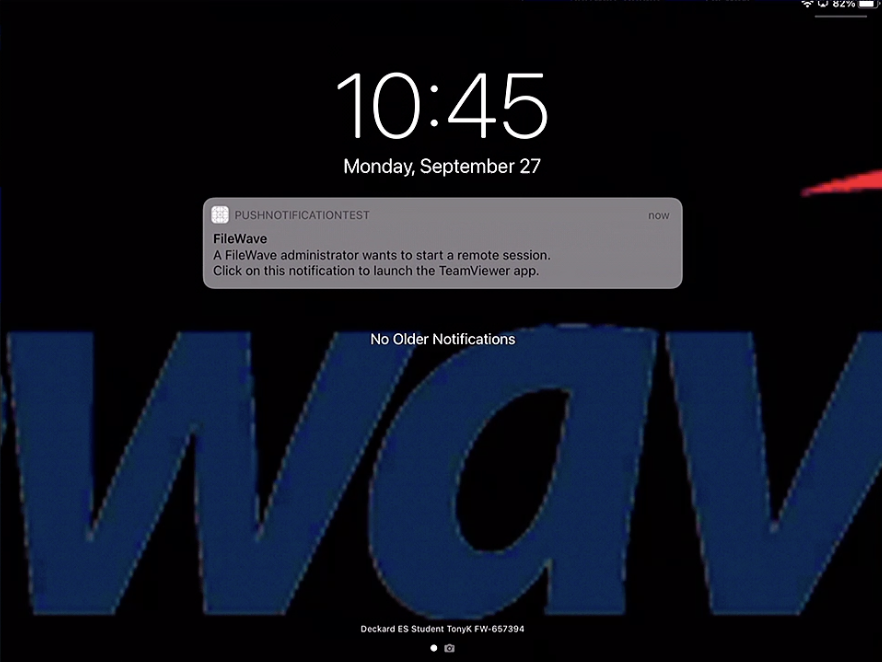
Opening the notification will show the prompt for the session:

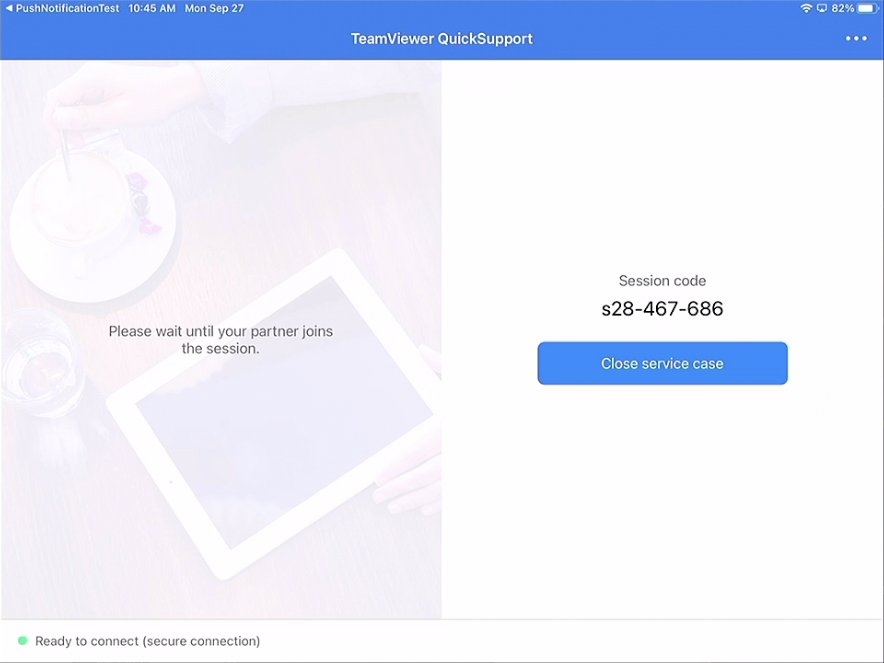
When that notification is acknowledged,launches the TeamViewer QuickSupport Appapp.
QuickSupport opendisplays the session code while it waits for the administrator to start a remote session.join.
On first launch, the QuickSupport app will prompt the user to accept the EULA (a one-time prompt)

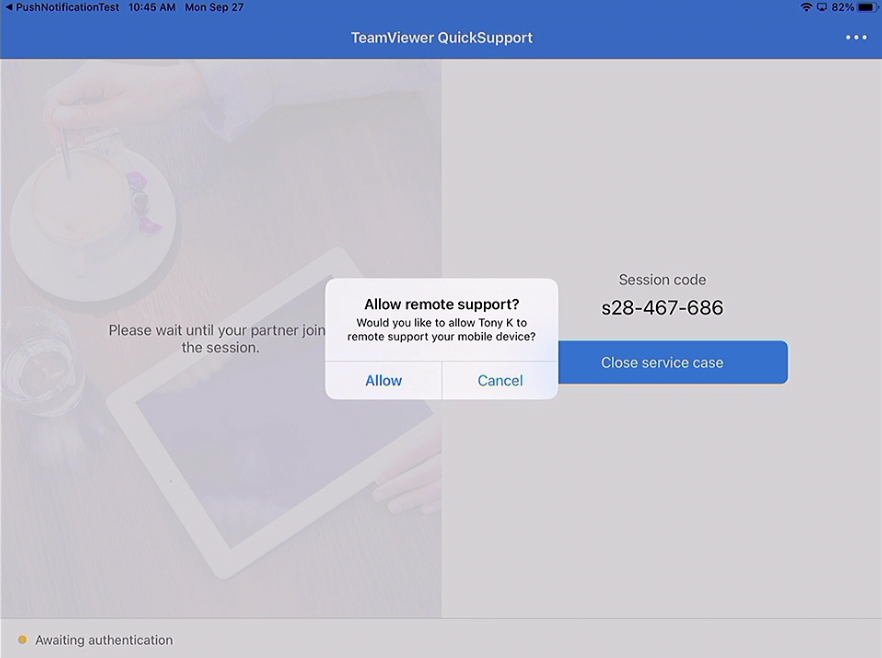
When the administrator's TeamViewer session is also running, thenready, the user will beis prompted to allow this specific session (forthe attended access):session:

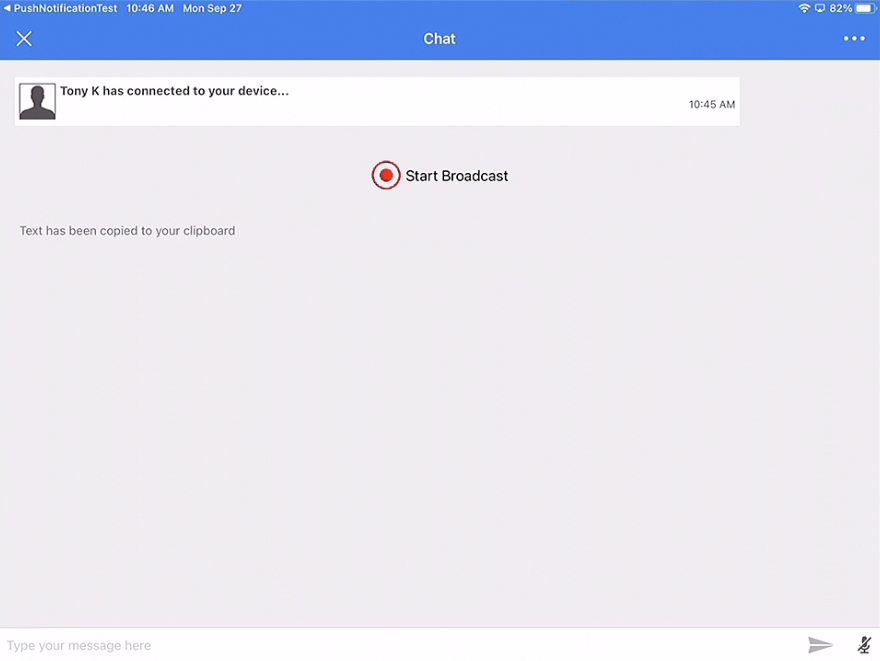
Additionally on iOS devices,After the user mustallows the attended session, QuickSupport displays Start Broadcast. Select it to continue:
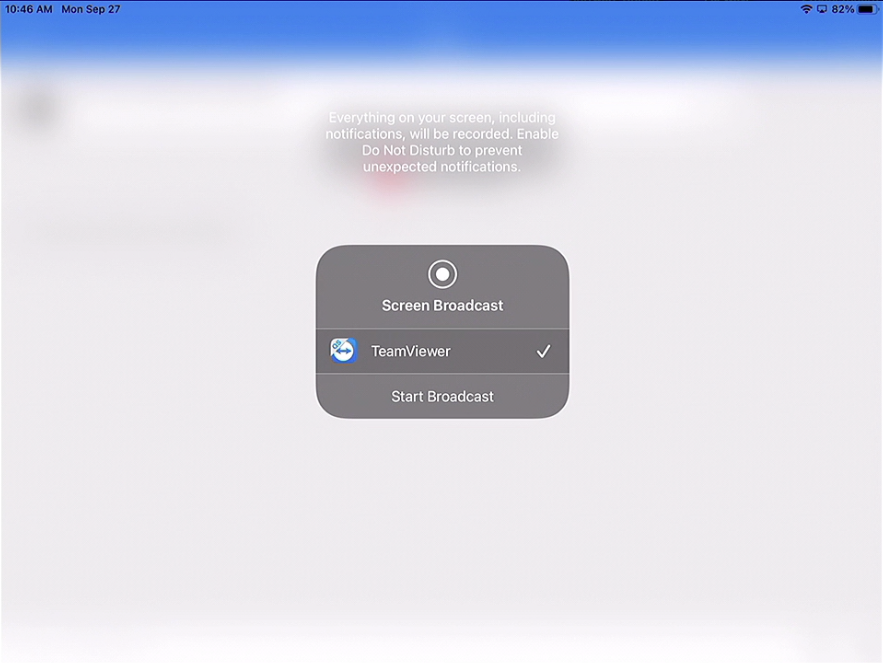
iOS or iPadOS then opens the Screen Broadcast control. Select TeamViewer and choose toStart broadcast the screen after being prompted:

and then...

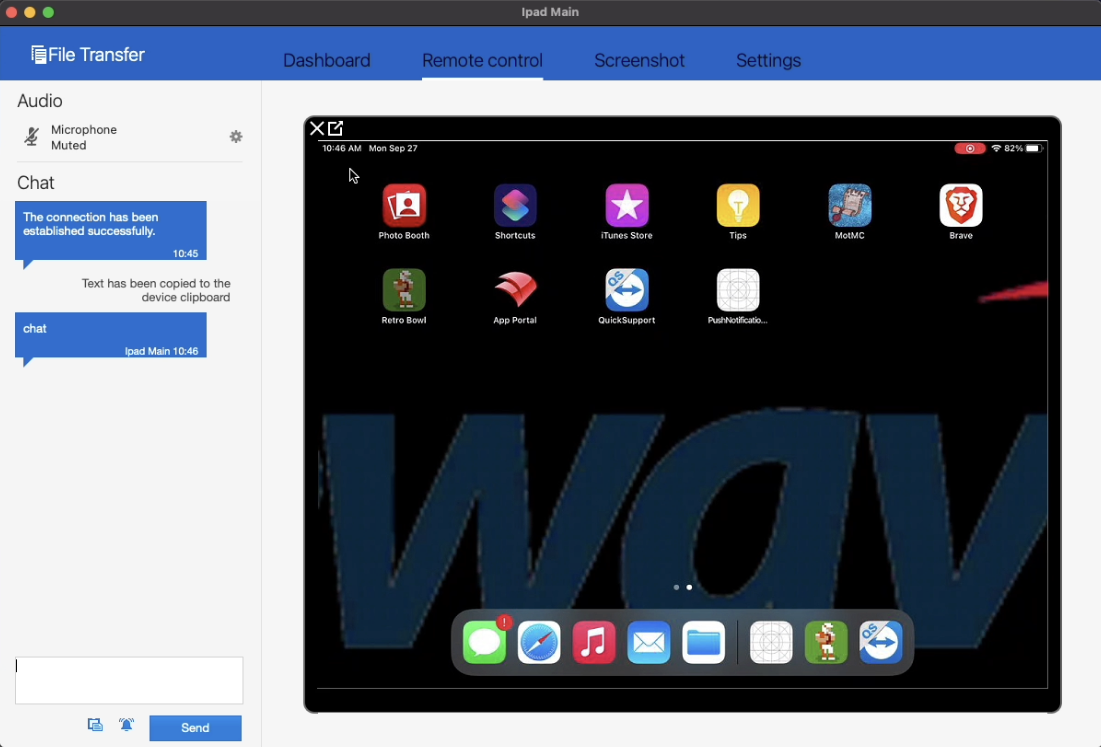
Once boththe actionsuser are completed,approves the session willand bestarts opened.the broadcast, Notethe thatadministrator iOScan remoteview the screen. iPhone and iPad sessions are screen-view only:only, so the administrator guides the user rather than controlling the device: