Desktop A-Game
- Desktop Fileset Timed Events
- Apple Profiles & Dependencies
- Policy Loops
- Updating 3rd Party Software
- Uninstall Filesets
- Inventory Items in Scripts
- Fileset Script Logging on macOS and Windows
Desktop Fileset Timed Events
Description
Filesets can activate at a specific date and time. For daily maintenance windows, such as installing software only after hours, use a Policy Blocker Script with Custom Fields to decide when the Fileset may continue.

Policy Blocker Scripts normally pause client management until the script returns exit status 0. Because this script type runs every 5 minutes on clients, it can also be used as a time-window gate for a Fileset.
Custom Fields make the active and inactive times adjustable per device or group without editing the script each time.
Ingredients
- One (or more) Custom Fields; 3 provided - Active Time Custom Fields.customfields
- Policy Blocker Scripts
| macOS | Windows |
| Policy - Timed Event macOS.fileset.zip | Policy - Timed Event Windows.fileset.zip |
Directions
- Download and import the provided Custom Fields
- Download and import the appropriate Fileset(s) (macOS and/or Windows)
Set the Custom Field values for the inactive and active times you need. Time values use hours, minutes, and seconds without leading zeros. Examples:
| Desired Time (HH:MM) | Custom Field Value (HHMMSS not including leading zeros) |
| 09:30 | 93000 |
| 12:55 | 125500 |
| 18:00 | 180000 |
If you change a Custom Field value for a device that is already running the policy, the client may need two later Model Updates for an immediate-looking result. The blocker script runs before the device reads the new Custom Field value during the first update. The next Model Update, or a later inventory update, lets the blocker script evaluate the new value.
Time Order
Times can be either way around.
Examples:
Consider working hours to begin at 08:30 and end at 18:00
Example 1
An item should only be considered outside of standard working hours.
- Disable Active Time: 83000
- Enable Active Time: 180000

Example 2
Alternatively, an item should be considered during working hours:
- Enable Active Time: 83000
- Disable Active Time: 180000

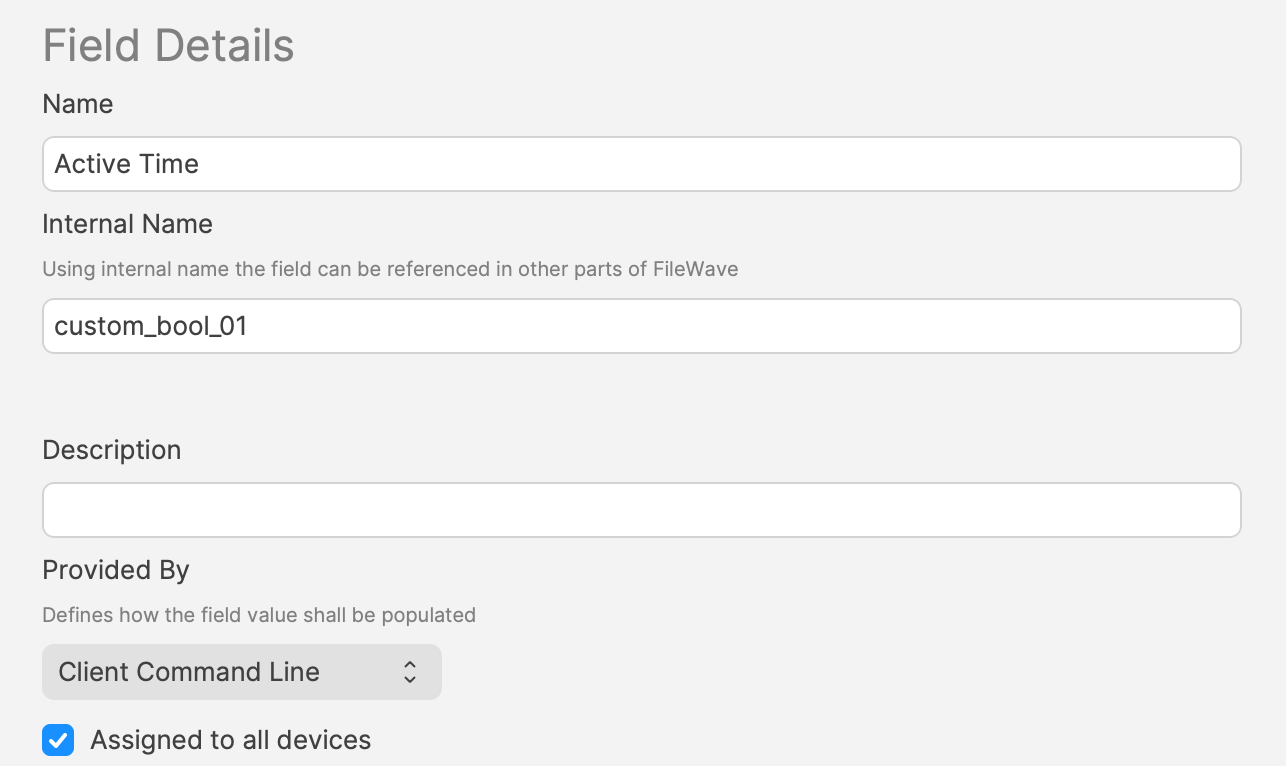
Imported Custom Fields are disabled for all devices by default. Once tested, consider using the option to assign to all devices for each Custom Field imported. The file provided contains all 3 Custom Fields.
Smart Groups
A third Custom Field stores a true/false value. A Smart Group can use that value to decide whether a Fileset should be associated at the current time.
This Custom Field uses custom_bool_01. If that value is already in use, choose another Custom Bool number in the script environment variables.
The script uses the following method to set these values.
Example
An update to Firefox needs to occur after 17:00 or before 09:30
- Disable Active Time = 93000
- Enable Active Time = 170000
Between these times, the 3rd Custom Field ‘Active Time’ should be False/0. Outside of these times, the ‘Active Time’ Custom Field should be True/1.
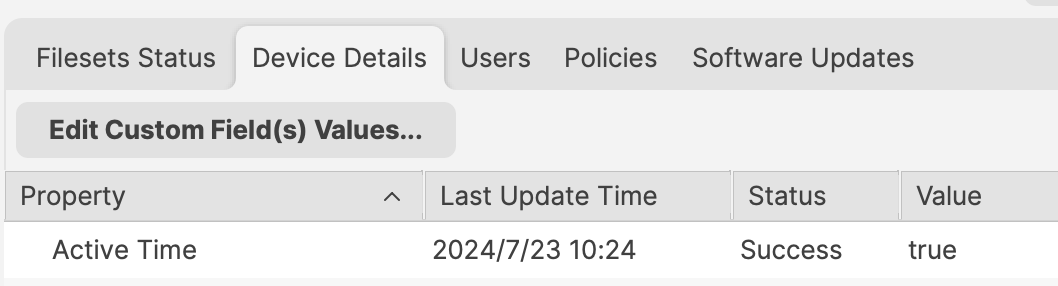
Smart Group can be based upon the following:
- Is Active Time True/1
- Is the version of Firefox matching that within the Fileset
Do not base the Smart Group only on the active time unless that is intentional. Devices will enter and leave that Smart Group every day, and associated Filesets can trigger each time the device enters the group.
Deeper Dive
The Policy Blocker script has 2 considerations initially:
- The hours between which the timed event should occur
- The current time
This means there is a time beyond which the desired action may occur and a time beyond which the action should not occur and this needs to be compared with the current time.
The enable/disable active times are provided by way of Executable Environments. Taking this a step further, these times are defined using Administrator Custom Fields. This way the times can more easily be altered if required.
A third Custom Field is being used to indicate if the current time is one of activity allowance or not, but this time a Client Command Line Custom Field.
Client Command Line Custom Fields are stored locally on the device and then this value is available to the server, both for visibility, but can also be used in queries, for Smart Groups.
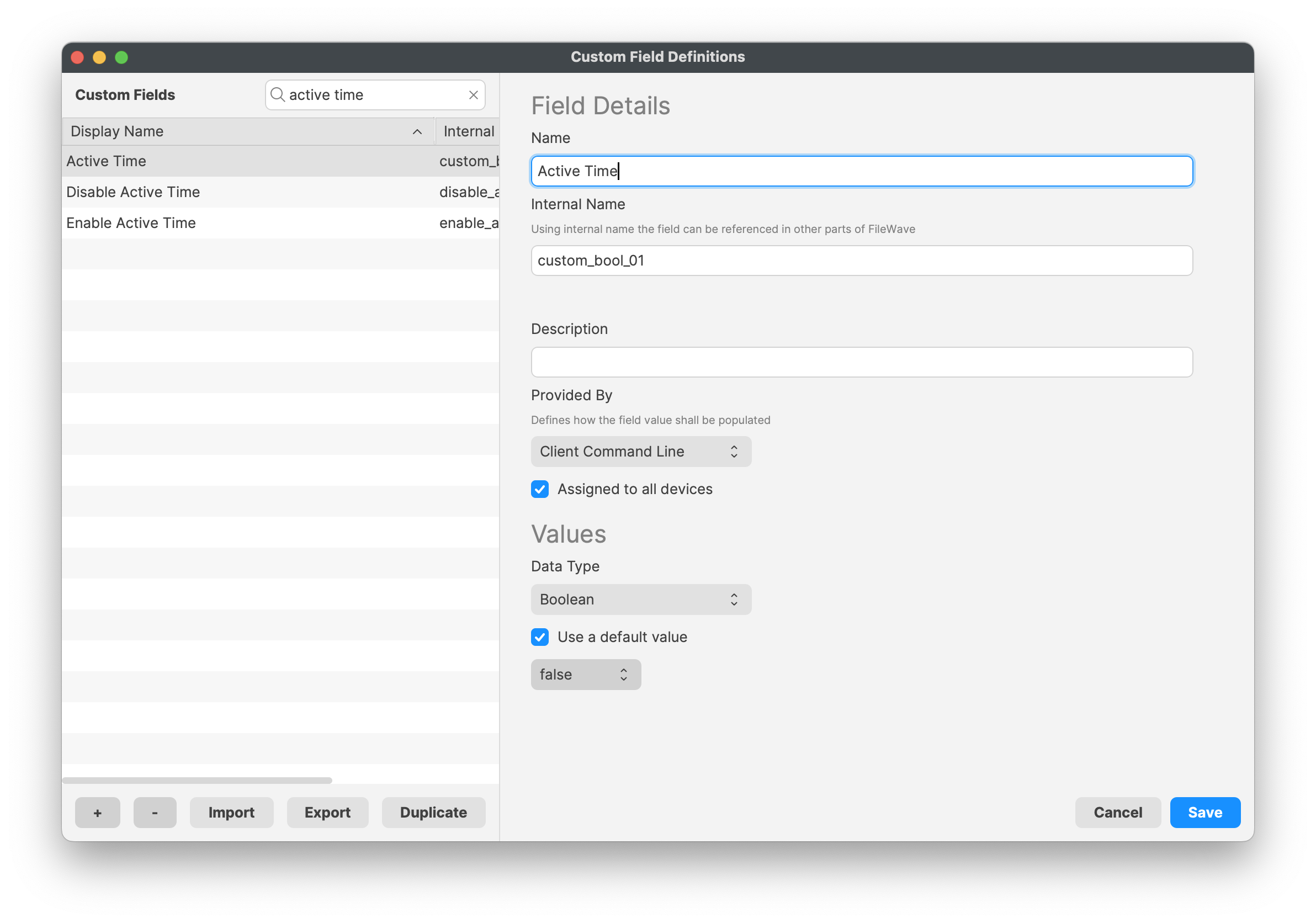
Client Command Line Custom Fields can be changed in FileWave Central, but the client value is pushed back to the server the next time the device reports inventory.
Apple Profiles & Dependencies
Description
FileWave dependencies are useful when one Fileset must install before another. Apple MDM profile Filesets need extra care because profile delivery depends on APNs and the device's MDM check-in timing, not just the FileWave Client sequence.
Fileset Activation Quick Re-cap
Standard Fileset
- The client checks in.
- The client receives its manifest.
- New items are downloaded and activated.
Apple MDM Fileset (Profiles)
- FileWave sends an APNs request to Apple.
- The device receives the queued APNs notification.
- The device contacts the FileWave Server for the MDM command.
- The device checks in.
- FileWave sends the queued MDM command, such as
InstallProfile. - Profile installs.
For standard Filesets, FileWave controls the client communication sequence. For Apple MDM profiles, the install time depends on APNs delivery, device connectivity, and the device's next MDM check-in.
The Issue
Filesets install sequentially. If a standard Fileset could depend directly on an Apple MDM profile Fileset, the client could wait indefinitely for the profile to finish, which would delay other Filesets and configuration. For this reason, Apple MDM Filesets can depend on other Fileset types, but standard Filesets should not depend directly on Apple MDM Filesets.
Requirement Scripts
Requirement Scripts let a Fileset fail its requirement check, allow the client to continue, and try the requirement again 2 minutes later. The requirement keeps retrying while the script returns a non-zero exit code. Use this pattern to delay a Fileset until the required Apple profiles are installed.
Ingredients
- Fileset designed to use a Requirement Script to ensure Profile is installed prior to activation
- Associated Profile ID(s)
Profile Dependency Fileset Template.fileset.zip
Directions
Download the Fileset, import it into FileWave, and edit it to match your requirements. Select the check_for_profile.sh script and click Get Info:

The Launch Arguments will initially appear empty.

For each Profile that must be installed before this Fileset, add the Profile ID to the Launch Arguments list. Use one launch argument per Profile ID. You can find the Profile ID in the payload details of the Profile Fileset.
For each Profile that must be installed, open the Profile for editing, highlight the Identifier, and copy it.

Copy these IDs into the Launch Arguments of the Fileset. The example below shows 5 Profile IDs added for a Microsoft Defender installer.

The script supports either matching behavior through the all_or_one environment variable. Set the value that matches your deployment:
| all | All of the listed Profiles must be installed prior to the Fileset becoming active. |
| one | At least one of the included Profiles must be installed prior to the Fileset becoming active. |
The example below shows a Fileset that requires all Profiles to be installed before Fileset activation for the same Microsoft Defender deployment:

With this set, add the installers that should run after the required Profiles are installed.
Create a Fileset Group and add this Fileset plus the required Profiles to the same group. This is optional, but it keeps the deployment easier to manage.
For example:

Associate the Fileset Group, test on a small scope, and then roll it out to more devices when the result is correct.
This Fileset is particularly useful with Apple TCC Privacy Settings Profiles. Privacy settings give software the access permissions it needs to function. These Profiles usually need to be installed before the protected app or service starts. If the software installs first, the software process may need to be restarted after the Profile installs. With this Fileset, the installer waits until the required Profile is in place before it downloads and installs.
Policy Loops
What
A policy loop happens when a Smart Group's criteria are changed by the Fileset or association assigned to that same Smart Group. The device enters the group, receives an action, then no longer matches the criteria. On the next Smart Group refresh it may leave the group, remove or change the Fileset, and then qualify again. The result can be repeated installs, removals, downgrades, or confusing association churn.
When/Why
The risk is highest when group membership is based on the exact state that the Fileset changes, such as an application version, installed-file presence, or another inventory value that changes immediately after activation.
Example 1: version-based installer loop
Imagine a PKG macOS installer Fileset for an app called CLU.app, version 1.0. It is associated to all devices based on two criteria:
- Device OS is macOS
- Device does not have CLU.app version 1.0 installed
Once the software is installed, those devices no longer belong to the group because version 1.0 is now installed.
A new version of the software is released: CLU.app version 1.1. A new association is created with a different Smart Group using similar criteria:
- Device OS is macOS
- Device does not have CLU.app version 1.1 installed
Devices running version 1.0 will join the new Smart Group at the next refresh. The new Fileset activates, the software upgrades from 1.0 to 1.1, and the devices then leave the version 1.1 group because they no longer match its criteria.
The problem appears on the next Smart Group refresh. Because version 1.0 is no longer installed, those same devices may qualify again for the older version 1.0 Smart Group. If the older PKG can install over the newer version, the software is downgraded back to 1.0. Once that happens, the device qualifies again for the 1.1 group, and the cycle repeats.
This is a policy loop: the device keeps moving between groups because each successful deployment changes the criteria used to target the next deployment.
Example 2: self-healing Fileset loop
The same principle can happen with one group. In this example, CLU.exe version 1.0 is delivered as a file-level self-healing Fileset for Windows.
The Smart Group criteria are:
- Device OS is Windows
- Device does not have this software installed
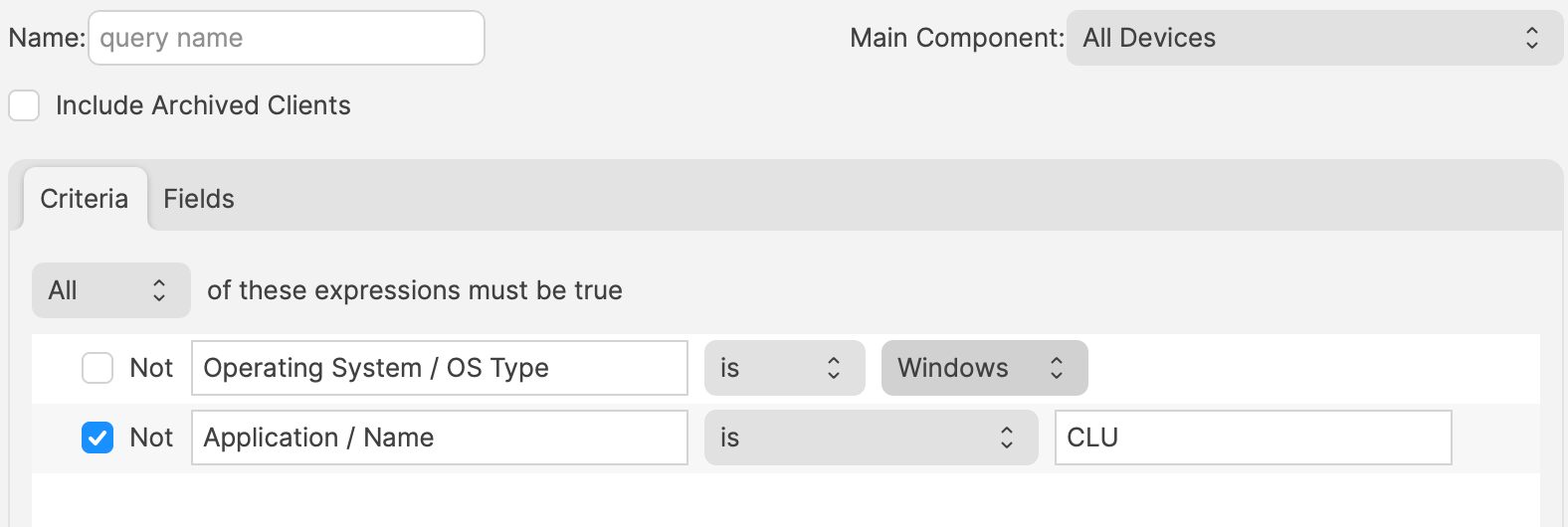
Windows devices without the software enter the Smart Group, receive the Fileset, and report that the software is now installed. At the next Smart Group refresh, those devices no longer meet the criteria and leave the group.
Because the Fileset is self-healing, leaving the association can remove the software. The user loses the application, the next refresh sees the device as missing the software again, and the device re-enters the group. The software is then installed again, removed again, and the loop continues.
Avoiding the loop
- Do not leave old and new version associations active when each group only means "does not have version X installed." Retire or supersede the older deployment association when the newer version becomes the intended state.
- Use stable targeting criteria where possible, such as department, building, device role, enrollment workflow, or a curated group that represents deployment intent instead of current application state.
- If application or file presence is needed as a safety check, make sure the device does not leave the long-term deployment target solely because the Fileset succeeded.
- Test the Smart Group and association on a small set of devices, then verify membership again after client inventory and Smart Group refresh have both run.
The answer is not to avoid Smart Groups or self-healing Filesets. Both are core FileWave workflows. The important part is to design criteria so a successful deployment does not immediately undo its own targeting logic.
Fast Smart Group Evaluation can be useful for time-sensitive membership changes, but it does not fix a policy loop. If the criteria are unstable, faster evaluation can simply make the loop show up sooner.
Related Content
- Using Queries to create Smart Groups
- Fast Smart Group Evaluation
- Fileset Association types and precedence
Updating 3rd Party Software
What
Third-party software needs a clear update plan. Decide which apps FileWave should update directly, which apps may use their own updater, and how you will roll back if an update causes trouble.
Managed store apps, such as Apple VPP apps, can update through the platform. Software deployed with PKG, MSI, EXE, or file-level Filesets needs a separate decision. Either let the vendor updater run, or build and deploy updated Filesets yourself.
Some vendor updaters work without local admin rights. Others fail silently, require user prompts, or need FileWave to push the update. Test the updater behavior before you rely on it.
Why
The main choice is per application. Allow the software to update itself, or block the updater and deploy a new Fileset for each approved version. Base that choice on the factors below.
For example:
- Is the software being deployed critical to business
- Are there company restrictions that prevent software being updated before approval
- Does the software even have an auto updater
- How easy is it to prevent the software from updating, where an auto update does exist
- Do you trust the software supplier enough to allow updates to occur without prior testing
- What impact could occur if an update went wrong and what is the rollback option
- Is a reboot required after the update
How
The details below help you choose the right Fileset behavior for each update model.
Denying AutoUpdates
For software with an updater, first identify how the updater is configured. Then confirm how to disable it safely.
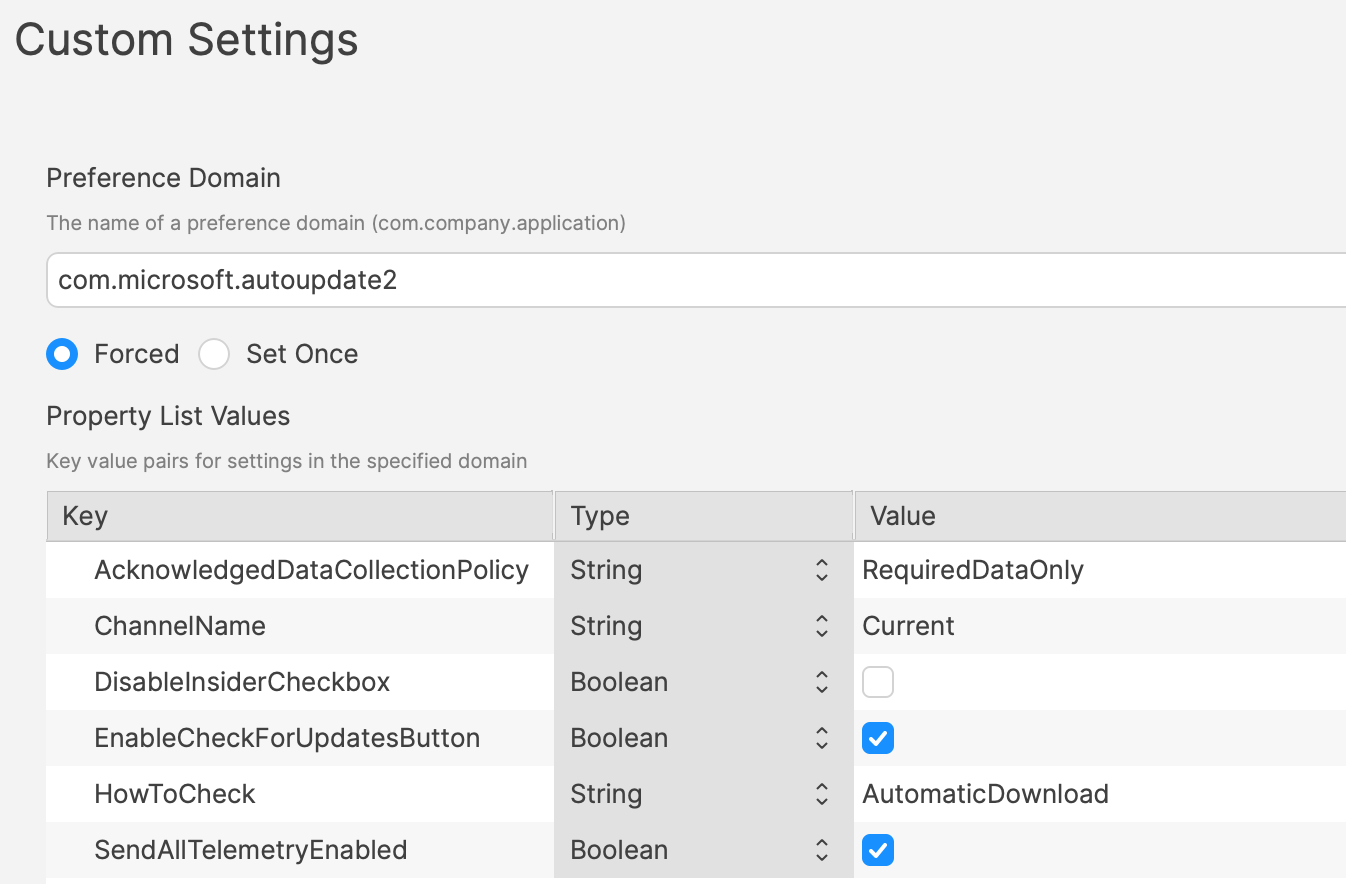
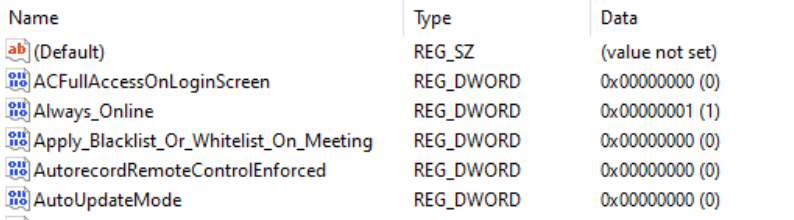
Many vendors expose update controls through a Windows registry value, a macOS plist preference, an enterprise policy, or an installer option. Vendor documentation or other admin posts may identify the setting. Some applications still require testing to confirm what changes.
One practical method is to compare files and settings before and after changing the application's update preferences. Fileset Magic can help with that comparison. It takes a snapshot before the change and another snapshot afterward. You can then compare the two snapshots to see what changed.
Allowing AutoUpdates
Not every application needs tightly controlled updates. For lower-risk apps, allowing vendor updates can reduce packaging work. Apple VPP apps are platform-managed, so they follow a different update path. Confirm that auto-updates are actually enabled. Also confirm they work when users do not have local admin rights.
If the updater fails for standard users, manage that application with the same FileWave-controlled update process you would use when blocking vendor updates.
Considerations
For either method, there are some additional considerations, which mostly centre around self-healing.
Denying Autoupdates
When using a file level Fileset to deploy software, files should be set as self-healing.
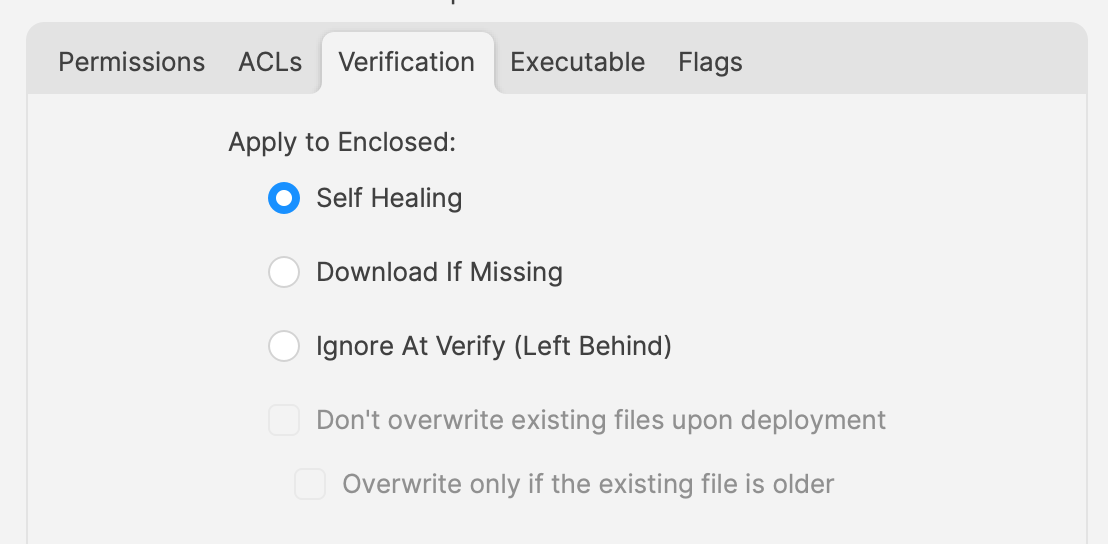
Self-healing helps FileWave keep deployed files in their expected state. When you associate a new version in the same Model, disassociate the older version at the same time.
If both Filesets stay associated, FileWave may keep files from the older version while also adding files from the newer version. That can leave removed or renamed application files behind. Those leftovers can break an application if the newer version still finds and loads them.
Allowing AutoUpdates
For software that is allowed to auto-update, file-level Filesets usually should not use self-healing for the application files.
When software updates itself, it changes files that FileWave originally deployed. If those files are set to self-heal, the next verification can replace updated files with the older Fileset copy. Self-healing can also restore files the updater removed. That can leave the application in a mixed state. For this update model, Ignore at Verify is usually the better choice.
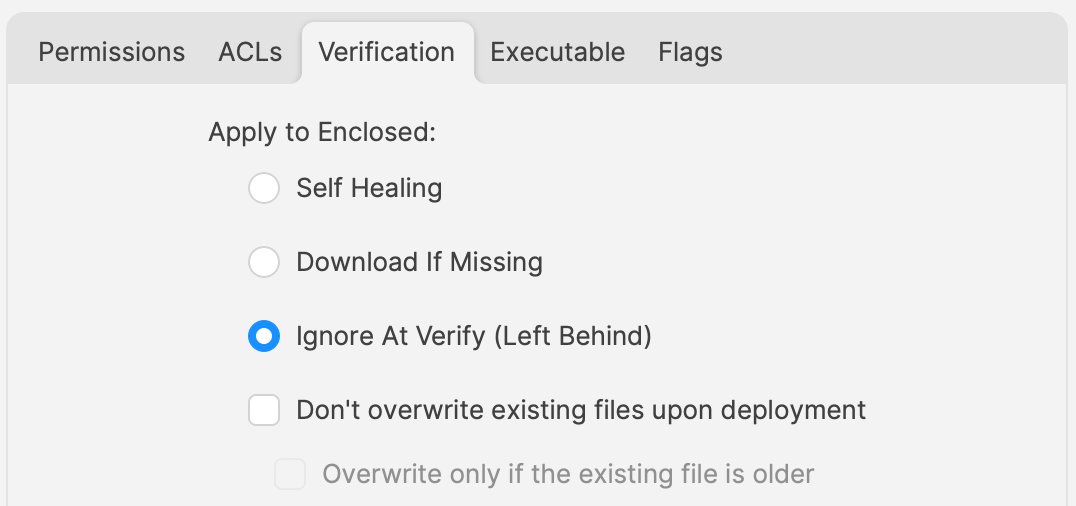
Ignore at Verify creates two follow-up questions.
Un-installing.
Uninstallers can take several forms. In the allowed auto-updater example, self-healing is not the removal method. Plan a separate uninstall path. FileWave can still handle that with an uninstall script or a dedicated removal Fileset.
Rollback
When software auto-updates, FileWave may only have the original installer version available unless you also package later versions. If you need to roll back, you may need to build and test the rollback Fileset before it can be deployed.
Overview
Choose the update model per application, document the uninstall and rollback path, and test with standard-user accounts before rolling it out broadly.
Uninstall Filesets
What
When software is no longer needed, the removal method depends on how it was originally deployed. This article outlines the common FileWave uninstall paths and where a custom uninstaller is still required.
Options
Self-Healing
If a Fileset uses Self Healing and Download if Missing for tracked files, disassociating the Fileset removes the files that are part of that Fileset.
MSI
Windows MSI Filesets are different because MSI packages can expose an uninstall action. When the Fileset is configured to use that feature, disassociating the Fileset can trigger the MSI uninstaller.

PKG/EXE
PKG and EXE installers do not provide the same built-in uninstall behavior as MSI packages. In many cases the Fileset only tracks the installer itself, not every file created by the installation. If the software vendor does not provide a separate uninstall PKG, EXE, or script, you will usually need to build your own removal script.
Apple VPP & Android Play Store
Disassociating these Filesets sends a command to remove the application.
Other Files
Applications often create supporting files after first launch, such as preferences, caches, or user data. If you need to remove those items too, you will normally need a separate cleanup method.
Why
Removing unused software helps keep devices clean, reduces confusion for users, and can support security and license-management goals.
When
Knowing how to uninstall software is only half of the job. You also need to decide when the uninstall should run.
At first glance it may seem natural to place a pre- or post-uninstaller script inside the same Fileset as the installer. That can work against you when the application is updated.
As vendors release updates, you may replace the installer with a new Fileset or a new Fileset revision. Self-Healing handles matching files cleanly during that swap, but any uninstall script inside the installer Fileset can also run during the change, which is usually not what you want.
How
A common way to control this is to separate installation and removal logic by using a Fileset Group.
In the example below, the Fileset Group for Microsoft Defender includes the installer Fileset, related profiles, and a separate uninstaller Fileset. Devices are associated with the Fileset Group, not directly with the uninstaller.

The uninstaller Fileset uses a pre-uninstallation script:

This makes installer updates straightforward. You can replace the installer Fileset or swap revisions inside the group without firing the uninstall. The uninstall runs only when the Fileset Group itself is disassociated from the device.
PKG/EXE Uninstallers
If a vendor supplies an uninstall PKG, it is usually cleaner to place that PKG in an otherwise empty Fileset and trigger it from an uninstall script, similar to the Microsoft Defender example above.
Trying to auto-associate a separate uninstall PKG exactly when the original installer is disassociated can be difficult to control reliably.
EXE-based uninstallers have the same issue. A practical pattern is to upload the uninstall EXE to an empty Fileset and call it from a pre- or post-uninstallation script.

This gives you a dedicated uninstaller Fileset that can be added to a Fileset Group and triggered only when you actually want removal to occur.
Inventory Items in Scripts
What
- Each inventory item, including each Custom Field, has an internal name.
- Scripts can use that internal name to read inventory values supplied by FileWave.
- Add the internal name as either a launch argument or an environment variable for the script.
- This applies to Custom Field scripts, Policy Blocker scripts, and Fileset scripts.
When
Find the internal name in the Inventory Report editor (formerly the Inventory Query Editor). The example below shows the internal name ‘device_product_name’.

Add that value to the script as either a launch argument or an environment variable.

But, which should be used?
How
Either method can work. Choose the one that makes the script easiest to read and maintain:
- Launch Arguments are referenced by their numerical position
- Environment Variables are referenced by a chosen name
- Custom Fields have an abbreviated name and a full name. Custom Field names could overlap with a built-in Inventory Item.
Built-In Inventory
In most cases, environment variables are easier to read because the script can use a meaningful variable name instead of relying on launch-argument position.
For example:

Could be referenced in a script as:
| macOS shell | echo $1 |
| Windows Powershell | echo $args[0] |
But to make the parameters more easily recognisable for anyone reading the script, it could be desirable to name them:
| macOS shell |
|
| Windows Powershell |
|
References to the provided inventory parameters in the script now makes more sense, but as mentioned, Environment Variables take this a step further:

A variable name is already defined and this can be referenced in the script directly
echo $product_nameImprovements
First Improvement
To improve the readability of the script further, consider setting the variable name to match the value, e.g:

echo $device_product_nameSecond Improvement
When referencing a Custom Field in a script, it could be referenced in one of two ways.
Example Custom Field: State

Note, the description has been used to indicate this is a Custom Field. Inventory Query editor shows Description.
This could be referenced with:

and
echo $stateHowever, there is a built-in Inventory Item called State. So there are now two Internal Names of ‘state’


The above scripted example for 'state' would actually report the built-in value, not the Custom Field. There is, though, a hidden prefix that can be used.
This Custom Field could be referenced as either:
- %state%
- %CustomFields.state%
The latter prevents an unexpected collision with the matching built-in internal name. To make the parameters obvious when reading the script:

echo $custom_fields_state
echo $internal_device_product_name
Notice, despite no prefix existing for built-in Inventory Items, by including a prefix for both variables in the Environment Variables definitions, reading the script will be much clearer.
Anyone reading the script is now aware that state is a Custom Field, without having to cross reference anything. Likewise, the reader also is aware that the device_product_name also comes from Inventory, again, without any cross reference necessary.
Unknown Inventory
Not all Inventory Items are available as parameters.
The FileWave Client builds the inventory report and returns it to the server. Custom Fields, including server-side Administrator Custom Fields, are available to the client. Inventory returned only by MDM is not available to client-side scripts because the client does not know those server-side values.
%CustomFields.location%
Fileset Script Logging on macOS and Windows
What FileWave records
FileWave enables logging by default for scripts added to a Fileset through the Script view. The log records the script's standard output, timestamps, and exit code.

Where to find Fileset script logs
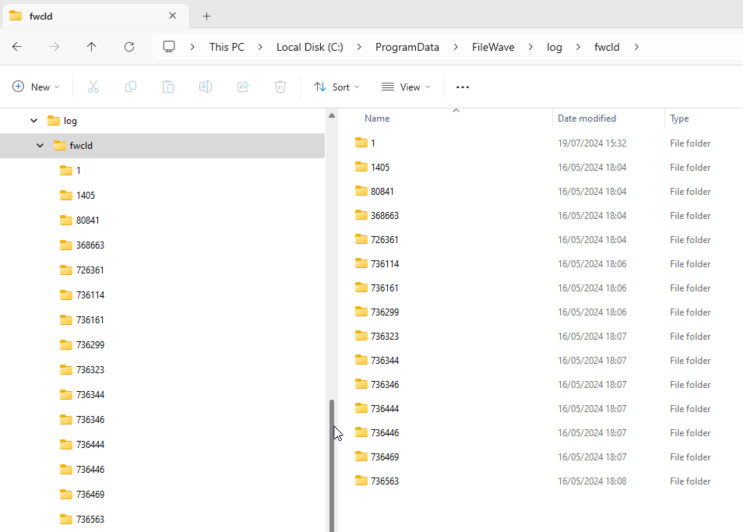
Each time FileWave runs the script, it creates or appends to a log file. Logs are stored in a subfolder named for the Fileset ID. The examples below show the macOS and Windows locations.
macOS
# ls -al /private/var/log/fwcld/
total 0
drwxrwxrwx  17 root  wheel   544 Mar  5 16:01 .
drwxr-xr-x  83 root  wheel  2656 Jul 31 08:27 ..
drwxrwxrwx   3 root  wheel    96 Aug  1  2023 1
drwxrwxrwx   5 root  wheel   160 Sep 25  2023 54231
drwxrwxrwx   6 root  wheel   192 Sep 26  2023 54235
drwxrwxrwx   3 root  wheel    96 Nov  9  2023 54367
drwxrwxrwx   3 root  wheel    96 Nov  9  2023 54368
drwxrwxrwx   3 root  wheel    96 Nov  9  2023 54374
drwxrwxrwx   3 root  wheel    96 Nov  9  2023 54379
drwxrwxrwx   3 root  wheel    96 Nov 10  2023 54384
drwxrwxrwx   3 root  wheel    96 Nov 10  2023 54396
drwxrwxrwx   3 root  wheel    96 Nov 10  2023 54401
drwxrwxrwx   3 root  wheel    96 Nov 10  2023 54406
drwxrwxrwx   3 root  wheel    96 Dec 15  2023 54417
drwxrwxrwx   3 root  wheel    96 Dec 15  2023 54419
drwxrwxrwx   3 root  wheel    96 Dec 15  2023 54421
drwxrwxrwx   3 root  wheel    96 Mar  5 16:01 55188
Windows
Read a script log
This example uses macOS. Windows logs contain the same header, script output, footer, and exit-code information.
Consider this simple shell script that runs a command to output the username that ran the command:

On running the command, the user running the command will be reported. For example, running this locally on a device might reply:
% whoami
sholden
Viewing the log generated by FileWave:
# cat /private/var/log/fwcld/54421/whoami.sh.log
----------------------- HEADER - Date: (Fri Dec 15 2023) - Time: (16:40:21) -----------------------
root
----------------------- FOOTER - Date: (Fri Dec 15 2023) - Time: (16:40:22) - Exit code: (0) -----------------------
The log contains:
Add useful diagnostic output
Some commands produce no standard output. Add concise echo statements or the equivalent for the script language so the log identifies the step being attempted, the condition found, and the reason for a nonzero exit.
Here is an example of a Fileset Requirement Script, waiting for confirmation of a Profile to be installed before activating the Fileset:

The script is outputting additional information, showing the ID of the Profile, found or not. On success, exit 0, else exit 1.
By default, a Requirement Script retries every two minutes until it succeeds, unless the script or Fileset logic changes that behavior.
----------------------- HEADER - Date: (Thu Jul 31 2024) - Time: (11:03:12) -----------------------
Did not find ml1063.local.aa0bd493-960d-4dc0-9631-a3fea189191e.Configuration.aa0bd493-960d-4dc0-9631-a3fea189191e
Did not find ml1063.local.5a57bcb9-7293-4cba-a20b-126eb2660b25.Configuration.5a57bcb9-7293-4cba-a20b-126eb2660b25
----------------------- FOOTER - Date: (Thu Jul 31 2024) - Time: (11:03:12) - Exit code: (1) -----------------------

----------------------- HEADER - Date: (Thu Jul 31 2024) - Time: (11:05:12) -----------------------
Found installed profile:  ml1063.local.aa0bd493-960d-4dc0-9631-a3fea189191e.Configuration.aa0bd493-960d-4dc0-9631-a3fea189191e
----------------------- FOOTER - Date: (Thu Jul 31 2024) - Time: (11:05:12) - Exit code: (0) -----------------------
On first attempt, the log shows two Profiles were searched and not found, with the script exiting a value of 1. On second attempt, the first Profile ID is now showing as installed and the script exited with a value of 0.
Scripts without a Fileset log
Some FileWave script contexts, including Policy Blocker scripts, do not create the Fileset script log shown above. The FileWave Client log may record only that the script ran.
When that context needs more detail, have the script write a dedicated log file and include only the diagnostic output administrators need.
Plan log rotation.
Choose whether each run should overwrite or append, and prevent an append-only log from growing without a limit.