
Fast Smart Group Evaluation
What
Fast Smart Group Evaluation lets selected Smart Groups evaluate on a shorter interval than normal Smart Groups. Use it when waiting for the normal Smart Group refresh would delay an important action, such as a newly enrolled device needing required assignments after its first check-in or inventory update.
When to use it
Use fast evaluation for a small number of time-sensitive Smart Groups that drive initial device setup, enrollment cleanup, urgent remediation, or another workflow where group membership needs to update quickly.
Do not enable it on broad reporting groups or every deployment group. Fast evaluation does not make clients submit inventory faster; it evaluates eligible Smart Group membership more frequently once the server has the data needed to evaluate the criteria.
Performance limit
Smart Group evaluation consumes server resources, especially in large environments or when criteria are complex. FileWave allows up to 3 Smart Groups with Fast Smart Group Evaluation enabled. This keeps fast evaluation useful for critical workflows without allowing many Smart Groups to add constant recurring load.
Configure it
In FileWave Central, create or modify the intended Smart Group and review its membership criteria before enabling faster evaluation. For a report-based group, Preview Smart Group Membership explains how to check eligible clients rather than relying on the report row count. The Fast Smart Group Evaluation checkbox is available in the Smart Group editor.
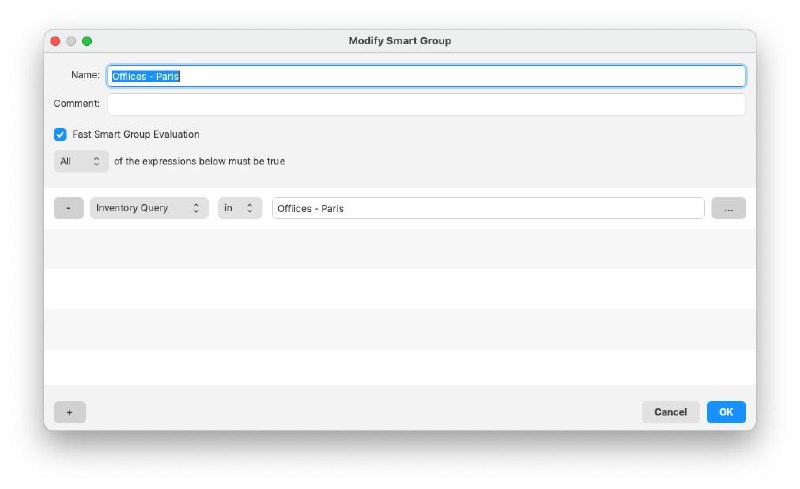
- Enable Fast Smart Group Evaluation on the Smart Group that needs faster membership updates. If FileWave reports that the limit has been reached, review the existing fast-evaluation Smart Groups and disable it on a lower-priority group before enabling another one.
- Save the Smart Group with OK.
- In Inventory preferences, review Fast smart group refresh period. This is the server-wide interval for all fast-evaluation groups; change it only if the existing interval does not meet the intended need.
- Coordinate with the other administrators and review shared pending changes before running Update Model; a model update is not limited to this group.
Verify the result
Check a representative device whose inventory meets the criteria. First confirm that the needed value has reached the Server, then observe the saved group's membership after its configured refresh interval. If the device is missing, check its inventory value and eligibility before shortening the interval. A faster evaluation cannot use data the Server has not received.
If the group drives a Deployment, verify the assigned app or setting on the device separately. Membership is not proof that installation finished. Watch Server performance after changing the fast interval, and keep faster evaluation limited to the time-sensitive groups that need it.
No comments to display
No comments to display