
Desktop Fileset Timed Events
Description
Filesets havecan activate at a specific date and time. For daily maintenance windows, such as installing software only after hours, use a Policy Blocker Script with Custom Fields to decide when the optionFileset tomay set an activation time, but what about items based upon timing of day, for example, rather than a dedicated date.continue.

Policy Blocker Scripts are really designed tonormally pause client management ofuntil clients. the However,script withreturns someexit cleverstatus use,0. aBecause Policy Blocker Script can provide us with some assistance. Thisthis script type runs every 5 minutes on clients. clients, Althoughit can also be used as a time-window gate for a Fileset.
Custom Fields make the intentionactive isand toinactive pausetimes managementadjustable untilper device or group without editing the script reportseach an exit status of 0, the 5 minute continual trigger can be leveraged.
Extending this with Custom Fields, it is possible to build out a desired outcome.time.
Ingredients
- One (or more) Custom Fields; 3 provided - Active Time Custom Fields.customfields
- Policy Blocker Scripts
| macOS | Windows |
| Policy - Timed Event macOS.fileset.zip | Policy - Timed Event Windows.fileset.zip |
Directions
- Download and import the provided Custom Fields
- Download and import the appropriate Fileset(s) (macOS and/or Windows)
AlterSet the Custom FieldsField values for Inactivethe inactive and Activeactive times toyou suit. need. Time isvalues set usinguse hours, minutesminutes, and seconds. seconds E.g.without leading zeros. Examples:
| Desired Time (HH:MM) | Custom Field Value (HHMMSS not including leading zeros) |
| 09:30 | 93000 |
| 12:55 | 125500 |
| 18:00 | 180000 |
If changingyou thechange a Custom Field value for a device whichthat is already running the policy, 2the subsequentclient may need two later Model Updates willfor needan to be received by the client, if immediate-looking forresult. a more ‘immediate’ result. The blocker script holdsruns before the clientdevice until success. This means, during a Model Update, the blocker will run beforereads the new Custom Field Valuevalue will be read byduring the device. first Asupdate. such,The onlynext afterModel Update, or a subsequentlater updateinventory (orupdate, inventory) willlets the blocker script be aware ofevaluate the new Custom Field value. Custom Fields will naturally update on devices with inventory, but this is less frequent.
Time Order
Times can be either way around.
Examples:
Consider working hours to begin at 08:30 and end at 18:00
Example 1
An item should only be considered outside of standard working hours.
- Disable Active Time: 83000
- Enable Active Time: 180000

Example 2
Alternatively, an item should be considered during working hours:
- Enable Active Time: 83000
- Disable Active Time: 180000

Imported Custom Fields are disabled for all devices by default. Once tested, consider using the option to assign to all devices for each Custom Field imported. The file provided contains all 3 Custom Fields.
Smart Groups
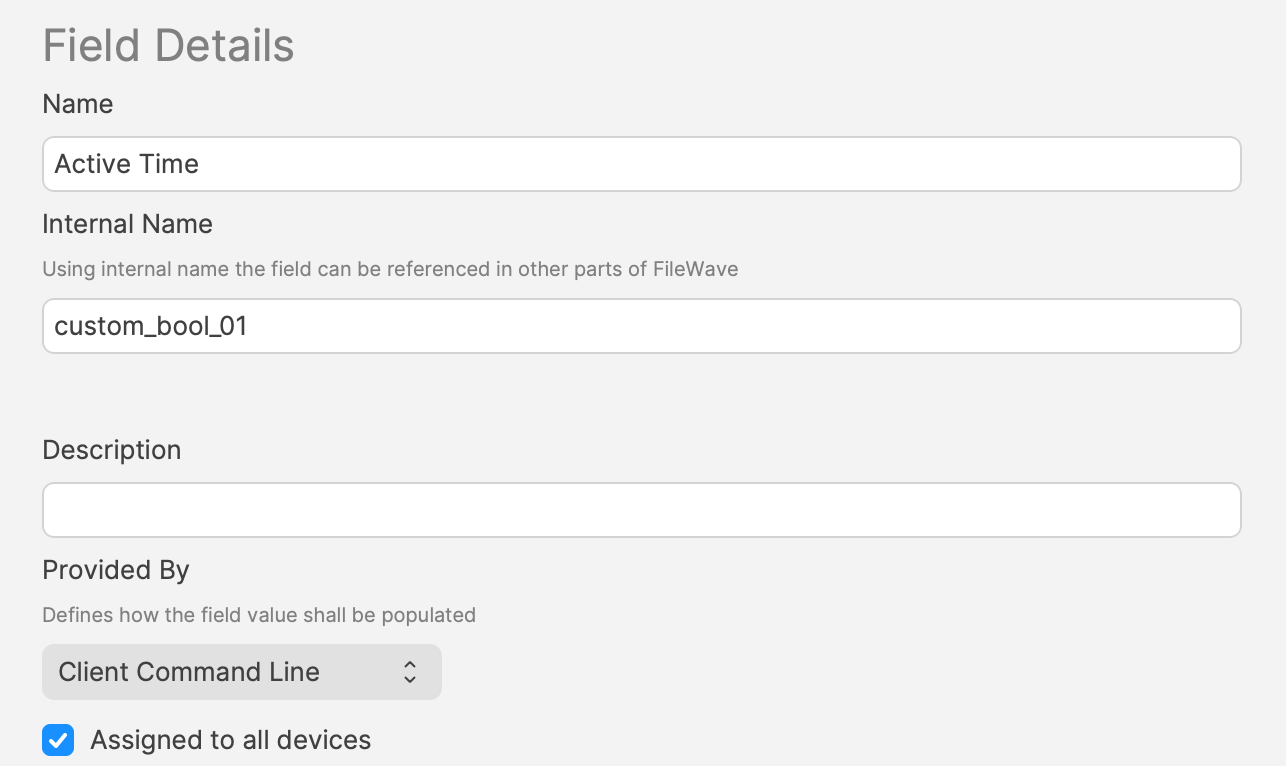
A third Custom Field holdsstores a true/false value. This value may be used with aA Smart Group query,can use that value to determinedecide ifwhether ana itemFileset should be associated at thisthe timecurrent or not.time.
This Custom Field is set to useuses custom_bool_01. If thisthat value is already in use, anchoose alternateanother Custom Bool number should be utilised instead. This is editable throughin the Scriptsscript Environmentenvironment Variables. variables.
The script uses the following method to set these values.
Example
An update to Firefox needs to occur after 17:00 or before 09:30
- Disable Active Time = 93000
- Enable Active Time = 170000
Between these times, the 3rd Custom Field ‘Active Time’ should be False/0. Outside of these times, the ‘Active Time’ Custom Field should be True/1.
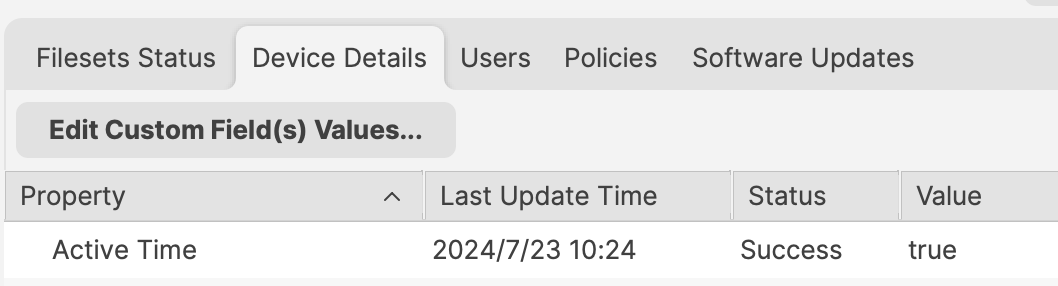
Smart Group can be based upon the following:
- Is Active Time True/1
- Is the version of Firefox matching that within the Fileset
Do not justbase usethe Smart Group only on the active time,time unless that is intentional. Devices will continually enter and leave thethat Smart Group ifevery thisday, is set to only use the Active Time, each day. If an item is associated in this way,and associated Filesets willcan trigger everyeach time the device enters the group.
Deeper Dive
The Policy Blocker script has 2 considerations initially:
- The hours between which the timed event should occur
- The current time
This means there is a time beyond which the desired action may occur and a time beyond which the action should not occur and this needs to be compared with the current time.
The enable/disable active times are provided by way of Executable Environments. Taking this a step further, these times are defined using Administrator Custom Fields. This way the times can more easily be altered if required.
A third Custom Field is being used to indicate if the current time is one of activity allowance or not, but this time a Client Command Line Custom Field.
Client Command Line Custom Fields are stored locally on the device and then this value is available to the server, both for visibility, but can also be used in queries, for Smart Groups.
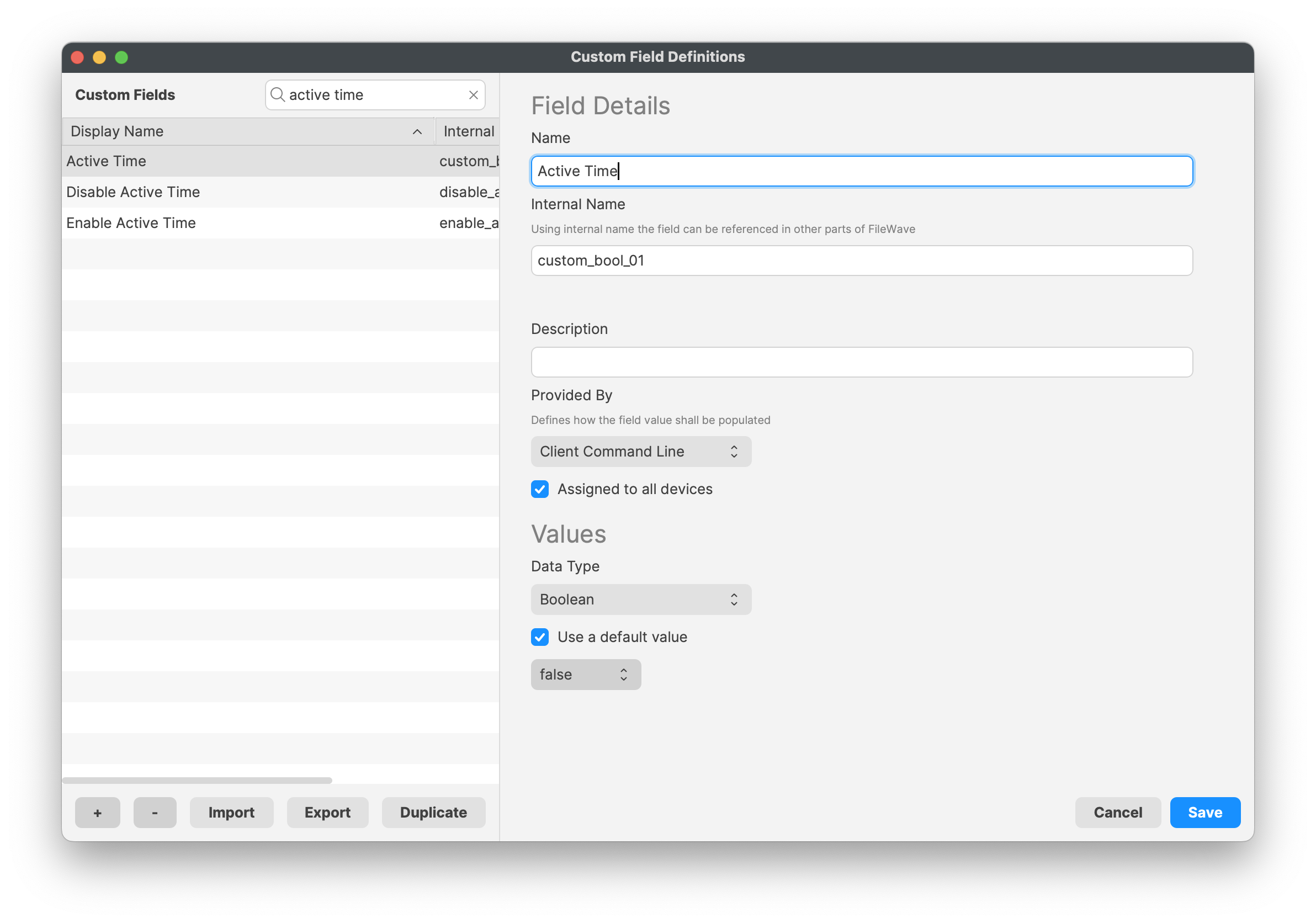
Client Command LiineLine Custom Fields maycan be alteredchanged in FileWave CentralCentral, Admin App, however, as soon as the device checks back inventory, the value frombut the client willvalue beis pushed back to the server.server the next time the device reports inventory.