
Return to Service for tvOS
What
Return to Service can erase a managed Apple TV and automatically prepare it for reuse. Use it when an Apple TV must be reassigned without sending a technician through Setup Assistant. On tvOS 18 or later, FileWave can include the Wi-Fi and enrollment data needed for the Apple TV to reconnect, complete MDM enrollment, and return to the Home Screen with less hands-on setup. For the mobile-device workflow, see Return to Service for iOS/iPadOS.
When/Why
The MDM server sends an EraseDevice command with Return to Service data. The device resets, securely erases its data, connects to Wi-Fi, enrolls in MDM, and returns to the Home Screen ready for use.
How
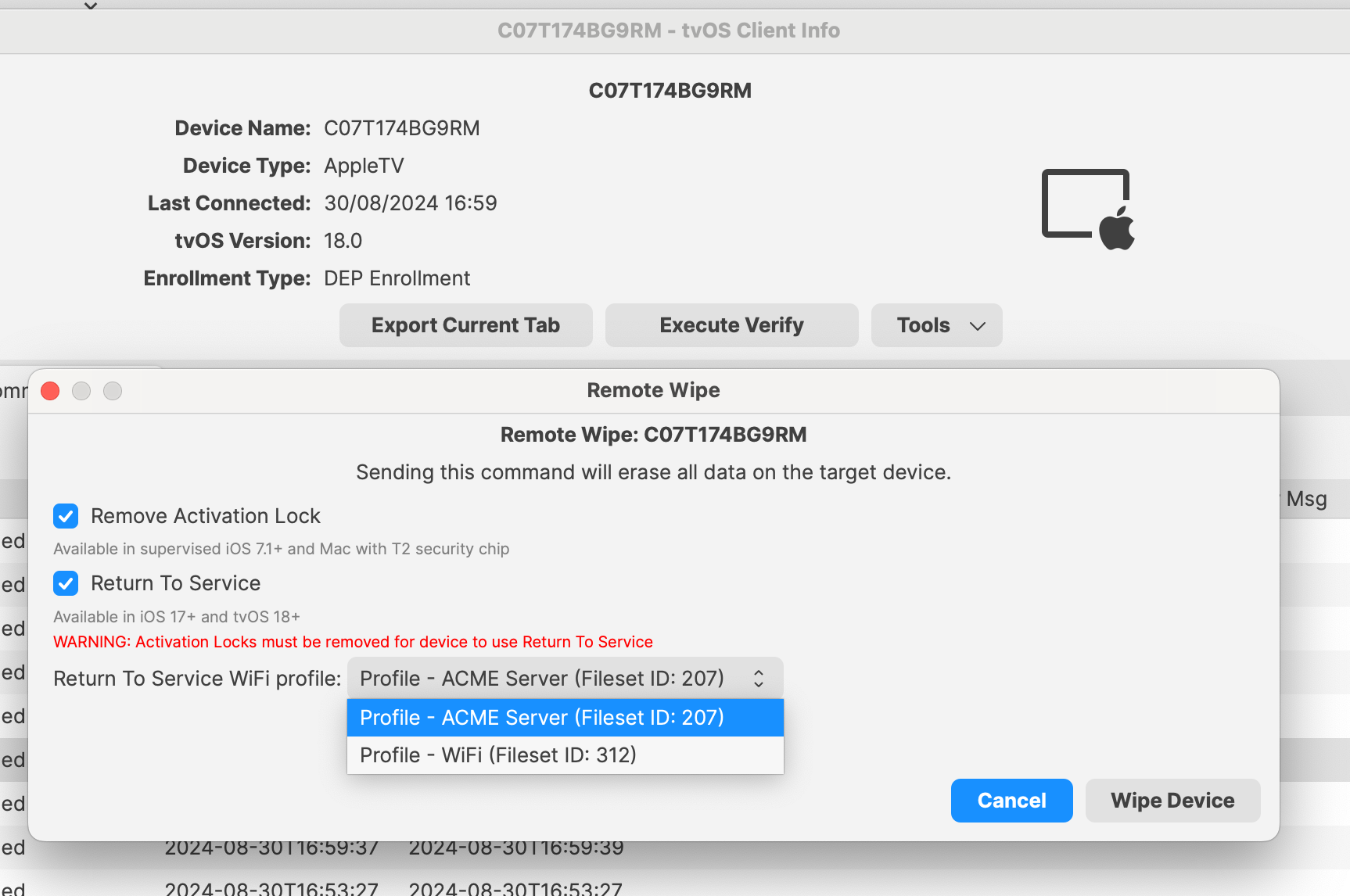
Open the Remote Wipe dialog for the tvOS device, then select Return to Service. FileWave makes this option available only when Remove Activation Lock is also selected and at least one Wi-Fi profile is configured. The profile must be a Fileset containing a Network payload whose Network Interface is Wi-Fi. Choose an available profile from the list so a Wi-Fi-only Apple TV can reconnect after the wipe.
What happens on the device?
When you select Wipe Device, the Apple TV erases and reconnects to the network from the selected Wi-Fi profile without asking for the Wi-Fi password. Enable Auto Advance in the device's ADE enrollment profile so Setup Assistant can complete without someone at the device.
An Ethernet-connected Apple TV enrolled through ADE can reconnect after a standard wipe without Return to Service Wi-Fi data. Auto Advance must still be enabled in the ADE enrollment profile to avoid manual Setup Assistant steps.
Related Content
Troubleshooting
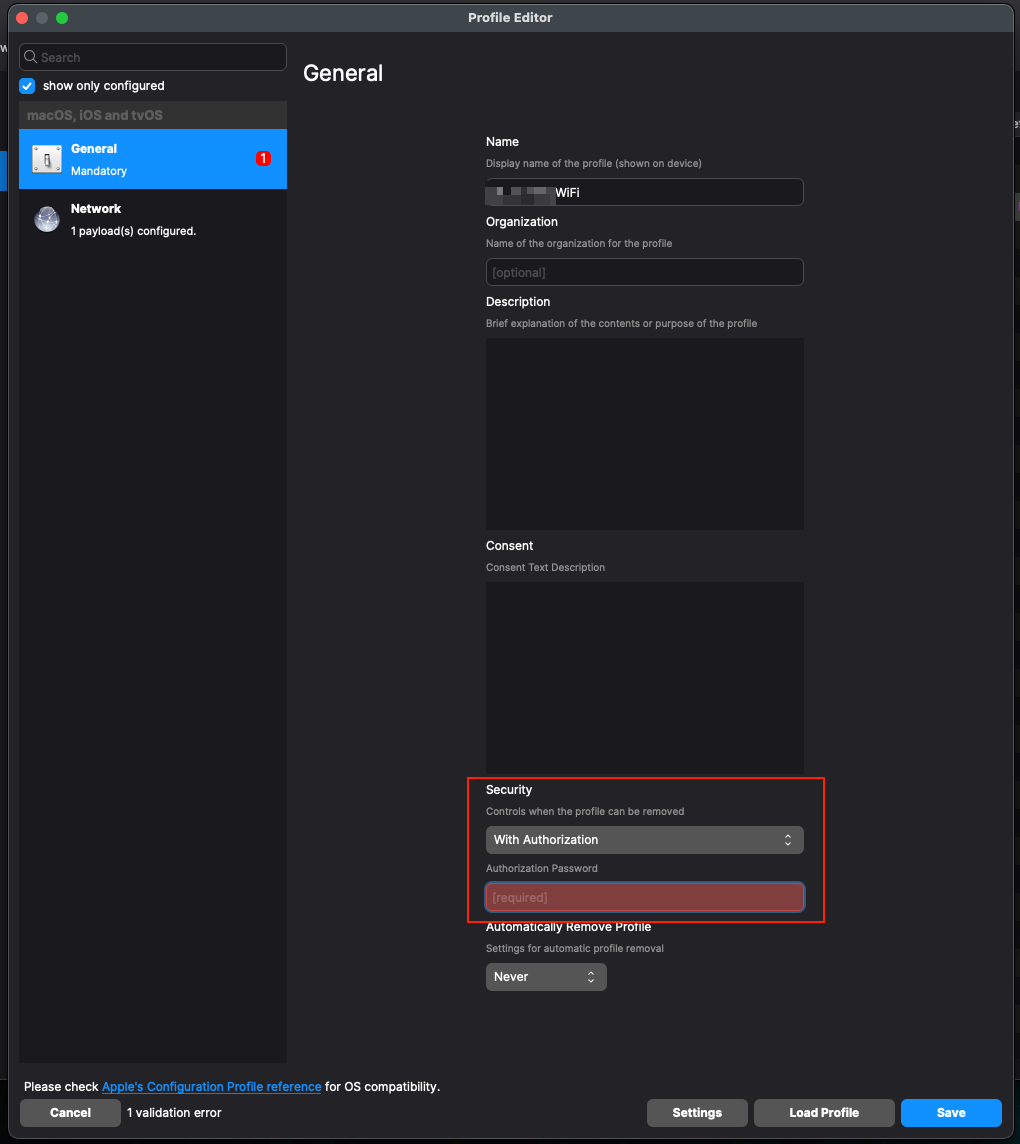
We have found that setting Security to 'With Authorization' within the Wi-Fi Profile (even with the correct password) will break Return to Service. In this instance the AppleTV will not be able to join the WiFi automatically when it boots up, though you can manually join the WiFi.
Digging Deeper
When Remote Wipe dialog is opened the list of configured Wi-Fi profiles is loaded, formatted as:
[(<file_id>, <fileset_id>, <fileset_name>, <payload_display_name>, <payload_identifier>),(...)]fileset_id and fileset_name are displayed on the UI, payload_display_name and payload_identifier are used for tool tip. file_id is used as internal data for combobox.
When Wipe Device button is pressed, in the backend, the MDM command EraseDevice is generated with dictionary field ReturnToService and fields Enabled and WiFiProfileData according to values specified in the UI; the command is added to the device's command queue.
On grabbing the command from the queue, during composition for delivery, the ReturnToService dictionary is updated with MDMProfileData for non DEP enrolled devices. The data added, matches the final payload that is provided by MDM server when /ios/profile URL is used for OTA enrollment.
API Command
Sending the command to wipe via an API command requires the following data format.
'{
    "ids": [<integer>, <integer>],
    "command": "EraseDevice",
    "options": {
        "DisallowProximitySetup": false,
        "PIN": "",
        "PreserveDataPlan": false,
        "ReturnToService": {
            "Enabled": true,
            "WiFiProfileID": <integer>
        }
    }
}'- 'ids' is a comma separated list of the Client IDs to be targeted
- 'WifiProfileID' is the File ID (this is not the Fileset ID)
To obtain the WifiProfileID, will require an additional query first. A full list of all Wi-Fi Profiles can be returned with the following API:
curl -X GET "https://${server_dns}/filewave/api/apple/profiles/wifi" -k -H "Content-Type: application/json" -H "authorization: ${auth}" | awk '{ gsub("\\]\\,\\[","\n"); gsub("\\]\\]",""); gsub("\\[\\[",""); print }'Where:
- ${server_dns} is the server name as seen in FileWave Central -> Preferences -> Mobile
- ${auth} is the application token as shown in FileWave Central -> Manage Administrators (each user has one or more tokens)
The returned list might look something like:
750959,669526,"Profile - HOME WIFI","HOME WIFI","ml1063.lan.4bf6fba8-9cfc-48b5-ad74-a251a65c8759.Configuration.4bf6fba8-9cfc-48b5-ad74-a251a65c8759"
780638,736322,"Profile - WLTC wifi","WLTC wifi","ml1063.local.7a00d6eb-9b4b-4e7e-b68b-7ee7e6414051.Configuration.7a00d6eb-9b4b-4e7e-b68b-7ee7e6414051"
504184,411265,"Profile - Wi-Fi BT 2.4GHz","Wi-Fi BT 2.4GHz","FW1063.local.e285dc3b-9c4b-4a7a-84a9-a3cd5169f92d.Configuration.e285dc3b-9c4b-4a7a-84a9-a3cd5169f92d"
504185,24571,"Profile - Wi-Fi BT 5GHZ","Wi-Fi BT 5GHZ","ML1063.local.02d6d9c3-5a7d-490c-afa8-f160ba9b4e40.Configuration.02d6d9c3-5a7d-490c-afa8-f160ba9b4e40"
The first number is the File ID, whilst the second is the Fileset ID.
Example
Considering the following 3 devices to be wiped using 'Return to Service':
| Server FQDN from Preferences | demo.filewave.ch |
| Authorisation Token |
e2E1OTU4ZmYyLTg4ZTYtNDEzNC1iZjdhLWE0ZmJmMTViNmI5OH0= |
| "Profile - WLTC wifi" [File ID of Fileset: 'Profile - WLTC wifi'] |
780638 |
| iPad001 [FileWave Client ID] |
3425 |
| iPad002 [FileWave Client ID] |
4342 |
| iPad003 [FileWave Client ID] |
3312 |
The API data block might look like:
'{
    "ids": [3425, 4342, 3312],
    "command": "EraseDevice",
    "options": {
        "DisallowProximitySetup": false,
        "PIN": "",
        "PreserveDataPlan": false,
        "ReturnToService": {
            "Enabled": true,
            "WiFiProfileID": 780638
        }
    }
}'
and the command:
curl -X POST "https://demo.filewave.ch/api/devices/v1/devices/mdm-command" -k -H "Content-Type: application/json" -H "authorization: e2E1OTU4ZmYyLTg4ZTYtNDEzNC1iZjdhLWE0ZmJmMTViNmI5OH0=" -d "<data block goes here>
No comments to display
No comments to display