
Chromebook Inventory Extension White Labeling (EOL)
What
ItWhite was previously possible to customize the user-visible information forlabeling the FileWave Chromebook Inventory Extension.Extension Itis wasno possiblelonger toavailable. customizeThe icons,steps namebelow andrecord description.the Thisprevious involved:support-assisted process for historical reference; do not use them for a new deployment.
DownloadAdministrators downloaded the historical chromebook-whiteboxing.zip package andmodifymodifiedtheitsdataiconinsideand(adding a new icon, description, etc.)metadata.CreateThey opened a supportTicketticket titled"Chromebook CustomExtension"Extension andattachattachedyour newthe modifiedZipZIPFilefile.WaitAftertillSupportwe send back your "whiteboxed" extension then continue toreturned the"Howcustomizedtoextension,publish"theysectionpublishedbelowit through the Chrome Web Store developer dashboard.
When/WhyStatus
AsFileWave partremoved ofcustom anpublishing overhaul ofwhen the extension moved to leveragenewer newChrome APIsAPIs. The supported path is the standard FileWave inventory extension.
Current workflow
FileWave 15.4 and enhancementslater do not support this customization. Deploy the ability to publish it with customizations is removed for now. If this returns in a future version then this article will be updated.
How
This customization is not possible in FileWave 15.4+ and this article remains to make customers aware of the change. You would use thestandard inventory extension asby outlined infollowing Chromebook Client Pre-Requisites rather than this customized method..
Related Content
DiggingHistorical Deeperprocess details
ThisThe wasremaining steps and screenshots document the actualretired processpublishing to publish in the past.process.
The ZIP file contained:
- icon_.png (so far we have 19, 38, 128 as size)
- data.json
data.json
{
  "name"``: "<NAME_HERE>"``,
  "description"``: "<DESCRIPTION_HERE>"
}HowHistorical Chrome Web Store publishing steps
After FileWave returned the customized extension, administrators used the following Chrome Web Store steps to publish a "whiteboxed" version of the extensions
Once you get the "whiteboxed" version of your extension, you haveit to follow some steps to make it available to yourtheir organization.
-
Login/Create an account to Google Developer Dashboard
-
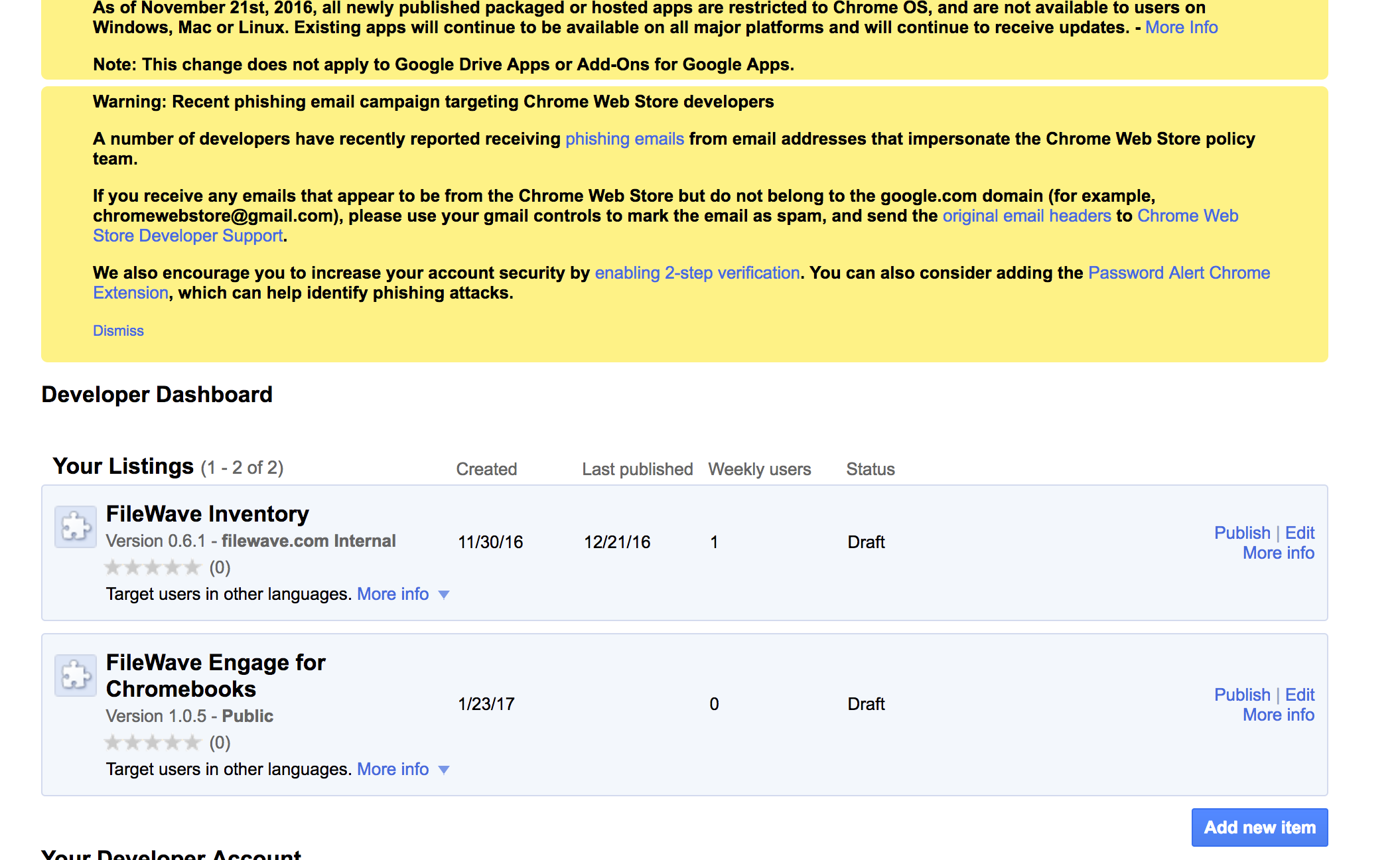
Click on the "Add New Item" button
-
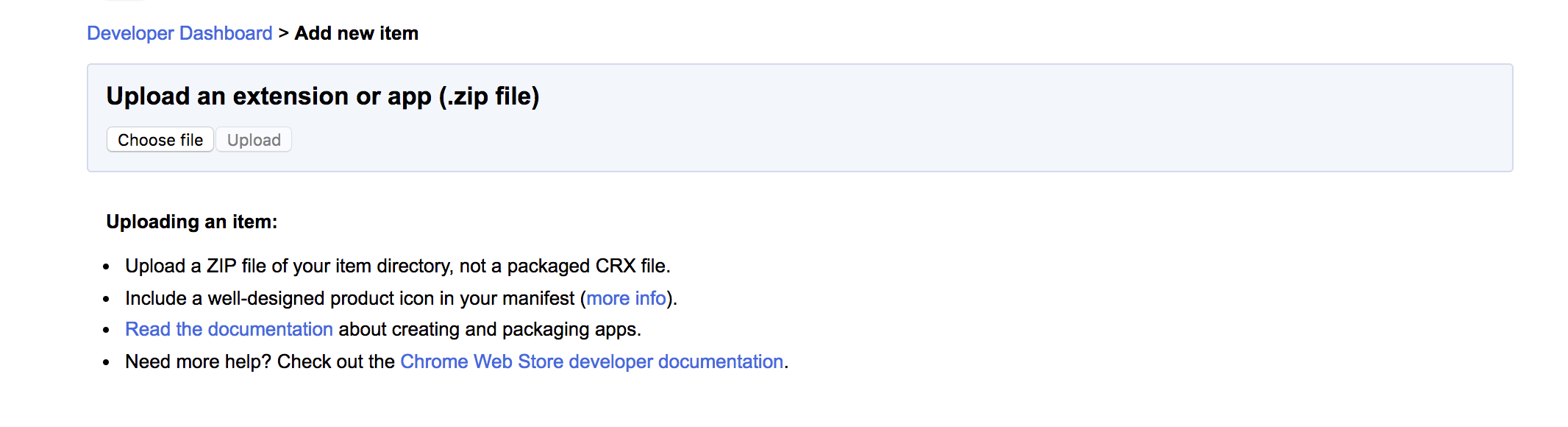
Upload the ZIP file
-
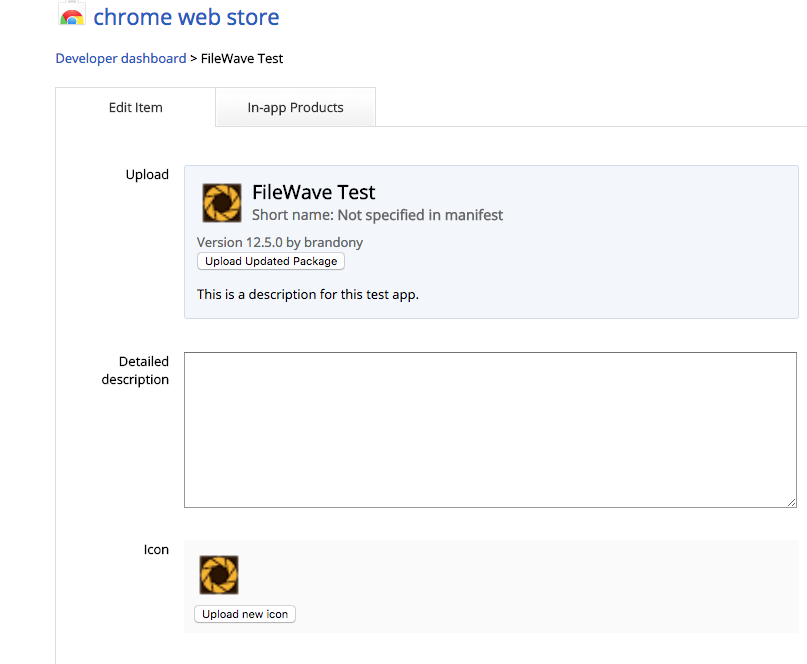
Edit/add Additional Info
-
Publish the extension