
Android EMM Default Policy and Compliance Scope
What
The Android Default Policy defines global baseline settings for managed Android EMM applications and devices. Use scoped Android Policy Filesets for settings that depend on enrollment type, device role, or a specific application.
The practical split is:
- Android Default Policy: Fleet-wide application and device baselines.
- Android Policy Filesets: Controls assigned to the applicable BYOD, fully managed, or Dedicated Device scope.
- Android app Fileset Properties: App-specific overrides when one application needs different behavior from the global default.
When/Why
Use the Default Policy for settings that should apply consistently across the Android fleet. Keep enrollment-specific compliance and operational behavior in separately scoped Policy Filesets so an incompatible setting is not pushed to the wrong device mode.
Do not use the Default Policy as a dumping ground. A global baseline should be safe for every Android EMM device in scope. Use a targeted Policy Fileset when BYOD, Dedicated Device, or app-specific behavior differs.
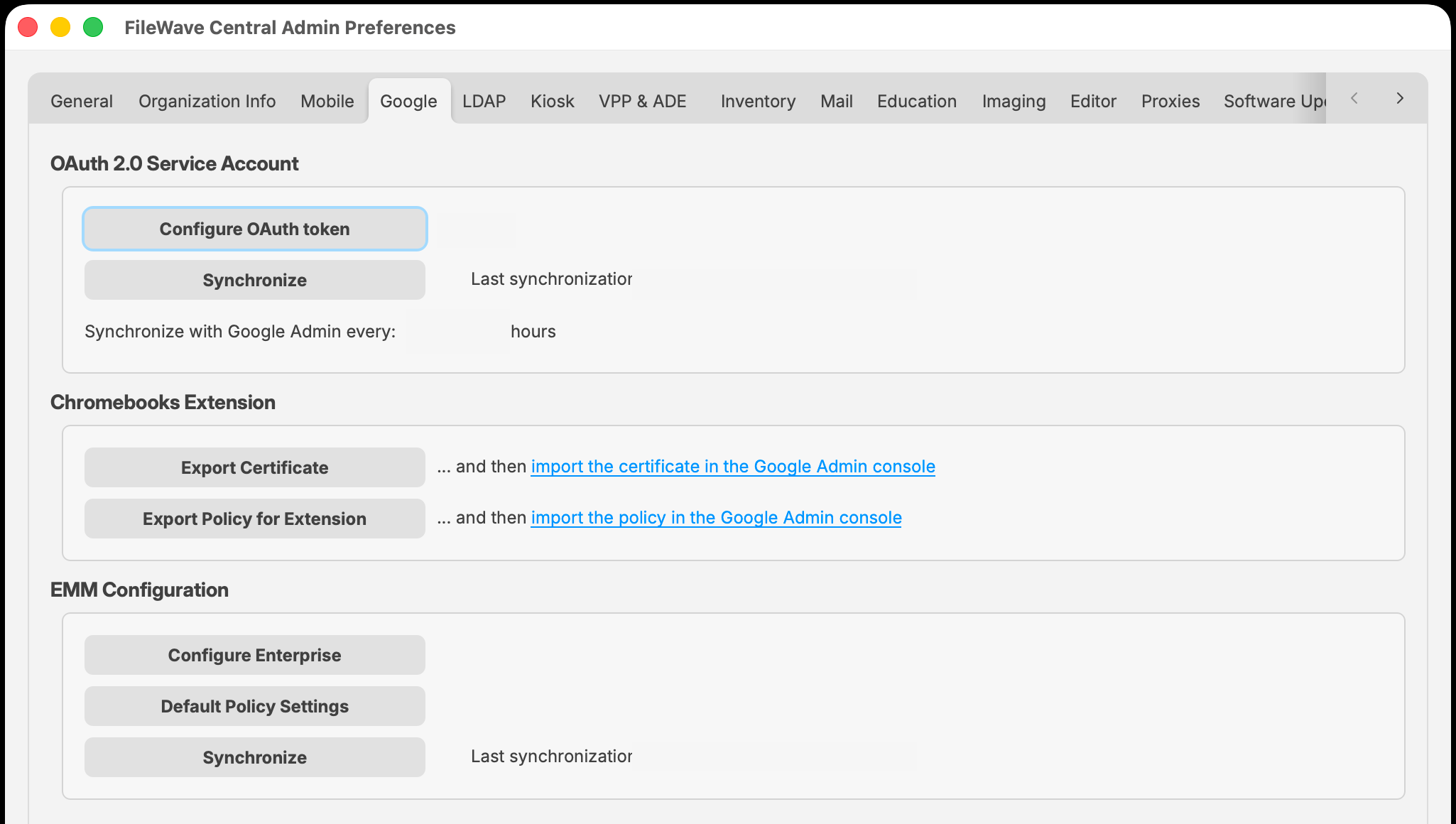
Open the Android Default Policy in FileWave 16.4
- Open FileWave Central > Preferences.
- Select Google.
- Under EMM Configuration, select Default Policy Settings.
- Enable Customize default policy when you need to define FileWave-managed defaults.
- Review the values, save the Default Policy, and update the model.
Global application baselines
| Control | Current behavior | Override |
|---|---|---|
| Permission Policy | Defines the default response when an app requests a managed permission. | Permission Policy Filesets and app-specific permissions can provide narrower behavior. |
Auto Update Mode is configured on the Android app Fileset, not in this Default Policy Editor. See Android Apps for the four per-app modes.
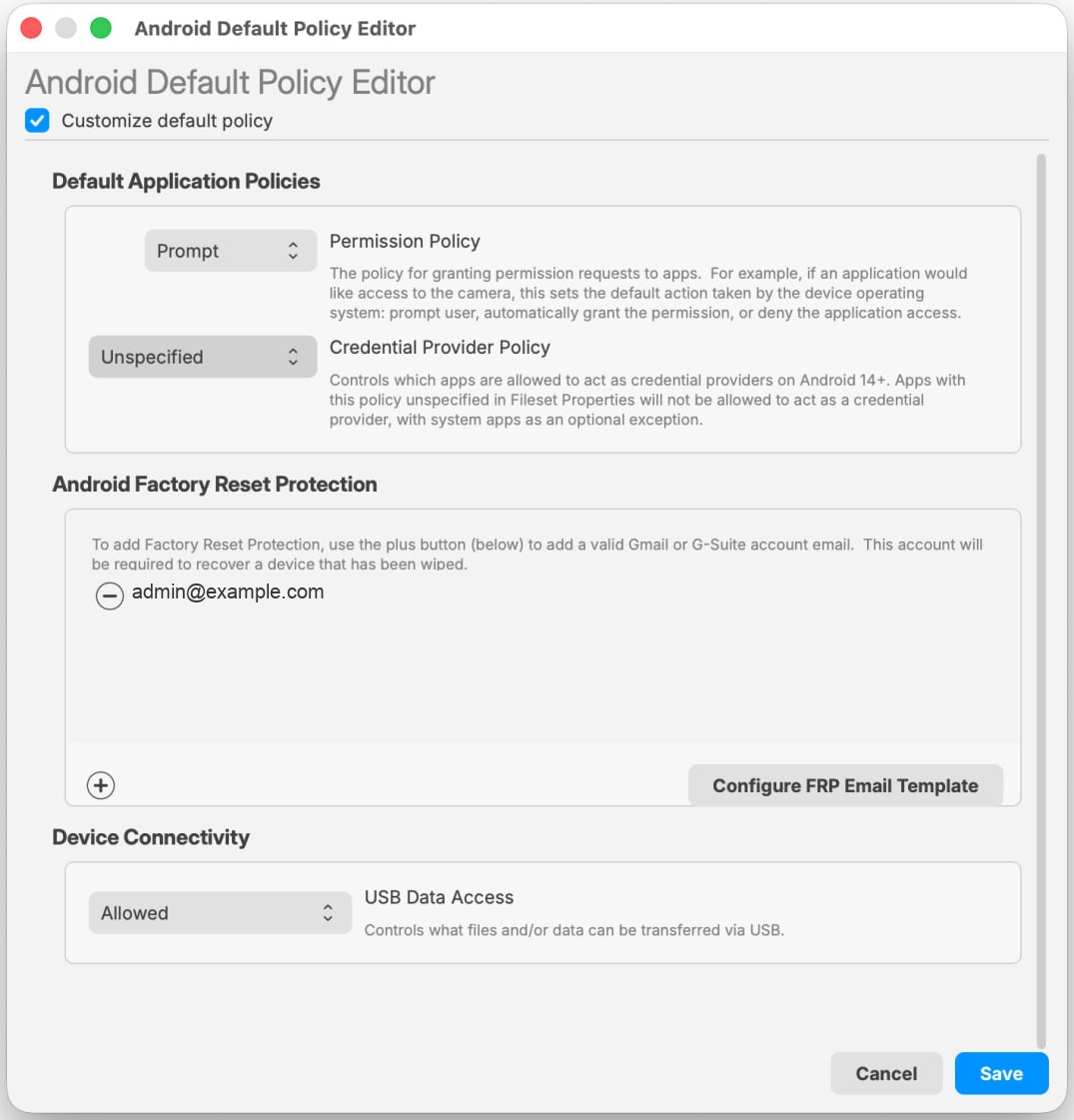
Factory Reset Protection account: Use a managed recovery identity that remains accessible to the organization. Do not tie fleet recovery to an individual employee’s personal Google account.
Scope Password and Keyguard compliance
FileWave 16.4 makes the Password and Keyguard sections optional in an Android Compliance Policy. Build the Policy for the enrollment mode rather than including every available section.
| Device scope | Recommended Compliance Policy design |
|---|---|
| BYOD/work profile | Use Password compliance without Keyguard. Android BYOD is not compatible with the Keyguard component used for Dedicated Device or single-app operation. |
| Fully managed device | Include the Password controls required by organizational policy; add other applicable sections only when needed. |
| Dedicated Device/single app | Include Keyguard only when that device-mode behavior is required. |
Recommended policy pattern
- Keep global application defaults conservative and broadly applicable.
- Use a dedicated BYOD Password Compliance Policy without Keyguard.
- Use a separate Dedicated Device Compliance Policy when Keyguard is required.
- Keep System Update behavior in its own Policy so maintenance windows and Freeze Periods can change without disturbing compliance.
UseConfigureapp-specific AppAuto Update Modeandon each Android app Fileset. Use app-specific Credential Provider overrides only for documented exceptions.- Avoid assigning multiple Policies that manage the same setting differently.