
Android EMM Policies and Permissions
Android EMM (Enterprise Mobile Management) allows you to create permissions and send policies.
Permissions Types
Permission settings may be configured on multiple levels. They are applied in this priority (low number wins).
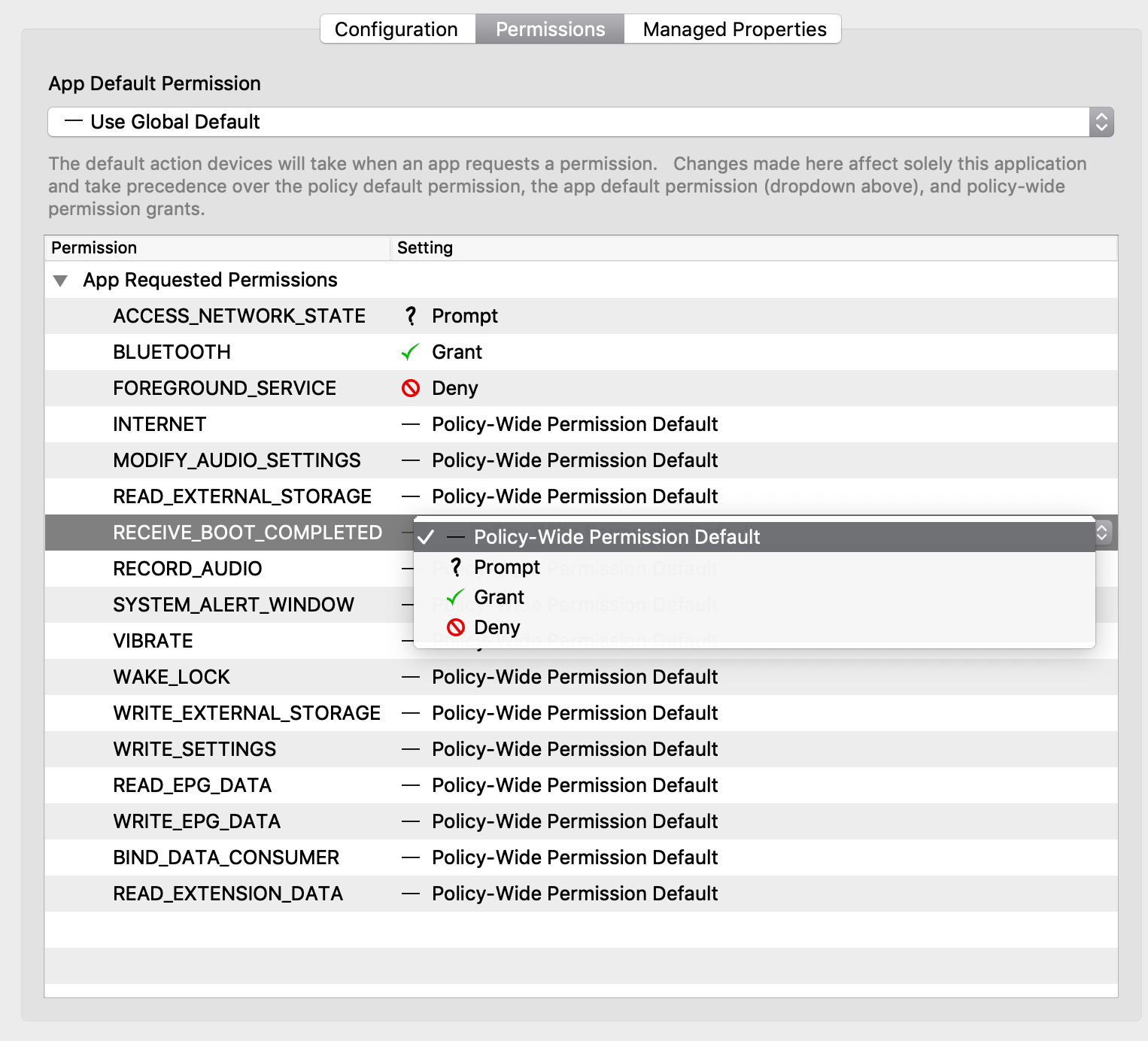
- Application specific permission grant (list below dropdown in Permissions tab in applications fileset properties)
- Specific permission for all applications (configured in Policy Fileset)
- Application default (Play Store App Fileset → Permissions tab)
- Global default (Android Default Policy Editor)
1. Within Each App
After you have created a Google Play Apps Fileset:
- Double click the Play Store App fileset
- Permissions tab (Figure 1.1)
- App Default Permission - The default action devices will take when an app requests a permissions
- Application specific permission grant - The setting for a specific permission within this app
- Choices
- Use Default - Defer to another setting
- Prompt - App prompts the user to approve
- Grant - Allowed, user can not change
- Deny - Not Allowed, user can no change
2. Policy Fileset - Permissions
You can create a policy fileset and associate that to a device to specify permission grants/denies.
See below for steps.
3. Global Policy
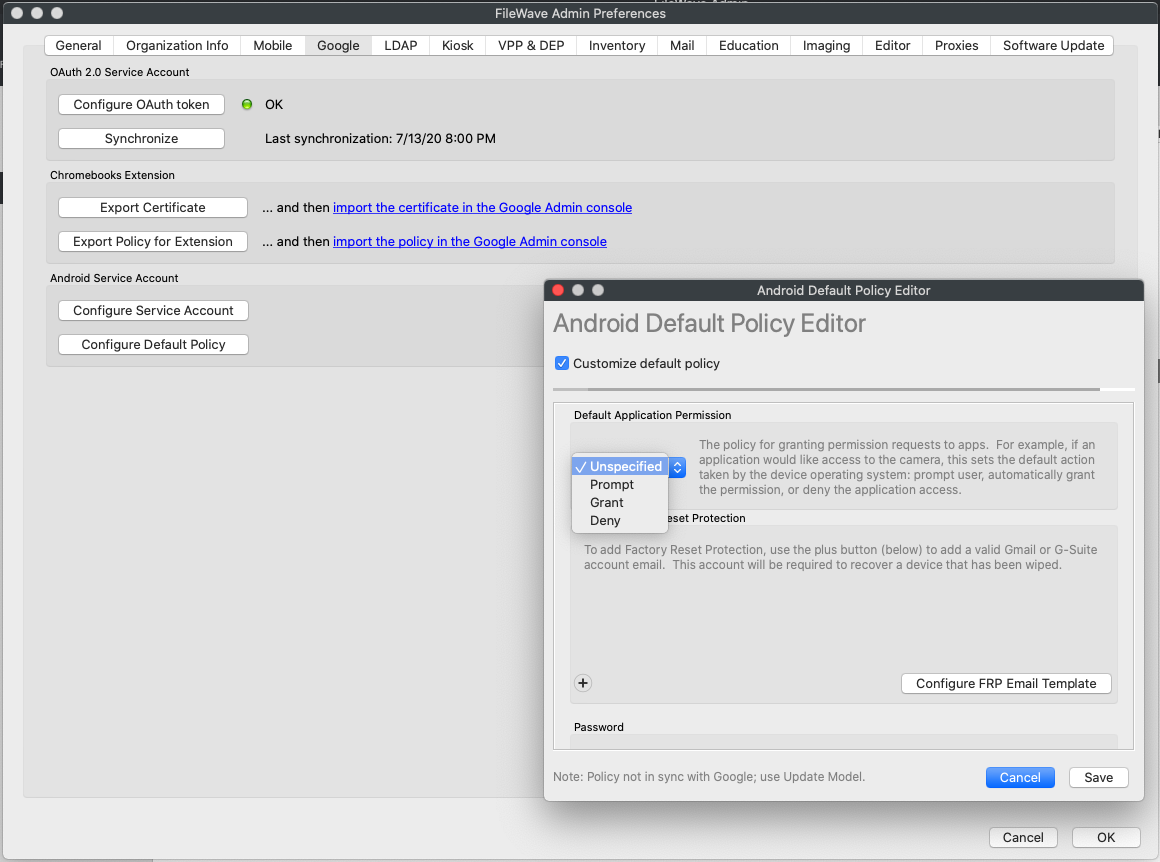
Specify the default application permission choice. (Figure 1.2)
Found under FileWave Admin → Preferences → Google → Configure Default Policy
- Unspecified
- Prompt
- Grant
- Deny
After you chancechange the default policy, you must update the model to apply the change.
Policies
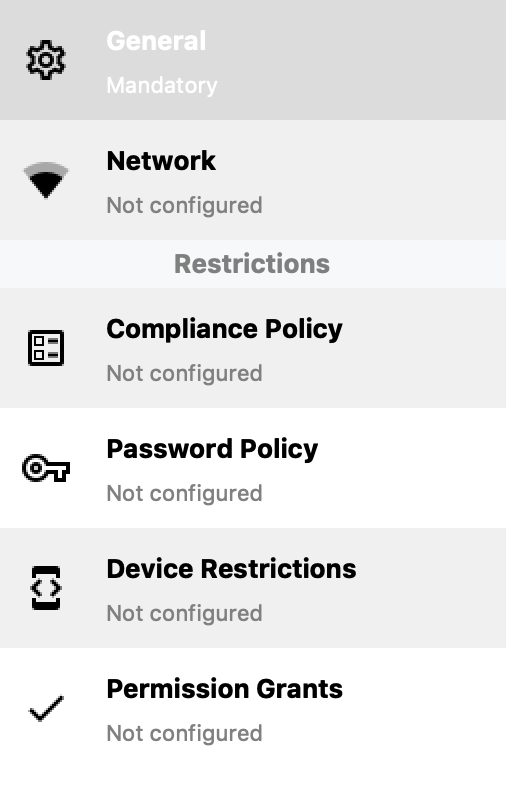
You can create a Policy for (Figure 2.1)
- Network
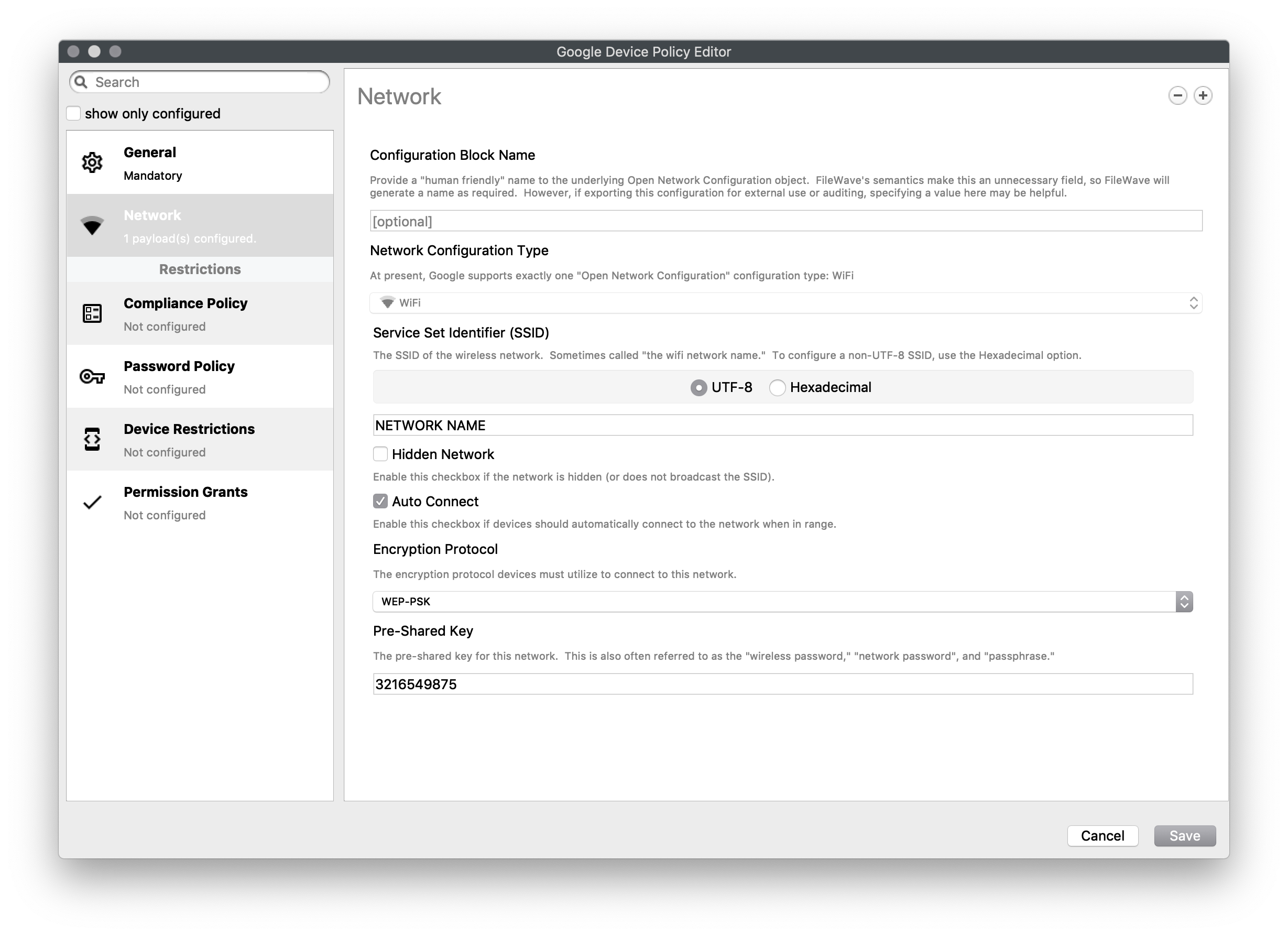
Network
Settings to join a WiFi network
As of 15.4, additional options have been added for DomainSuffixMatch and UseSystemCA for EAP network configuration.
System Update Policy (FileWave 16.4)
FileWave 16.4 adds an Android EMM System Update payload. Choose the behavior that matches the device’s operational role:
A Freeze Period can prevent system updates and security patches during defined periods of the year, such as a conference, examination window, retail peak, or other period when the device must remain available.
Use Postpone and Freeze Periods as bounded operational controls, not permanent patch avoidance. Plan the date when deferred devices return to the normal update cadence.
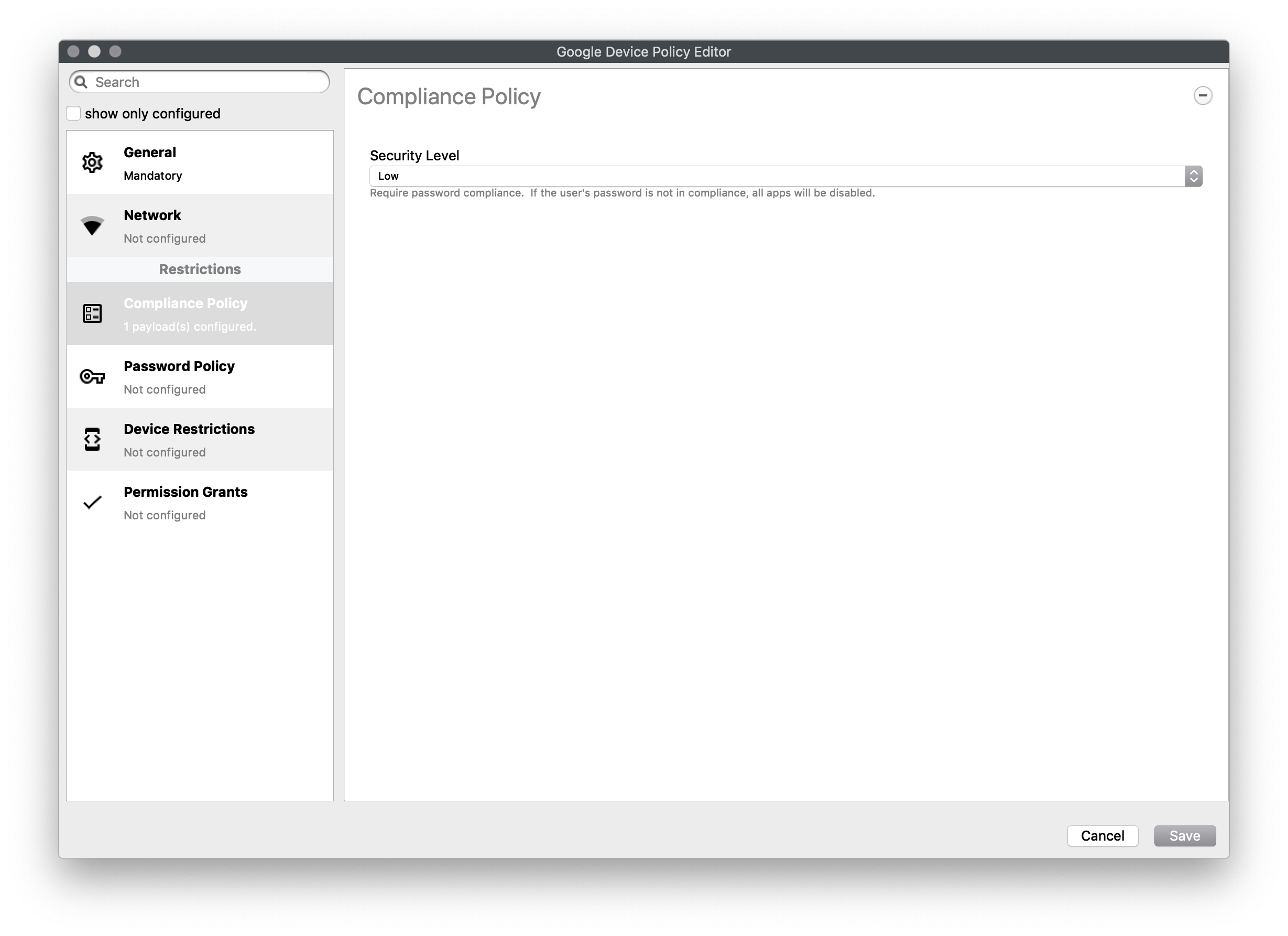
Compliance Policy
Set compliance level of associated devices.
- None - Do not enforce any compliance. When other settings are sent they can be ignored and the device will operate
- Low (Default) - Require password compliance. If not compliant, no other apps will open
- High - same as low, but additionally disables any device running below Android 7.
FileWave 16.4: The Password and Keyguard sections in a Compliance Policy are optional. Include only the section that applies to the enrollment and device mode.
Android BYOD is not compatible with the Keyguard component used by Dedicated Device/single-app mode. Making the sections optional allows one Compliance Policy type to support the applicable configuration without sending an incompatible section.
Password Policy
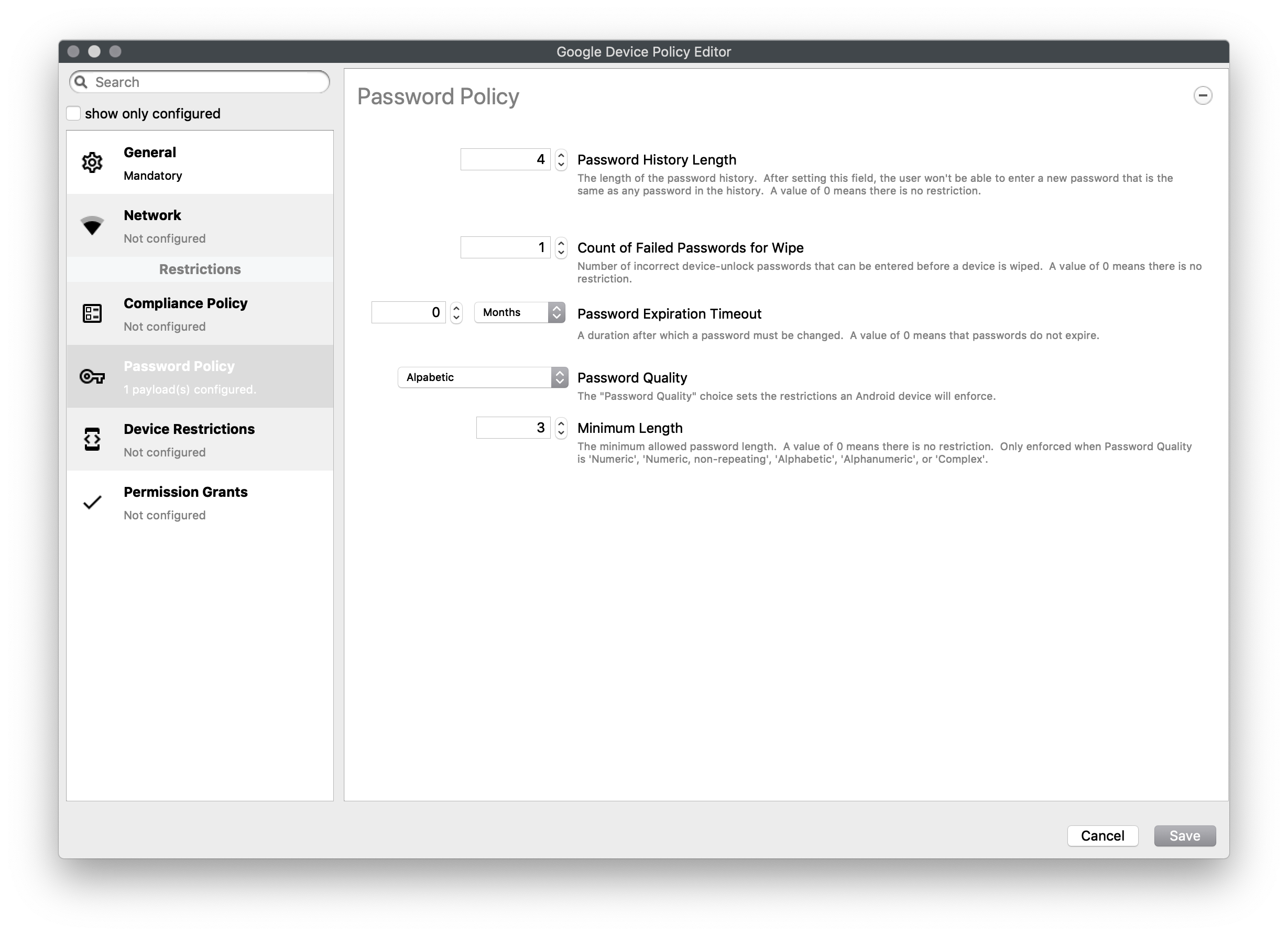
Set password constraints
- Password History Length - The length of the password history. After setting this field, the user won't be able to enter a new password that is the same as any password in the history. A value of 0 means there is no restriction
- Count of Failed Passwords for Wipe - Number of incorrect device-unlock passwords that can be entered before a device is wiped. A value of 0 means there is no restriction.
- Password Expiration Timeout - A duration after which a password must be changed. A value of 0 means that passwords do not expire.
- Password Quality - The restrictions an Android device will enforce
- Weak Biometric - The device must be secured with a low-security biometric recognition technology, at minimum. This includes technologies that can recognize the identity of an individual that are roughly equivalent to a 3-digit PIN (false detection is less than 1 in 1,000)
- Password Required - A password is required, but there are no restrictions on what the password must contain.
- Numeric - Must contain numeric characters
- Minimum Length
- Numeric , Non repeating - Must contain numeric characters with no repeating (4444) or ordered (1234, 4321, 2468) sequences.
- Minimum Length
- Alphabetic - The password must contain alphabetic (or symbol) characters.
- Minimum Length
- Alphanumeric - The password must contain both numeric and alphabetic (or symbol) characters
- Minimum Length
- Complex - The password must contain at least a letter, a numerical digit and a special symbol. Other password constraints, for example, passwordMinimumLetters are enforced.
- Minimum length
- Minimum count of letters
- Minimum count of uppercase letters
- Minimum count of non-alphanumerics
- Minimum count of numerals
- Minimum count of special symbols
Device Restrictions
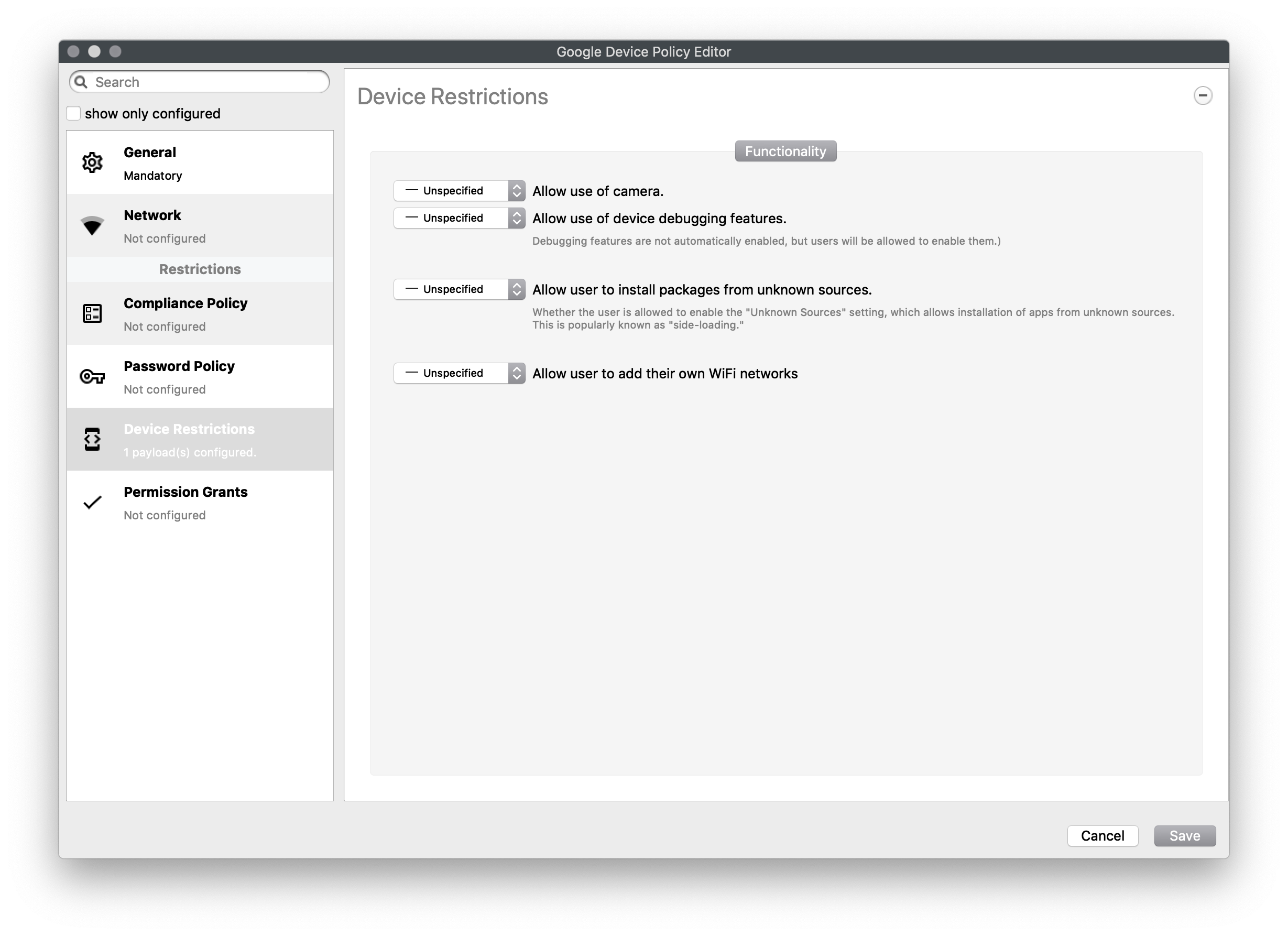
Restrict access to device functionality
You can choose Unspecified, Allowed, Disallowed for:
- Use of camera
- Debugging
- Install packages from unknown sources
- Allow user to add own WiFi networks
As of 15.4, a new restriction for USB Data Access has been included to allow or disallow file or data transfer for Android devices.
Key Name: "usbDataAccess", Values: Unspecified / (Don't Save), Allowed / ALLOW_USB_DATA_TRANSFER, Disallow File Transfer / DISALLOW_USB_FILE_TRANSFER, Disallow Data Transfer / DISALLOW_USB_DATA_TRANSFER.
Permission Grants
A detailed list of permission settings for settings that have been classified
- Dangerous
- Normal
- No Classification
And includes everything from allowing answering of calls, camera, NFC, vibrate, to battery status, and system alerts
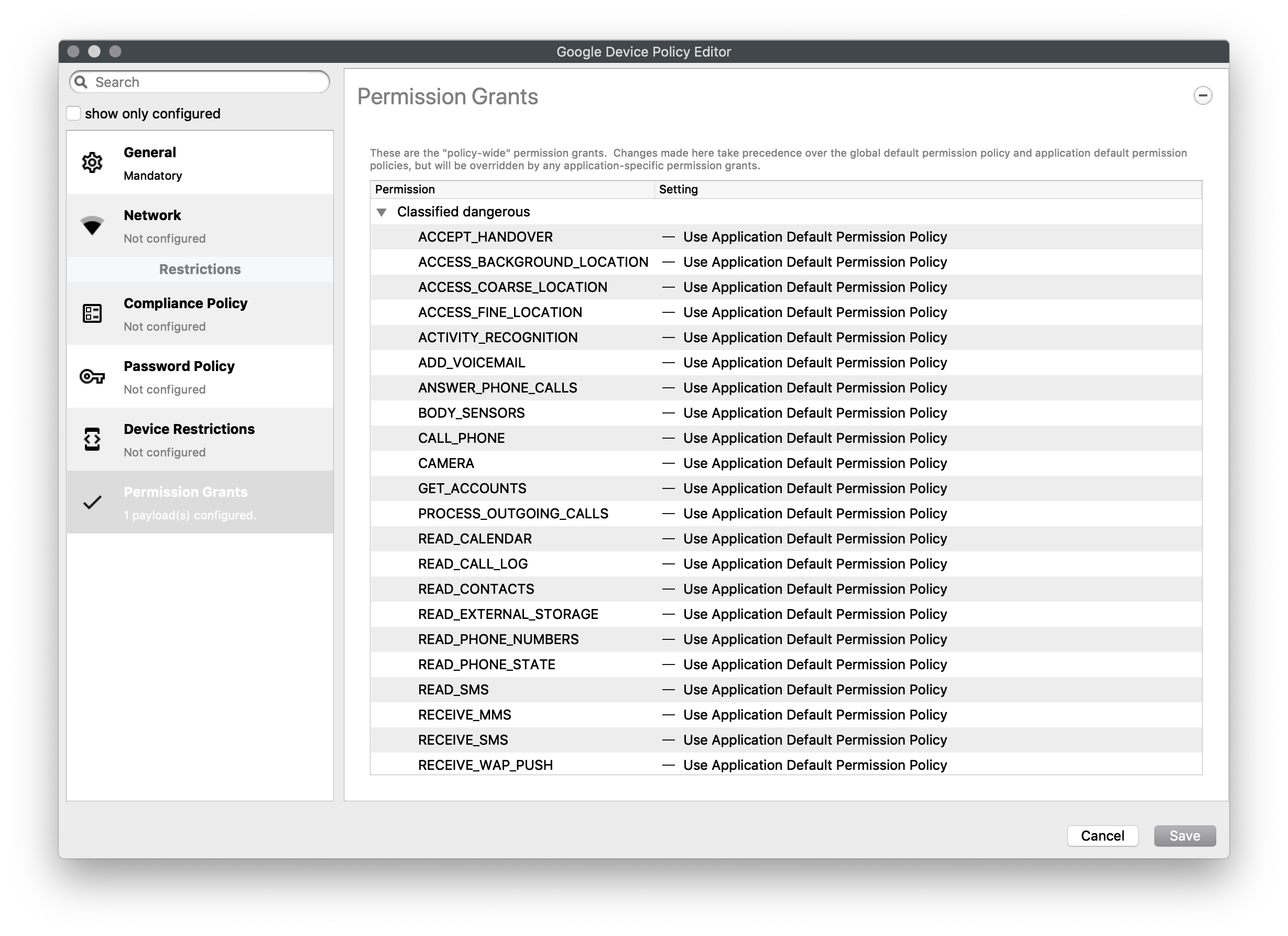
Toggle to show all Permission options... Expand source
ACCEPT_HANDOVER
ACCESS_BACKGROUND_LOCATION
ACCESS_COARSE_LOCATION
ACCESS_FINE_LOCATION
ACTIVITY_RECOGNITION
ADD_VOICEMAIL
ANSWER_PHONE_CALLS
BODY_SENSORS
CALL_PHONE
CAMERA
GET_ACCOUNTS
PROCESS_OUTGOING_CALLS
READ_CALENDAR
READ_CALL_LOG
READ_CONTACTS
READ_EXTERNAL_STORAGE
READ_PHONE_NUMBERS
READ_PHONE_STATE
READ_SMS
RECEIVE_MMS
RECEIVE_SMS
RECEIVE_WAP_PUSH
RECORD_AUDIO
SEND_SMS
USE_SIP
WRITE_CALENDAR
WRITE_CALL_LOG
WRITE_CONTACTS
WRITE_EXTERNAL_STORAGE
ACCESS_LOCATION_EXTRA_COMMANDS
ACCESS_NETWORK_STATE
ACCESS_NOTIFICATION_POLICY
ACCESS_WIFI_STATE
BLUETOOTH
BLUETOOTH_ADMIN
BROADCAST_STICKY
CALL_COMPANION_APP
CHANGE_NETWORK_STATE
CHANGE_WIFI_MULTICAST_STATE
CHANGE_WIFI_STATE
DISABLE_KEYGUARD
EXPAND_STATUS_BAR
FOREGROUND_SERVICE
GET_AND_REQUEST_SCREEN_LOCK_COMPLEXITY
GET_PACKAGE_SIZE
INSTALL_SHORTCUT
INTERNET
KILL_BACKGROUND_PROCESSES
MANAGE_OWN_CALLS
MODIFY_AUDIO_SETTINGS
NFC
NFC_TRANSACTION_EVENT
READ_SYNC_SETTINGS
READ_SYNC_STATS
RECEIVE_BOOT_COMPLETED
REORDER_TASKS
REQUEST_COMPANION_RUN_IN_BACKGROUND
REQUEST_COMPANION_USE_DATA_IN_BACKGROUND
REQUEST_DELETE_PACKAGES
REQUEST_IGNORE_BATTERY_OPTIMIZATIONS
SET_ALARM
SET_WALLPAPER
SET_WALLPAPER_HINTS
TRANSMIT_IR
USE_BIOMETRIC
USE_FINGERPRINT
VIBRATE
WAKE_LOCK
WRITE_SYNC_SETTINGS
ACCESS_MEDIA_LOCATION
BATTERY_STATS
BIND_REMOTEVIEWS
BIND_SMS_APP_SERVICE
CHANGE_CONFIGURATION
GET_ACCOUNTS_PRIVILEGED
GET_TASKS
GLOBAL_SEARCH
INSTANT_APP_FOREGROUND_SERVICE
PACKAGE_USAGE_STATS
PERSISTENT_ACTIVITY
READ_MEDIA_AUDIO
READ_MEDIA_IMAGES
READ_MEDIA_VIDEO
SMS_FINANCIAL_TRANSACTIONS
SYSTEM_ALERT_WINDOW
USE_FULL_SCREEN_INTENT
 |
| Figure 1.1 - App |
 |
| Figure 1.2 - Global |
 |
| Figure 2.1 - Policy Options |
Android app policy defaults in FileWave 16.4
Default App Update Mode
FileWave 16.4 adds App Update Mode to the Android Default Policy in FileWave Central > Preferences > Google > Configure Default Policy. This sets the baseline behavior for Android app Filesets.
Credential Provider Policy
On Android 14 and later, an approved password-management app can supply credentials when the operating system prompts for authentication. FileWave 16.4 exposes this control in two places:
The default is that apps are not allowed to act as credential providers. Grant this capability only to approved credential-management apps, and use an app-specific override rather than weakening the global default for every application.
See Android Apps for the app-level workflow and precedence.
DEDICATED DEVICE
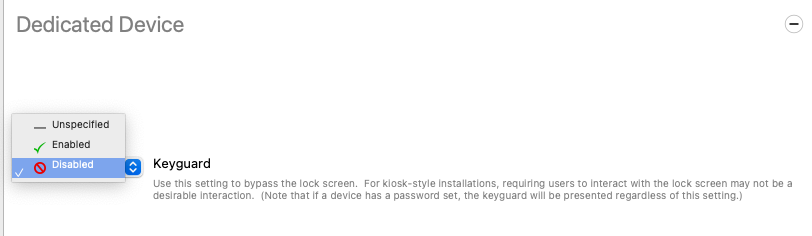
Keyguard
This feature enables you to lock and unlock your screen.
Disabled option will bypass the lock screen.
Custom Launcher
When enabled, it will set your device to kiosk mode. All the applications available on device screen were deployed through FileWave.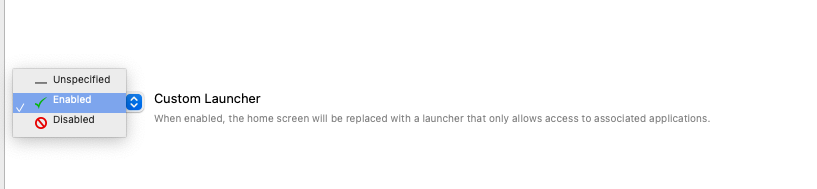
Locked Task
This option will lock the device to open only a single app. The App must be downloaded and installed via FileWave. 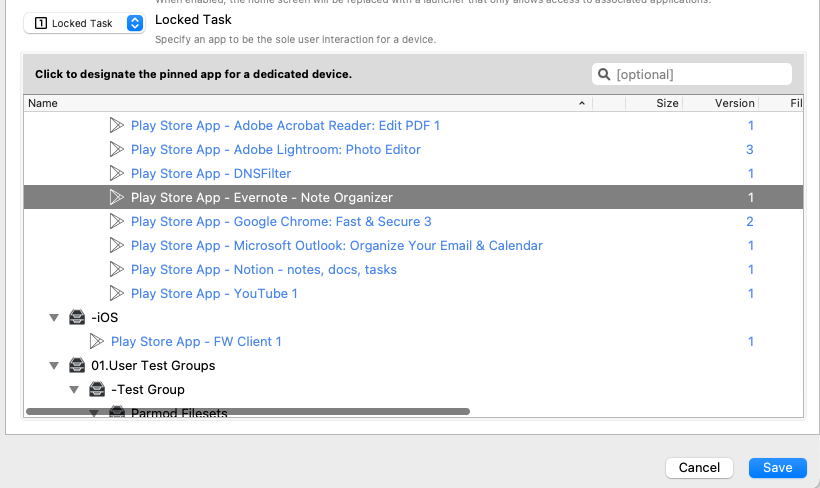
You can also use custom Google Play Web Apps to set as a locked task if you want to lock just a particular webpage instead of the entire Chrome browser.