
Adding macOS devices to Apple Business or School Manager using Apple Configurator 2
With iOS16iOS 16 and Apple Configurator 2, it is possible to add macOS devices to ASM and ABM. This means that devices not acquired via an Apple Purchasing Account tied to an Apple account,account can now be added manually using Apple Configurator on an iPhone.
Requirements
- iPhone running iOS 16 or greater, with Apple Configurator 2 installed and connected to the internet
- The macOS device was never part of any Automated Device
EnrolmentEnrollment (ADE)programprogram, orthathas since been released/disowned - The macOS device to
enrolenroll is either Apple silicon or has an Apple T2 Security Chip and is running macOS 12.0.1+ - The macOS device to
enrolenroll is erased and not yetsetupset up - ASM or ABM account which has permissions to add devices, for example: Administrator, Site Manager (Apple School Manager only) or Device Enrollment Manager
If a device is already in use, it must be completely erased before commencing this process. In this instance, all necessary data stored on the device must be backed up in advance.
Directions
- Launch Apple Configurator on the iPhone and sign
intoin to Apple Configurator using the required ABM or ASM account - Turn on the macOS device to
enrolenroll and connect to the network. Consider connecting the power adaptor to prevent the device from sleeping - Place the iPhone next to the
MacMac, ready to scan the upcoming image

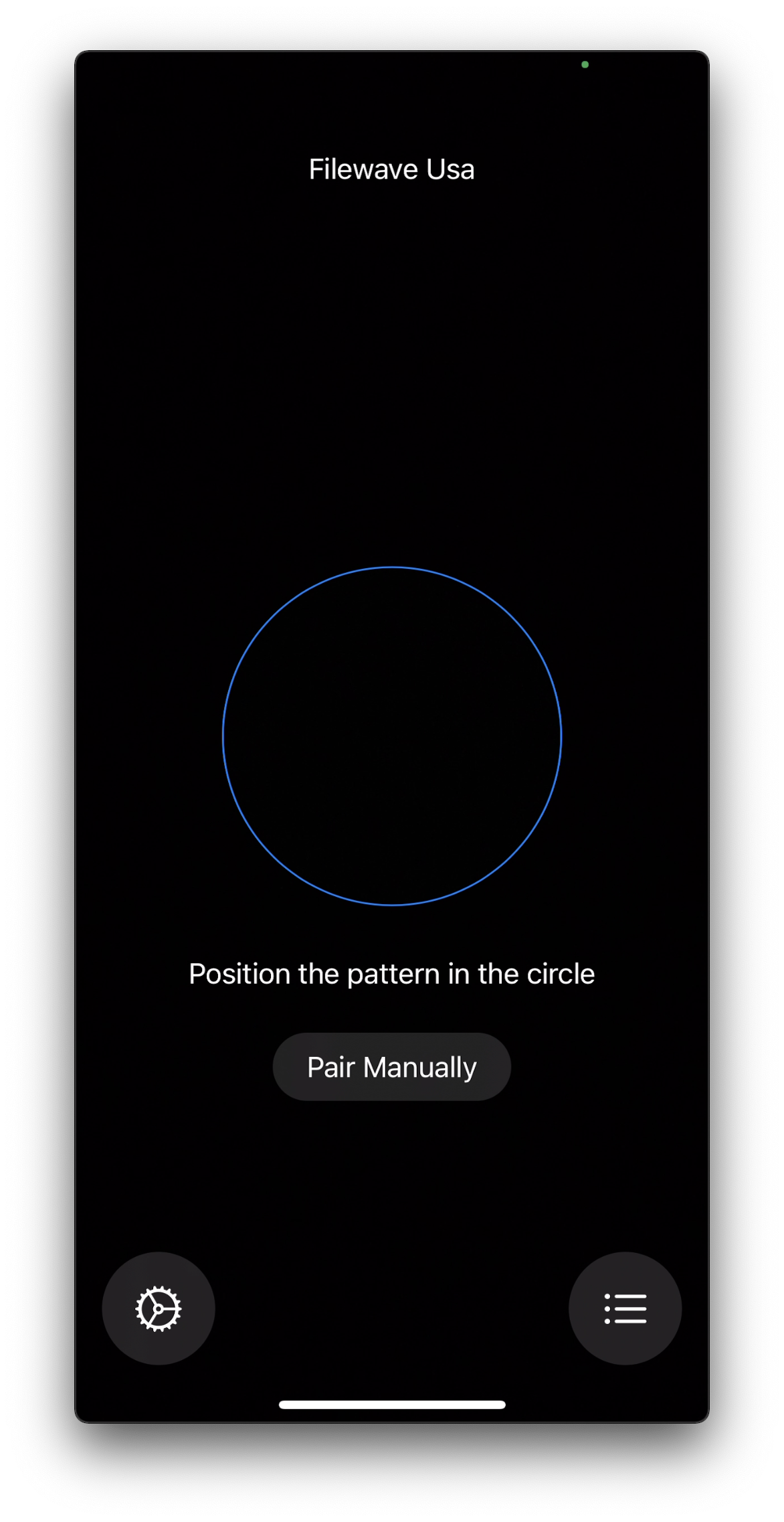
- The macOS device should display an image to capture using the iPhone
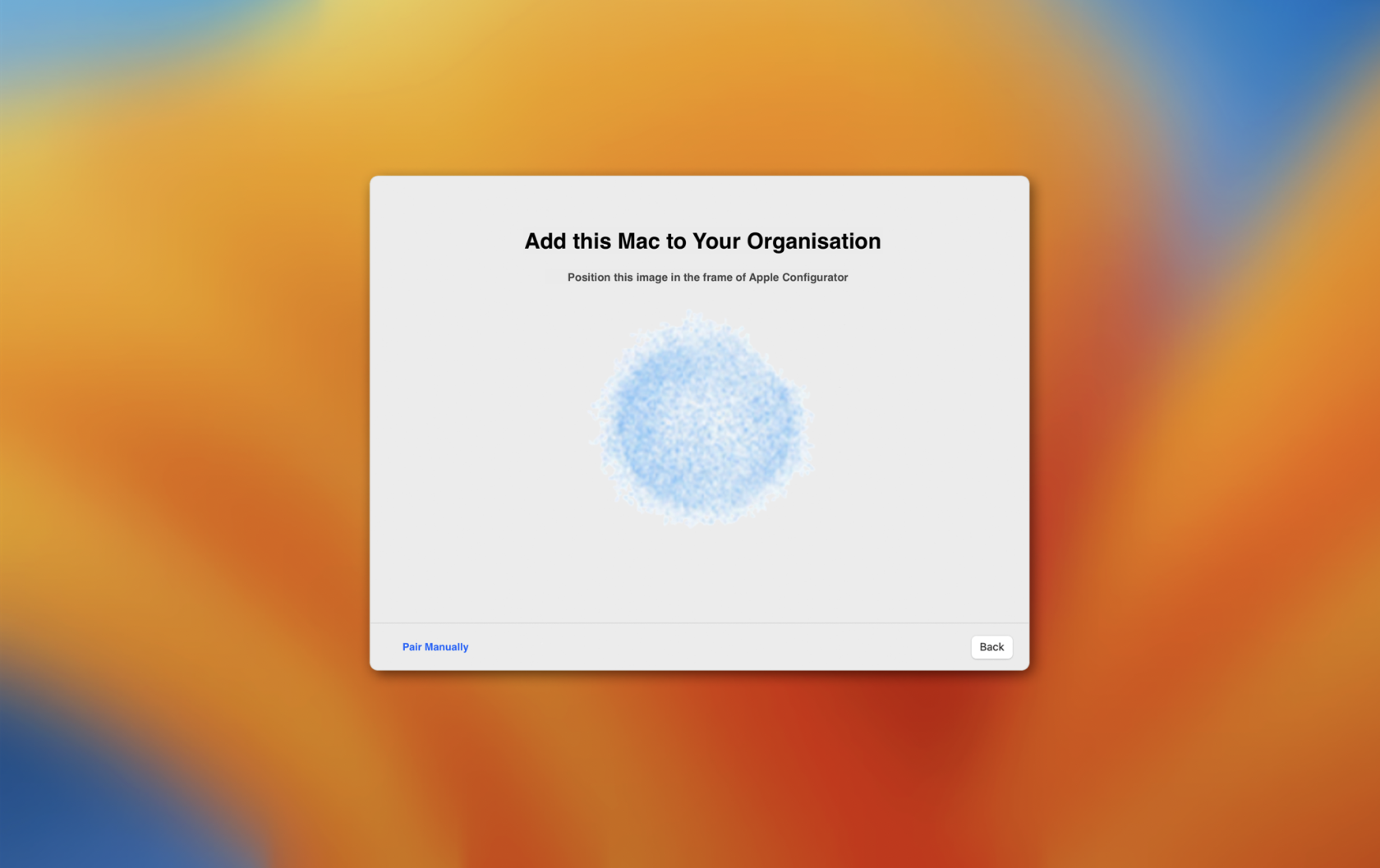
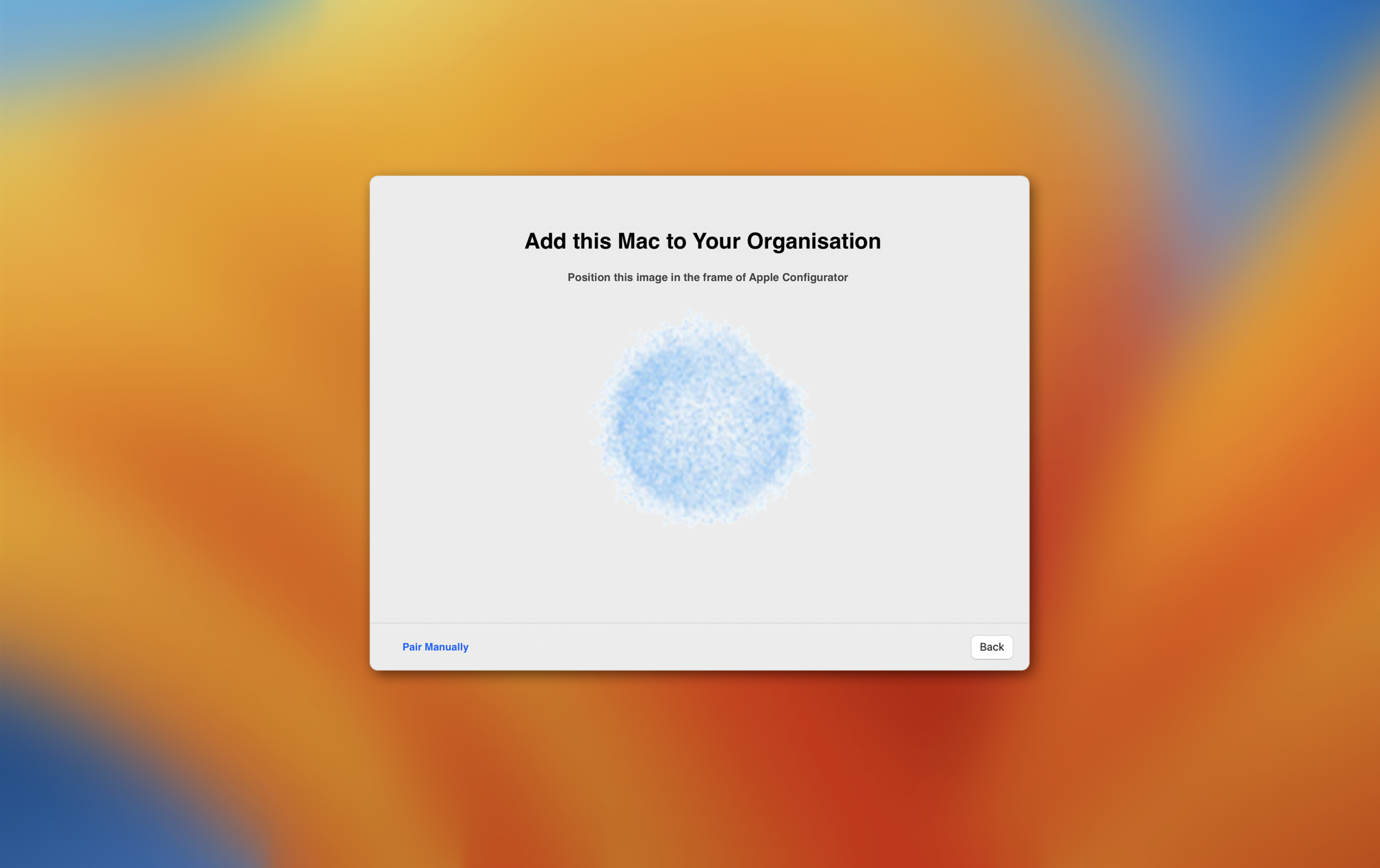

When prompted with the options to Restart or Shutdown the macOS device,Shutdown, refrain from restarting until the following steps to assign the device below have been completed.
ToNow subsequently enrolthat the device usinghas ADE:been added to ASM/ABM, continue with the typical ADE process, explained below:
- Assign the device to the FileWave MDM server within the ABM/ASM
account.account SynchroniseSynchronizeDEP (ADE) inADE the FileWave Admin console from either: FileWave Admin > Preferences > VPP &DEPADE, or Assistants >DEPADE Association Management- If there
isaren'tnoanyautomatedAssignmentgroupRules setup to associate anenrolmentenrollment profile, assign one manually to the new device that is now showing in thelist.list and sync ADE again (step 2).
The device may now be enrolled into FileWave using ADE!
For more information on ADE Enrollment: Automated Device Enrollment (ADE)