
Automatically Assign ADE Profiles
FileWave can automatically assign Automated Device Enrollment (ADE, formerly DEP) profiles by default, operating system, model, or administrator-provided Custom Field values. Use a broad default profile as a safety net, then place more specific assignment rules above it.
Prepare the ADE profiles
Open Assistants → ADE Association Management and confirm that the required ADE profiles already exist. Create a generic profile that can serve as the default for supported Apple devices, plus any profiles needed for specific operating systems, models, uses, or locations.
Assign the default rule
- Open Edit Assignment Rules.
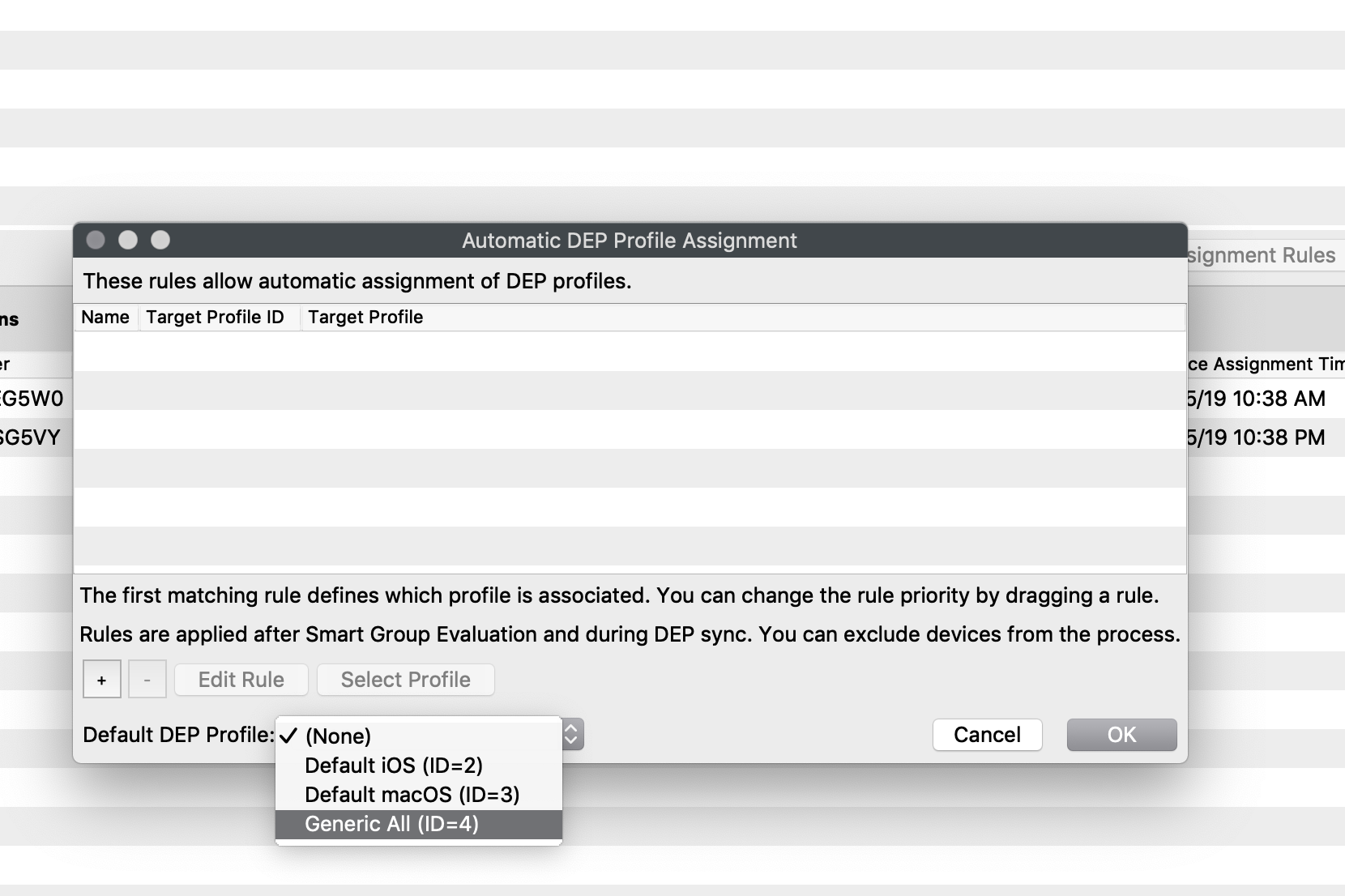
- Choose a Default ADE Profile (Figure 1.1).
- Click OK to save.
Add specific rules when devices need a profile other than the default. The following examples use operating-system criteria and Custom Fields.
Assign by model or operating system
- Open Edit Assignment Rules.
- Click + to create a profile rule.
- Select the ADE profile for the operating system; this example uses iOS.
- Drag ADE Devices / Operating System from the component list into Criteria.
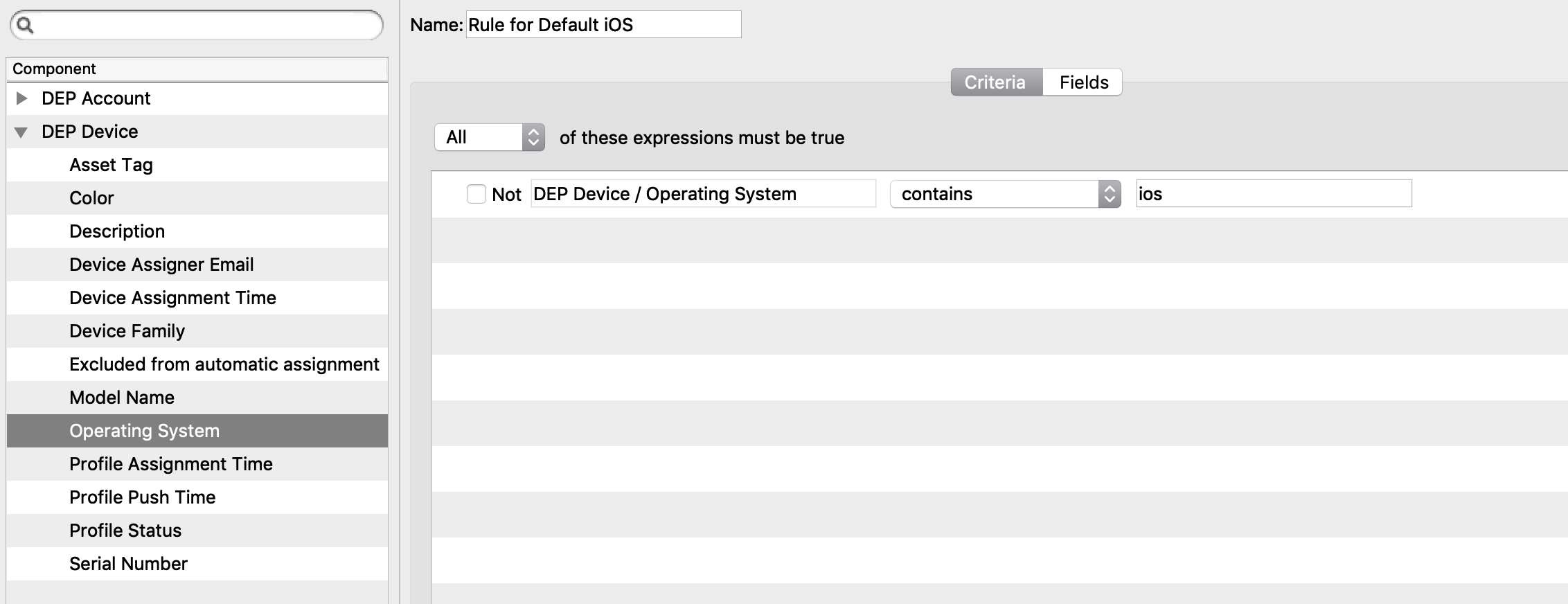
- Set the condition to Contains: iOS (Figure 2.1).
- Save the rule.
- Repeat for the other operating-system values shown by your devices, as needed.
Assign by Custom Field values
- Create Custom fields (in this example "usage" and "location")
See Custom Fields for more information
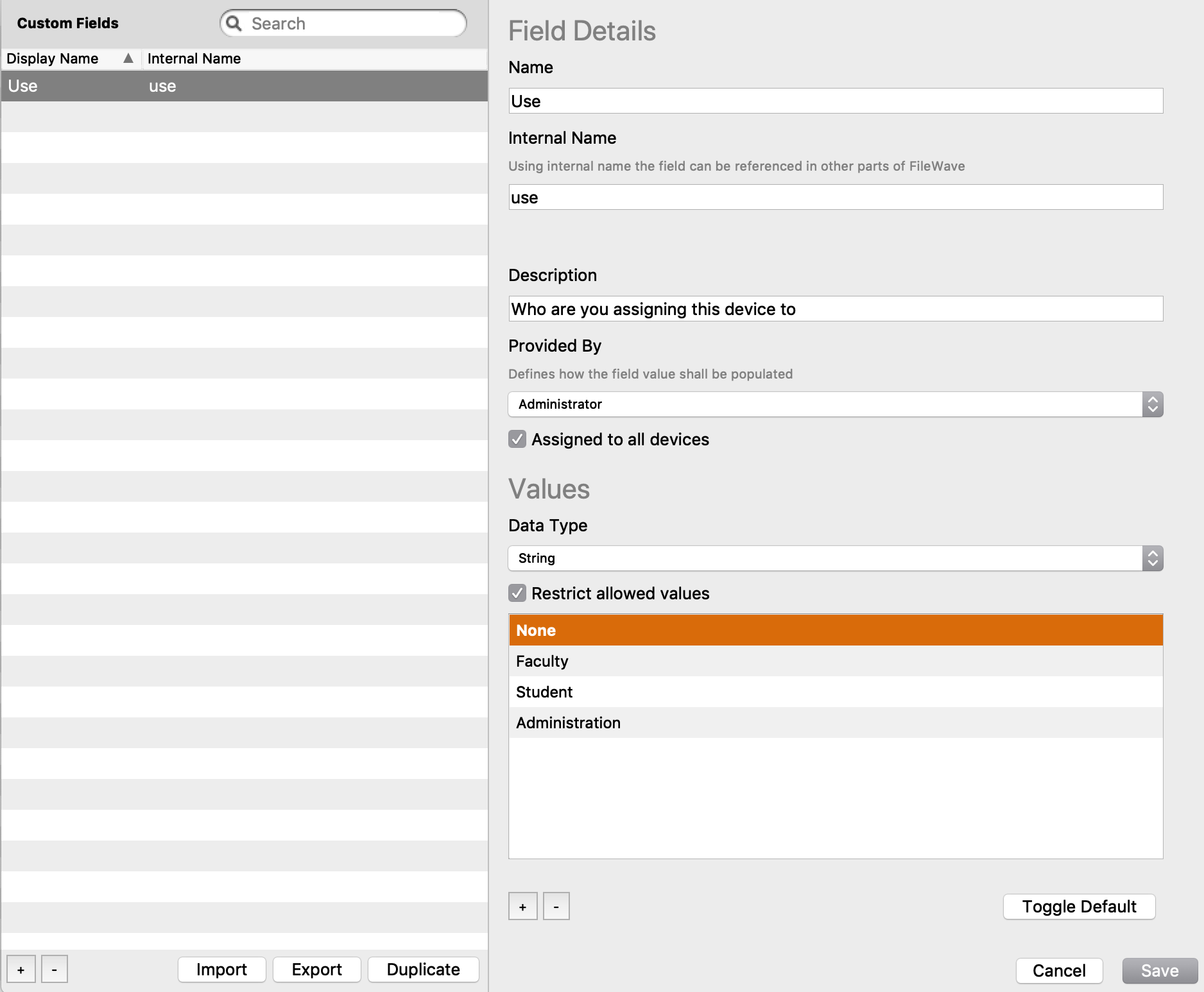
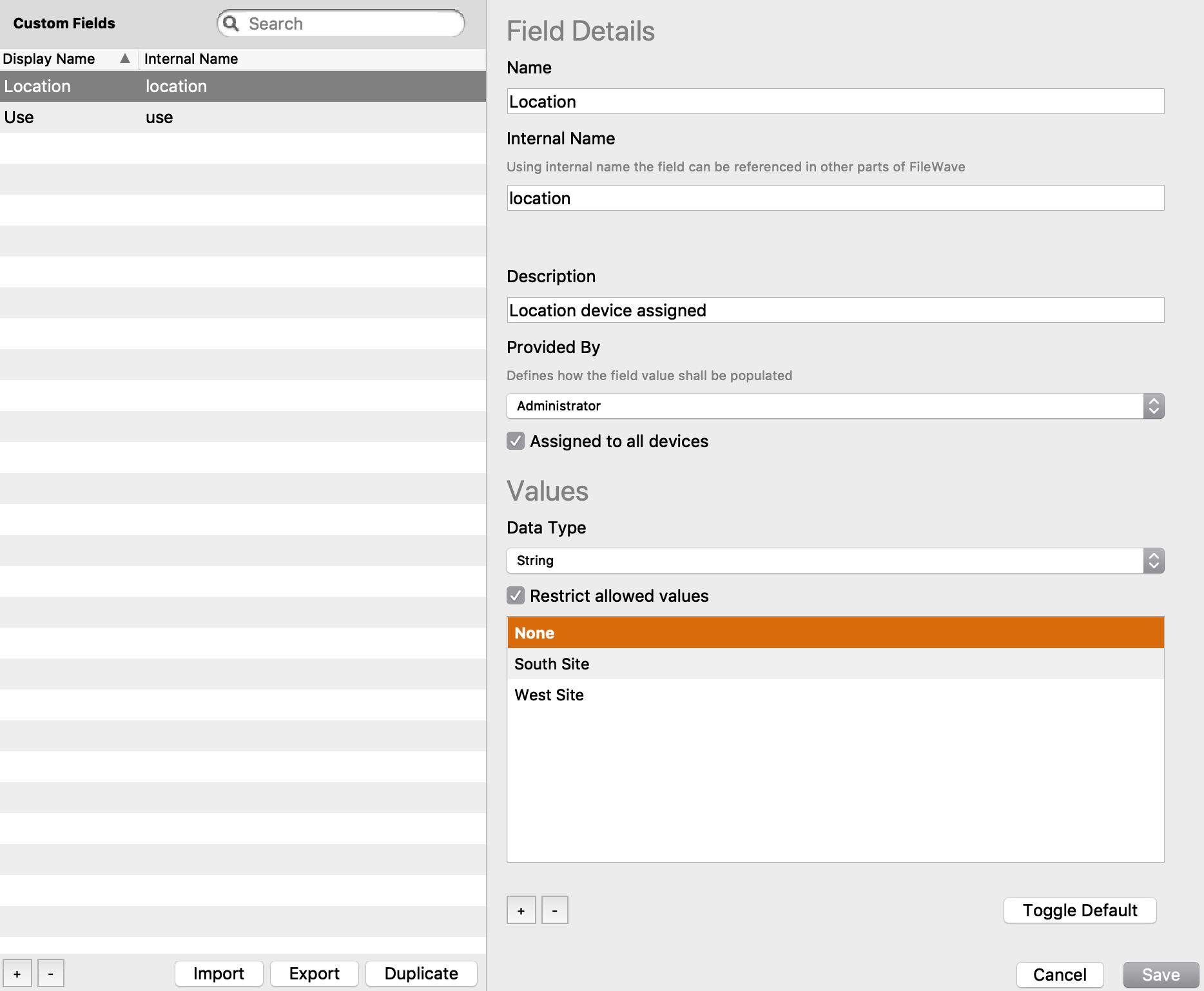
- Use: Provided: Admin, Type: string, Restricted: True, Values: None (DEFAULT), Faculty, Student, Administration (See Figure 3.1)
- Location: Provided: Admin, Type: string, Restricted: True, Values: None (Default), Site A, Site B... (Figure 3.2)
- Take note of the "Internal Name" from the custom fields
- Open the ADE UI
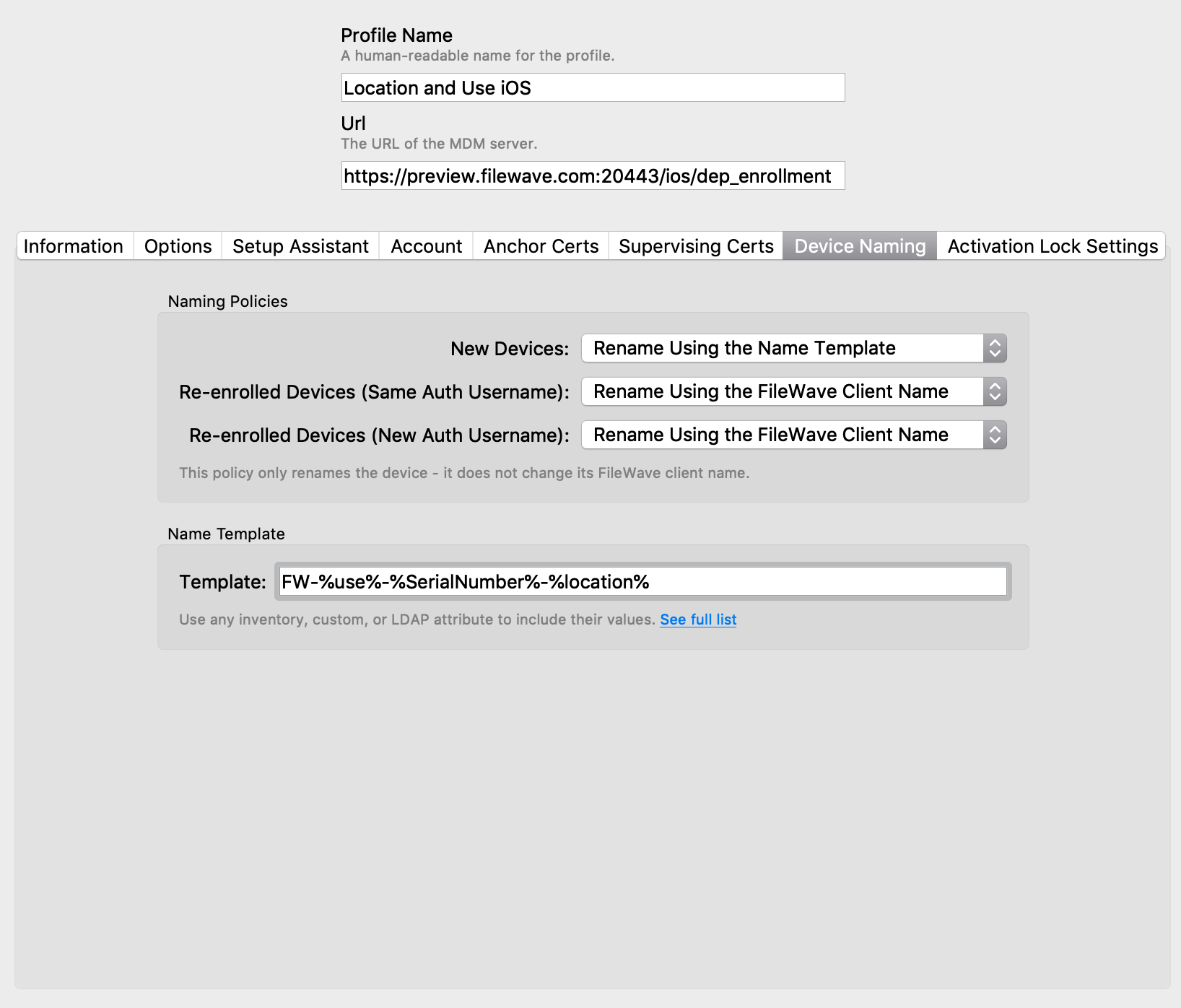
- Hit the [+] to create a new ADE profile
- Use the internal name in naming (see Figure 3.3)
See ADE Naming for more information
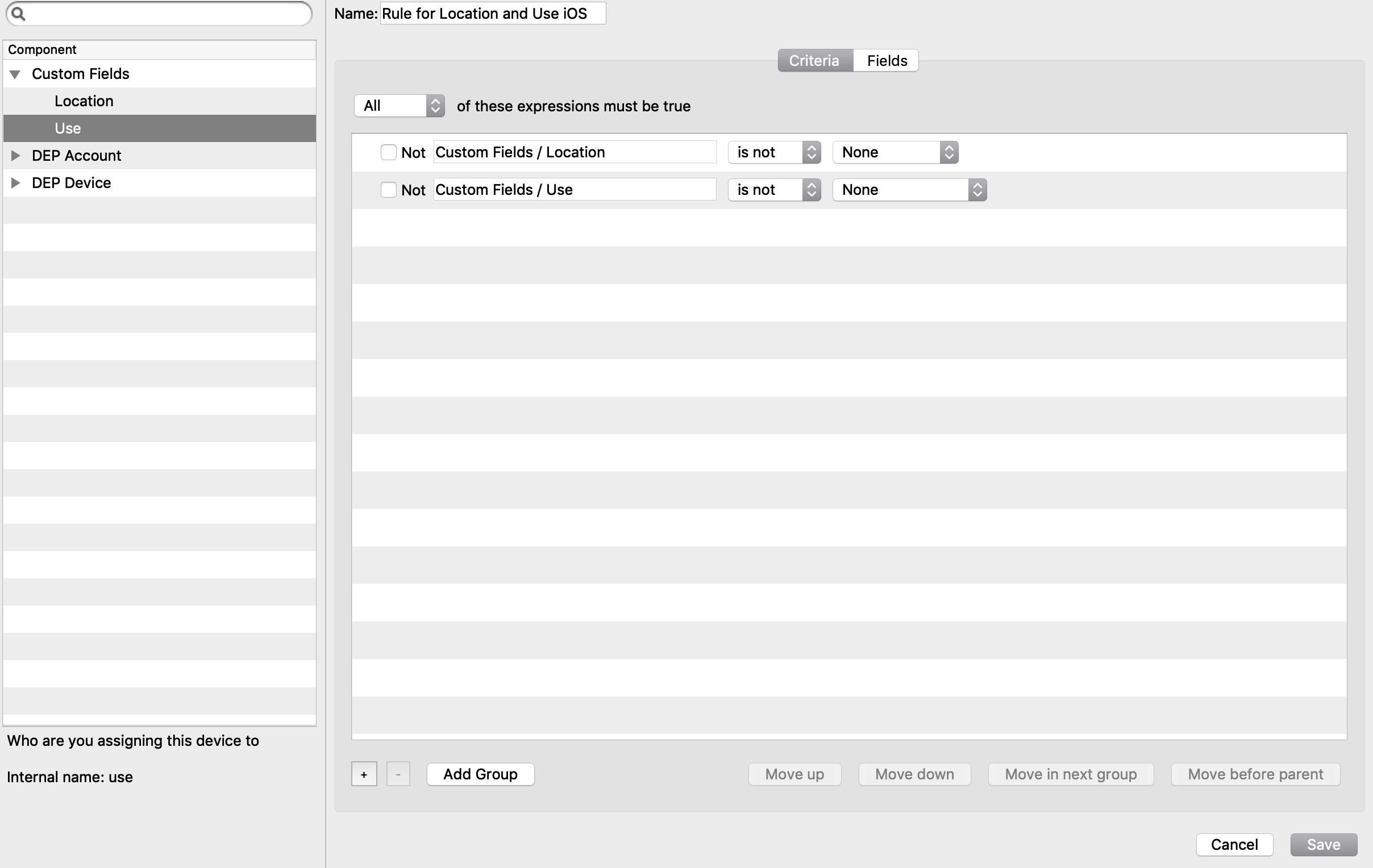
- Open the "Edit Assignment Rules" UI
- Hit the [+] to create a new profile rule
- Use the internal name in naming (see Figure 3.3)
- Select the profile you just created
- You will now see the Custom Fields component on the left Component list
- Open it and bring in location and use
- set them both to is not None (Figure 3.4)
Exclude devices from automatic rules
The Excluded from automatic assignment column shows True or False for each ADE device (Figure 4.1).
|
|
|
Figure 4.1 - Exclude Column |
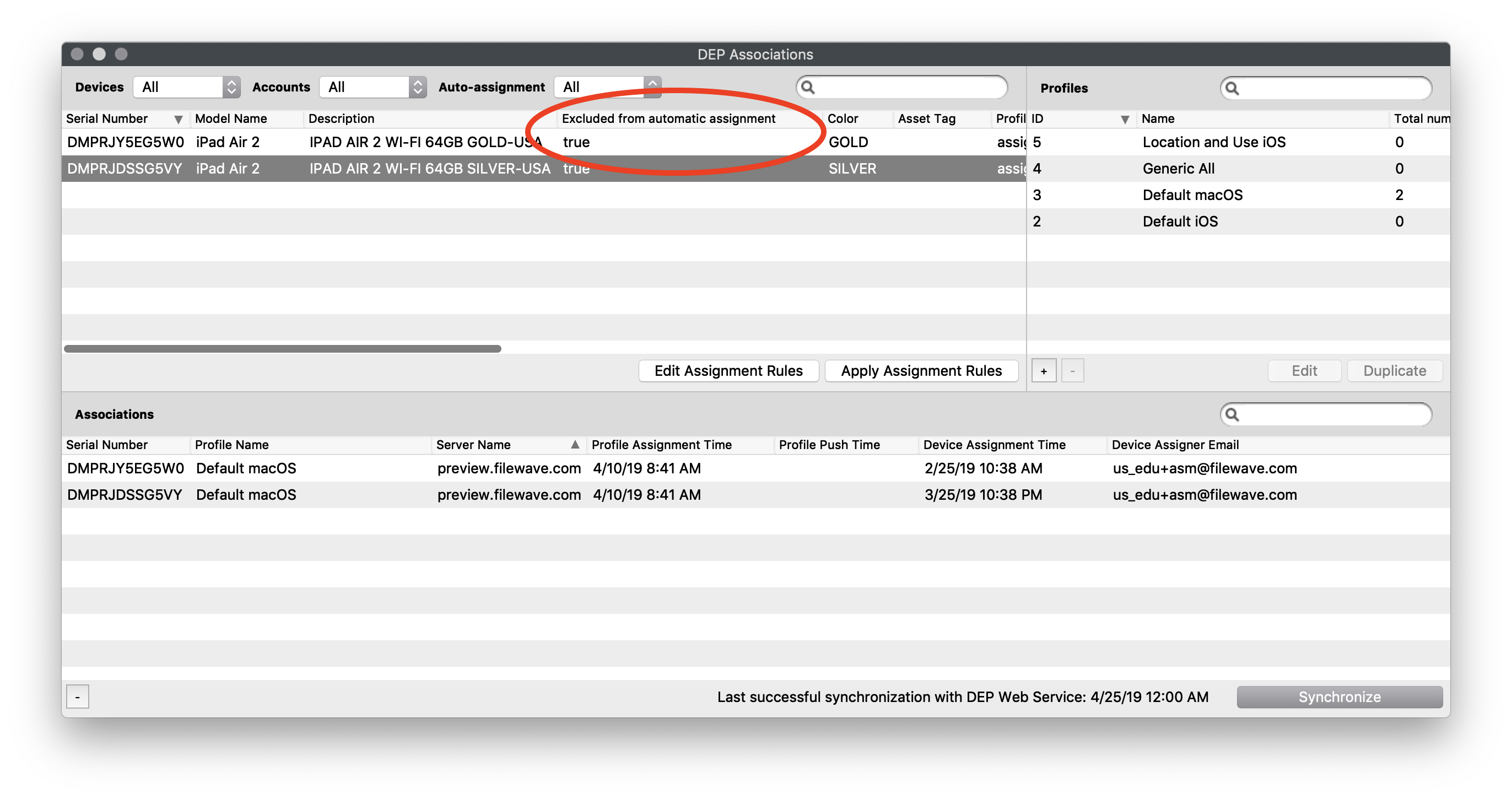
True — The device is skipped during automatic rule processing. This exclusion does not apply when an administrator manually clicks Apply Assignment Rules. That action applies rules to the selected devices after confirmation; if no devices are selected, FileWave treats all devices as selected.
False — The device is included during automatic processing and when Apply Assignment Rules is run manually.
|
Historical upgrade behavior. Devices already present in the ADE list before an upgrade to FileWave 13.1 defaulted to True, protecting their assignments until administrators created and reviewed automatic rules. |
|
|
|
Figure 1.1 - Default Rule |
|
|
|
Figure 2.1 - iOS Simple Rule |
|
|
|
Figure 3.1 - Custom Use |
|
|
|
Figure 3.2 - Custom Location |
|
|
|
Figure 3.3 - Custom Naming |
|
|
|
Figure 3.4 - Custom Name Rule |
No comments to display
No comments to display