
Migrating Apple Devices to FileWave from Another MDM Using ASM/ABM

What

Quick

answer:

 Apple School Manager (ASM) and Apple Business Manager (ABM) now include a device assignment feature that allows you tocan move DEP/ADEeligible Apple devices from oneanother MDMdevice servermanagement toservice anotherinto FileWave without requiringerasing physicalthe device. The device accessmust ormeet aApple’s factorymigration reset.requirements, FileWave canmust servebe ready as the receivingdestination MDM serverservice, and the user must complete reenrollment before the enrollment deadline or Apple will enforce the reenrollment flow.

Do not start with a production-wide move. Recreate the required profiles, restrictions, certificates, apps, VPP assignments, FileVault and Activation Lock handling, and enrollment profiles in FileWave first. Then test with a small pilot group before assigning larger batches in ASM or ABM.

What this does

Apple’s device management migration process,workflow makingchanges itthe possibledevice’s Automated Device Enrollment assignment from the previous MDM service to transitionFileWave. devicesDuring migration, the device unenrolls from competingthe previous MDM solutionsand withreenrolls minimalinto disruption.FileWave. NoteUser thatdata thisis functionalitynot oferased, but previous MDM-managed settings and assignments should not be treated as transferred content.

After the device is assigned to the FileWave device management service in ASM or ABM, run a forcedfull moveAutomated isDevice newEnrollment sync in FileWave and assign the '26correct versionsFileWave ofenrollment profile. Once the Apple OSassignment, versions.FileWave ADE record, and enrollment profile are in place, Apple can prompt or enforce reenrollment into FileWave according to the enrollment deadline.

When/Why

Use this feature when you're switchingWhen to FileWaveuse as your primary MDM and want to migrate existing DEP/ADE enrolled devices without losing enrollment or forcing users through complex re-enrollment processes. This is especially valuable when:

this
  • You haveare anmoving establishedADE/DEP-enrolled fleetApple ondevices from another MDM and wantprovider to consolidate to FileWaveFileWave.
  • You want to avoid factorywiping resetsdevices orjust complexto manualchange re-enrollmentthe workflowsMDM service assignment.
  • You needare consolidating Apple device management into FileWave after a pilot, merger, acquisition, or platform change.
You can prepare equivalent FileWave profiles, apps, certificates, restrictions, and security settings before users are asked to preserve device configurations and user experience during the transition You're testing FileWave's MDM capabilities before committing to a full migrationreenroll.

HowRequirements and limits

Prerequisites

Before starting, confirm the following:

    The devices are listed in Apple School Manager or Apple Business Manager. The devices are already assigned to another device management service. FileWave has been added as a device management service in the same ASM or ABM account. The devices are running iOS 26, iPadOS 26, macOS 26, or newer. The devices are organization-owned and enrolled with Automated Device Enrollment. Apple also supports some Apple Configurator-enrolled devices after the 30-day provisional period. The FileWave server is configured for Automated Device Enrollment and can sync with Apple. The target FileWave configuration is ready before migration begins.

    Apple limitations to watch: Shared iPad is not supported, migration to or from Apple’s built-in device management service/Apple Business Essentials is not supported, and some Return to Service with app preservation scenarios are not eligible. If the deadline option does not appear, or a bulk migration fails in the ASM/ABM activity log, check these eligibility requirements first.

    Plan before moving devices

      Map the old MDM payloads. Inventory profiles, restrictions, certificates, Wi-Fi, VPN, FileVault, managed app configurations, scripts, books, apps, and security settings that need an equivalent in FileWave. Prepare app and VPP assignments. Apps and licenses from the previous MDM do not automatically become FileWave assignments. For iPhone and iPad, Apple can preserve managed apps and app data only when the destination MDM delivers the apps before setup completes. Apple recommends not setting a migration deadline longer than 30 days when volume-purchased apps are involved. Review Activation Lock behavior. Previous Activation Lock bypass codes can become invalid during migration. Confirm how FileWave should manage Activation Lock and verify new bypass information after reenrollment. Pilot first. Use one or two devices that represent real users, network conditions, security settings, and app assignments. Fix configuration gaps before moving larger groups.

      Step 1: Prepare FileWave as the destination service

      1. In ASM or ABM, add FileWave instance registered as ana MDMdevice management service if it has not already been added.
      Complete the Apple server intoken yourexchange between ASM/ABM accountand (follow standard MDM setup)FileWave. YourIn existingFileWave MDMCentral, serverconfirm stillthat registeredAutomated inDevice ASM/ABMEnrollment is configured and syncing. AtCreate leastor one test device to validateconfirm the processFileWave enrollment profile that migrated devices should receive. Assign the profiles, apps, certificates, restrictions, and other settings that should apply after migration.

      Step-by-

      Step Process

      2:

      1.Select Assignthe Devicedevices Managementto move in ASM/ASM or ABM

      1. LogSign in to Apple School Manager or Apple Business Manager with an account that can manage device assignments and device management services.
      2. NavigateGo to yourDevices and search for the device listor anddevices selectthat aneed testto be moved. You can also filter by the current device (startmanagement withservice 1–2to devices,find notdevices yourassigned entire fleet)
      Clickto the ...old (three-dot) menu in the top right cornerMDM. Select one device, or select multiple devices for a batch migration. Choose Assign Device Management. ChooseSelect the FileWave device management service as the destination.

      Step 3: Set the enrollment deadline

      In Apple’s Assign Device Management dialog, the Device Management Service field controls the destination MDMservice serverused for initial enrollment and reenrollment when a deadline is set. Choose the FileWave service that is connected to the ADE token you want these devices to use.
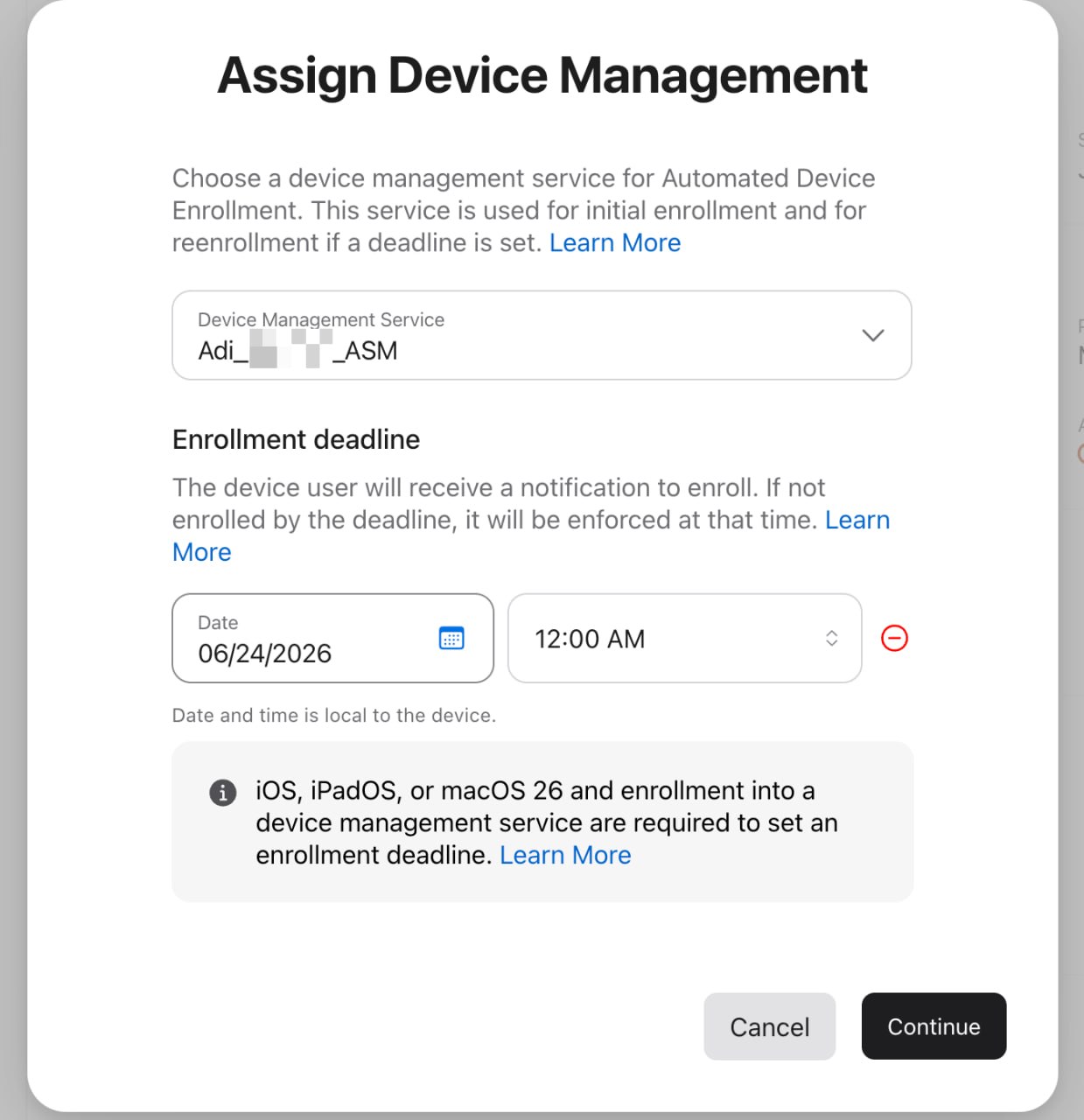
      Apple Business Manager Assign Device Management dialog showing Device Management Service and Enrollment deadline fields

        Choose the option to add or set an Enrollment deadline. Select a deadline more than one day and less than 90 days away. The date and time are local to the device. Click +Continue, Addreview DeadlineApple’s toconfirmation setdialog, whenand confirm the migration occurs
          Choose the soonest available time if you want the device to move immediately Confirm the assignmentreassignment.

          2.

          The Synchronizedeadline withcontrols how long the user has to complete reenrollment. Users receive migration notifications before the deadline; Apple increases notification frequency near the end of the window. If the user does not complete reenrollment by the deadline, Apple enforces the reenrollment experience. On iPhone and iPad this can involve a restart; on Mac, Apple can show a nondismissible full-screen prompt.

          If the deadline option is not available, the selected device probably does not meet Apple’s migration requirements. For bulk assignments, check the ASM/ABM activity log for failures.

          Step 4: Sync Automated Device Enrollment in FileWave

          1. OnIn your FileWave server,Central, navigatego to Assistants → ADE Association Management.
          2. Click Synchronize to pull the latestupdated device listassignment from AppleApple.
          3. TheIf movedthe device shoulddoes appearnot appear, hold Option while clicking Synchronize. The button changes to Full Sync; run the full sync and check again.
          Locate the migrated device in the ADE device list within a few momentslist.

          IfAssign the device doesn't appear:

            Hold Option (⌥) while clicking the Synchronize button The button text will change to "Full Sync" Click it to perform a complete sync; the device should now appear

            3. Assign Enrollment Profile

              Locate the newly migrated device in yourcorrect FileWave ADE device list Verify an enrollment profile isif assigned to it If no profileone is assigned,not selectalready an appropriate enrollment profile and assign itassigned. Click Sync with Apple toso confirmApple has the assignment

              4. User Migration Prompt

              Once Apple detects theFileWave enrollment profile isfor assigned:the device.

              Step 5: User reenrollment

              The user may see prompts to complete MDM migration and reenrollment. The exact wording and timing are controlled by Apple and depend on platform, network state, deadline timing, and whether the device has already received the new enrollment profile.

              • The device willmust automaticallybe receiveonline and able to reach Apple services and the FileWave server.
              If the device loses network access during reenrollment, Apple may show a promptWi-Fi topicker migratebefore MDMthe serversuser can continue enrollment. ForIf the user:user ignores the processprompts is straightforward—they simply acceptuntil the on-devicedeadline, promptsApple Users do not need to understand or interact with MDM details;enforces the migration isflow transparentbefore tonormal themdevice use

              Platform

              can
              Device Type iOS/iPadOS macOS

              Note: This process applies to all Apple platforms enrolled via DEP/ADE.

                FileWave MDM Server Setup in Apple Business Manager ADE Association Management Best Practices VPP App Assignment in FileWave Device Enrollment Profiles in FileWavecontinue.

                DiggingStep Deeper

                6:

                VPP AppsValidate and Migration

                One critical consideration during migration is app continuity. If your devices were using VPP (Volume Purchase Program) apps assigned viaexpand the previousrollout MDM:

                  1. AppsConfirm won'tthat automaticallythe transferdevice to FileWave
                  After migration, you must configure VPP app assignmentsappears in FileWave toafter ensurereenrollment. usersVerify retainthat the device is checking in and receiving the expected profiles, apps, certificates, restrictions, and settings. Check app accessbehavior, especially VPP apps, managed app configuration, and any critical user workflow. AppsConfirm mayFileVault beand removedActivation fromLock devicesbehavior if they'rethose noare longermanaged available throughin the newold MDM duringor FileWave. Move the transitionnext Testsmall thisbatch scenarioonly onafter yourthe pilot devices tobehave understandas timingexpected.

                  Troubleshooting

                  The deadline option is not available in ASM or ABM

                  Confirm that the device is running iOS 26, iPadOS 26, macOS 26, or newer, is eligible for Apple’s device management migration workflow, and useris impactnot in an unsupported state such as Shared iPad or an ineligible Apple Configurator provisional period.

                  The bulk migration fails

                  Recommendation:Check Auditthe whichASM/ABM VPPactivity appslog. areA currentlymixed assignedselection onof youreligible and ineligible devices can cause failures, so test devices,with one known-good device and then set upexpand the sameselection.

                  apps

                  The device does not appear in FileWave beforeafter migrationreassignment

                  to

                  Run minimizea disruption.full Automated Device Enrollment sync in FileWave Central. Confirm that the correct FileWave device management service was selected in ASM or ABM and that the server token is still valid.

                  TestingThe Strategydevice appears in FileWave but does not complete migration

                  Migrating devices in small batches is essential:

                    Test batch (1–2 devices): Verify the assignment, sync, and enrollment profile assignment works as expected Observe user experience: Confirm users receive prompts and can migrate without assistance Check app availability: Ensure critical apps (especially VPP) are available on FileWave post-migration Check configurations: Verify that any device configurations or restrictions are re-applied properly Rollout in waves: Once validated, migrate in small groups (10–50 devices) rather than all at once

                    This phased approach prevents fleet-wide issues and gives you time to address any unexpected problems.

                    Timing and Deadlines

                      If you don't add a deadline in ASM/ABM, the device assignment will remain pending The deadline determines when Apple will initiate the migration prompt on the device Devices don't migrate instantaneously; allow time for Apple's systems to process and push the prompt Monitor ADE Association Management sync logs to see when devices are enrolled with FileWave

                      If Migration Stalls

                      If a device doesn't complete migration:

                        Verify thean enrollment profile is stillassigned, assignedthat inSync FileWavewith CheckApple has been run after the profile assignment, and that the device hascan networkreach connectivityApple services and FileWave.

                        Apps or settings are missing after migration

                        Review the FileWave deployment assigned to the device. The previous MDM’s assignments do not automatically become FileWave assignments, so make sure required profiles, apps, certificates, restrictions, books, and scripts are assigned in FileWave before the deadline.

                        Related content

                        Working with Apple’s Automated Device Enrollment (ADE) PerformAdd or Renewing your ADE (DEP) Account Token Apple Business Manager: Migrate devices to a new management service Apple Platform Deployment: Migrate managed devices to another Fulldevice Syncmanagement (Option + Synchronize) in ADE Association Managementservice Check device logs on the client to see if there's a prompt pending user action