
Add or Renewing your ADE (DEP) Account Token (Apple Business Manager)
Description
ADE is the optimal way to enroll your Apple devices. ADE enrollment is required for countless features and management tools. Once added, you will need to renew your ADE token every year.
If you're renewing your token, it's not necessary to re-upload the server certificate (steps 1, 2, 5 & 6) each time unless the cert has changed or you are receiving a FORBIDDEN error when syncing ADE.
Step-by-step guide
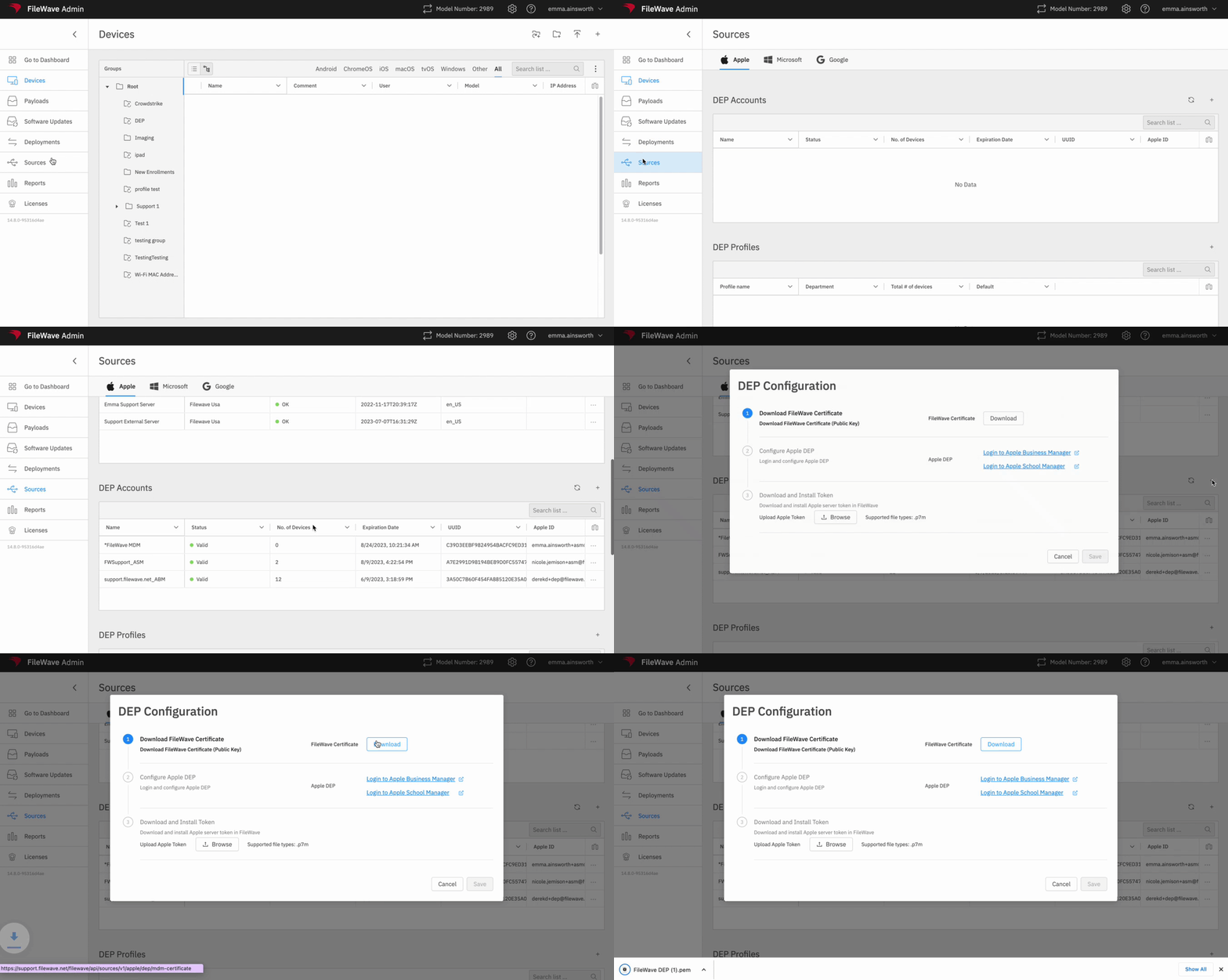
- Download the ADE Certificate from FileWave Admin (Not required for a healthy token renewal. Skip to step 7)
- Save the certificate "FileWave ADE" to your desktop.
FileWave Anywhere
Sources > ADE Accounts > '+' > Download
FileWave Central
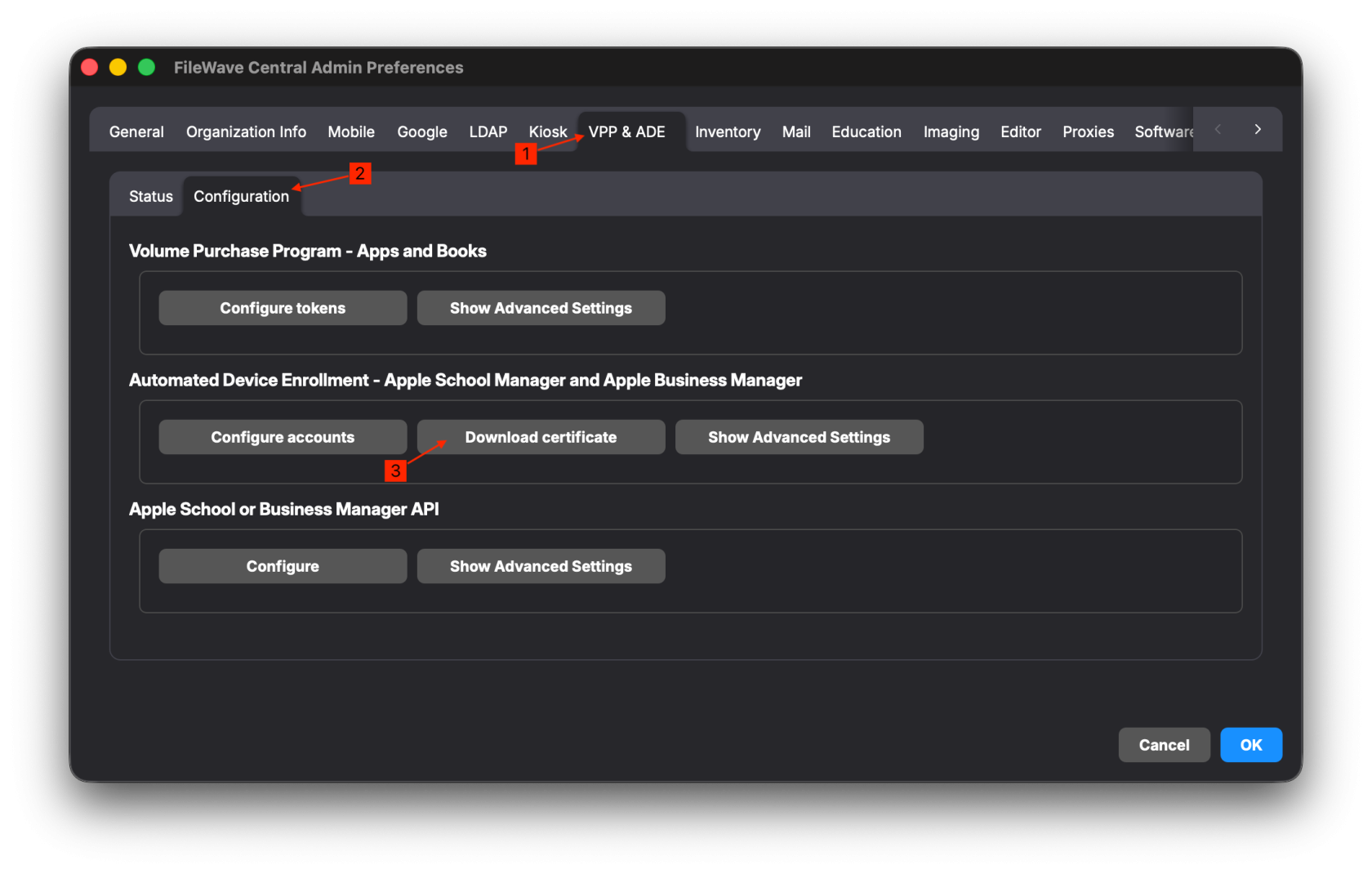
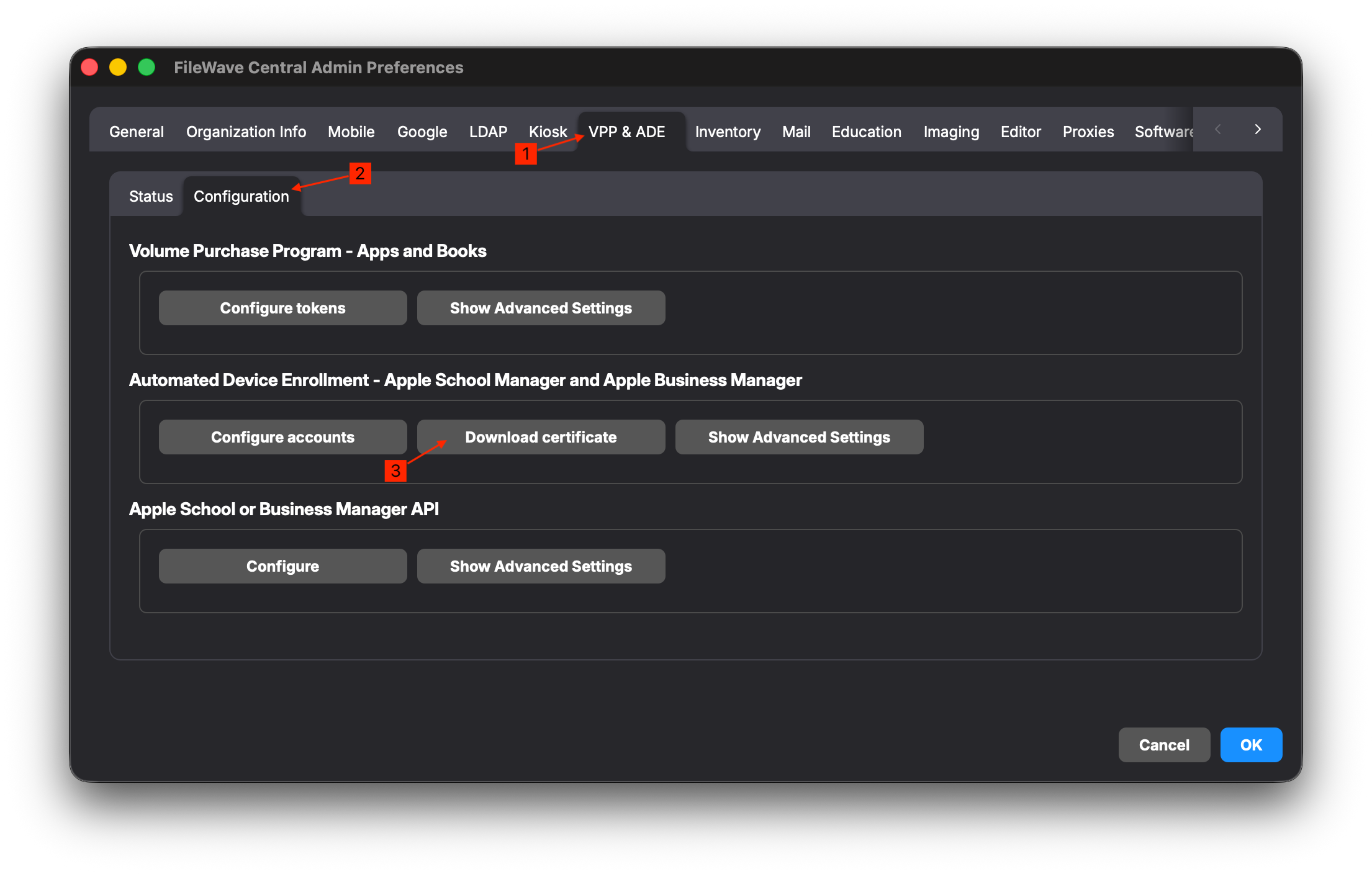
Preferences > VPP & ADE > Configuration > Download Certificate
If you are using a version older than 16.4.0, you won't have the Configuration tab.
3. Go to business.apple.com
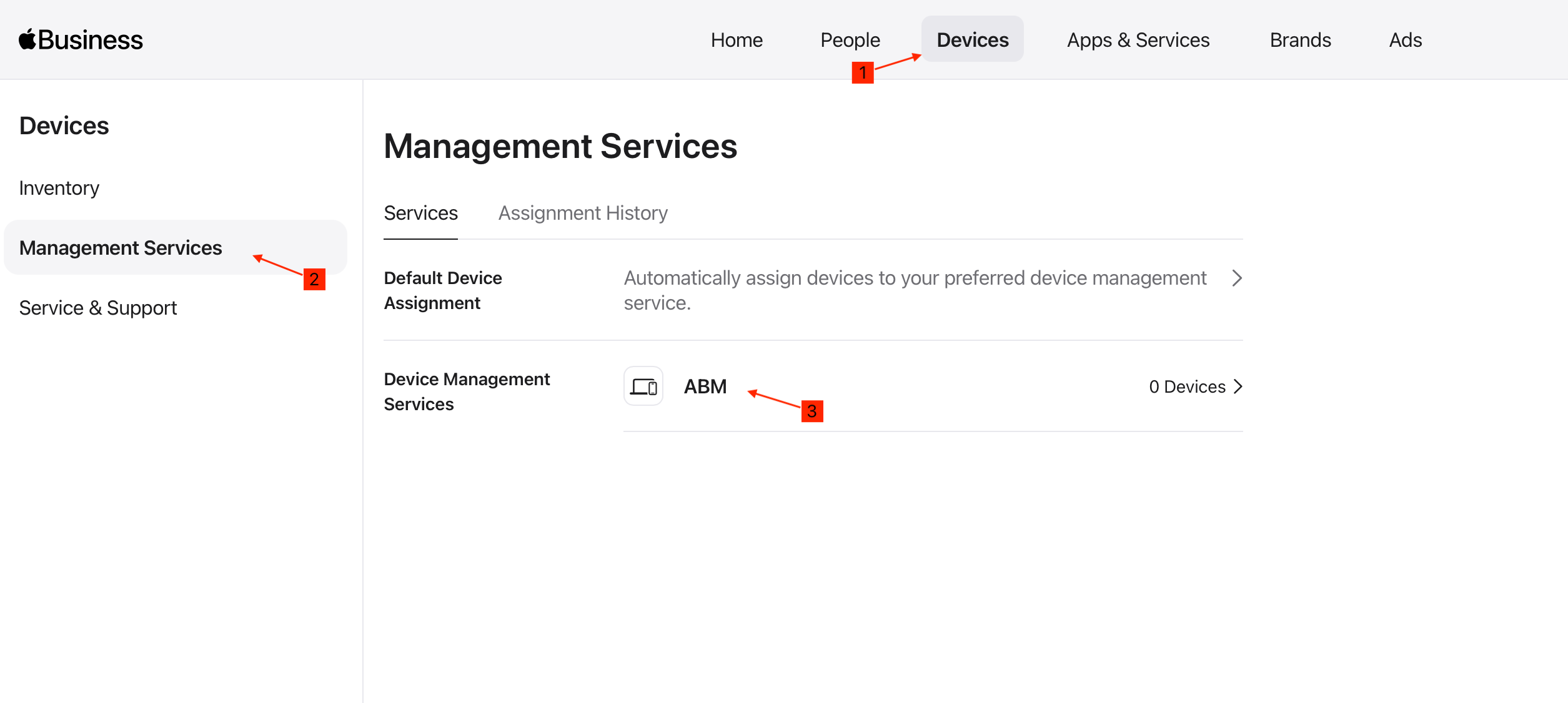
4. Once signed in, go to Devices > Management Services. Select the MDM Server that needs to be renewed.
6. Under the token, select the "..." menu > Edit and upload the certificate we saved in step 2.
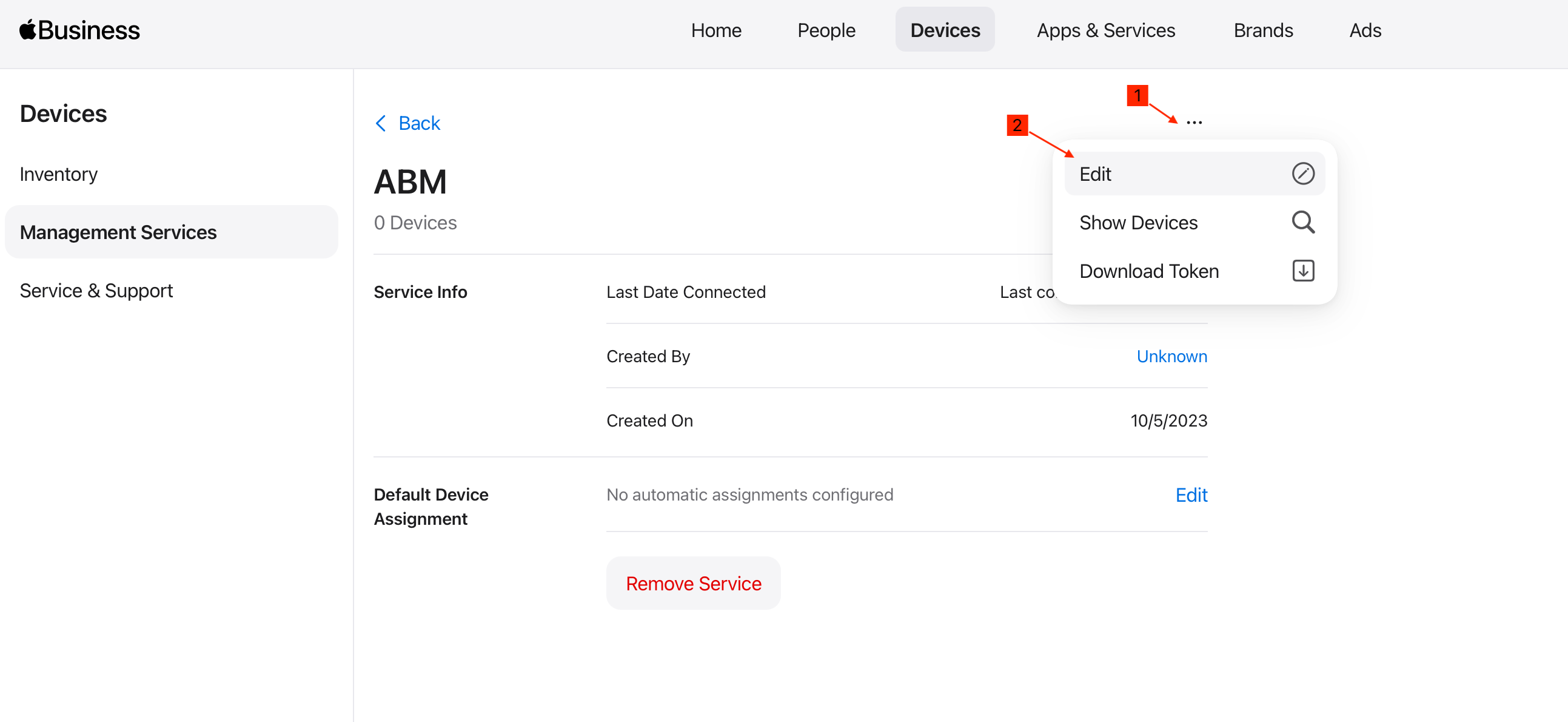
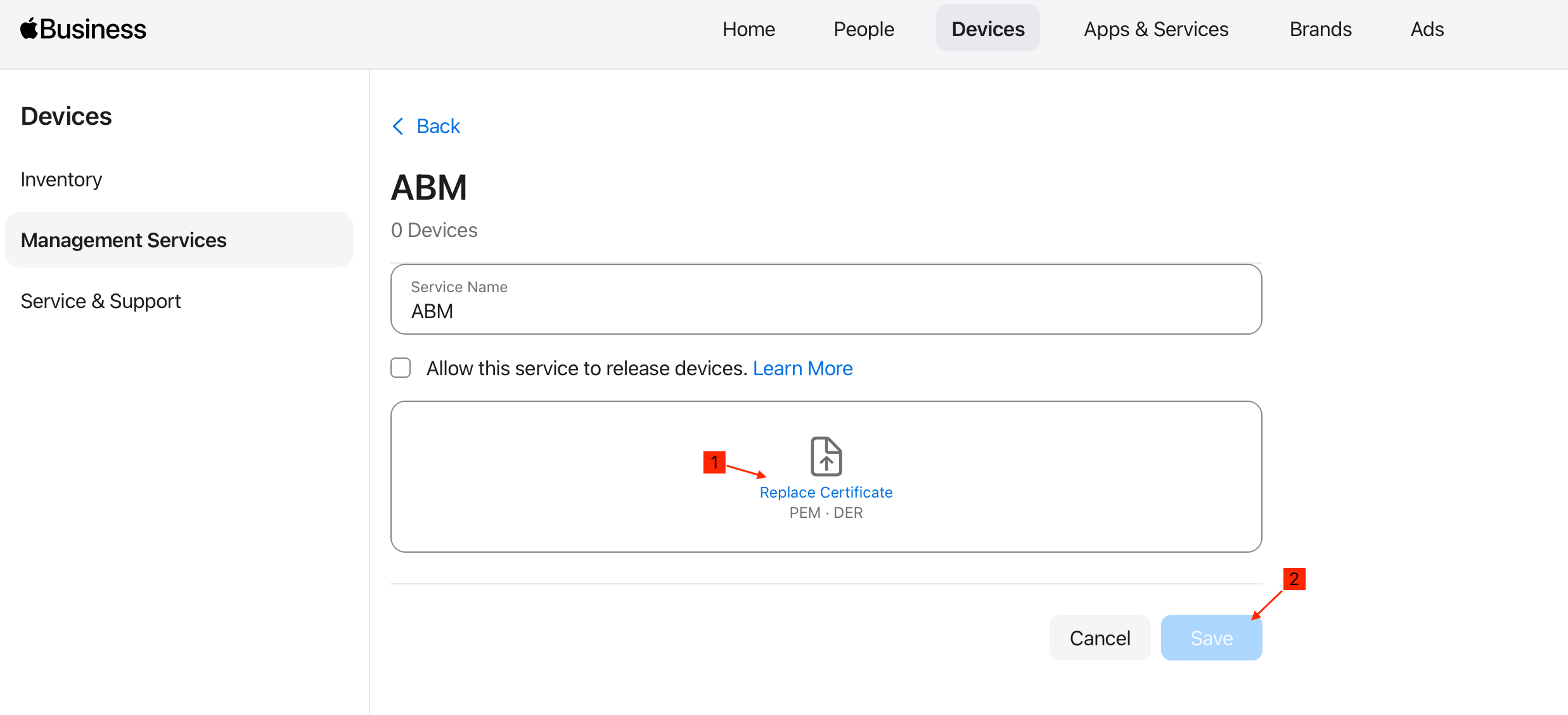
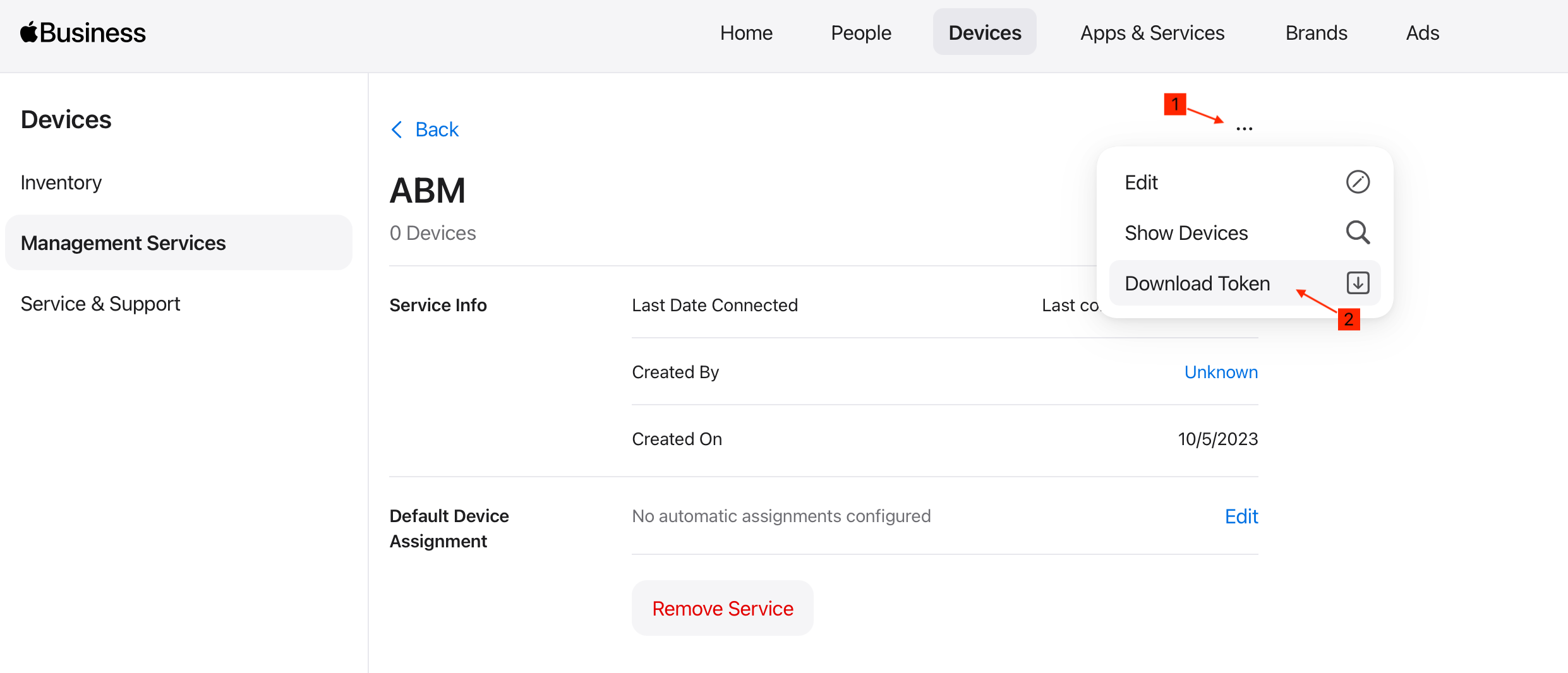
7. Once saved, download the token from ABM
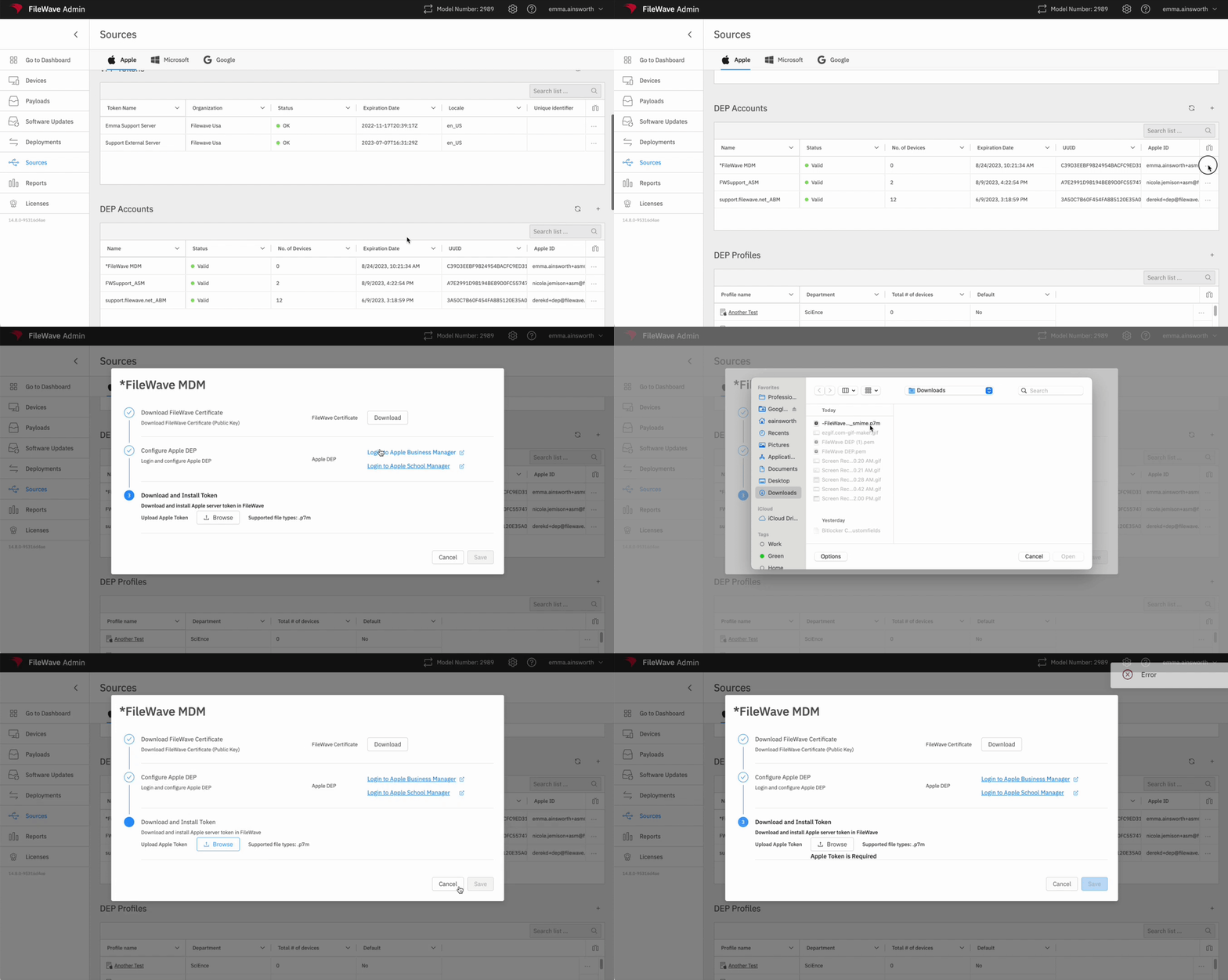
8. Go back to FileWave Central and upload the token
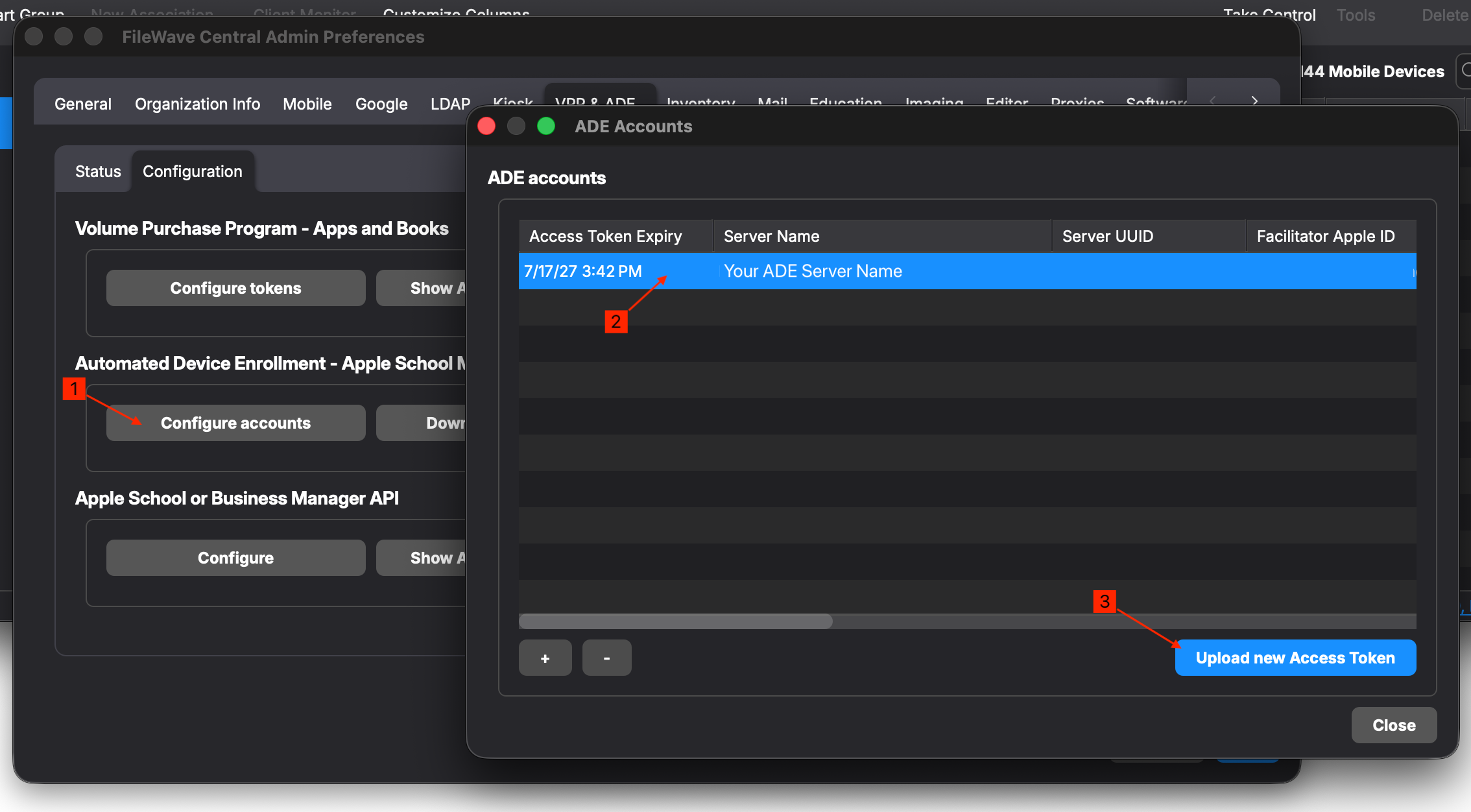
NOTE: At the end of this step, if any attributes have changed in the token, note that the dialog in FW may not reflect the new values for 10 - 30 minutes (i.e., Server Name), and that is normal.
FileWave Anywhere
In Sources, under ADE Accounts, select the ellipses next to the correct ADE account and choose ‘Edit’. Select Browse and upload the Apple Token downloaded in step 7 of this document. Click Save.
You’re all set! If you renewed your token, you should see a new expiration date. If you added a new token, you can learn more about managing your devices with ADE and FileWave here: Apple ADE Enrollment.
No comments to display
No comments to display