
Migrating Apple Devices to FileWave from Another MDM Using ASM/ABM
Quick answer: Apple School Manager (ASM) and Apple Business Manager (ABM) can move eligible Apple devices from another device management service into FileWave without erasing the device. The device must meet Apple’s migration requirements, FileWave must be ready as the destination MDM service, and the user must complete reenrollment before the enrollment deadline, or Apple will enforce the reenrollment flow.
Do not start with a production-wide move. Recreate the required profiles, restrictions, certificates, apps, VPP assignments, FileVault, and Activation Lock handling, and enrollment profiles in FileWave first. Then test with a small pilot group before assigning larger batches in ASM or ABM.
What this does
Apple’s device management migration workflow changes the device’s Automated Device Enrollment assignment from the previous MDM service to FileWave. During migration, the device unenrolls from the previous MDM and reenrolls into FileWave. User data is not erased, but previous MDM-managed settings and assignments should not be treated as transferred content.
After the device is assigned to the FileWave device management service in ASM or ABM, run a full Automated Device Enrollment sync in FileWave and assign the correct FileWave enrollment profile. Once the Apple assignment, FileWave ADE record, and enrollment profile are in place, Apple can prompt or enforce reenrollment into FileWave according to the enrollment deadline.
When to use this
- You are moving ADE/DEP-enrolled Apple devices from another MDM provider to FileWave.
- You want to avoid wiping devices just to change the MDM service assignment.
- You are consolidating Apple device management into FileWave after a pilot, merger, acquisition, or platform change.
- You can prepare equivalent FileWave profiles, apps, certificates, restrictions, and security settings before users are asked to reenroll.
Requirements and limits
Before starting, confirm the following:
- The devices are listed in Apple School Manager or Apple Business Manager.
- The devices are already assigned to another device management service.
- FileWave has been added as a device management service in the same ASM or ABM account.
- The devices are running iOS 26, iPadOS 26, macOS 26, or newer.
- The devices are organization-owned and enrolled with Automated Device Enrollment. Apple also supports some Apple Configurator-enrolled devices after the 30-day provisional period.
- The FileWave server is configured for Automated Device Enrollment and can sync with Apple.
- The target FileWave configuration is ready before migration begins.
Apple limitations to watch: Shared iPad is not supported, migration to or from Apple’s built-in device management service/Apple Business Essentials is not supported, and some Return to Service with app preservation scenarios are not eligible. If the deadline option does not appear, or a bulk migration fails in the ASM/ABM activity log, check these eligibility requirements first.
Plan before moving devices
- Map the old MDM payloads. Inventory profiles, restrictions, certificates, Wi-Fi, VPN, FileVault, managed app configurations, scripts, books, apps, and security settings that need an equivalent in FileWave.
- Prepare app and VPP assignments. Apps and licenses from the previous MDM do not automatically become FileWave assignments. For iPhone and iPad, Apple can preserve managed apps and app data only when the destination MDM delivers the apps before setup completes. Apple recommends not setting a migration deadline longer than 30 days when volume-purchased apps are involved.
- Review Activation Lock behavior. Previous Activation Lock bypass codes can become invalid during migration. Confirm how FileWave should manage Activation Lock and verify new bypass information after reenrollment.
- Pilot first. Use one or two devices that represent real users, network conditions, security settings, and app assignments. Fix configuration gaps before moving larger groups.
Step 1: Prepare FileWave as the destination service
- In ASM or ABM, add FileWave as a device management service if it has not already been added.
- Complete the Apple server token exchange between ASM/ABM and FileWave.
- In FileWave Central, confirm that Automated Device Enrollment is configured and syncing.
- Create or confirm the FileWave enrollment profile that migrated devices should receive.
- Assign the profiles, apps, certificates, restrictions, and other settings that should apply after migration.
Step 2: Select the devices to move in ASM or ABM
- Sign in to Apple School Manager or Apple Business Manager with an account that can manage device assignments and device management services.
- Go to Devices and search for the device or devices that need to be moved. You can also filter by the current device management service to find devices assigned to the old MDM.
- Select one device, or select multiple devices for a batch migration.
- Choose Assign Device Management.
- Select the FileWave device management service as the destination.
Step 3: Set the enrollment deadline
In Apple’s Assign Device Management dialog, the Device Management Service field controls the destination service used for initial enrollment and reenrollment when a deadline is set. Choose the FileWave service that is connected to the ADE token you want these devices to use.
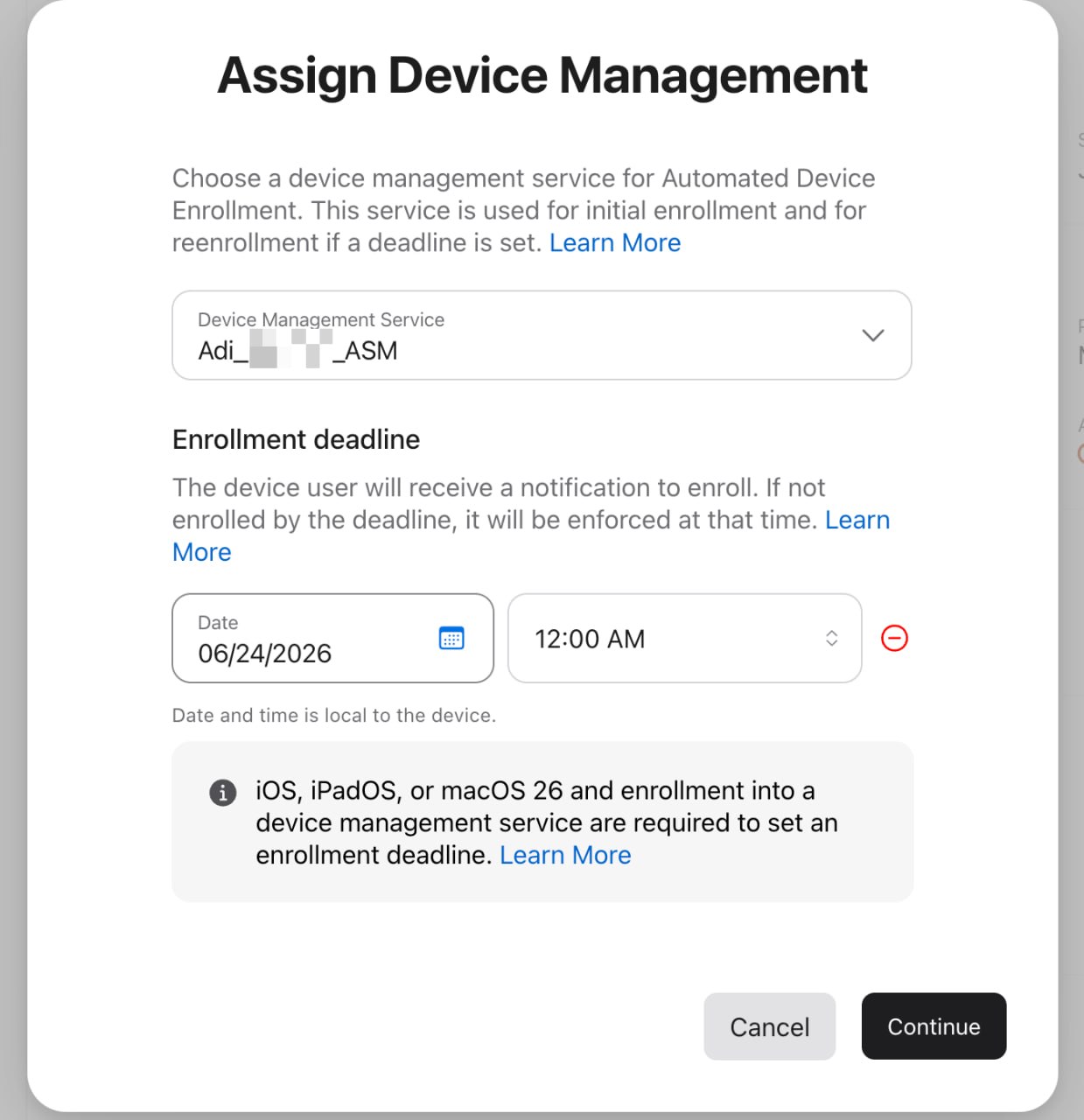
- Choose the option to add or set an Enrollment deadline.
- Select a deadline more than one day and less than 90 days away. The date and time are local to the device.
- Click Continue, review Apple’s confirmation dialog, and confirm the reassignment.
The deadline controls how long the user has to complete reenrollment. Users receive migration notifications before the deadline; Apple increases notification frequency near the end of the window. If the user does not complete reenrollment by the deadline, Apple enforces the reenrollment experience. On iPhone and iPad, this can involve a restart; on Mac, Apple can show a nondismissible full-screen prompt.
If the deadline option is not available, the selected device probably does not meet Apple’s migration requirements. For bulk assignments, check the ASM/ABM activity log for failures.
Step 4: Sync Automated Device Enrollment in FileWave
- In FileWave Central, go to Assistants → ADE Association Management.
- Click Synchronize to pull the updated device assignment from Apple.
- If the device does not appear, hold Option while clicking Synchronize. The button changes to Full Sync; run the full sync and check again.
- Locate the migrated device in the ADE device list.
- Assign the correct FileWave enrollment profile if one is not already assigned.
- Click Synchronize, so Apple has the FileWave enrollment profile for the device.
Step 5: User reenrollment
The user may see prompts to complete MDM migration and reenrollment. The exact wording and timing are controlled by Apple and depend on platform, network state, deadline timing, and whether the device has already received the new enrollment profile.
- The device must be online and able to reach Apple services and the FileWave server.
- If the device loses network access during reenrollment, Apple may show a Wi-Fi picker before the user can continue enrollment.
- If the user ignores the prompts until the deadline, Apple enforces the migration flow before normal device use can continue.
Step 6: Validate and expand the rollout
- Confirm that the device appears in FileWave after reenrollment.
- Verify that the device is checking in and receiving the expected profiles, apps, certificates, restrictions, and settings.
- Check app behavior, especially VPP apps, managed app configuration, and any critical user workflow.
- Confirm FileVault and Activation Lock behavior if those are managed in the old MDM or FileWave.
- Move the next small batch only after the pilot devices behave as expected.
Troubleshooting
The deadline option is not available in ASM or ABM
Confirm that the device is running iOS 26, iPadOS 26, macOS 26, or newer, is eligible for Apple’s device management migration workflow, and is not in an unsupported state, such as Shared iPad or an ineligible Apple Configurator provisional period.
The bulk migration fails
Check the ASM/ABM activity log. A mixed selection of eligible and ineligible devices can cause failures, so test with one known-good device and then expand the selection.
The device does not appear in FileWave after reassignment
Run a full Automated Device Enrollment sync in FileWave Central. Confirm that the correct FileWave device management service was selected in ASM or ABM and that the server token is still valid.
The device appears in FileWave, but does not complete the migration
Confirm that an enrollment profile is assigned, that the FileWave Server has been synced with ADE after the profile assignment, and that the device can reach Apple services and FileWave.
Apps or settings are missing after the migration
Review the FileWave deployment assigned to the device. The previous MDM’s assignments do not automatically become FileWave assignments, so make sure required profiles, apps, certificates, restrictions, books, and scripts are assigned in FileWave before the deadline.
No comments to display
No comments to display