
Write FileWave Custom Field Values with the API
Use the FileWave Command Line API to set a server-side Custom Field value for one inventory device. This is useful when an external system or endpoint script needs to update reporting, automation, or Smart Group criteria.
The value is written to FileWave Server immediately. Verify the stored value with a fresh inventory API request instead of assuming that a successful HTTP response updated the intended device.
Smart Group membership is not immediate. A changed Custom Field does not affect membership until the next Smart Group evaluation.
How
Before writing a value, collect:
- The FileWave Server FQDN and reachable Command Line API endpoint
- The target device's Inventory
Client.device_idvalue - The Custom Field's internal name and data type
- A value valid for that field, including an exact listed choice when choices are restricted
- A least-privilege FileWave application token supplied securely at runtime
Validate restricted values before PATCH. Send one of the field's exact configured choices, including matching case and spacing.
Restricted Values
Value restriction may be observed from within the Custom Field definition.
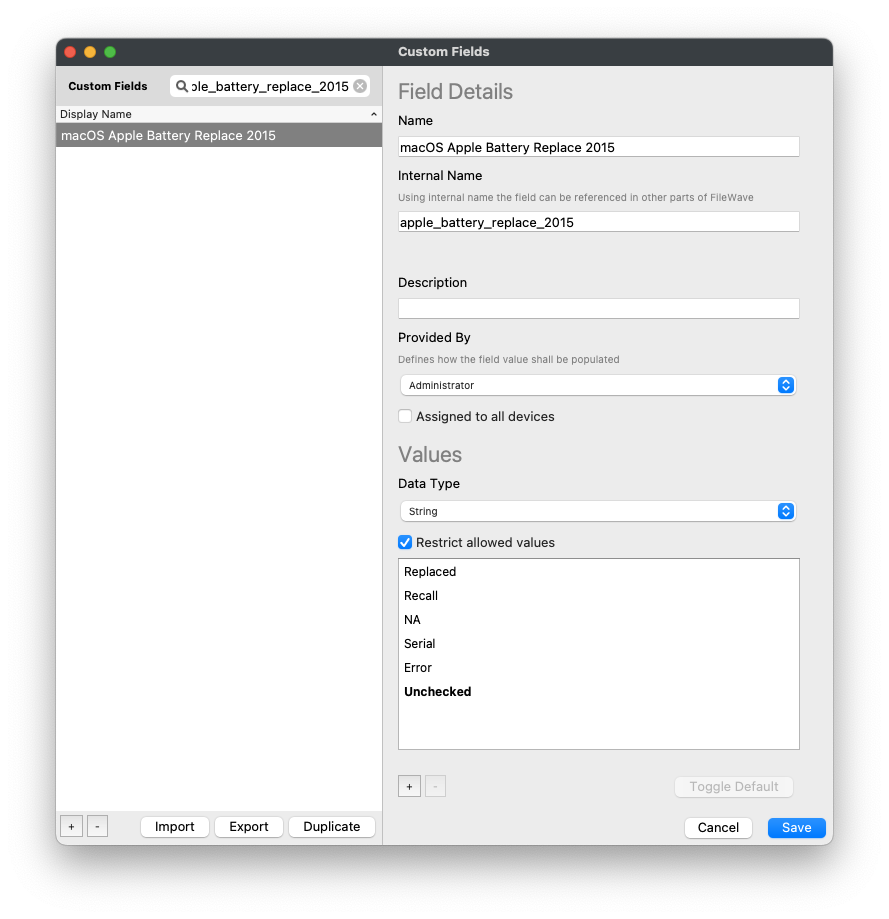
It is also possible to use Swagger (or therefore another API call) to return the 'choices' list of any Custom Field, by observing the Custom Field definition:
URL path for query:
/api/inv/api/v1/custom_field/
Query response:
  {
    "to_be_deleted": false,
    "field_name": "apple_battery_replace_2015",
    "display_name": "macOS Apple Battery Replace 2015",
    "data_type": "string",
    "provider": 0,
    "metadata": {},
    "description": "",
    "default_value": "Unchecked",
    "choices": [
      "Replaced",
      "Recall",
      "NA",
      "Serial",
      "Error",
      "Unchecked"
    ],
    "is_global": false,
    "used_in_inventory_queries": false,
    "used_in_smart_groups": false,
    "used_in_filesets": false,
    "used_in_license_definitions": false,
    "used_in_dep_profiles": false,
    "used_in_dep_rules": false,
    "used_in_workflows": false
  },
Use the Command Line API device ID
This workflow uses the Command Line RESTful API under /inv/api/v1/. The PATCH endpoint requires the Inventory Client.device_id value, which is the UUID-like Device ID shown in inventory—not the serial number, numeric client ID, or a FileWave Anywhere API object ID.
Supply the FileWave application token through a protected environment variable and send it exactly as issued in the raw Authorization header. Do not hard-code it or base64-encode it again. In API paths and JSON, use the Custom Field's raw internal name; percent-wrapped syntax such as %custom_field% is for FileWave variable substitution outside the API payload.
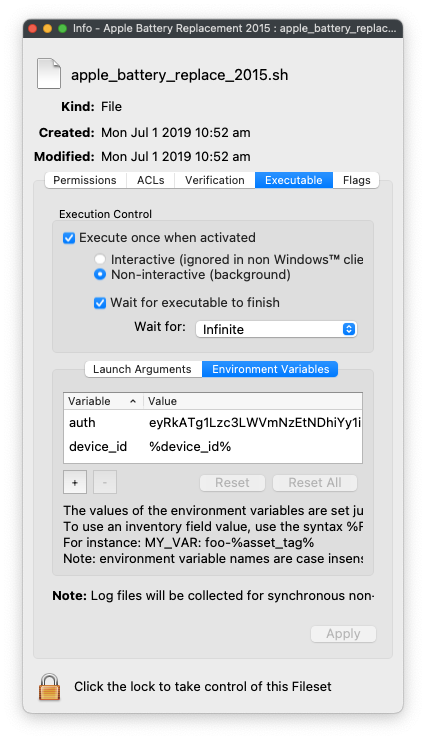
The start of a macOS script may look like:
#!/bin/zsh

# Environment Variables
# $FILEWAVE_TOKEN - FileWave application token, supplied securely at runtime
# $device_id - Inventory Client.device_id value

server_fqdn=$(defaults read /usr/local/etc/fwcld.plist server) # FW Server FQDN
serial_number=$(ioreg -l -d 2 | awk -F "\"" '/IOPlatformSerialNumber/ {print $(NF-1)}') # device serial number
It is of course possible that all of these values could be supplied to the script as Executable variables.
The start of a PowerShell script may look like:
# Environment Variables
# $Env:FILEWAVE_TOKEN - FileWave application token, supplied securely at runtime
# $Env:device_id - Inventory Client.device_id value
# $Env:serial_number - device serial number
# $Env:server_fqdn - FW Server FQDN
Reading a Custom Field
It may be necessary to read the Custom Field during the script execution. A JSON will be required for the data portion of the command:
{"criteria":
  {
    "column":"serial_number",
    "component":"Client",
    "operator":"is",
    "qualifier":'\"$serial_number\"'
  },
  "fields":
  [
    {
      "column":"apple_battery_replace_2015",
      "component":"CustomFields"
    }
  ],
  "main_component":"Client"
}
To continue the scripts, this could be assigned in the script as a variable
macOS script:
query='{"criteria":{"column":"serial_number","component":"Client","operator":"is","qualifier":'\"$serial_number\"'},"fields":[{"column":"apple_battery_replace_2015","component":"CustomFields"}],"main_component":"Client"}'Windows PowerShell:
$query = '{"criteria":{"column":"serial_number","component":"Client","operator":"is","qualifier":"' + $serial_number + '"},"fields":[{"column":"apple_battery_replace_2015","component":"CustomFields"}],"main_component":"Client"}'With the server details and JSON configured, it is now possible to read the value with a command:
macOS script:
: "${FILEWAVE_TOKEN:?Set FILEWAVE_TOKEN before running this command}"

curl --fail --silent --show-error \
  --request POST \
  --header "Authorization: ${FILEWAVE_TOKEN}" \
  --header "Content-Type: application/json" \
  --data "${query}" \
  "https://${server_fqdn}:20445/inv/api/v1/query_result/"
The response may look something like:
{"offset":0,"fields":["CustomFields_apple_battery_replace_2015"],"values":[["Replaced"]],"filter_results":1,"total_results":1,"version":0}Windows PowerShell script:
if (-not $env:FILEWAVE_TOKEN) {
    throw "Set FILEWAVE_TOKEN before running this command."
}

$headers = @{ Authorization = $env:FILEWAVE_TOKEN }
$api = "https://${server_fqdn}:20445/inv/api/v1/query_result/"

Invoke-RestMethod -Method Post -Headers $headers -ContentType "application/json" -Uri $api -Body $query
Due to this being a Custom Field designed for an Apple replacement programme, hopefully the response will look something like:
{"offset":0,"fields":["CustomFields_apple_battery_replace_2015"],"values":[["NA"]],"filter_results":1,"total_results":1,"version":0}Handling JSON response
As noted earlier, since the response is also a JSON block, the desired information is somewhat buried within the response. Windows PowerShell has tools to directly work with JSON and as such the desired item is more easily attainable.
macOS on the other hand, it would be beneficial to either instal Python and use Pythons tools to extract the response or get crazy with a tool like 'AWK'.
curl -s -H "Authorization: $auth" \
  https://$server_fqdn:20445/inv/api/v1/query_result/ \
  --data $query -H "Content-Type: application/json" \
  | awk -F  '[\\\[|\\\]]' '{gsub(/\"/,"",$0);print  substr( $(NF-2), 1, length($(NF-2)))}'
Response with AWK:
ReplacedWriting a Custom Field
Once the script has continued and actioned anything else desired, it then may be desirable to set the Custom Field to a new value, which may vary depending upon the outcome of the scripting.
In this example, we will consider the script will be writing back NA to the Custom Field:
: "${FILEWAVE_TOKEN:?Set FILEWAVE_TOKEN before running this command}"
: "${device_id:?Set device_id to the Inventory Client.device_id value}"

current_time=$(date -u +"%FT%TZ")
data='{"CustomFields":{"apple_battery_replace_2015":{"exitCode":null,"status":0,"updateTime":"'"${current_time}"'","value":"NA"}}}'

curl --fail --silent --show-error \
  --request PATCH \
  --header "Authorization: ${FILEWAVE_TOKEN}" \
  --header "Content-Type: application/json" \
  --data "${data}" \
  "https://${server_fqdn}:20445/inv/api/v1/client/${device_id}"
Note:
- This is now using the PATCH option, since an already existing value is being altered by the script
- The date is being supplied as a variable to ensure the current time is pushed back with the API JSON data
- The URL path uses Inventory
Client.device_id; do not substitute a serial number or numeric client ID
Verify the write
Run a fresh POST to /inv/api/v1/query_result/ with criteria on Client.device_id and return the updated CustomFields internal name. Confirm that exactly one device matches and that the returned value, status, and update time match the PATCH. If the field drives a Smart Group, wait for or trigger the appropriate Smart Group evaluation before checking membership.
No comments to display
No comments to display