Using Self-Signed Certificates with FileWave
Using a self-signed certificate is not the recommended option and needs to be given a second thought before implementation. HavingUse a certificate trustedissued by a Globalpublicly Certificatetrusted Authoritycertificate authority (CA) isfor notproduction onlyFileWave theenvironments mostwhenever recommendedpossible. It reduces manual trust work, avoids certificate warnings, and mostgives secureFileWave optioncomponents butand alsomanaged becomingdevices morea consistent chain of a requirement for a lot of processes in the tech world.trust.
HavingA a certificate trusted from a CA will also make sure all of your FileWave communication is as secure and user experience as simplified as possible. If you’re FileWave server is going to be managing Chromebooks then a rootpublicly trusted certificate is required,required wherefor asChromebook managingmanagement. Self-signed certificates can still be used in some iOS devicesenrollment wereand self-signeddesktop-client certsworkflows, canbut work,administrators youmust willdistribute haveor to manuallyexplicitly trust the certificate duringwhere OTAthe enrollmentplatform requires it. That trust requirement applies independently to FileWave Clients, FileWave Central, browsers opening the Web Console, and existing Imaging Virtual Servers.
Self-signed certificates remain useful for the device to communicate with FileWave.
Of course there are some use cases where a self-signed certificate makes sense such as aisolated test or evaluation server.servers where administrators control every device and trust store. The sections below explain the additional package configuration, manual trust prompts, certificate export, and IVS update steps.
FileWave Clients
When using a self-signed certificate your client devices will need this certificate to trust for proper and secure communication with FileWave.
Initial Install
If the FileWave Client has never been installed on your macOS or Windows devices then you will need to create a custom PKG/MSI. This custom package will need to be filled out with your server address, booster info, and other important data to make sure your clients connect successfully to the FileWave Server. One of those options is Server Certificate, you will need to upload your self-signed certificate into this option so that your new client devices will be trusted by the FileWave server.

How do you get the self-signed certificate to upload?
To get the self-signed certificate that needs to be uploaded just follow the steps below:
Log into theOpen FileWaveAdminCentral.- Go to FileWave
AdminCentral → Preferences. While inOn the GeneralTabtab, findtheSSL Certificate Managementpane.FinallyClickclick theGet Current Certificatebutton, this willto download thecurrent SSLcertificateyoucurrentlyhaveusedinby the FileWave Server.

iOS devices will enroll normally during DEP but, during OTA enrollment the FileWave certificate will need to be trusted manually. Please refer to the KB article linked here for more information.
UpgradeHistorical FileWave 13 upgrade behavior
AllHistorical macOSnote. andFor Windowsmigrations clientsfrom on FW versionFileWave 12.9.1 andor belowearlier will still communicate with theto FileWave server, but once upgraded to version 1313, the self-signed certificate will need to be pushed to the devices. This will be done automatically when you upload the FileWave version 13 upgrade Fileset intoautomatically delivered the Filesetsself-signed sectioncertificate to macOS and Windows clients. Current upgrades should follow the FileWaveinstructions Admin.for the target release.
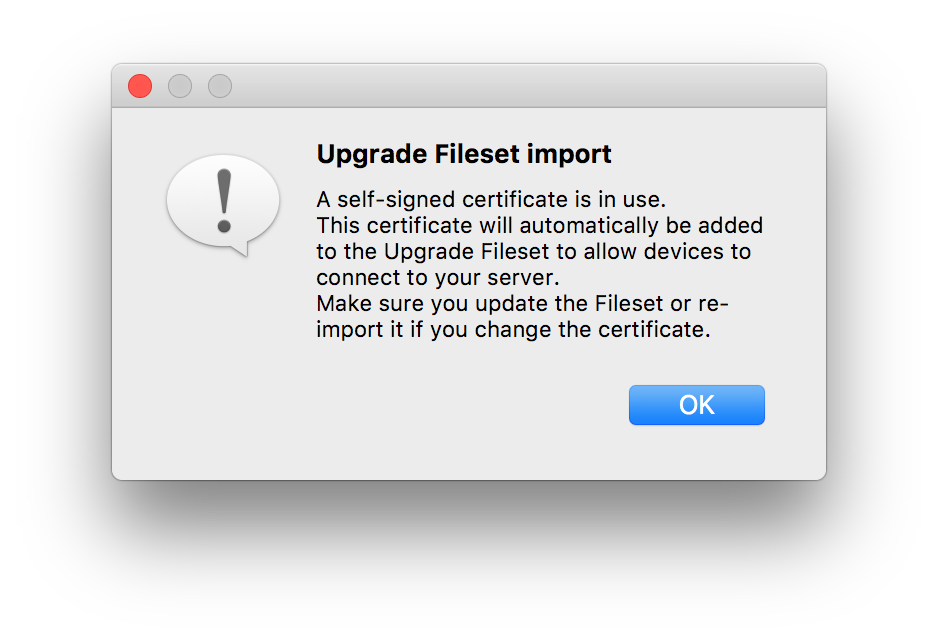
iOS devices will not need anything pushed out, when the FileWave server is updated. But keep in mind during OTA enrollment the FileWave certificate will need to be trusted manually. Please refer to the KB article linked here for more information.
If you need to renew your self-signed certificate please refer the KB article linked here for those steps.
FileWave AdminCentral and the Web Console
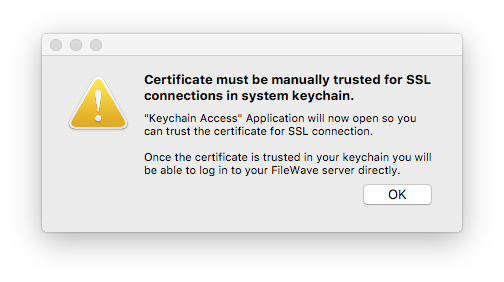
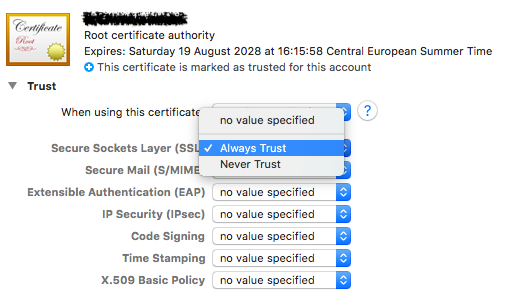
If usingWith a self-signed certificate thecertificate, FileWave AdminCentral won’t be able tocannot verify the server identity of the server. When you log into the Admin you will be prompted that the server doesn’t trustuntil the certificate andis youtrusted havelocally. theCentral may offer either an untrusted connection or an option to continue with the connection being untrusted or you can add the certificate to yourthe trust storestore. thenA connect.browser Also when you connect viaopening the Web Console you will bealso warneddisplay thata certificate warning until the connectioncertificate is not private.trusted.

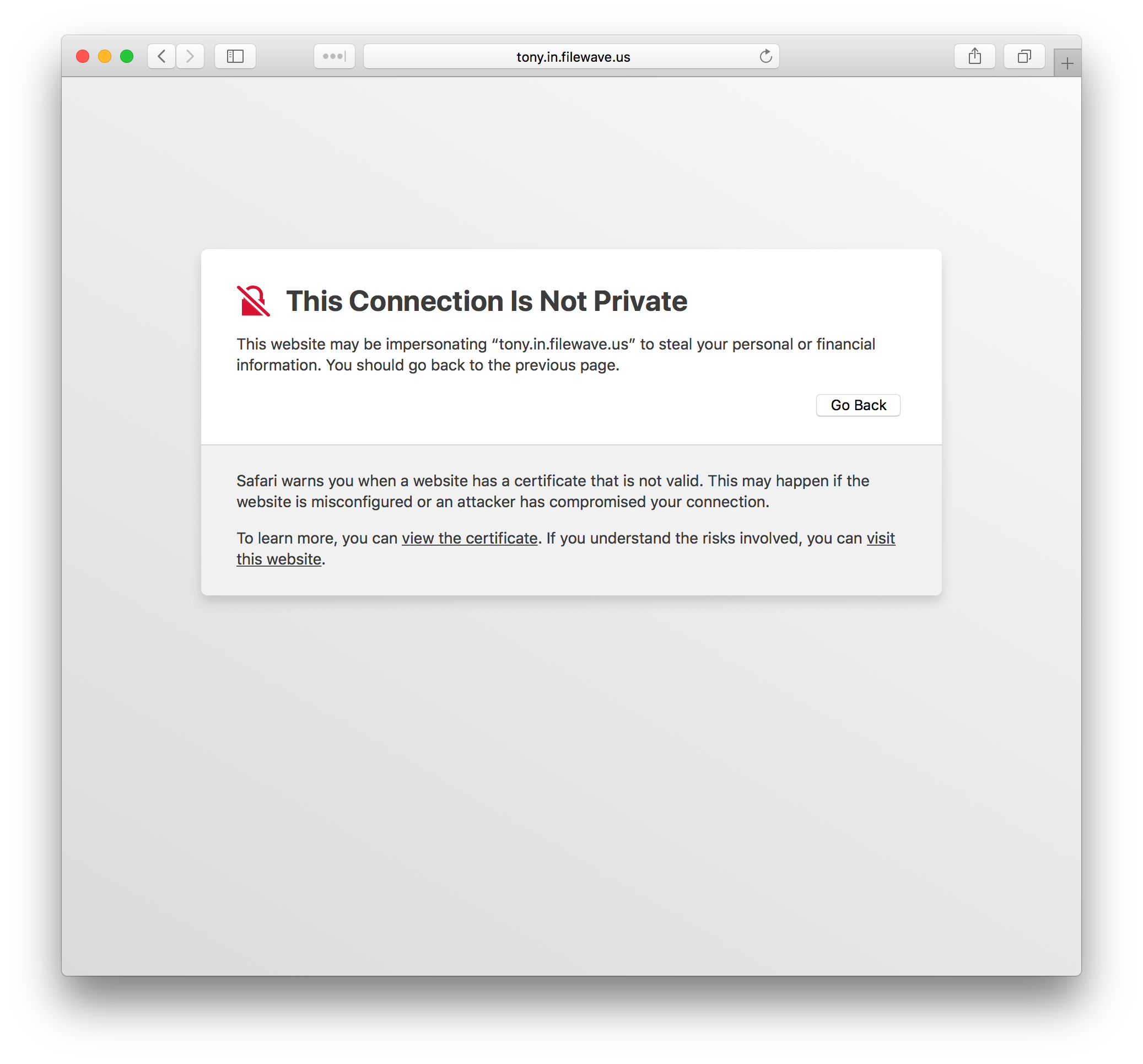
On macOS, certificates manually added to trust store require explicit "Trust for SSL" permission.
Imaging Virtual Server
When using self-signed certificates the FileWave server will automatically transfer the certificate to a newly created IVS, but existing imaging servers will need to be pushed the certificate.
Log into theOpen FileWaveAdminCentral.- Go to FileWave
AdminCentral → Preferences → Imaging - Select an imaging
serverserver, thentheclick Upload Certificatebuttonat the bottom right of thepanepane.

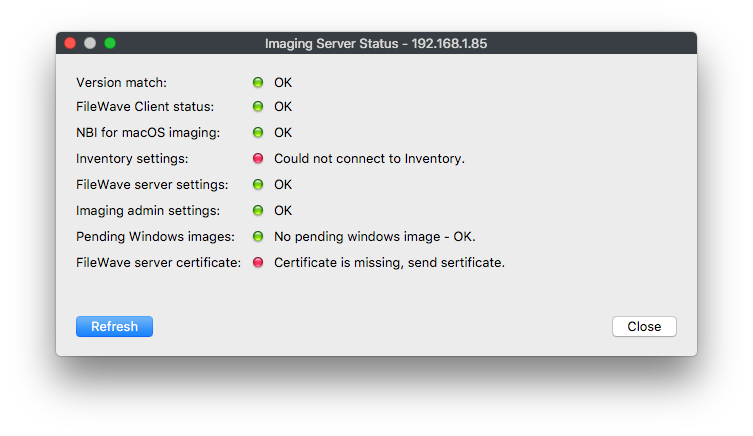
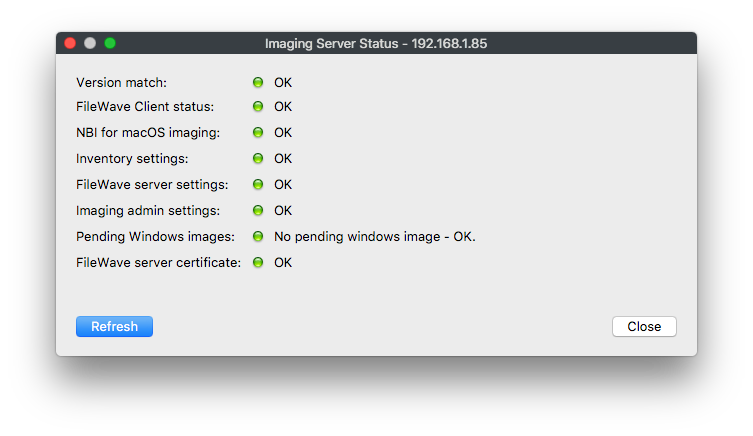
ThisRepeat willthis sendfor theevery SSLexisting certificateIVS attached to the IVS, you have to do this for any existing IVS you have attached to your FileWave server.Server. YouTo can check the status of the IVS to see whether or notverify the certificate isstate, uploaded, by selectingselect the IVS and clickingclick the Status… button..