
Enable Required Firebase APIs for Chromebook Management
WhatRequired Google Cloud APIs
FileWave 15.4.0 and later requires the Firebase Management API and Firebase Cloud Messaging API for Chromebook management. Both services must be enabled in the same Google Cloud project used by the FileWave Google integration.
When setting up Chromebooks you need to ensurecheck
Check the rightthese APIs areduring enabled.initial InChromebook setup, before upgrading an older FileWave 15.4 there are 2 APIs that are required that were not previously needed. You may have these enabled, but you should still do this process just in case they are not.
When/Why
You will wantenvironment to do this when you are using FileWave 15.4.0 or higherlater, withand Chromebookswhen toGoogle makesynchronization surereports everythingthat a required API is right.disabled. IfEnabling youthem have not previously, you definitely need to enablebefore the 2FileWave APIs.upgrade Youis cansafe.
Enable themand on a 15.3.1 server as well, butverify the APIs are required for 15.4.0 and beyond, and required to be on 15.4.0 after June 20, 2024.
How
To
firebase.googleapis.com) and Firebase Cloud Messaging API (fcm.googleapis.com). The direct enablement link opens both services together.
If the correct project is unclear, compare it with the project and When you go toSelect the URLGoogle you should see something like this next screen where you can pick aCloud project andused clickby Next.FileWave, then choose Next.
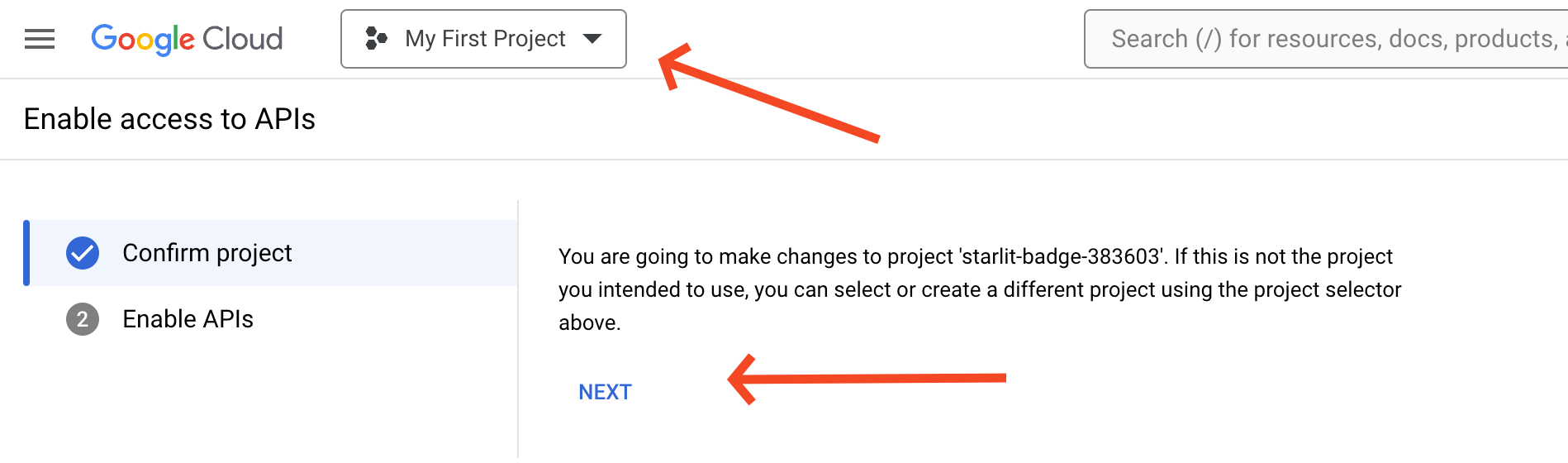
NextConfirm youthat will see the 2both APIs toare enablelisted, andthen you'llchoose click Enable. Enable.
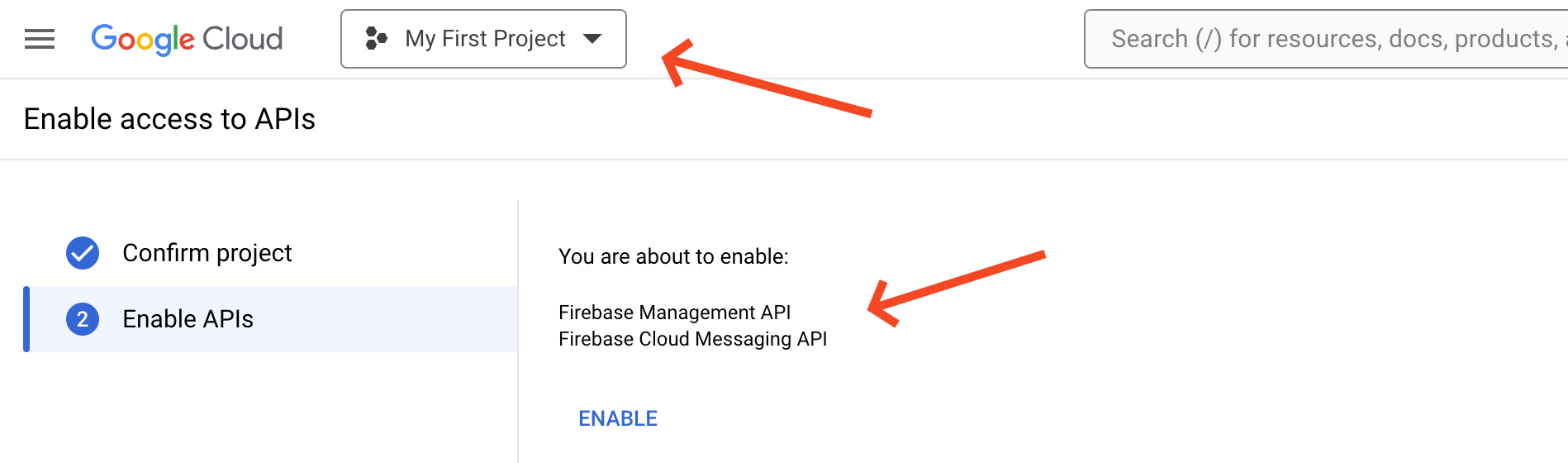
Once you have enabled this you should see inIn FileWave Central on15.4.0 v15.4or later, open Settings > Google, run or observe a synchronization, and confirm that it is able to sync by going to Settings -> Google and viewing the sync status there.no longer reports either API as disabled.
Related Contentcontent
- Chromebook Client Pre-Requisites
- Update your apps to the latest Firebase Cloud Messaging APIs and SDKs