
Apple Device Management - DDM Configurations
What
Declarative Device Management (DDM) is Apple’s modern device-management model. FileWave 15.5 introduced DDM Configurations and Assets; FileWave 16.4 expands the built-in configuration editors and adds JSON import and export for Apple declarations. DDM moves more state evaluation to the device, allowing supported Apple devices to apply declarations and report status without relying only on repeated server commands.
DDM options will be gradually extended over following FileWave versions, gradually providing a broader scope of offerings. The screenshots in this KB are from FileWave 16.x
When/Why
Implement DDM Configurations in FileWave 15.5 when you aim to:
- Modernize Device Management: Adopt Apple’s latest device management methodology to stay current with industry advancements.
- Increase Efficiency: Allow devices to autonomously manage configurations, reducing reliance on constant server communication.
- Enhance Scalability: Improve performance when managing large fleets, as devices handle more processing locally.
- Improve Responsiveness: Devices can apply configurations and respond to changes more quickly without waiting for server commands.
This is particularly useful for organizations managing numerous devices, seeking to optimize performance and reduce overhead.
DDM Assets & Configurations are supported on devices running the following versions and above: iOS 15, iPadOS 15, macOS 12 Monterey.
Starting in FileWave 16.3.x, mixed DDM/MDM deployments are handled more cleanly. DDM Configurations are not Apple Profile Filesets, and Apple Profiles still install through MDM. Command Policy Filesets are also excluded from DDM installation and sent as their corresponding MDM commands during deployment.
Starting in FileWave 16.3.x, the Service Configuration Files editor includes additional built-in services: com.apple.cryptoTokenKit and com.apple.authorization.
How
To create and use DDM Configurations in FileWave 15.5 and later:
- Create a Configuration:
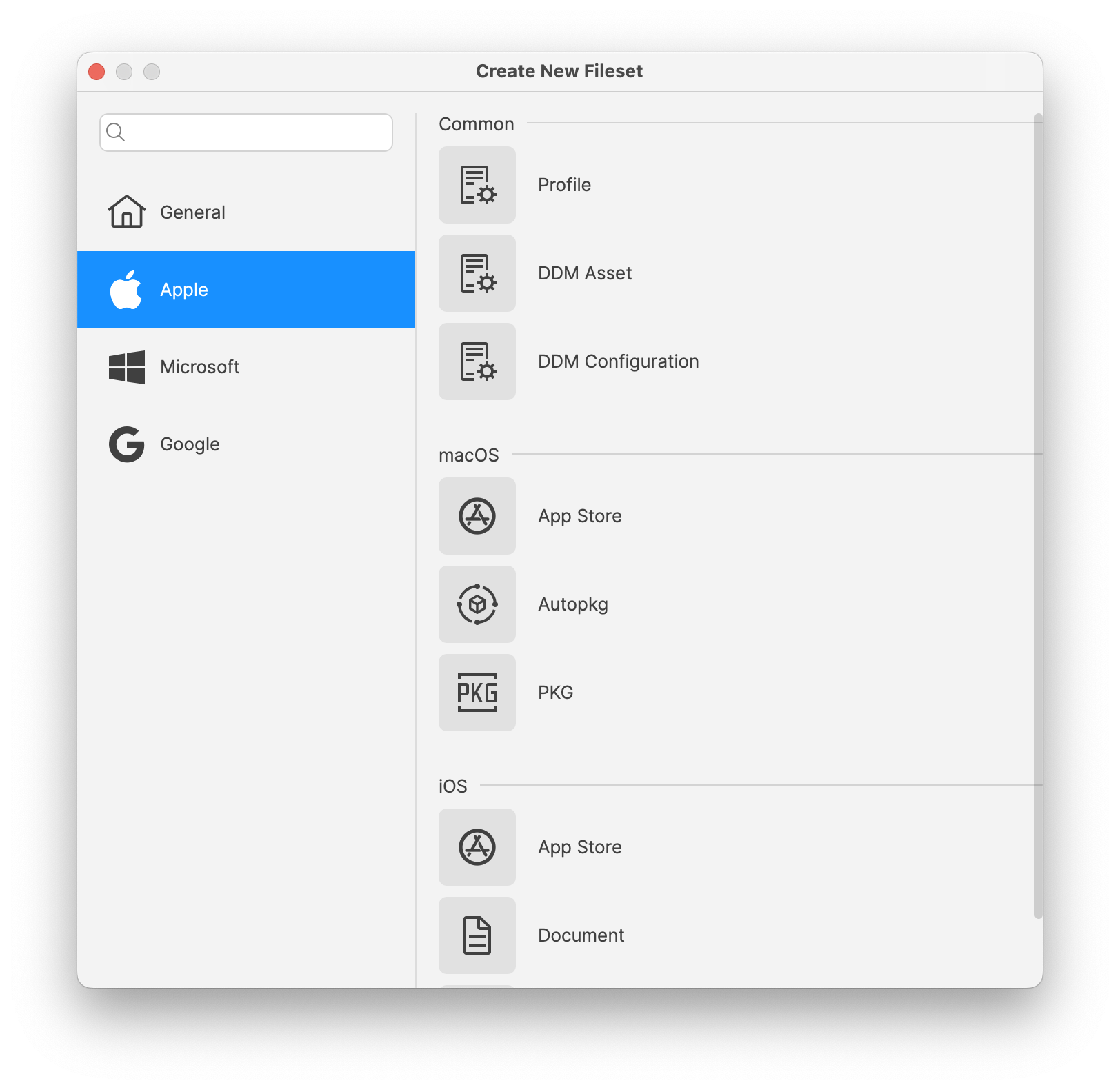
- Create a new Fileset and pick DDM Configuration from the Apple section.
- Create a new Fileset and pick DDM Configuration from the Apple section.
- Configure the Configuration:
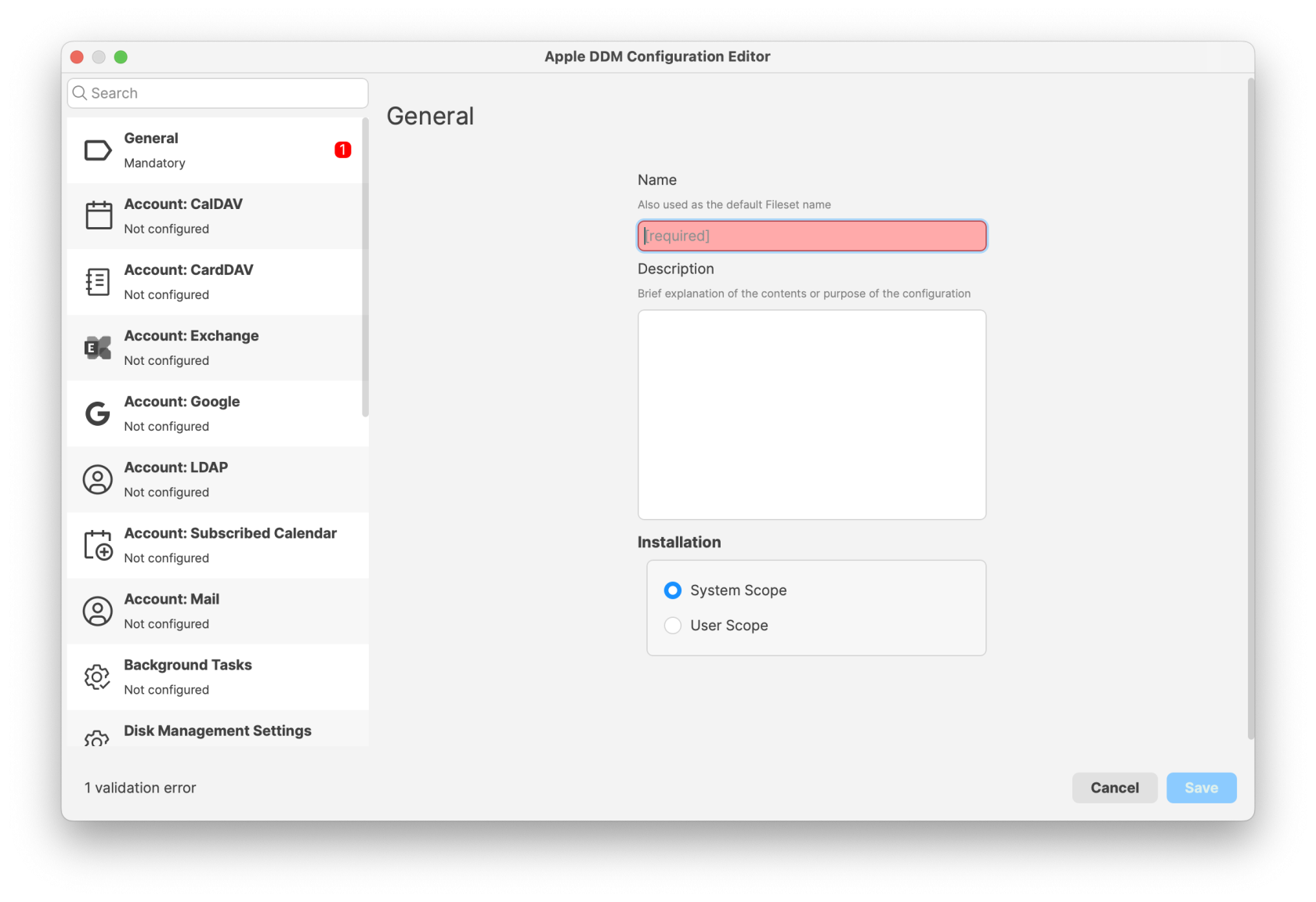
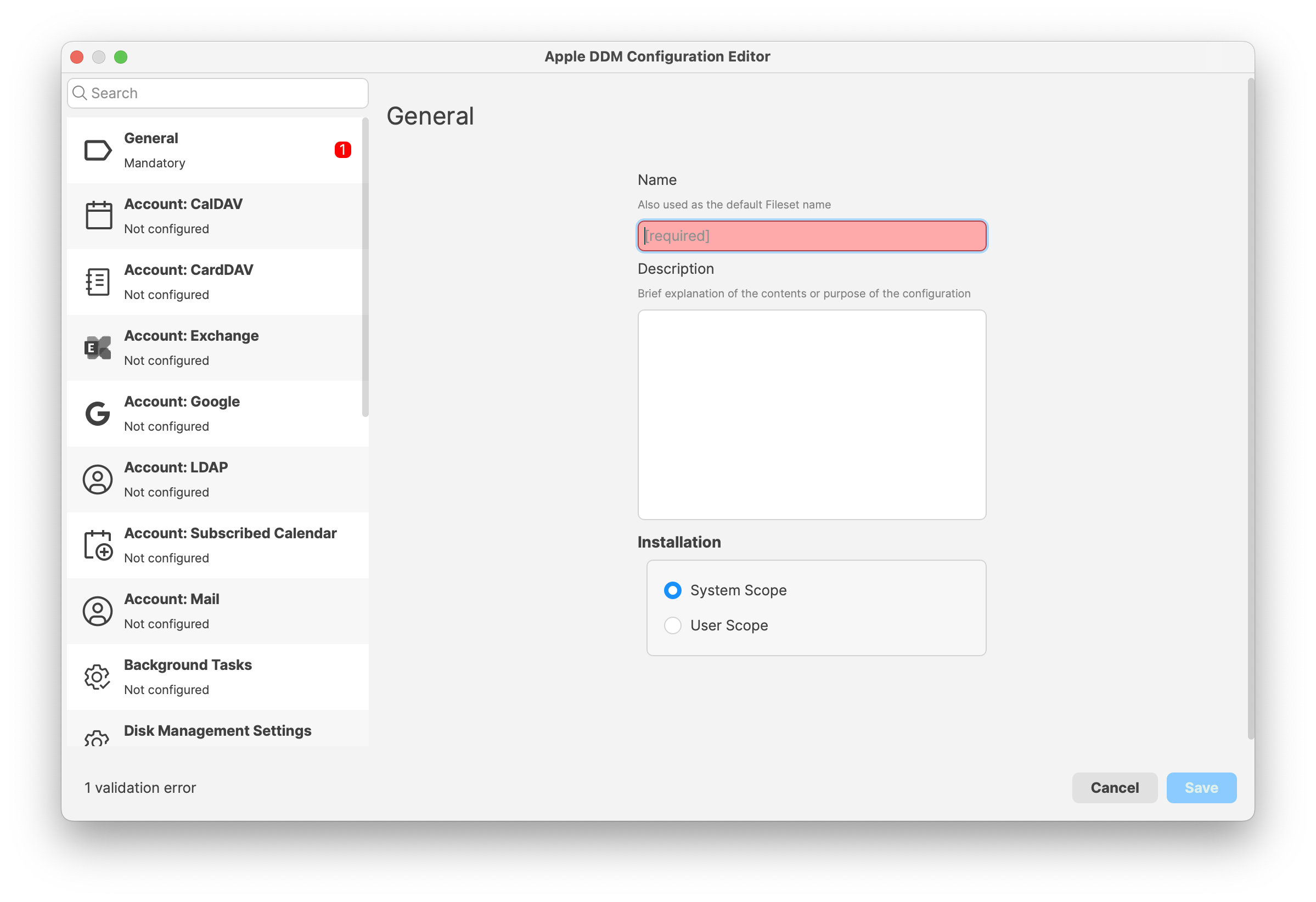
- Pick the desired Configuration
- Reference a DDM Asset in DDM Configurations:
- Some Configurations can reference Apple Device Management - DDM Assets. An example is the Account: CalDAV Configuration which can be fed credentials from a DDM Asset (configured with the DDM Asset Editor)
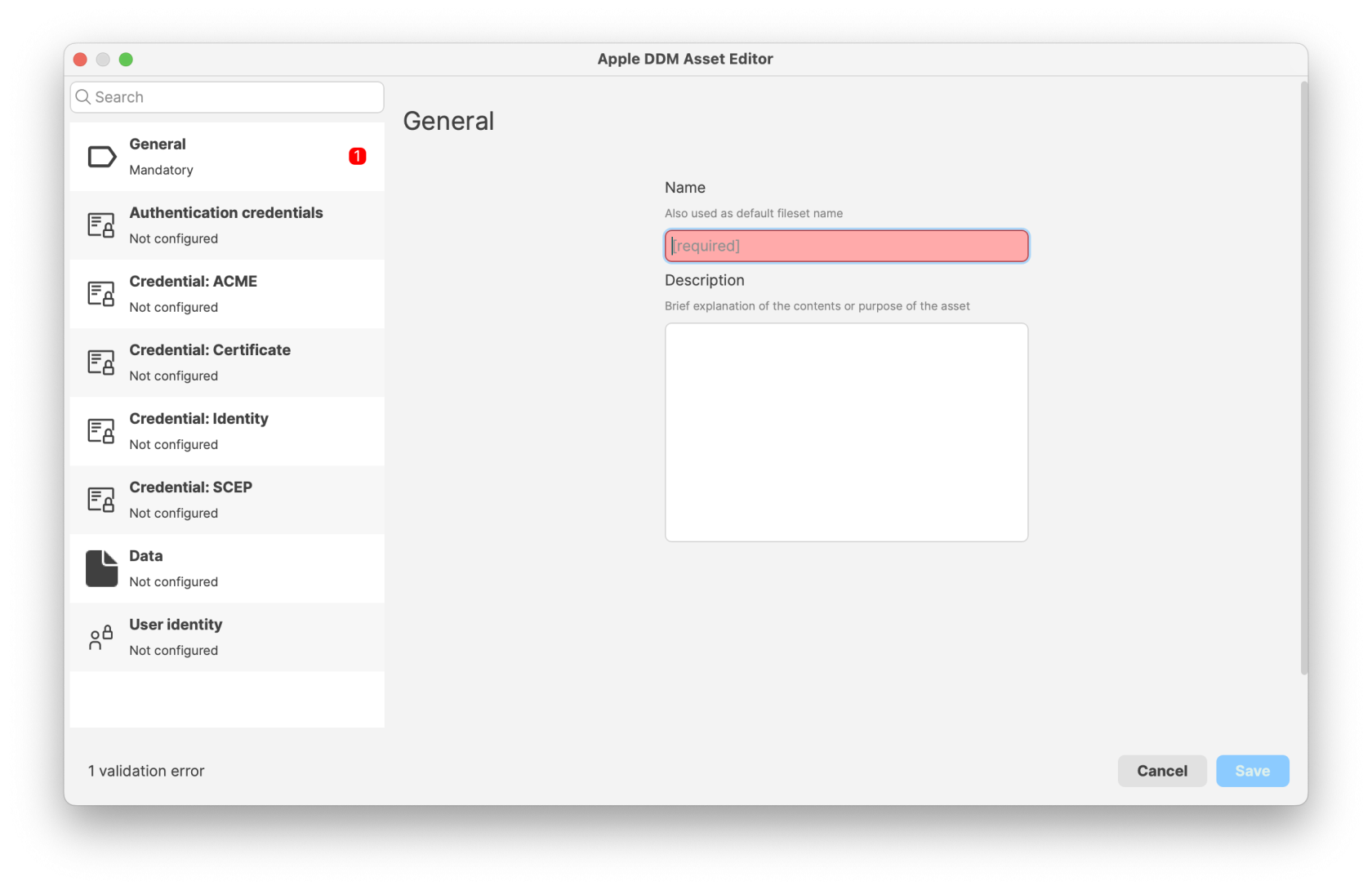
- Some Configurations can reference Apple Device Management - DDM Assets. An example is the Account: CalDAV Configuration which can be fed credentials from a DDM Asset (configured with the DDM Asset Editor)
- Automatic Dependency Handling:
- When a configuration references an Asset, FileWave automatically manages the Asset as a dependency.
- Deploying the configuration will also deploy the associated Asset to the target devices.
- Deploy to Devices:
- Assign the configurations to your devices or device groups.
- Monitor the deployment to ensure that devices receive both the configuration and the associated Assets.
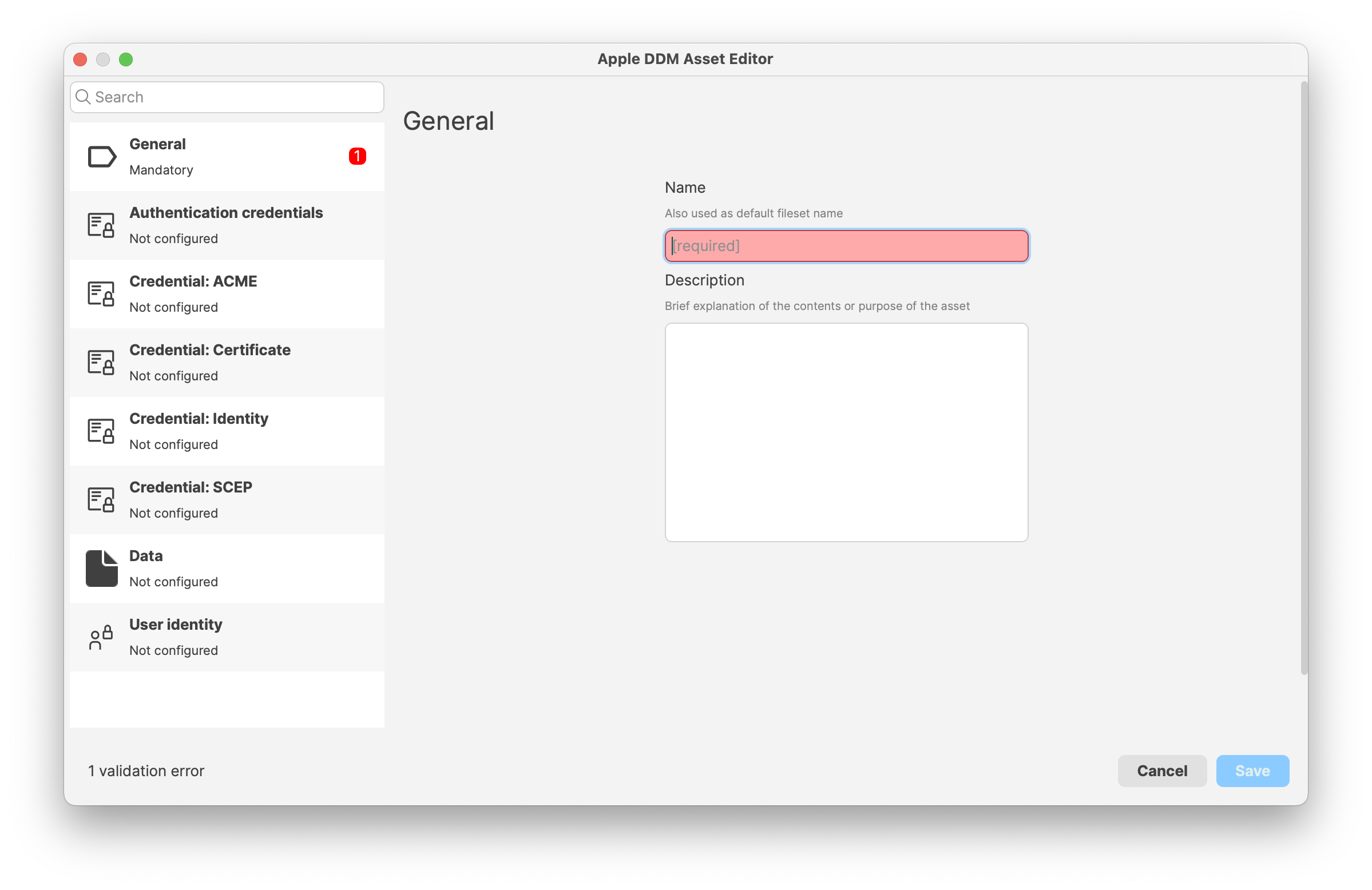
FileWave 16.4 DDM configurations
FileWave 16.4 adds dedicated editors for several Apple declaration types. Create these as DDM Configuration Filesets and deploy them only to supported devices.
macOS 26 through 26.5 default-value issue: Apple devices can reject a DDM configuration when certain settings are explicitly included with their default values. Apple has been notified of the OS-level issue. When the default behavior is intended, leave the affected setting undefined instead of explicitly sending its default value.
Siri Settings
On supported iOS, macOS, and visionOS devices, administrators can enable or disable Siri, enforce profanity filtering, restrict Siri while the device is locked, and prevent Siri from generating user-provided content.
Migration Assistant Settings
On macOS, administrators can manage Mac-to-Mac migration during Setup Assistant. Controls include managed migration, transfer of Security & Privacy settings, excluded user accounts, and included or excluded files and directories. The device reports migration progress and completion status.
Keyboard Settings
On supervised iOS and macOS devices, administrators can manage auto-correction, predictive text, spell checking, Slide to Type, dictation, text replacements, definition lookups, and math-related keyboard suggestions supported by newer Apple operating systems.
Apple Intelligence Settings
On supported iOS, macOS, and visionOS devices, administrators can manage Writing Tools, Genmoji, Image Playground, Image Wand, Smart Replies, summarization, transcription, and other Apple Intelligence capabilities. Privacy-oriented controls can require supported services such as Dictation and Translation to use on-device processing.
The traditional MDM Restrictions payload remains available and is documented in Apple Profile: Apple Intelligence. Avoid managing the same setting through conflicting MDM and DDM declarations.
External Intelligence Settings
This separate declaration controls third-party AI services integrated with Apple operating systems. Administrators can allow or deny external intelligence providers, control sign-in with personal or organizational accounts, and restrict use to approved enterprise workspaces when Apple and the provider support that control.
Import and export DDM declarations as JSON
Starting with FileWave 16.4, DDM Configuration and DDM Asset Filesets can import and export Apple’s JSON declaration format. This allows administrators to deploy newly announced Apple declarations before a dedicated FileWave editor is available, modify imported declarations, back them up, and share reusable definitions.
- Create or open a DDM Configuration or DDM Asset Fileset.
- Use the editor’s Import action and select the Apple JSON declaration.
- Review validation results for malformed or incomplete content.
- Review imported Assets, Configurations, and their resolved dependencies before saving.
- Test the declaration on representative devices running the intended Apple OS versions before wider deployment.
- Use Export when you need an Apple JSON declaration for backup, review, or controlled reuse.
FileWave resolves related Configuration and Asset dependencies where possible. Unsupported or unknown declaration payloads are preserved during import and deployment rather than discarded, but preservation does not guarantee that a target Apple OS accepts or applies the declaration.
Protect exported Assets. A DDM Asset export can contain credentials, certificates, server details, or other sensitive configuration values. Store and share exported JSON accordingly.
Fileset Status
Unlike Profiles, DDM configurations are deployed with one single DDM command, meaning the Client Info > Command History tab will not show individual events per DDM configuration delivered.
Starting in FileWave 16.3.x, Client Info > Fileset Status provides more detailed status information for multi-configuration DDM Filesets. For example, a Fileset such as Screen Sharing Configuration can contain multiple DDM configurations, and each one can now report its own status within the Fileset Status view. This makes it much easier to see which specific configuration succeeded or failed during deployment.
This detailed DDM status is shown in the same area used for Script status, because scripts and DDM configurations cannot coexist within the same Fileset. Single-configuration DDM Filesets are not changed by this behavior.
Likewise, when viewing the installed Profiles on a device, the DDM Configurations will not show as Profiles, but, instead, within the FileWave MDM Configuration Profile. Accessing the Profile list from Settings of a device, open the FileWave MDM Configuration Profile and scroll down to Device Declarations:
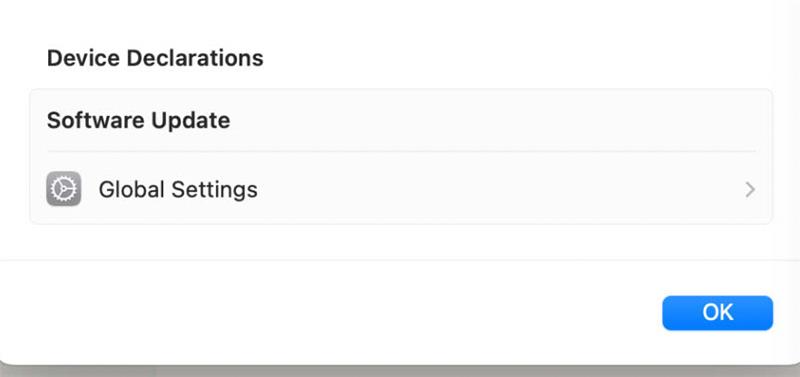
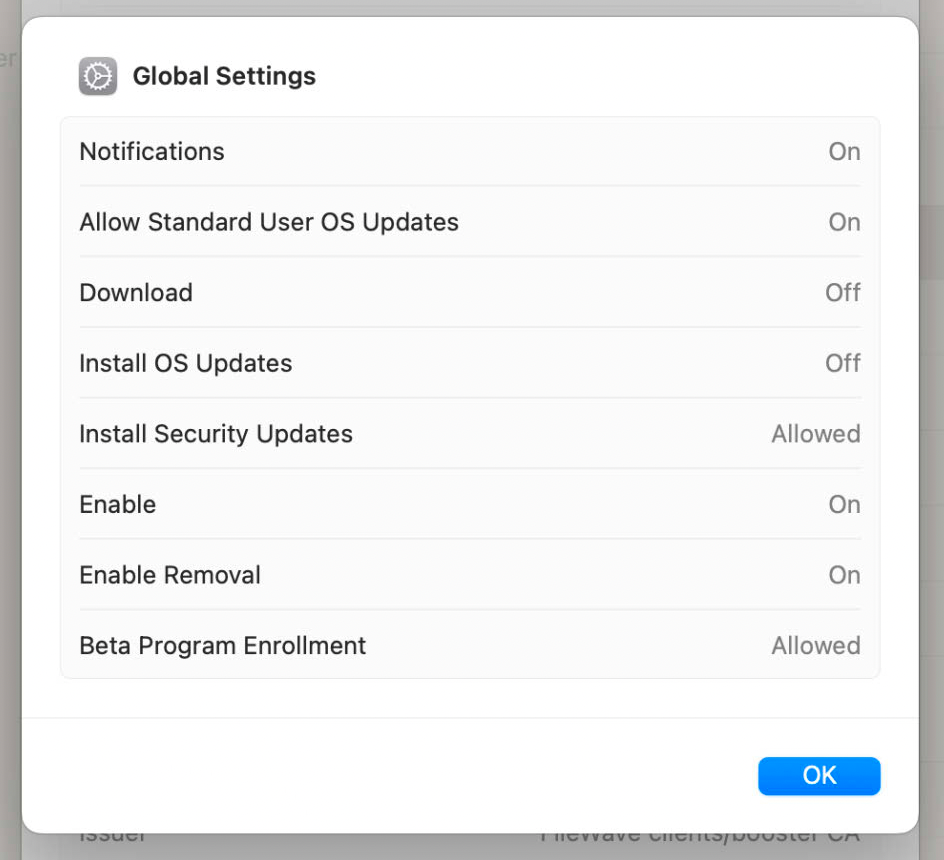
In the above example, opening Global Settings should reflect the settings delivered by Apple DDM Configuration Filesets. For example:
Related Content
- Apple Device Management – DDM Assets
- Apple Profile: Apple Intelligence
- Apple Platform Deployment: Declarative Device Management
Digging Deeper
Declarative Device Management (DDM) represents a significant evolution in Apple’s device management strategy:
- Device-Centric Management: Devices receive declarations of desired states and autonomously ensure compliance, reducing the need for continuous server commands.
- Enhanced Performance: Offloading processing to devices improves performance and scalability, especially in large environments.
- Improved Reliability: Devices can enforce configurations even when temporarily disconnected from the management server.
Key Benefits:
- Reduced Server Load: Servers are less burdened with managing individual device states, as devices handle more tasks independently.
- Faster Configuration Application: Devices can apply changes immediately upon receiving declarations, without waiting for additional instructions.
- Proactive Compliance: Devices continuously ensure they meet the declared state, self-correcting if configurations are altered or removed.
By embracing DDM configurations in FileWave 15.5, organizations can achieve a more efficient, scalable, and responsive device management system that meets the demands of modern IT environments.
Conflicting Payloads:
Apple have not provided any alternate information, from MDM Payloads, regarding the experience if two DDM configurations are applied to control the same feature, but with differing settings. Please consider the following:
- Where MDM Payloads are concerned, Apple suggest the experience is undefined.
- Apple used to have an additional clause, suggesting that where restrictions payloads conflicted, the more restrictive setting would win (but this detail was removed from their documentation).
- It would be reasonable to assume that the same conditions apply to DDM.
For what it is worth, testing the conflict between MDM and DDM for a restriction provided the following result:
- Set differing macOS Software Update defer durations in both MDM and DDM payloads.
- Associate both.
- In each test, the most restrictive (greatest duration of days) appeared to always be applied.
- It did not matter if DDM or MDM was the more restrictive.
In would be sensible to avoid conflicts where possible, rather than rely on a tested experience.