
Enable Early Access (Beta) Package URLs
Description
Starting with FileWave 16.4.0, self-managed Early Access customers must enable Beta package URLs on the FileWave Server before using the Early Access upgrade mechanisms for FileWave Central, Server, Clients, Boosters, or Imaging Virtual Servers (IVS). Early Access, also shown as Beta in FileWave Central, allows package sources that use the server runtime environment to access Beta packages, including integrated package and upgrade sources.
Use this only for FileWave Early Access/Beta testing when directed by FileWave. Early Access packages are intended for validation before general availability.
Hosted boundary: This setting is changed on the FileWave Server. Self-managed customers need shell access to their Server. For a FileWave-hosted environment enrolled in Early Access, FileWave Operations applies the hosted-server configuration as part of the Early Access process. Hosted customers do not have SSH access, so there is no customer-side Server configuration step or need for a separate case merely to enable the package channel. If Operations has confirmed enrollment but Central does not show BETA, contact Technical Support.
Plan Central, Server, Client, Booster, and IVS upgrades
Enabling Beta package URLs means the environment is opting into Early Access/Beta upgrade sources, not just changing the label shown in Central. Enable it before starting the Early Access upgrade sequence. After the setting is loaded, FileWave Server uses Early Access/Beta package URLs, Central shows the Beta state, Boosters become eligible for Beta upgrades, integrated Client upgrades can target Beta packages, and the 16.4 IVS upgrade workflow can use the matching Early Access package source.
Client upgrades during 16.4 Early Access
At least during the FileWave 16.4 Early Access cycle, keep the macOS and Windows Client Upgrade Filesets in your client-upgrade plan. The newer integrated client upgrade path depends on the client already being at the newer upgrade baseline.
For example, clients running FileWave Client 16.2 need a Client Upgrade Fileset path first. They do not appear in Software Updates > Client Upgrades, and an empty view does not mean they are current. Without a 16.4 Client Upgrade Fileset, you would first deploy a 16.3 Client Upgrade Fileset and then let the automatic/integrated upgrade path continue from there.
The 16.4 macOS and Windows Client Upgrade Filesets are designed to return requirements not met on devices that are already running FileWave Client 16.3 or later, so they can act as a bridge for older clients without replacing the integrated upgrade behavior for clients that already meet the newer baseline.
Schedule the Beta target from the right-click menu. Select the eligible client or group in Client Upgrades, right-click it, and choose Schedule Beta Upgrade. The toolbar scheduling action is for the non-Beta target.
See Upgrading FileWave Clients for sanitized examples of an eligible client, the misleading empty state, and the Beta scheduling menu.
The Client Upgrade Fileset also remains a support-guided fallback during Early Access testing. If the integrated client upgrader does not behave as expected, FileWave Support may direct you to import the Client Upgrade Fileset and adjust its requirement check for a specific recovery path.
After a FileWave Server upgrade, compatible Boosters are automatically scheduled for upgrade. By default, that automatic Booster upgrade is scheduled 7 days after the Server upgrade. For Early Access testing, set the automatic Booster upgrade delay to 0 days before upgrading the Server if you want Boosters to upgrade immediately instead of waiting the default week.
In FileWave 16.4.0 and later, that delay is controlled in FileWave Central > Preferences > Upgrades. The setting is evaluated when the Server upgrade schedules Booster upgrades, so changing it afterward does not retroactively reschedule Boosters that were already queued.
For the Booster behavior and screenshots, see Upgrading Multiple Boosters.
Enable Early Access package URLs
- On the FileWave Server, edit the environment file:
/usr/local/etc/filewave/.env- Add this line on its own line:
RUNTIME_ENVIRONMENT=beta- Save the file.
- Restart FileWave Server so the runtime environment is loaded:
sudo fwcontrol server restartContinue to the correct upgrade guide
Do not expect the BETA label before the upgrade. The BETA indicator is new in FileWave Central 16.4. Enabling the Beta package URLs on an earlier Server makes the Early Access packages available, but the existing Central application cannot display that new label.
- On-premises/self-managed: After enabling the Beta package URLs, follow Upgrading your On-Premise FileWave Server. It upgrades the Server first and then FileWave Central before continuing with Boosters, IVS appliances, Clients, Kiosk, and enrollment packages.
- FileWave-hosted: FileWave Operations enables the Early Access channel and upgrades the hosted Server. After Operations confirms completion, follow Your Hosted FileWave Server Has Been Upgraded—What Are Your Next Steps?, beginning with the FileWave Central upgrade.
Confirm Beta after Central is upgraded
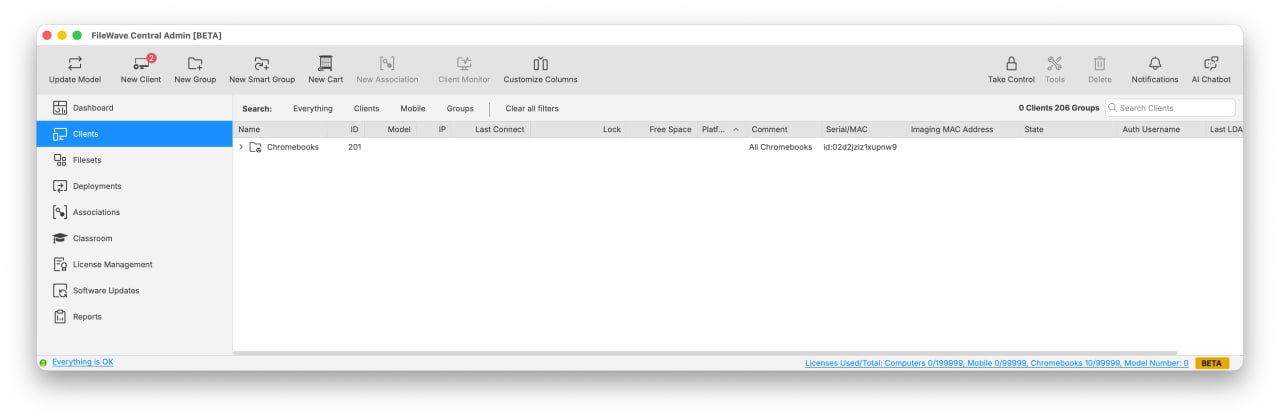
After FileWave Central is upgraded to 16.4 and connects to a Server using the Beta runtime environment, Central shows BETA in the window title and bottom-right status area. Use this as the post-upgrade confirmation before scheduling Beta Client, Booster, or IVS actions. Clicking the BETA indicator opens this article.
Disable Early Access package URLs
- Remove this line from
/usr/local/etc/filewave/.env:
RUNTIME_ENVIRONMENT=beta- Save the file.
- Restart FileWave Server again:
sudo fwcontrol server restartRelated articles
Notes
- Early Access and Beta refer to the same testing channel in this context.
- The server restart is required after enabling or disabling the flag because FileWave Server reads the runtime environment during startup.
- The short link for this article is https://go.filewave.com/beta.