
How does FileWave work?
Start with this overview before setting up FileWave or trying a new platform or capability in an existing environment. Read it without changing a device; the later device-work lesson explains the publishing and verification sequence in more detail.
FileWave combines the tools and services you use to manage devices from a shared administrative interface. FileWave Central runs on macOS and Windows; FileWave Anywhere provides browser-based administration for supported workflows. The diagram below gives a simplified view of the Server, Clients, and optional Booster. Desktop Client downloads and mobile MDM delivery use different communication paths.
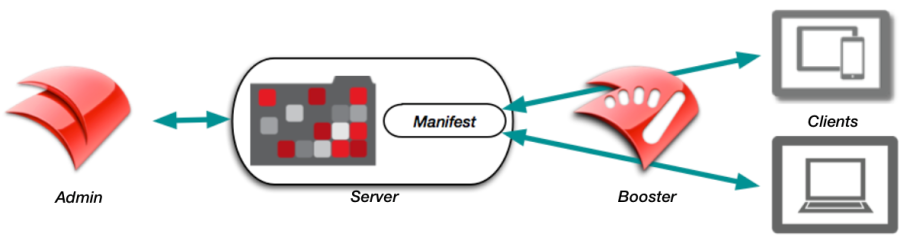
A FileWave administrator creates a Fileset on the FileWave Server. Filesets can contain applications, images, profiles, books, settings, or other content; available types depend on the target platform. A Deployment assigns content to the intended devices or groups. After you review the content and targets, save the Deployment and perform a Model Update to commit pending model changes. Coordinate with other administrators first because the update publishes their pending changes too. For macOS and Windows Client workflows, the FileWave Client receives a Manifest describing its assigned work and requests the required Filesets. A FileWave Booster can cache Filesets closer to those clients so large deployments put less load on the server and network.
A basic FileWave environment may have one administrator connecting to one FileWave Server to manage a set of clients. Larger environments often have multiple administrators and one or more Boosters. A higher server model number confirms that changes were committed; it does not show that an offline device received them or that an installation completed. Check the target device and its deployment status after it communicates. Inventory has its own reporting flow, so older inventory can remain visible while a device is offline. For the complete sequence, read how FileWave turns changes into device work. For the separate desktop, Apple MDM, and Android paths, see How the FileWave Client Communicates.
If you need a new environment, continue to FileWave Server Setup and choose the route for your hosted or self-managed Server. If your Server is already configured, reuse the appropriate existing setup and continue with the prerequisites for your chosen platform or capability. Use the Getting Started with FileWave contents to follow your chosen platform. For video-based learning, see FileWave Foundry: Onboarding Videos.
No comments to display
No comments to display