
How FileWave turns your changes into device work
Start with the pieces you will use
After initial Preferences, you have checked the foundation for your chosen platform. This lesson explains how FileWave turns your management choices into actions on devices. Read it without clicking Update Model or changing a device. The actual exercise comes after your platform prerequisites and enrollment.
You will work with these pieces:
- FileWave Server holds your management configuration and coordinates work for devices. FileWave can host it for you, or your organization can run it on premises.
- FileWave Central is the administration application for macOS and Windows. FileWave Anywhere provides browser-based administration for supported workflows. This guide will name the interface used in each exercise so you do not have to translate between screens.
- A managed device is an endpoint you have brought under management. Windows and macOS can use the FileWave Client software; MDM enrollment is a different management connection. Your platform's enrollment lesson will explain which connection your exercise requires.
- A Fileset is an item you prepare for delivery, such as files, an application installer, or a supported configuration profile. The available types and delivery methods depend on the platform.
- A Deployment connects the content to its intended targets and settings. It answers: “What should these devices receive, and how should it be made available?”
Creating content and choosing which devices should receive it are different actions. Importing an installer alone does not tell FileWave which devices should receive it.
What Model Update means
The model is the server's published management configuration. Update Model commits pending model changes so the resulting instructions can be distributed to the devices they apply to. You may also hear this action called a Model Update.
For example, in a later exercise you will prepare a Fileset and save a Deployment targeting one test computer. Saving the Deployment does not confirm that the computer has received the content. After reviewing pending changes, you will use Update Model to publish them. There is nothing to publish for this lesson.
This is not a FileWave Server software upgrade, an operating-system update, or simply a refresh of the screen.
A Model Update commits pending changes from all FileWave administrators, not only your own. In a shared environment, coordinate with the other administrators before updating the model. A test group limits your Deployment's targets; it does not make the Model Update itself private to your test.
When a later exercise asks you to commit a change, Update Model in Central’s toolbar opens the Update Server Model dialog. It asks, “Do you really wish to update the FileWave server model?” Update Model confirms the commit; Cancel leaves it uncommitted. The dialog is a confirmation, not a preview of pending changes. Review content, targets, and other administrators’ pending work before opening it. Do not open or confirm it for this lesson.
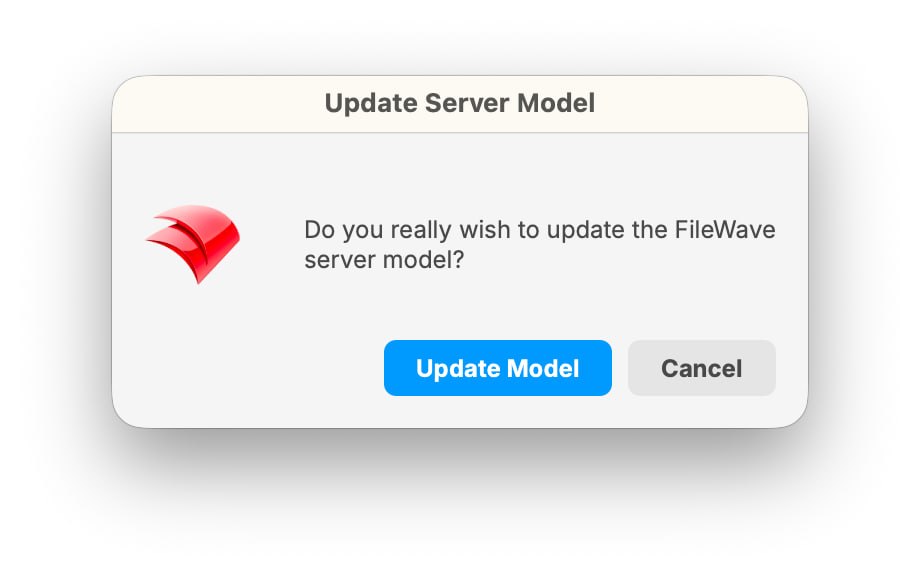
Central asks you to confirm the Model Update. This dialog does not display a list of pending changes.
Publishing is not the same as finishing
Use this sequence to understand a deployment:
Prepare the content → choose and review targets → save the Deployment → review pending changes → Update Model → verify the result.
A higher server model number confirms that a new model was committed. It does not confirm that a particular device is online, that a download has finished, or that an application installed successfully.
For a Windows or macOS FileWave Client workflow, the Client checks for applicable work and processes its updated instructions. Network availability, check-in timing, download size, installation conditions, and any schedule you configured can affect when the result appears. An offline computer cannot immediately receive the change.
MDM has its own platform-specific delivery and status behavior. Follow the verification steps in the Apple or Android exercise rather than applying desktop Client troubleshooting to every platform.
Try explaining it back
Before your first deployment, check that you can answer these questions:
- You imported an installer but did not create a Deployment. Which computer is supposed to receive it? None has been targeted by that import alone.
- You saved a Deployment but have not updated the model. Does saving it confirm that the device has received the content? No. The pending model change still needs to be committed.
- The model number increased, but your test computer is offline. Did the installation succeed? Not necessarily. You still need to check the device and deployment results.
- Another administrator has unfinished changes. Is it safe to assume your Model Update publishes only your test? No. Coordinate and review the pending work first.
You do not need to memorize model internals. Remember the distinction between preparing, publishing, and verifying. Your chosen deployment exercise will take you through each stage.
When you need more detail
- Deployments in FileWave Central: the target, content, exclusion, and timing controls.
- Update Model in FileWave Anywhere: the browser interface and shared-administrator commit behavior.
- Fileset Status Meanings: how to interpret the result when a Fileset is not yet active.
If you need to compare the platform routes, see the Getting Started with FileWave: Introduction.
Next: prepare one platform
Choose the prerequisites for your test device: Windows, Apple, Android, or Chromebook. These are alternatives, not a sequence to complete in full. Follow that route through enrollment, then use Inventory Reports for a read-only baseline before making your first device change. Fileset Creation and Deployment helps you choose one exercise and verify it without repeating a Deployment you have already completed.
No comments to display
No comments to display