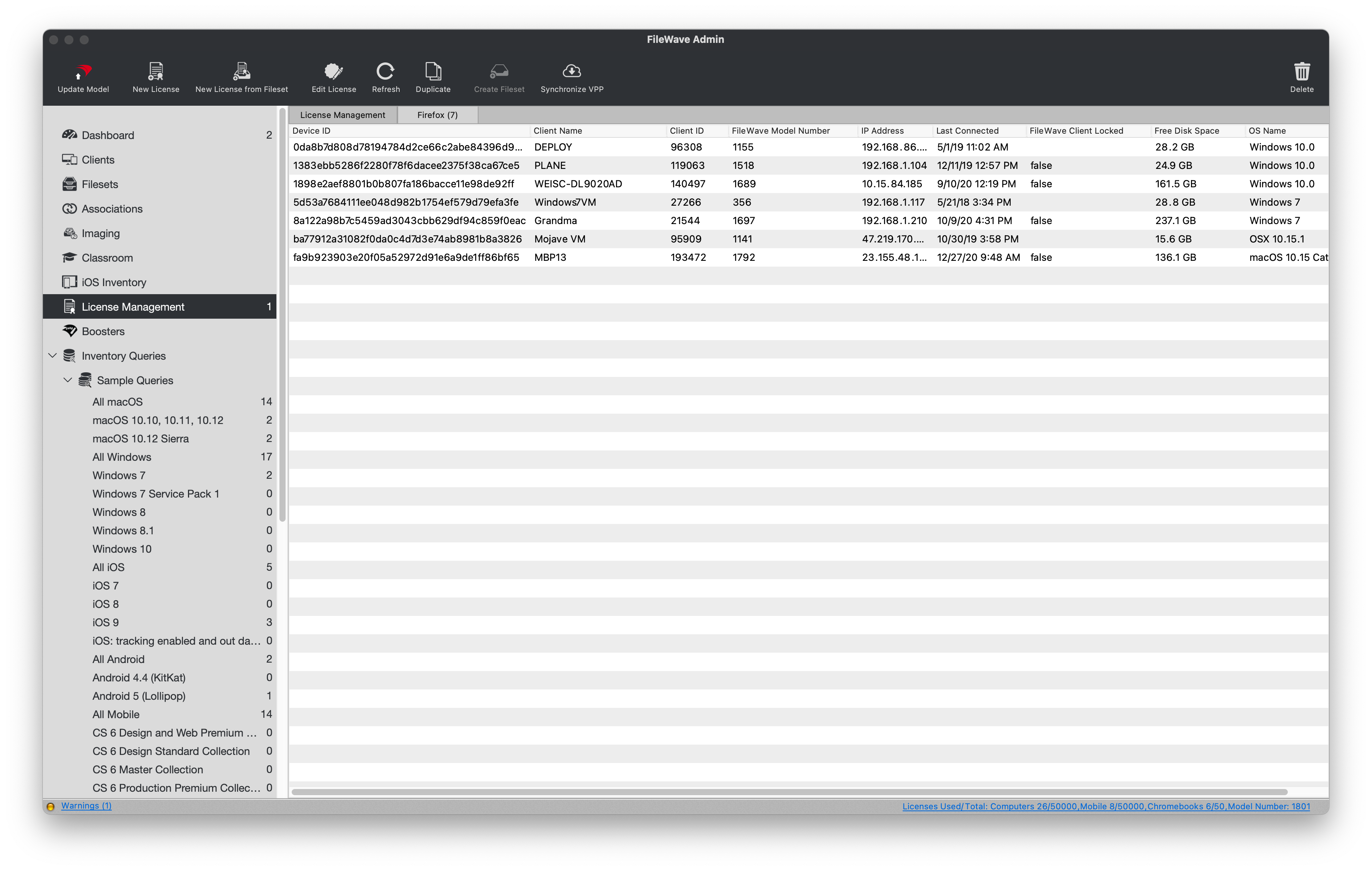
License Management
Compliance, Usage, and Tracking
WhenLicense itManagement comeshelps toyou all of these software packages it can be a headache to know exactlytrack how many software or font licenses you own, how many are beingin used,use, and whowhere thethey are being consumed. FileWave can track Apple VPP licenses from Apple School Manager or Apple Business Manager, and being used by. This is where FileWave steps in to make this tracking process much more streamlined. This section will cover the two types of license types thatit can betrack trackednon-VPP inapplication FileWaveor leveragingfont ourlicenses nativeby using Inventory criteria or Apple'san Volumeexisting Purchase Program.Fileset.
VPP License Tracking
FileWave syncs with VPP every 5 minutes to bring in yourthe latest purchases from Apple School Manager or Apple Business ManagerManager. andThe willLicense displayManagement theview shows owned licenses, licenses that you own, licenses that are in use, licenseslicense compliance, and whichthe VPP Tokentoken that supplied the licenses are derived from.licenses.
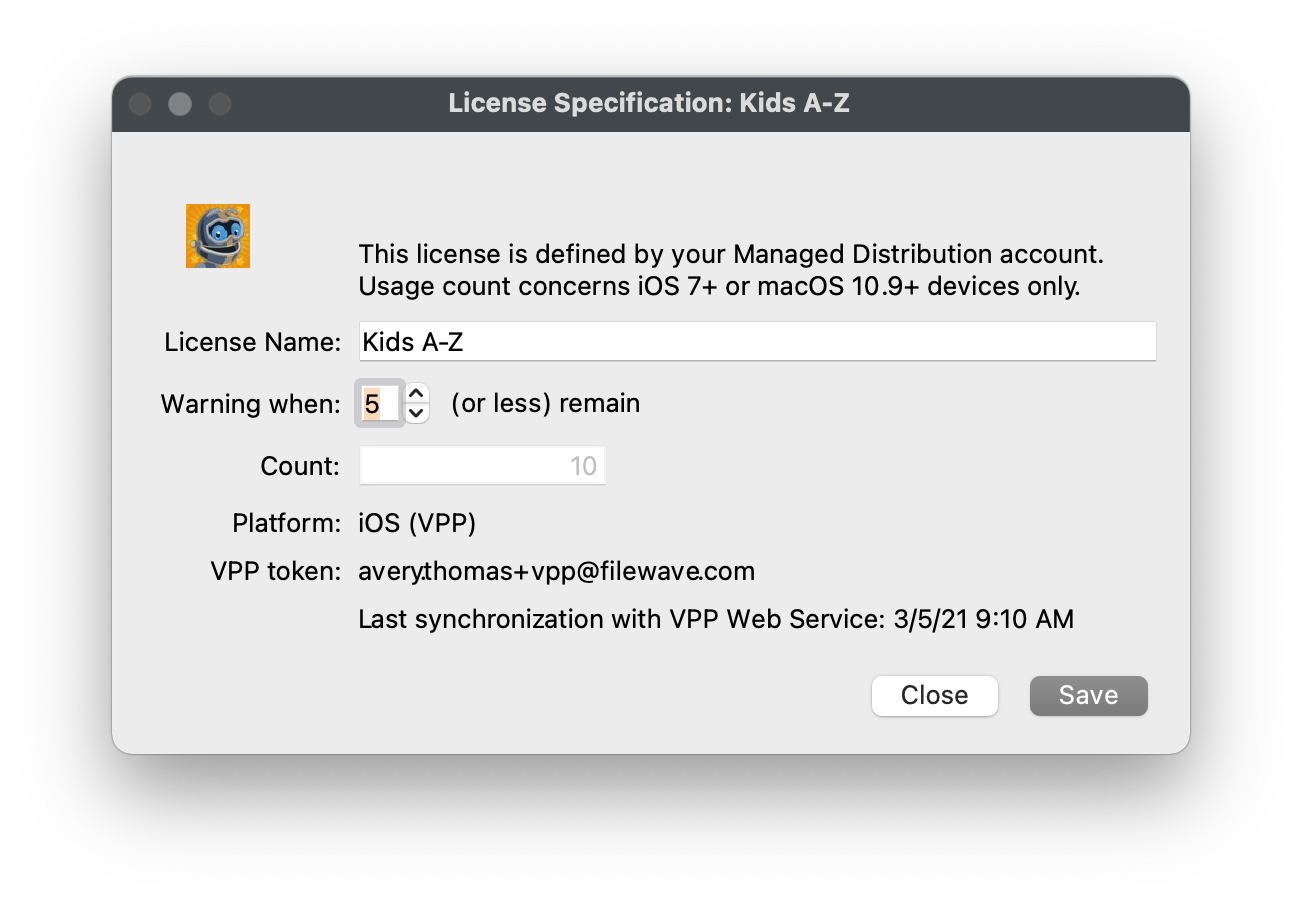
Setting a Compliance Warning
FileWave can automatically notify you viaby email when a VPP license quantity is running low viaby using Scheduled Reports. ThisUse sectionthe willlicense coverwarning howthreshold to determinedecide thewhen Licensethat Warningstatus threshold.should appear.
- Open FileWave
AdminCentral and navigate to "License Management". - Select a VPP License.
- Click "Edit License" from the black
menubar.menu bar. - Change the "Warning when:" field to set your License Warning threshold.
- Click "Save".
- If the
amount of licensesavailablegolicense count falls below your threshold,youFileWavewillshowssee a newthe License Compliance status "Warning License Watermark".

Viewing where licenses are consumed
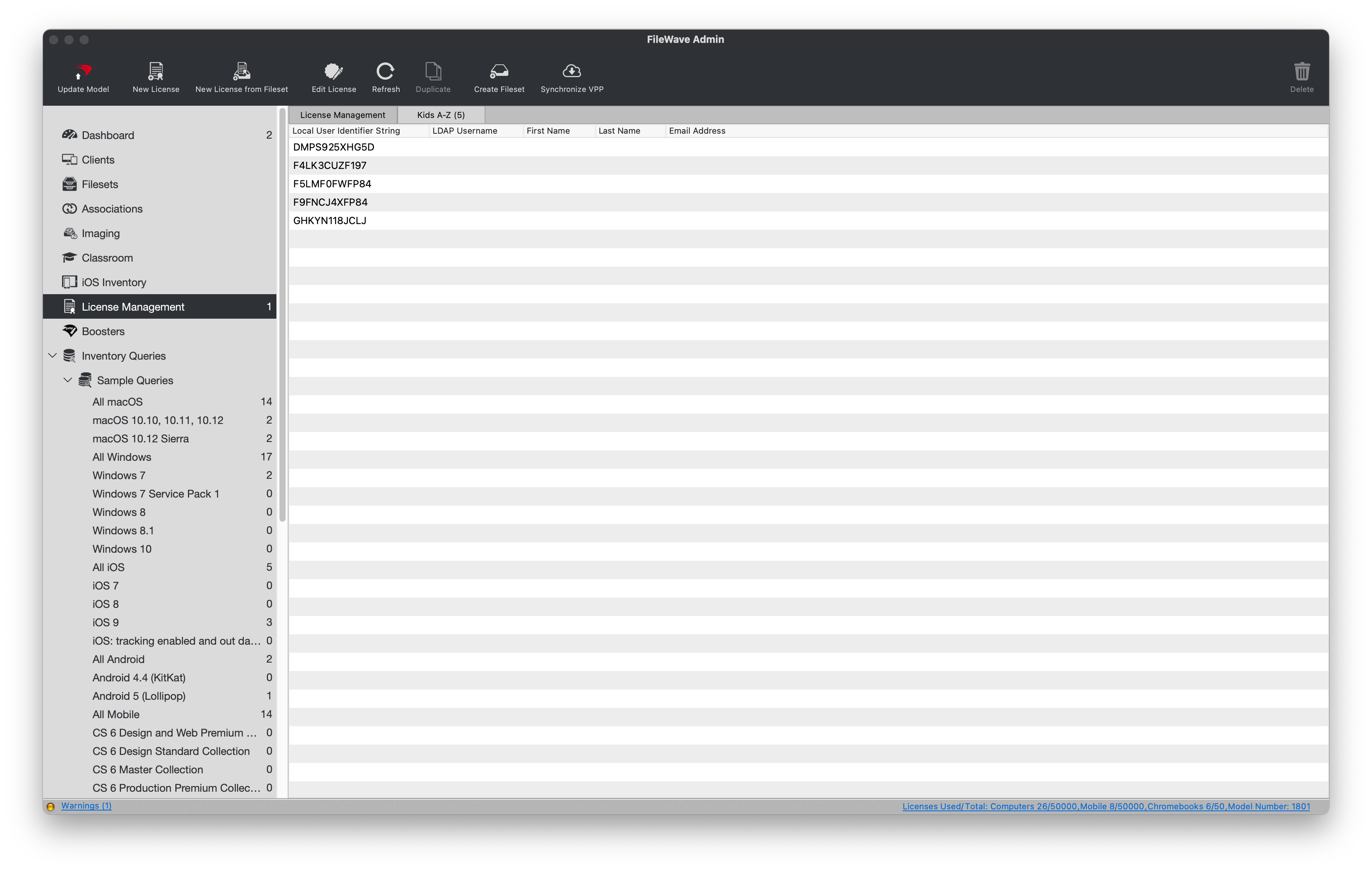
ViewingUse the license detail view to see where the VPP licenses are being consumedconsumed. A license is very easy. Licenses are consumed when a VPP Fileset is deployed to a device,device whether it bethrough a Kiosk or Standard association. VPP "Managed Distribution" licenses can be revoked and redistributed. InThis thisview view, you will seeshows the device'sdevice Serialserial Numbernumber if usingfor VPP "Device Assignment" or the end-end user's VPP User account if usingfor VPP "User Assignment".
- Open FileWave
AdminCentral and navigate to "License Management". - Double-click a VPP License.

Non-VPP License Tracking
FileWave can also track the Licensinglicense information for any other type of Applicationapplications or Fontfonts deployed to Windows, macOS, Android, and ChromeChromeOS. byYou definingcan define a new license definitionfrom Inventory criteria or trackingtrack thedeployments deployment offrom an existing Fileset. These licensesYou can also beemail automatedlicense emailedreports to setselected listrecipients of user viawith Scheduled Reports.
Creating a new License definition
ThisUse this method is useful for tracking applications or fonts that were not deployed viaby FileWave.
- Open FileWave
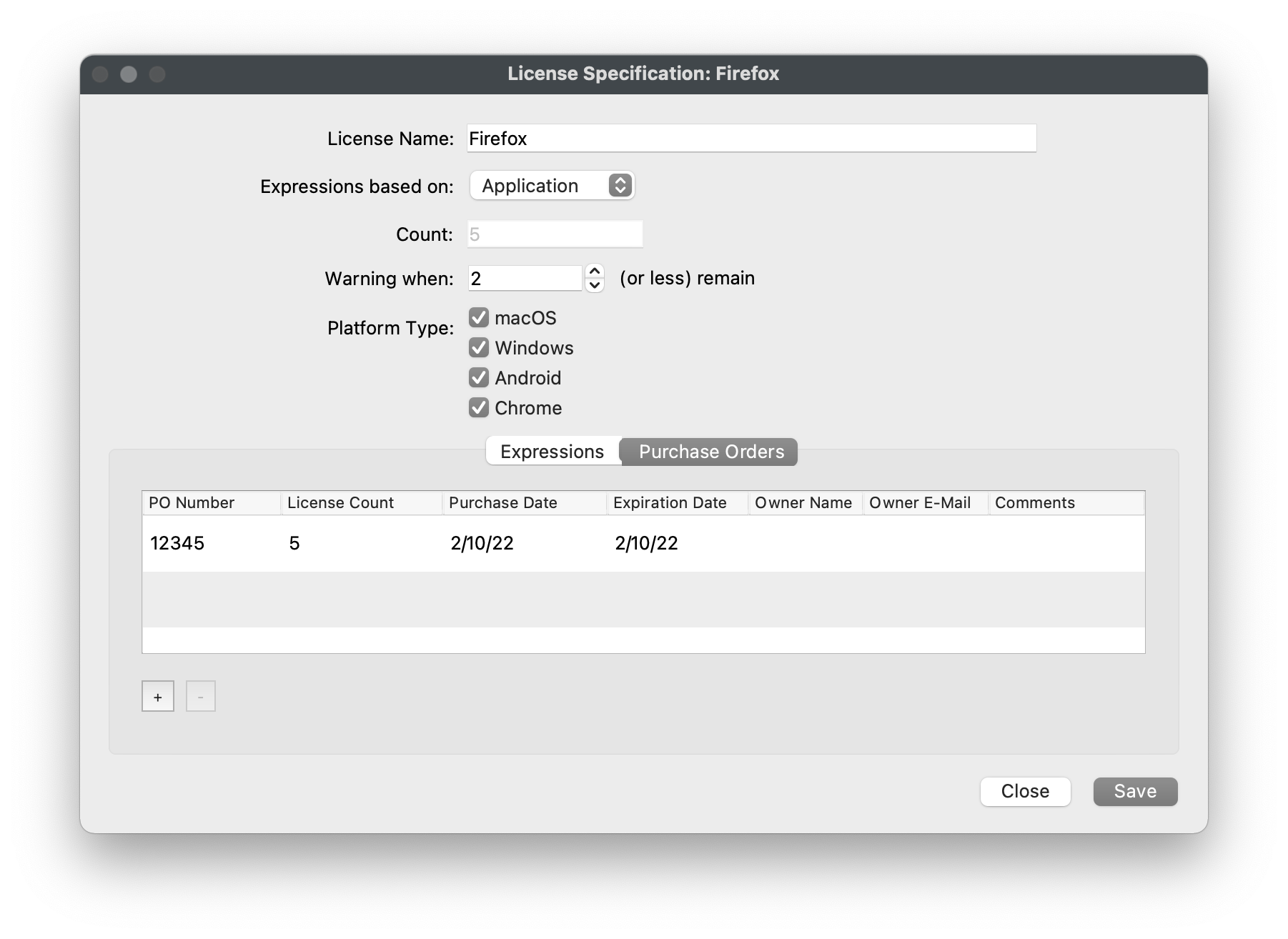
AdminCentral and navigate to "License Management". - Click "New License" from the black
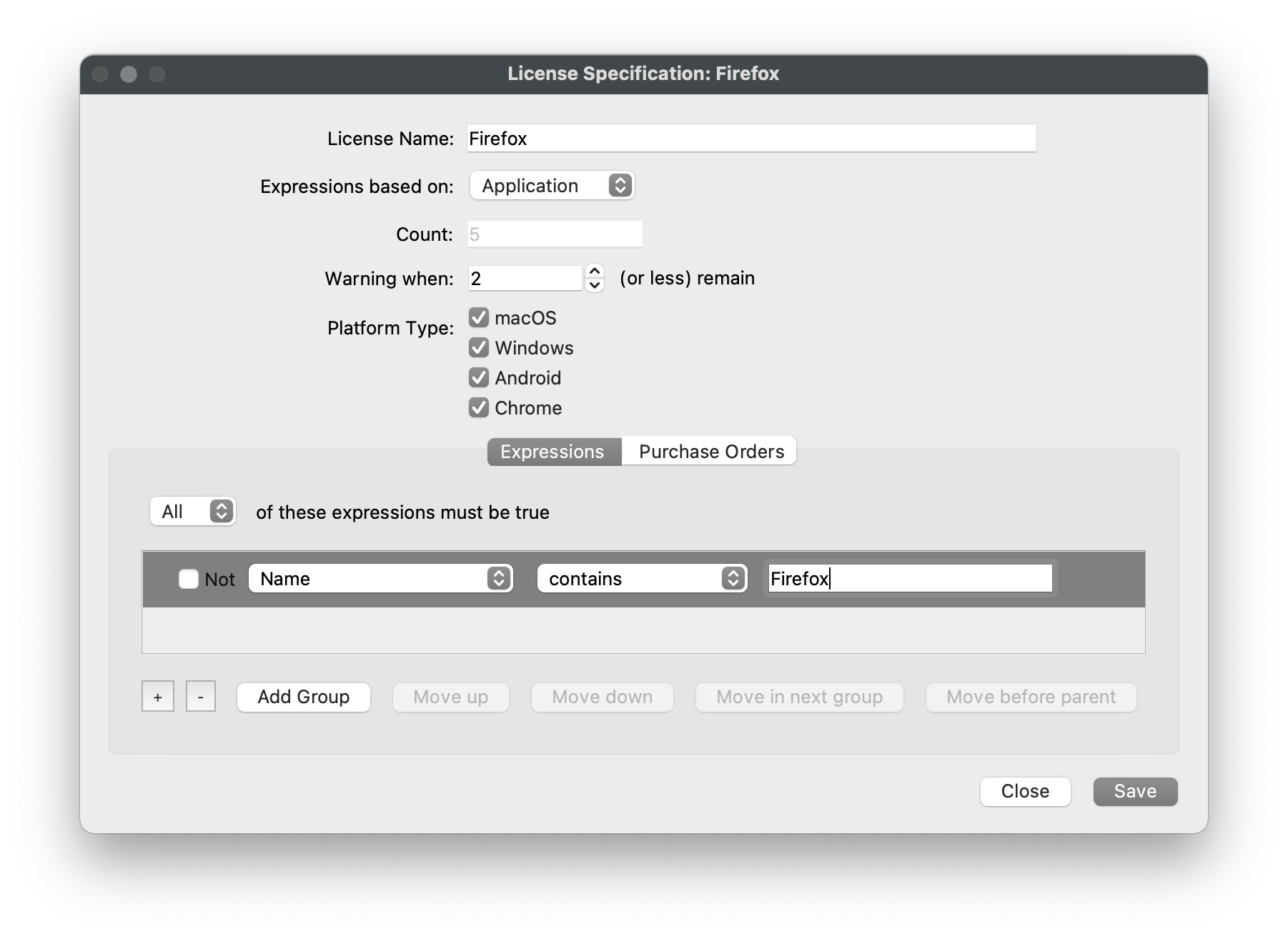
menubar.menu bar. - Name the License, select Application or Font,
determinechooseyourthe Warning threshold, andwhichselect the platformsyou'dyoulikewant to track. - Click the "[+]" to add new criteria to define the license.
ThisTheiscriteria are in the context of either Application or Font.
- Enter
inthe "Qualifier" (ex:for example, Firefox). - Click the "Purchase Orders" button.
- Click the "[+]" to add a new Purchase Order entry.
- Enter a "PO Number" and "License Count".
- Optionally, fill out the rest of the Purchase Order fields.
- Click "Save".
- You should now see your new License definition.


Track Fileset Usage
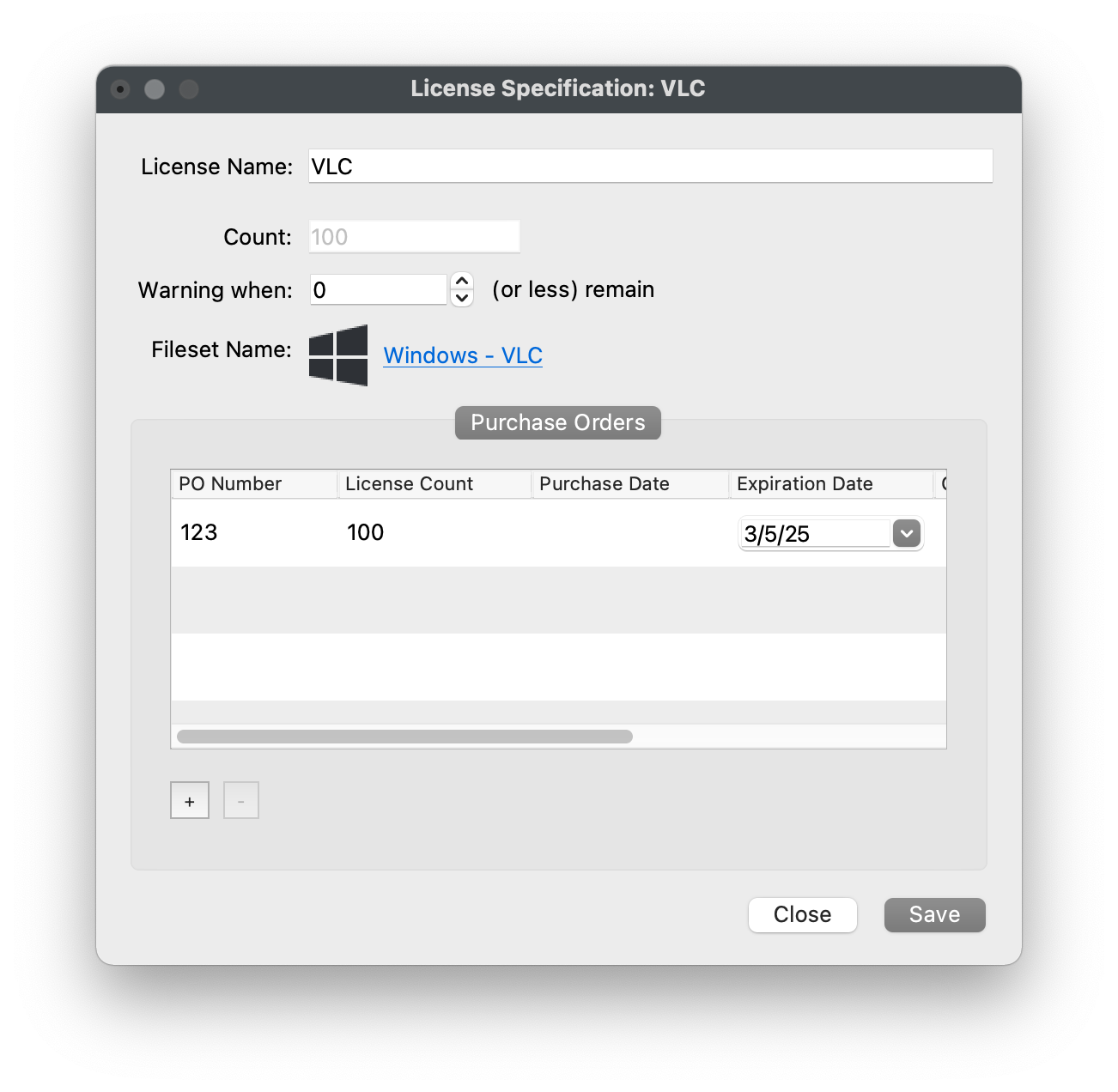
This method is very similar to the one above but will leverageuses FileWave's "Fileset Status" to even better track deployments made viathrough FileWave.
- Open FileWave
AdminCentral and navigate to "License Management". - Click "New License from Fileset" from the black
menubar.menu bar. - Name the License,
determinechooseyourthe Warning threshold, and select the Fileset you want to track. - Click the "[+]" to add a new Purchase Order entry.
- Enter a "PO Number" and "License Count".
- Optionally, fill out the rest of the Purchase Order fields.
- Click "Save".
- You should now see your new License definition.

Viewing where licenses are consumed
- Open FileWave
AdminCentral and navigate to "License Management". - Double-click
ona License.