
Manage OS Software Updates with FileWave
Optional maintenance pilot. Start here after one managed device has completed its first ordinary deployment. OS updates, firmware, and drivers need a separately approved maintenance window, restart plan, and recovery plan. Begin with one known eligible test device; expand to representative pilot hardware only after that result is understood. If updates are outside your chosen goal, return to Inventory Reports or the Getting Started with FileWave introduction.
Before creating or reusing an update Deployment, check every Fileset, the actual target membership, activation dates, and reboot deadlines. A platform-wide Smart Group is not a one-device pilot, and adding updates to an assigned Fileset Group can extend existing work. Review all administrators’ pending changes before each required Update Model, which publishes all administrators’ pending work. Central’s confirmation dialog is not a pending-change preview. Stop if the target, restart impact, or shared work is uncertain.
Keep operating systems current
FileWave collects Windows and Apple operating-system update information so you can create Software Update Filesets, test them with representative devices, and deploy approved updates on a controlled schedule. This workflow covers Windows, macOS, iOS, iPadOS, and tvOS.
Plan at least two stages—pilot and production—before creating update Filesets. Use representative hardware and operating-system versions in the pilot, including laptops that may be off network or on battery during the maintenance window. Confirm download, installation, restart behavior, and final inventory before moving the same tested Filesets to a broader group.
Create and deploy Software Update Filesets
Create update Filesets in a Fileset Group, then assign that group through a Deployment. Devices ignore update Filesets that do not apply to their platform or current operating-system state.
Your administrator account needs Manage Updates and Configure Automation Rules. Check these permissions in Assistants → Manage Administrators.
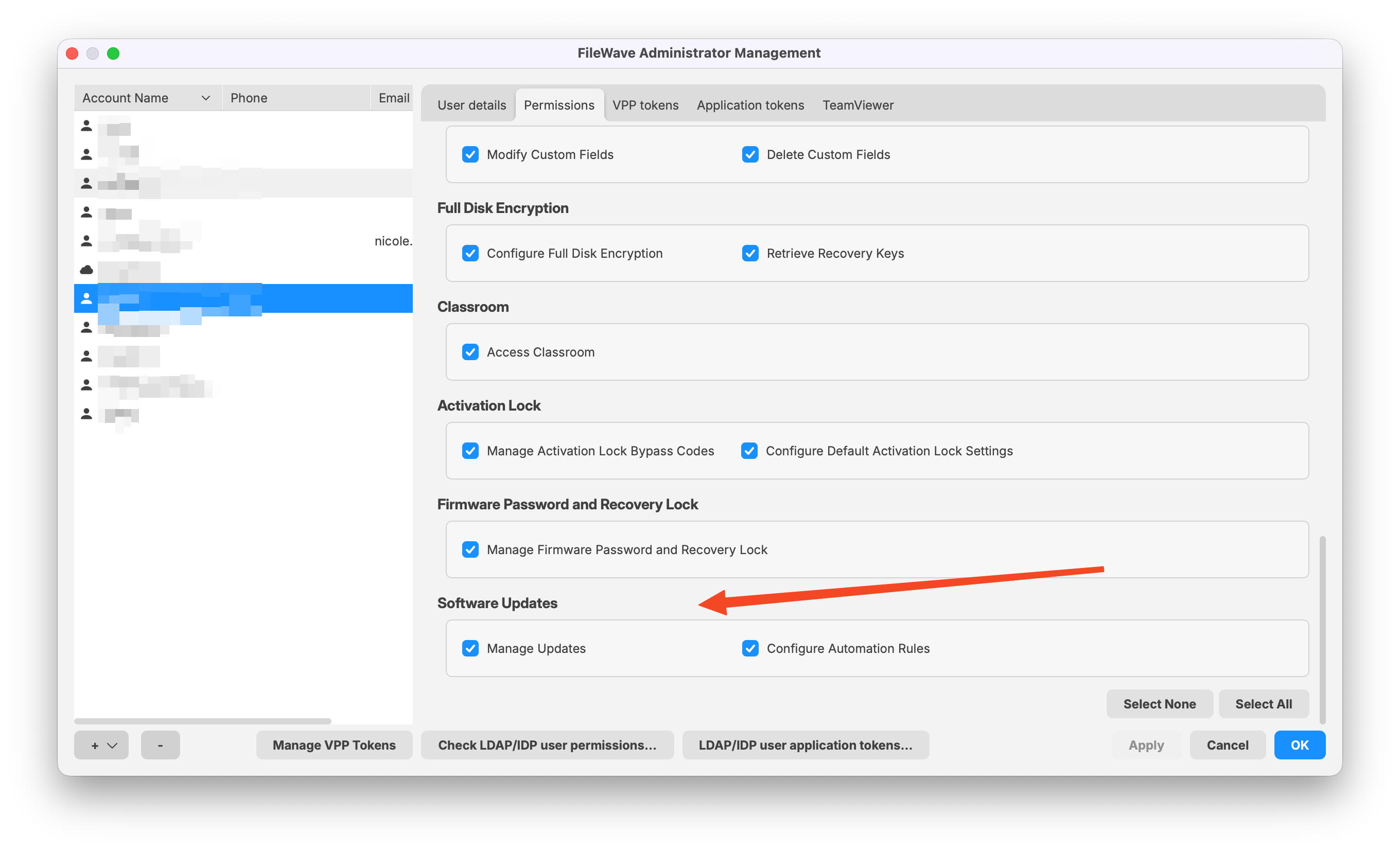
Create the update Filesets and Deployment:
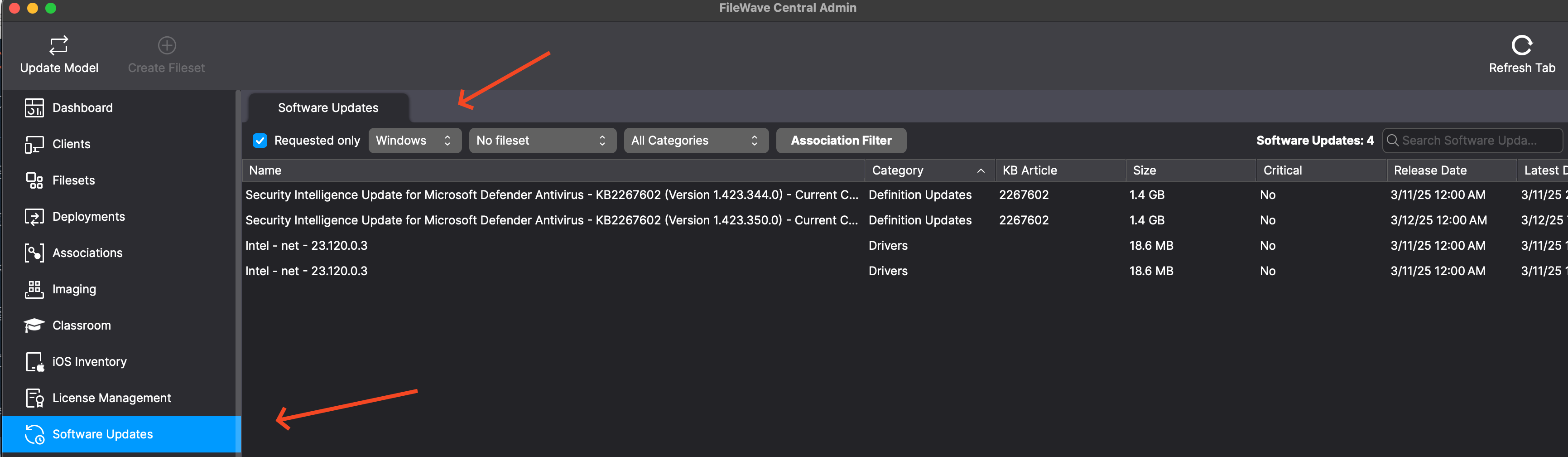
- In FileWave Central, open Software Updates.
- Select the operating-system platform. Turn on Requested only to show updates that managed devices currently report as applicable. Select No fileset to hide updates that already have a Fileset.
- Select the updates, right-click, choose Create Filesets..., and select the destination Fileset Group. Separate Windows and Apple groups make platform targeting and staged promotion easier to review.
- Create a Deployment from the update Fileset Group to the approved pilot target. For the first check, include only the known test device; inspect its identity and the resulting target count. Use a Smart Group for later stages only after reviewing its actual membership and how that membership can change. For staged testing, create updates in a test Fileset Group first, verify the pilot, then move the same Filesets into the production group.
- After reviewing the targets, restart schedule, and shared pending work, select Update Model to publish the changes.
Before broad deployment, inspect the pilot devices in Client Info and confirm that each intended update is assigned, downloaded, installed, and no longer requested. Review failures by operating-system build and hardware model rather than repeatedly redeploying to the whole group. Devices that remain absent from the update view still need the independent inventory check described below.
Windows Client requirement: Do not assign FileWave 16-format Windows OS updates to Clients earlier than 16.0.0. During a transition, add FileWave Client Version begins with 16. to the Windows patch Smart Group and independently report on older Clients that still need an upgrade.
Remove obsolete pre-16 Windows update Filesets after confirming they are no longer assigned or needed. See OS Software Updates - Obsolete Filesets Cleanup for the guarded cleanup workflow.
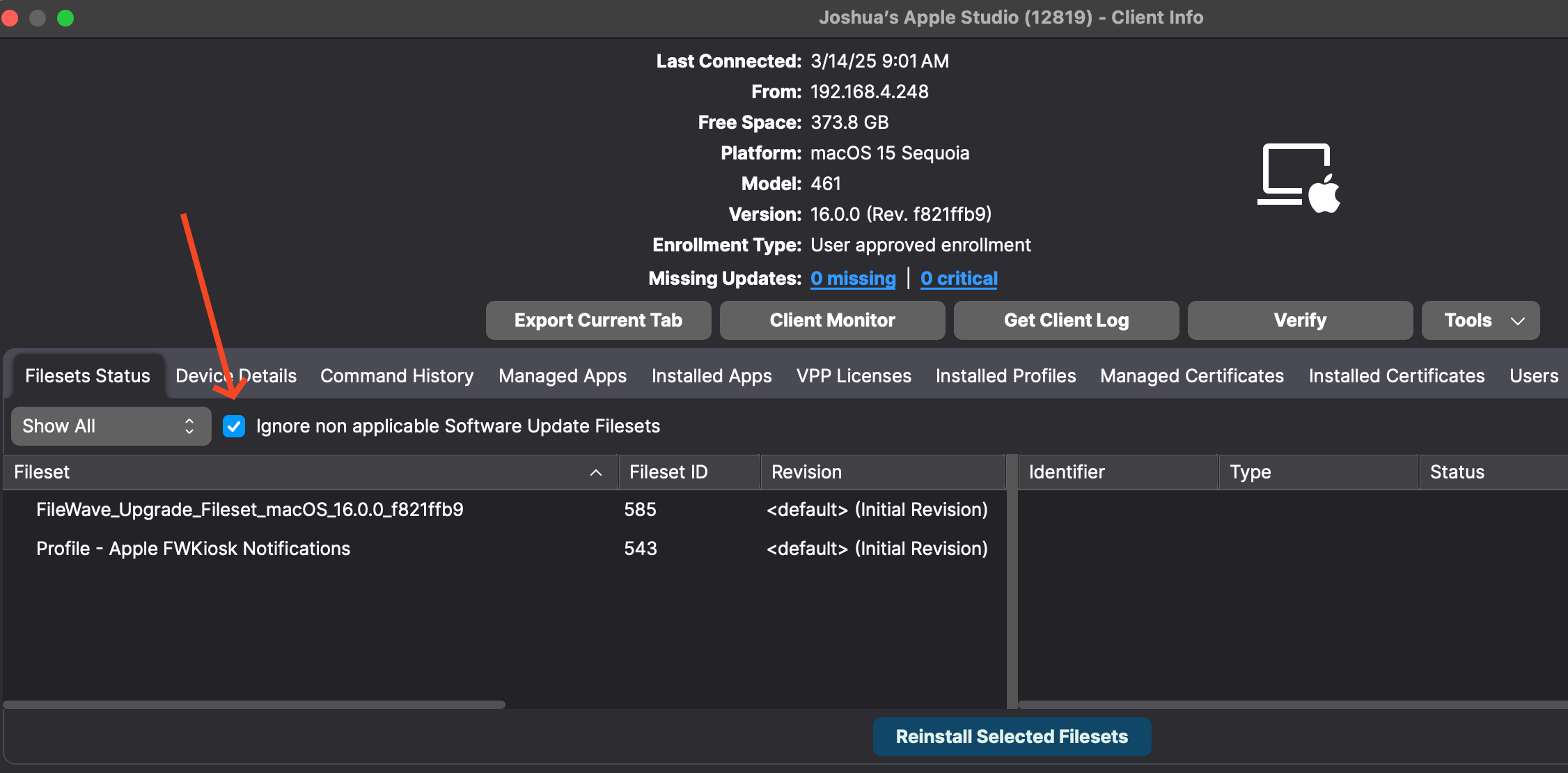
A Deployment can contain update Filesets for more than one platform because a device skips updates that do not apply. In Client Info, Ignore non applicable Software Update Filesets hides assigned updates that the device does not need; clear it when you need to troubleshoot the complete assignment set.
A short or empty filtered list does not prove that all devices are up to date. Requested only, platform, category, and Fileset-status filters leave out records. Before declaring a rollout complete, run an Inventory Report for the target devices' operating-system build and FileWave Client version, then compare that device count with the update results.
Schedule Software Update Deployments
Software Update Filesets use the same Deployment scheduling controls as other compatible Filesets.
- In FileWave Central, open Deployments on the left side of the window.
- Create a Deployment containing your Windows or Apple patches, targeting only the approved test device for the first check. For a later multi-device pilot, review the actual membership of its restricted Smart Group. If you already created that Deployment, check every Fileset and its actual target membership before reusing it.
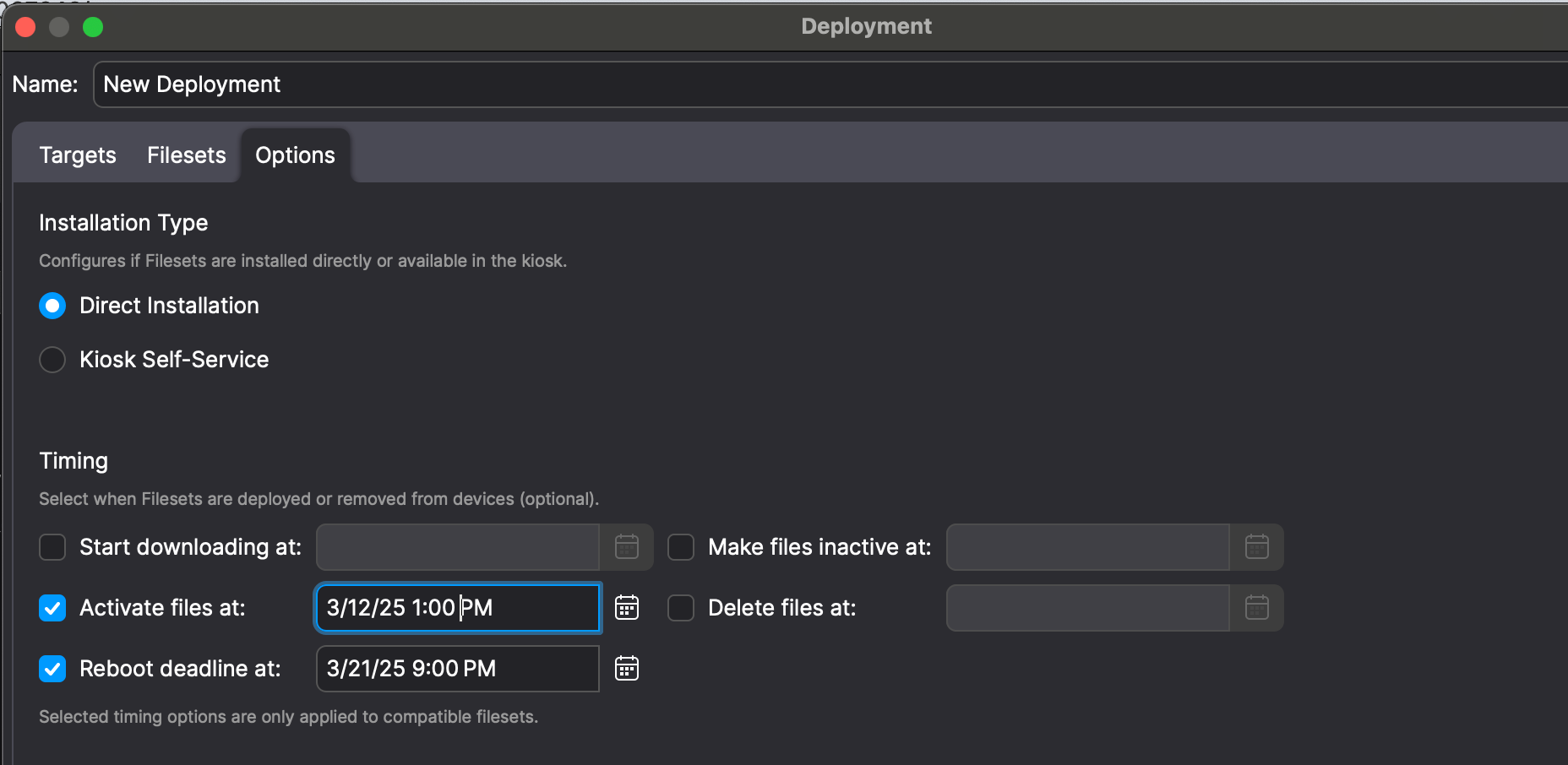
- In the Deployment Properties, use the Options tab to set when to Activate (Install) the patches. You can also set a Reboot deadline. If you reuse this Deployment for monthly patches, review and update these dates each time so newly added patches do not inherit deadlines that have already passed.
- Review the revised dates, target membership, and shared pending work, then select Update Model to publish the changes.
Windows BIOS/UEFI firmware and driver updates
Windows Software Updates can include BIOS/UEFI firmware from certain OEMs, including Dell, HP, and Lenovo. Treat firmware separately from routine operating-system patches during testing because applicability and restart behavior vary by model.
The view can also include third-party drivers for monitors, audio devices, and peripherals. These updates may improve compatibility, but plan for restarts and possible disruption to users:
- Many of these drivers require a reboot to complete installation.
- Automatic deployment may cause unexpected restarts that interrupt users’ work.
Consider offering driver updates through Self-Service Kiosk instead of automatic enforcement. Keep the approved maintenance window, restart plan, and recovery plan in place; user-initiated installation does not eliminate restart requirements.
Next Steps
Use the Best Practice Guide: Software Update Deployment (16.0+) to build staged Alpha, Beta, and Production groups, validate policy coverage, and track results.
Related Content
Finish the pilot by checking Inventory Reports and the device itself, then recording the device’s OS build, update outcome, restart behavior, and any failures. FileWave status alone is not proof that the device and its applications work as expected after the restart. Do not expand the rollout while those checks are incomplete; return to the Getting Started with FileWave introduction to choose another goal.
No comments to display
No comments to display