
Linux Enrollment
Install the native FileWave Client on one Linux test device, admit it to the intended Server if approval is needed, and check its first inventory. Linux Client management requires FileWave 17.0 or later. This procedure does not enroll the device in MDM.
Before you start
Use a supported amd64 Linux device, FileWave Server 17.0 or later, and a matching Central version. Complete Linux Client Pre-Requisites before installing. If the device is already enrolled, check its existing record rather than reinstalling it to repeat this lesson. Otherwise, prepare the configured package in step 1, then choose either the direct installation in step 2 or the website enrollment alternative—not both. Continue with step 3 after your chosen route.
Record the test device's identity and review the group and Deployments that could apply, including Smart Groups and broader targets. A device admitted automatically can receive assigned work without a separate manual-approval step. Keep the first test to one device with reviewed assignments.
1. Prepare the configured Linux Client package
- Connect Central to the Server that will manage the device. Open Preferences > Enrollment > Linux.
- Review the existing package's settings and version. If a suitable package is already Ready for Enrollment, use it; do not rebuild a shared package just to follow this exercise.
- If you need a new package or different settings, open the Linux package configuration. For an existing package, select Change settings and rebuild. In Build Linux Client Package, review Client naming, Heartbeat Interval and any Booster settings, then select Build. Keep unrelated settings unchanged.
- Wait for Ready for Enrollment and confirm the package version matches the intended release. Keep the package up to date controls rebuilding the enrollment package after Server upgrades; it does not schedule upgrades of already enrolled devices.
- Select Download Linux client package to obtain the configured DEB. It already contains the Server settings. Do not substitute an unconfigured Client download, the Central installer, or an IVS package.
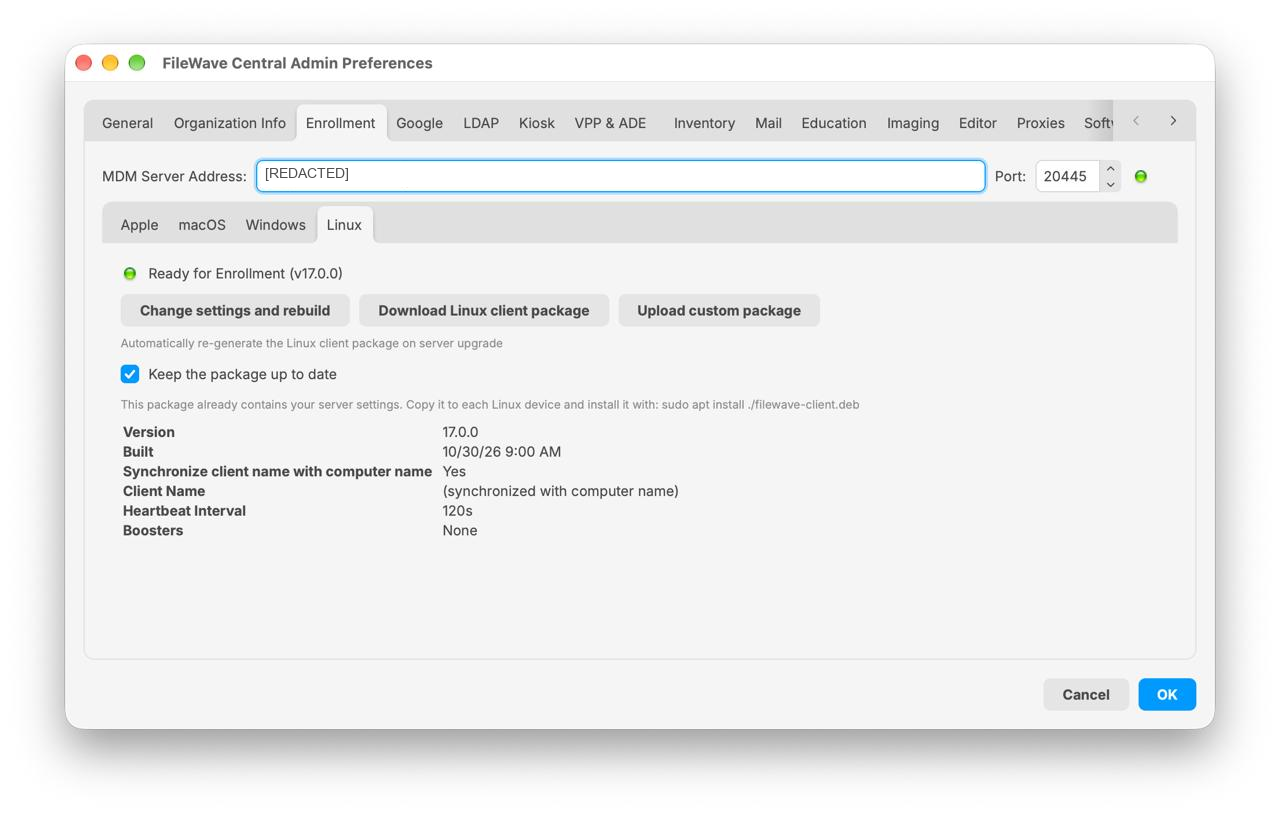
The Linux pane shows a package ready for enrollment. Use your own Server and port settings; the values pictured are examples.
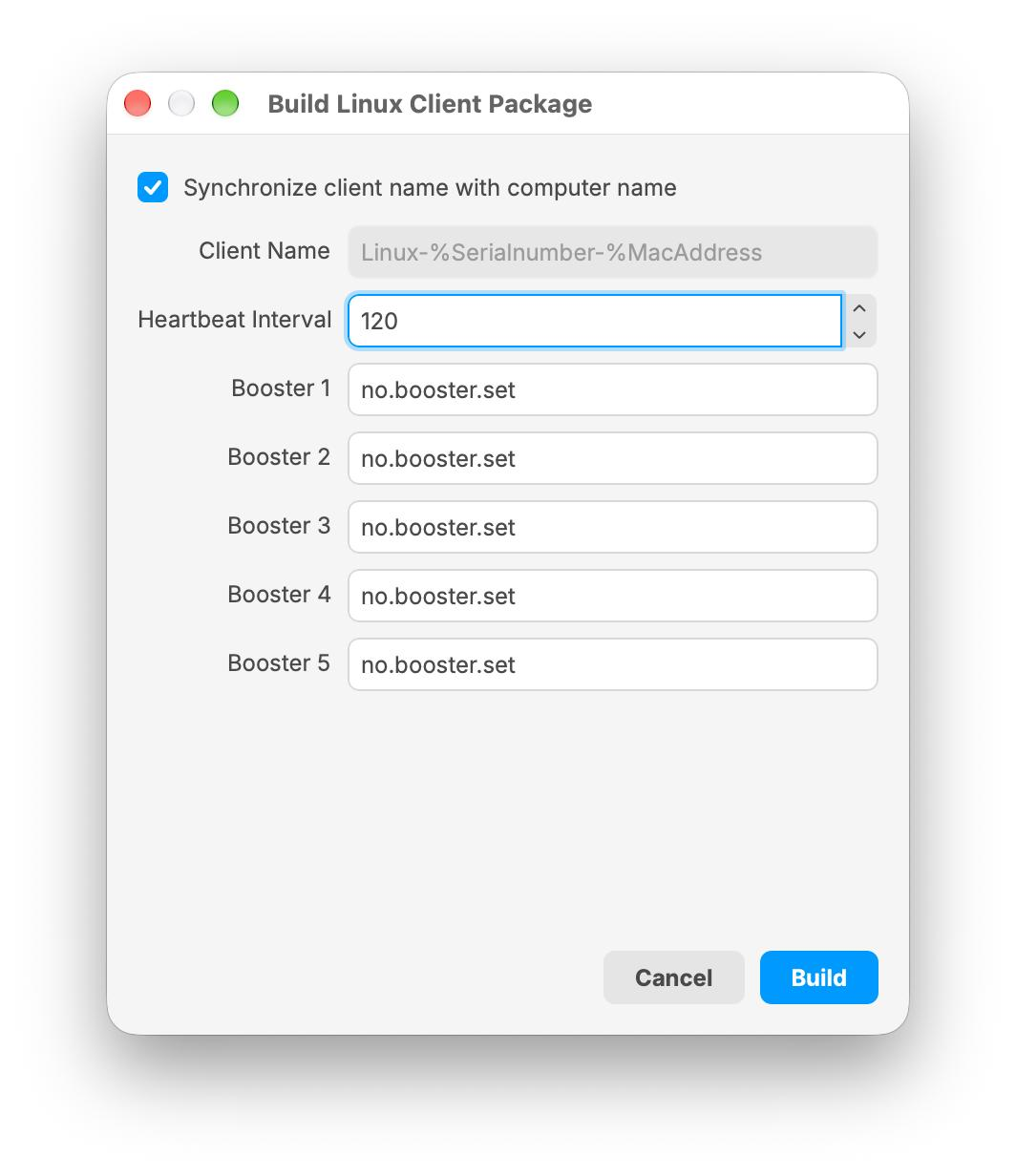
In this example, name synchronization is enabled and the manual Client Name field is disabled. The 120-second Heartbeat Interval is an example setting, not a required value.
If the build fails, retain the error and resolve it before installation. For a Beta environment, first confirm that the Server is using the Early Access package channel. Hosted-server channel changes are handled by FileWave Operations.
2. Install on the test device
-
Transfer the configured DEB to the Linux device using your approved method.
-
Open a terminal in the directory containing it. With local administrator permission, refresh the package index and install the local file. This example uses the filename
filewave-client.deb; substitute the actual downloaded filename if it differs:sudo apt update sudo apt install ./filewave-client.debKeep the
./before the filename so APT installs the downloaded package. Review APT's proposed changes before confirming; it obtains required dependencies from the configured repositories. -
Wait for installation to finish and keep the device online. Resolve any installation error before continuing. Completing the installer does not prove that the Client reached the intended Server.
The direct-package route does not require the device user to sign in to the enrollment website and does not bind the enrollment to a signed-in user. The Server's normal admission rules still apply.
Alternative: enroll through the website
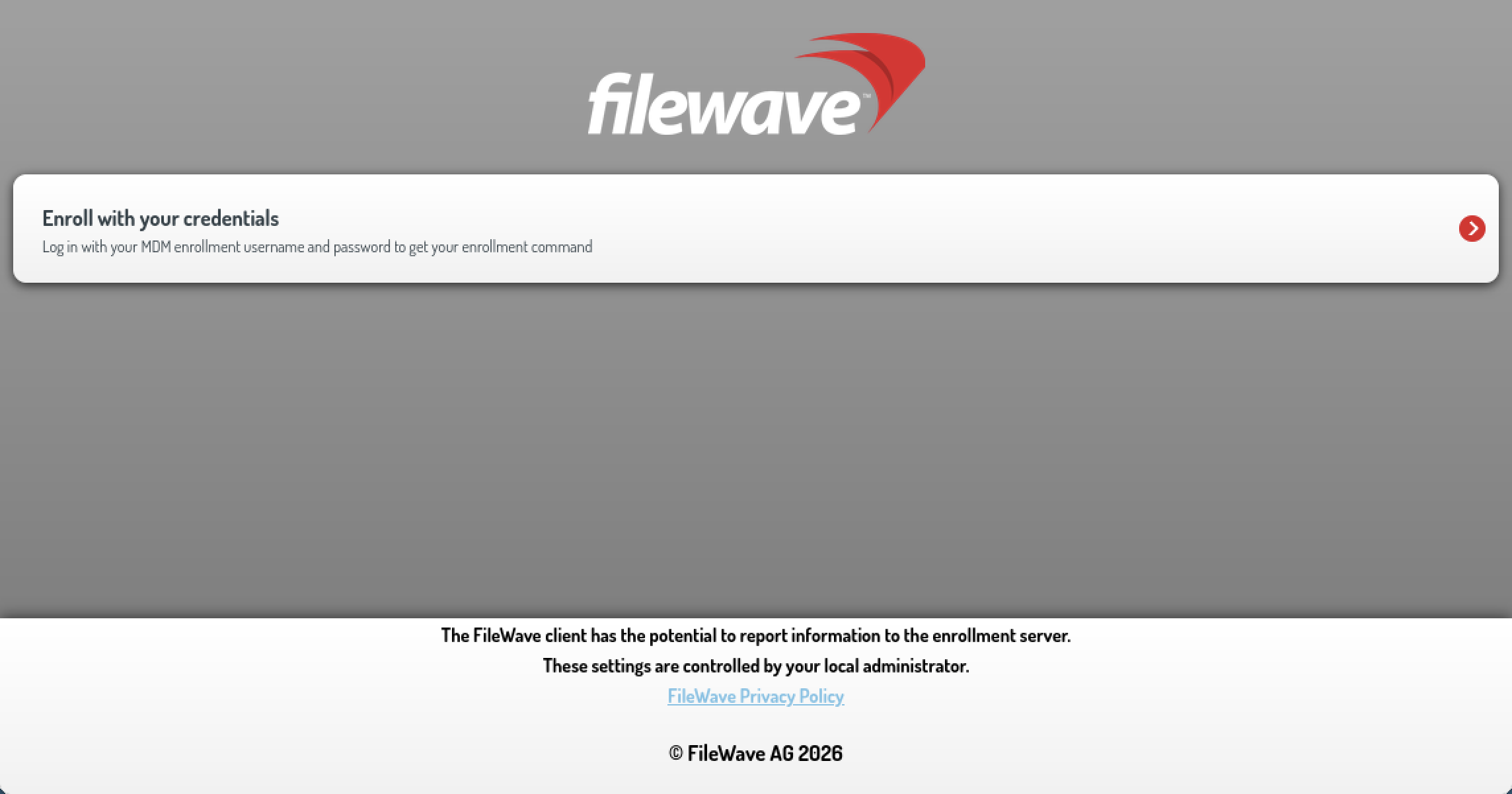
Linux enrollment welcome page. The sign-in options depend on your Server's authentication setup.
Use this route when enrollment should be associated with the account that signs in. The configured Linux package must already be ready, and the Server must have a working authenticated enrollment route. Enrollment credentials are separate from Central administrator credentials; an unauthenticated enrollment configuration cannot identify the user for this route.
- Open the Linux enrollment URL provided by your Server administrator. With the standard external enrollment port, it is
https://<server-fqdn>:20443/linux/. Use your actual Server name and configured port, and resolve any certificate warning before proceeding. - Choose Enroll with your credentials and sign in with the assigned enrollment account. If your environment offers Enroll via identity provider, use the organization's configured sign-in route instead.
- Confirm the enrollment request and copy the installation command shown by your own Server. Keep it private: it contains an enrollment credential. Generate a separate command for each device in this first-device workflow.
- Run the command in a terminal on the intended Linux device, with the local administrator access it requires. If the command has expired or has already been used, obtain a fresh one rather than sharing another person's command.
The signed-in account is recorded as the enrollment user. Signing in does not bypass device admission or prove that installation succeeded. Continue with the same Central checks below.
3. Find and admit the intended Client
First search Clients. If the device was admitted automatically or matched a prepared placeholder, do not add it again. Check its identity and assignments, then continue to inventory.
For a device waiting for approval:
- In Central, select New Client > Desktop Clients.
- Find the Linux device and compare its Client Name, platform and recent connection information with the computer you installed. Use another available identifier where possible; an IP address alone can identify a shared NAT connection.
- Review the status. For a new device, expect New client. If an existing-client or conflict status appears, check the existing record and the reason shown before proceeding. Do not replace or remove another device's record to complete this exercise.
- Select only the intended device and the group whose assignments you reviewed, then select Add Clients. You do not need to enable automatic admission or select every waiting device.
- Review the pending model changes with the other administrators, then select Update Model and confirm. Manual admission changes the model, and this action publishes shared pending work, not only your device change.
If the device was already admitted, do not run Update Model merely to view inventory. How FileWave turns your changes into device work explains the shared publication step.
4. Check the first inventory
In Clients, select the known Linux device and open its Client Info. Confirm its Linux platform, reported Client version and recent Last Connect, then compare its reported details with the device itself.
- Check a reported identifier and hardware value, such as available disk space, against the test device.
- Read the distribution from Operating System name. In Linux inventory, Operating System version reports the kernel release, not the Debian or Ubuntu distribution version.
- Check the inventory Last Connected timestamp separately from the desktop Last Connect value. Recent communication does not guarantee a fresh full inventory report.
Keep this check read-only. Verify or Refresh Inventory (Verify) can process assigned work, including installation, removal or self-healing; neither is just a screen refresh. Use Inventory Reports to save a baseline for this one device.
If the device does not appear
Check both Clients and New Client > Desktop Clients, clear search filters, and confirm that Central is connected to the correct Server. Recheck the package's Server settings, device DNS, network access and certificate trust before reinstalling. If installation succeeded but the Client is waiting, investigate admission or an identity conflict rather than repeatedly rebuilding the package or running Model Update.
For website enrollment, confirm that you used an enrollment account, that the Linux package was ready, and that the command's credential is still valid. Do not disable authentication or certificate checks to get past an error.
Enrollment is complete when the intended Linux device is admitted to the correct Server, its identity and assignments are understood, and its recent communication and initial inventory match the test device.
Deploy your first Linux application
Once enrollment and inventory checks are complete, follow Deploy Linux Software with FileWave to deliver one approved DEB application to this device and verify installation, with removal guidance for when you need it. You do not need to repeat enrollment.
No comments to display
No comments to display