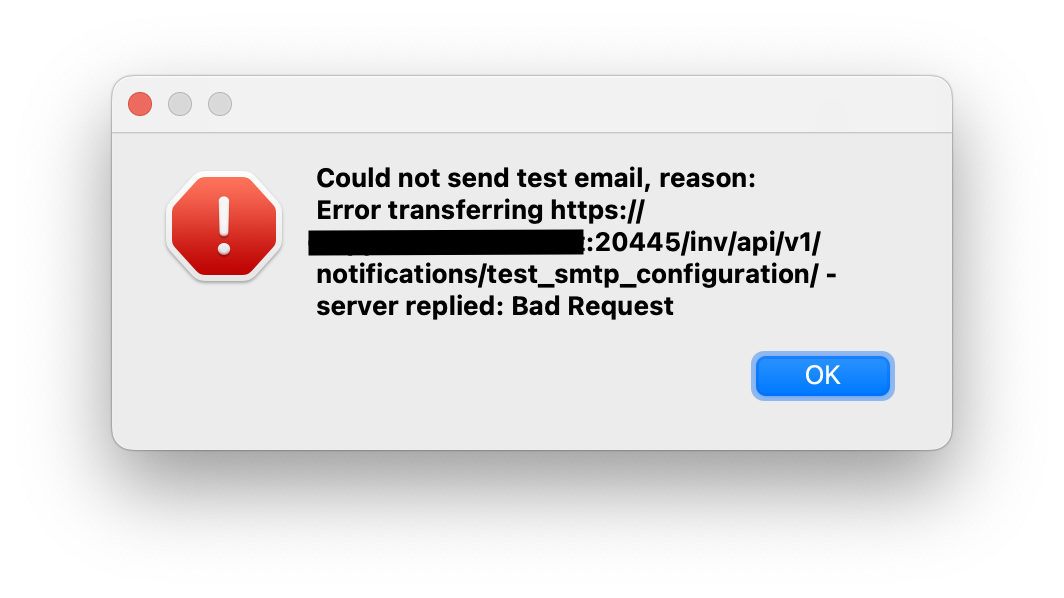
FileWave Server Mail test receives Bad Request with Google SMTP Accounts
What
FileWaveThis cantroubleshooting sendarticle scheduledapplies reportswhen Authentication Method is set to Manual Setup and test messages through the mail settings in FileWave preferences.a Google SMTP accountsaccount may returnreturns a Bad Request error during setup ifbecause the account is not ready for the app-password workflow shownbelow.
FileWave 16.4 also supports Google OAuth. Use OAuth when it matches the organization’s Google Workspace policy; use the app-password steps below only for a supported Manual Setup configuration. See Configuring FileWave Server Mail Preferences.
When/Why
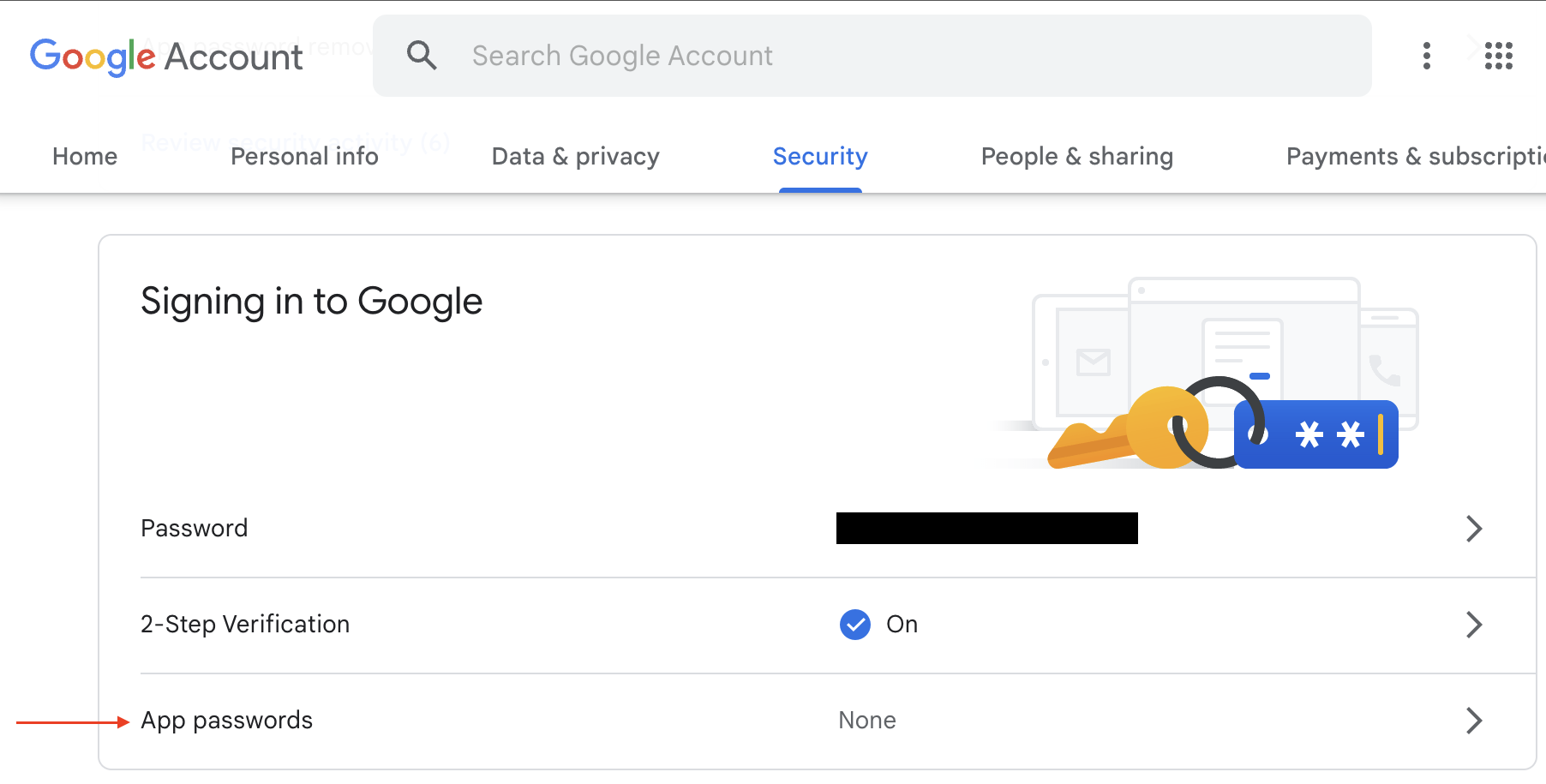
For Google accounts, enable 2-Step Verification and create a Google App Password for FileWave. Use that generated app password in FileWave mail preferences instead of the user's normal Google password.
How
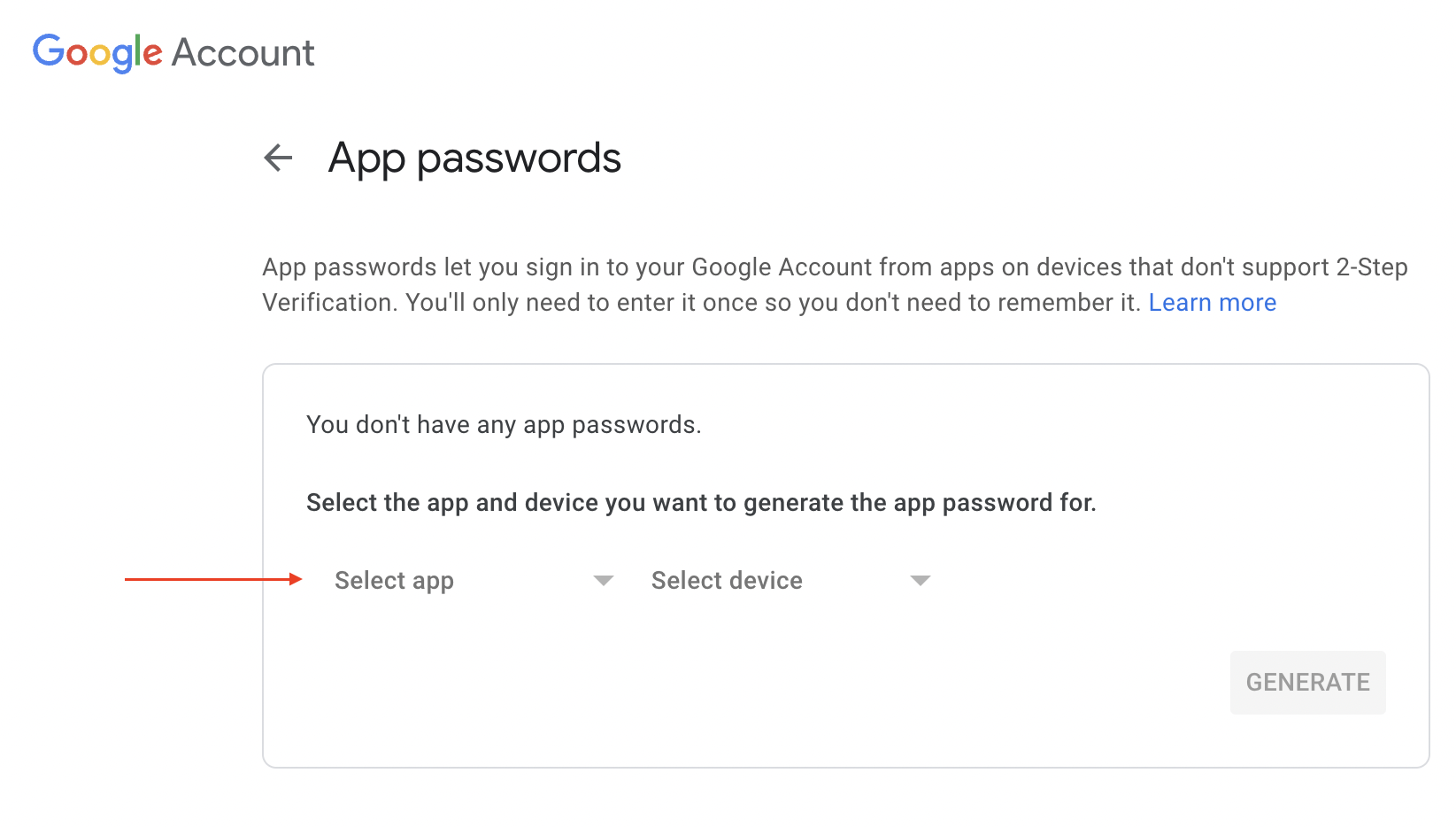
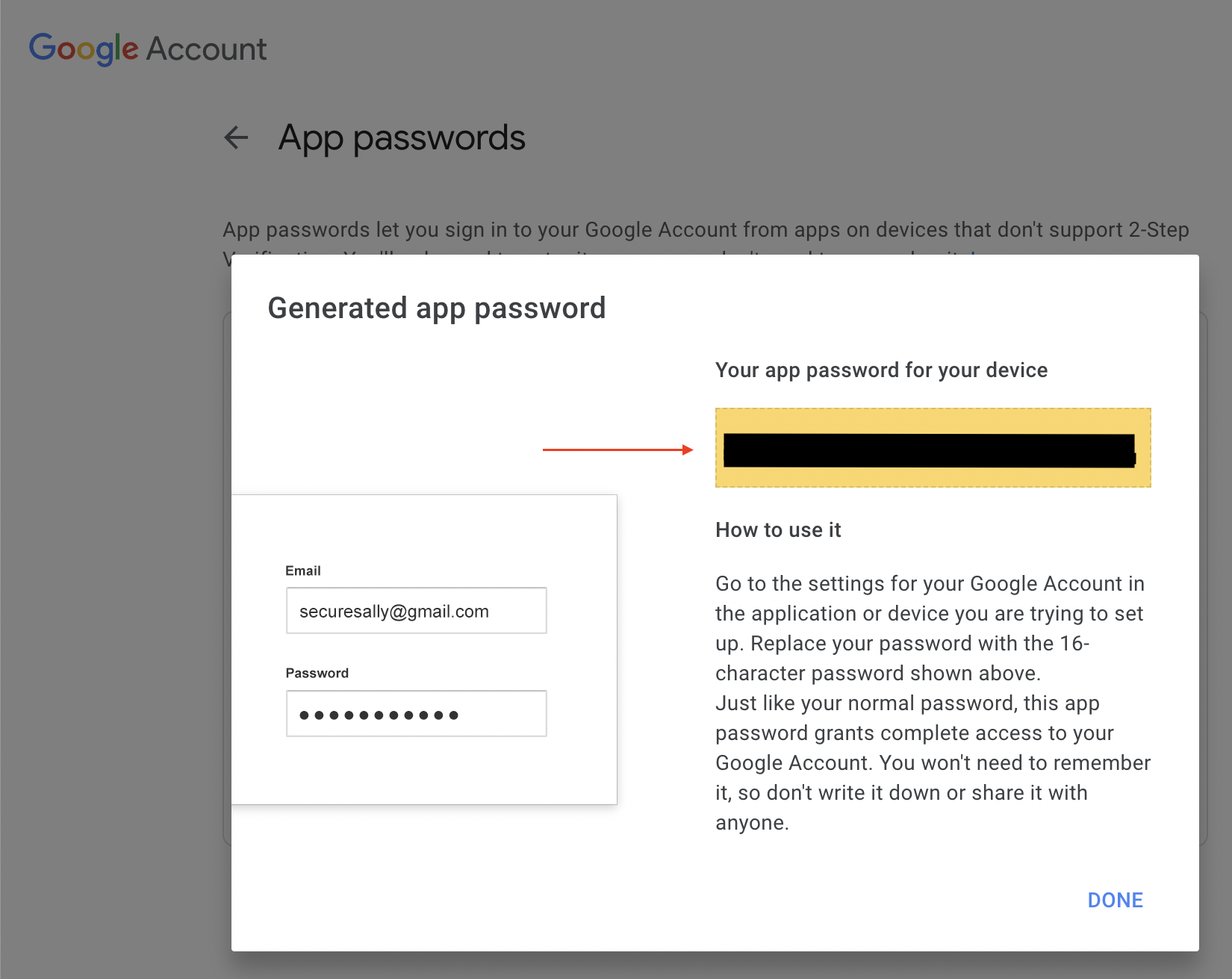
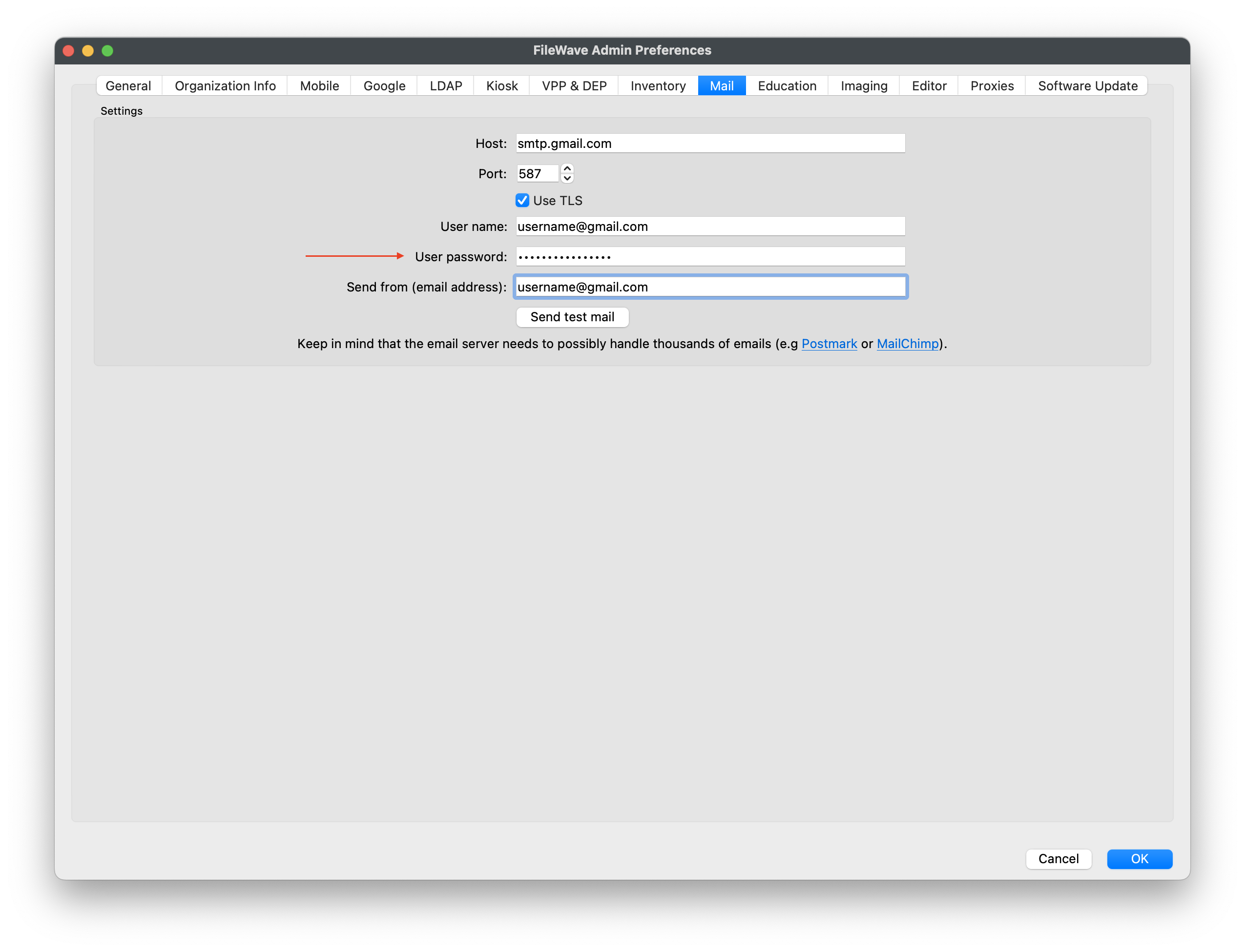
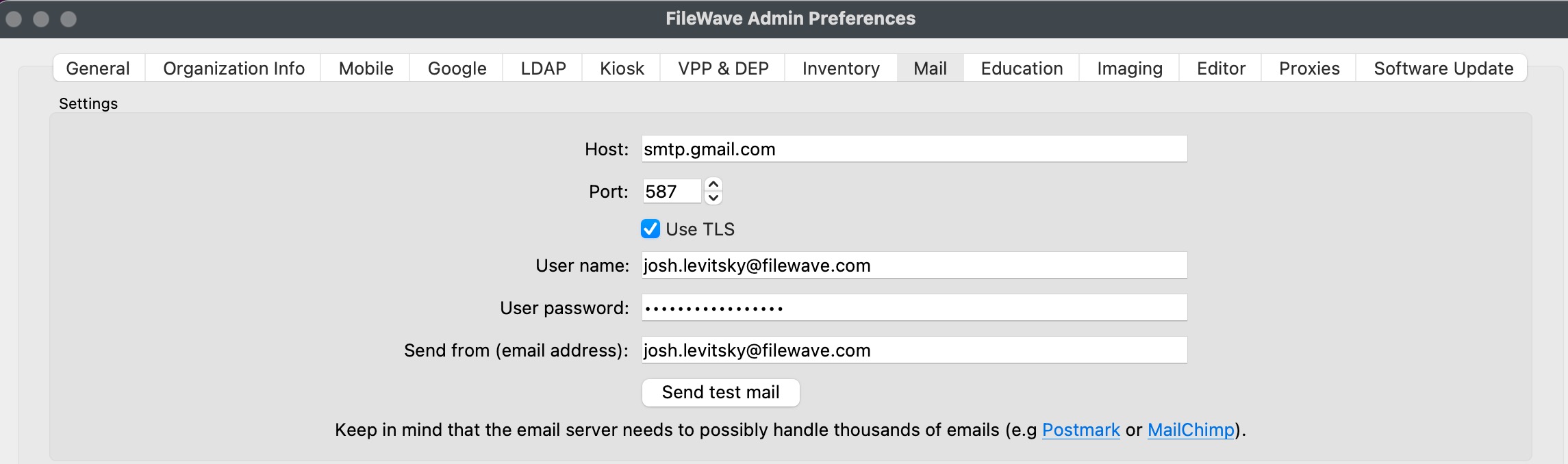
In the Google account, open the security settings, confirm that 2-Step Verification is enabled, then create an app password. Google's current instructions are here: Sign in with app passwords. Copy the generated password into FileWave email preferences and keep it stored securely with your other service-account credentials.
Send another test email from FileWave to confirm that the Google account and app password are accepted.