
How do I export the results of an Inventory query?
ProblemDescription
The resultsResults of yourInventory inventoryQueries queryare willviewable appear inthough the adminFileWave console,Central butApp. youHowever, needif toother bemembers ableof tostaff sharerequire these details, then those results may need exporting.
Requirements
Steps
Export View
With any Inventory Query actively being viewed in FileWave Central, use the Drop Down menu option 'Export Current View':
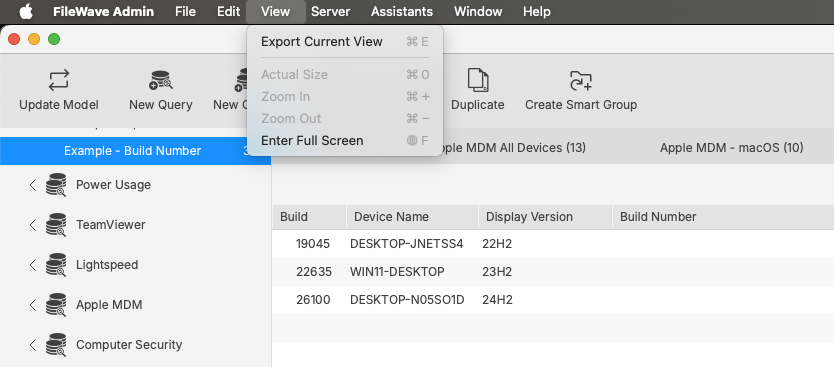
On export, a Text file should be generated, consisting of a header line, including all included columns and preceding lines with othersthe thatrespective doresults:

Scheduled accessReports
From the Assistants drop down menu, is an option Show Scheduled Reports:

This method should periodically send emails to thechosen adminrecipients, console.
Environment
any FileWaveincluded Adminquery Console
Resolution
There are 3 ways to exportwithin the resultsschedule definition.
Details of yourbuilding inventoryout query:
API Queries
As demonstrated in our KB pages for FileWave API, it is possible to abuild userout definedqueries email address.