
OS Software Updates - Automation Rules
What
Managing OS updatesupdate canmanagement beoften ameans burdentracking withfrequent Apple and Microsoft updates, creating Filesets, and assigning them to the quantityright and frequency of new updates, requiring new Filesets and correct grouping for assignment.groups. FileWave 16.2.0 makesadds thisAutomation processRules muchto simplerhelp forgenerate bothupdate AppleFilesets andfrom Microsoftthe updates.updates reported by managed devices.
When/Why
Apple and Windows devices report whichrelevant OS updates are relevant, back to the FileWave server. TheServer. Client Info offor anyan oneindividual device willlists list thosethe updates that device has reported:

However, theThe Software Updates view in FileWave Central shows all updates,updates reported across all Apple orand Microsoft devices, with furtheradditional filter options. As devices report into FileWave, this view willcontinues continuallyto update.
The 'Is New' entryvalue is of key importance for thedrives Automation Rules.

EntriesFreshly freshlyreported reported,entries automatically have 'Is New' set asto 'Yes'.
Automation Rules are used to target anyupdates chosen updates, setmarked as new,new and buildgenerate Filesets for the updates you include. Exclusion rules keep unwanted updates out Filesets, aiming at only desired updates or ignore others, by way of inclusionsthe orautomation exclusions.flow, Forsuch example, are allas Windows driver packs desirable?you do not want to deploy automatically.
SettingAutomation AutomationRules can also apply to updates that do not exist yet. When devices report matching updates later, the rules allowscan forpick futuristicthem updates, not yet existing, but reported by devices subsequently.up.
When the Automation Rules arerun, actioned,FileWave acreates one Fileset per included update shouldand be created for any included updates, whilstignores excluded updatesupdates. will be ignored. ThisThe 'Is New' flag willchanges be set asto 'No' when Filesetsa areFileset is generated, meaningso excluded updates willremain remainmarked as new.
ItYou is possible tocan manually alterchange the 'Is New' flag for one or more updates,updates by way offrom the right right-click contextual menu:

Resetting the 'Is New' flag for any updates back to 'Yes', will cause them to be included once more whenmakes the update eligible the next time Automation Rules run,run. whilstSetting setting anyit to 'No', willkeeps excludethat themupdate forout of rule consideration,processing, regardless of rulesmatching created.rules.
Once rules are configured, theyrun arethem actioned bywith the 'Run Automation'Automation button;button. a manual process atAt the time of writing, butthis will hopefully be an automated, scheduled process inis a futuremanual FileWave release.action.
For easy reference, only when a rule will cause a Fileset to be generated, will theThe 'Is New' flag be alteredchanges from 'Yes' to 'No'. only when a rule causes a Fileset to be generated.
How
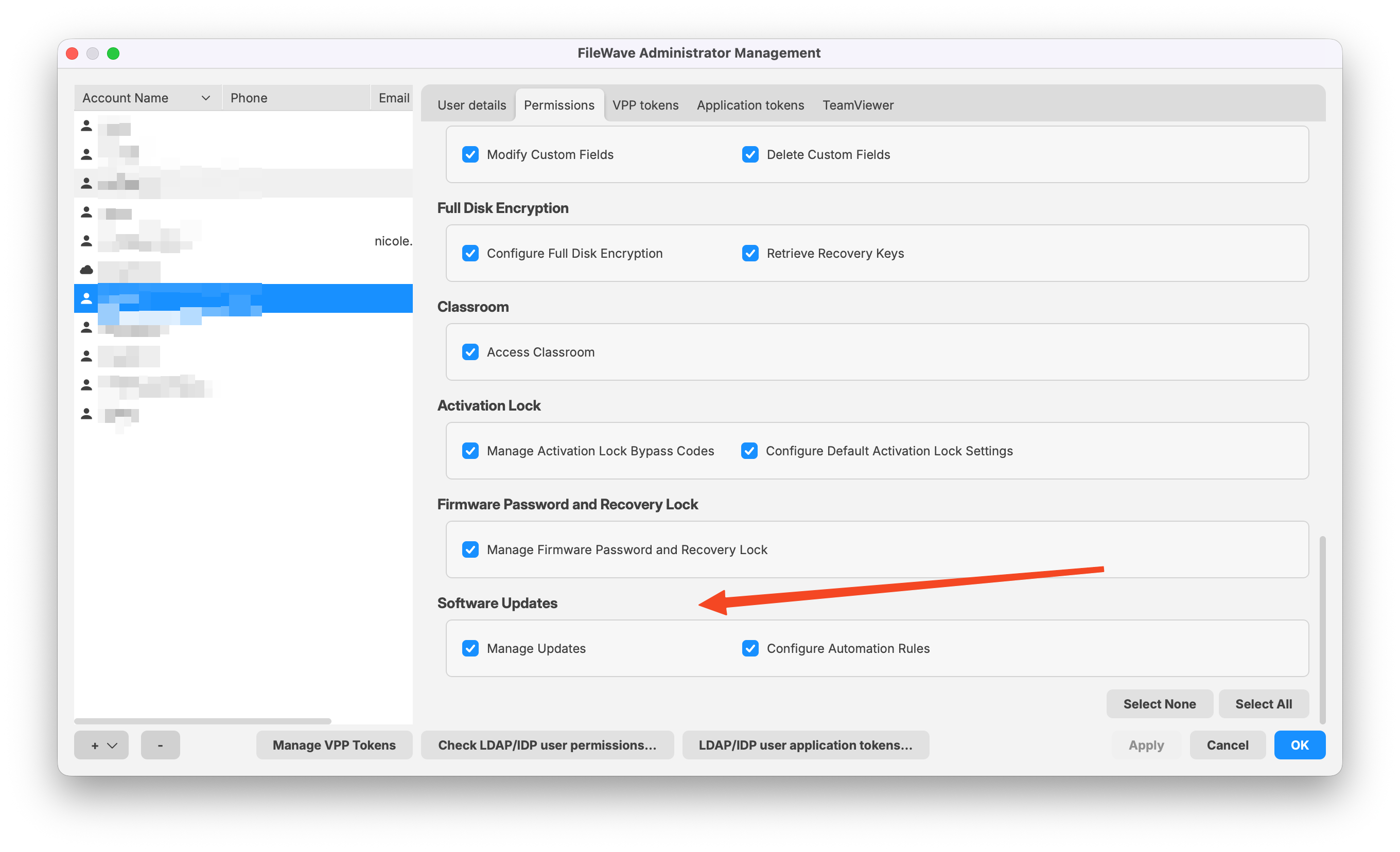
Only FileWave Administrators with necessary permissions may perform some or all of these actions, as set in:
Assistants -> Manage Administrators:
- Manage Updates
- Configure Automation Rules
Select "Automation Rules"Rules in the Software Update'sUpdates toolbar to view currentexisting rules or create new rules, as below:ones:
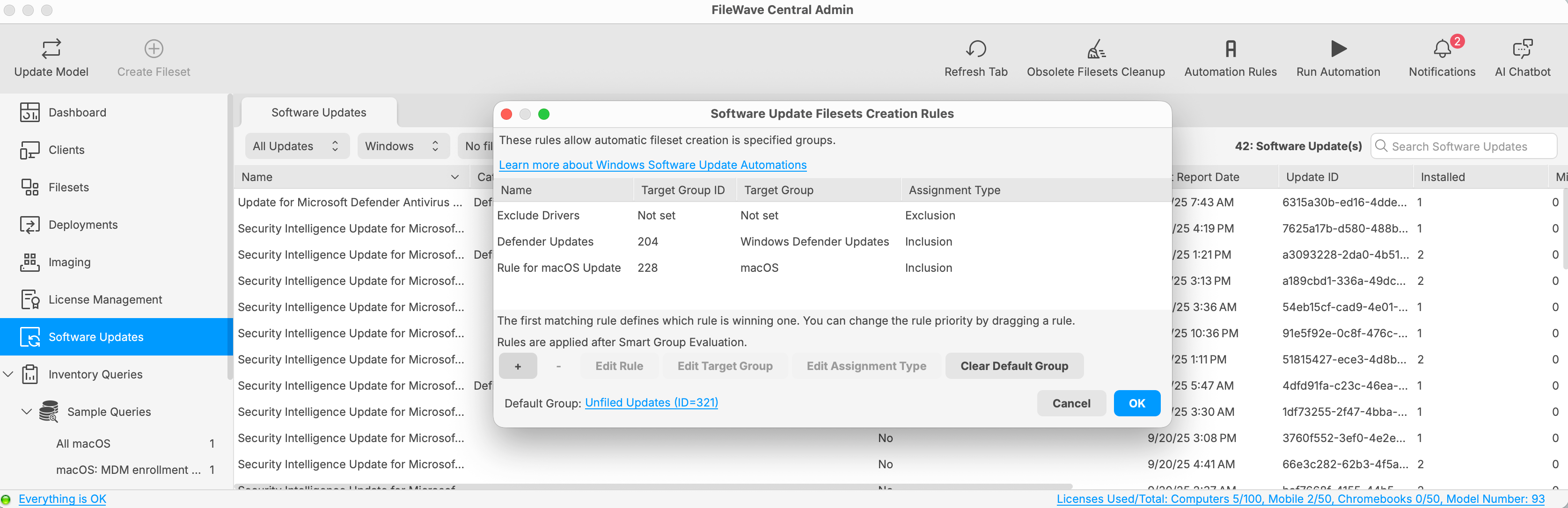
The example above example has 3three definedrules: rules in place (one exclusion andrule, two inclusion)inclusion rules, and a designated Default Group. Any updates setmarked as new,new whichthat do not meetmatch the criteria of the rules, willrules generate Filesets withinin the Default Group. This can help you identify new updates that were not impactedhandled by thea rules.specific rule.
UnlessIf set,you do not set one, there will beis no Default Group.
Rules may added or removed usingUse the + and - buttons respectively,to whilstadd theor highlightedremove rules. Select a rule mayto haveedit theits target group or assignment typetype. edited.If a Default Group mayis beset, clearedyou ifcan set.clear it.
If there is no Default Group, thenupdates (asthat withdo Exclusions),not match inclusion rules behave like exclusions: the 'Is New' flag willstays remainset asto 'Yes' for any updates not matching Inclusion rules;and no Fileset will beis created.
Rules run from top to bottom. Exclusion rules prevent matching updates from being considered inby anylater subsequent rule.rules. The first matching Inclusioninclusion rule will generategenerates a Fileset and then setsets the 'Is New' flag to 'No', suchso that subsequentlater rules will no longer beprocess appropriatethat (forupdate. any updates matching more than one rule). Hence, onlyOnly one Fileset will beis generated for each included updatesupdate eachduring timea Run Automation Rules are Ran.pass.
Drag rules up or down to alterchange the order.
AddPlace Exclusionexclusion rules at the top of the list to prevent Filesets from being created for updates meetingthat meet the exclusion criteria.
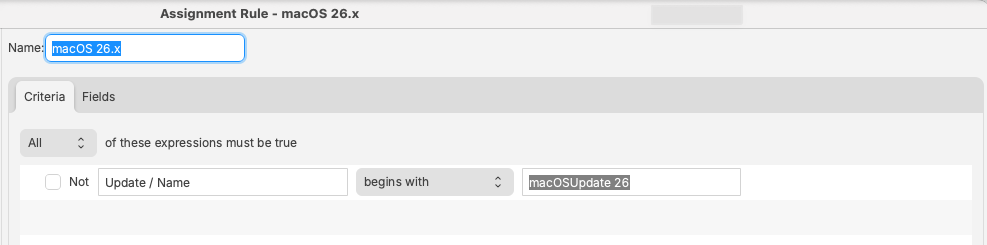
The rules view shouldworks seemlike similarReports familiar. As with(formerly Inventory Queries,Queries). Give each rule shoulda be given an appropriateclear name, forthen reference, andadd criteria components may be added to define rules:which updates it should match:
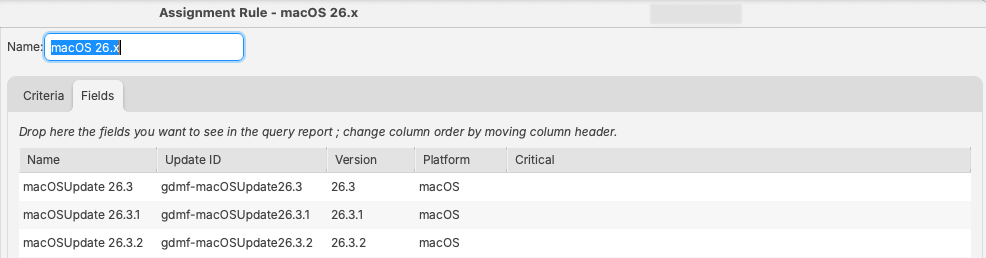
The Fields tab should listlists updates caught by the rule definition:
Example
Consider the following rules:
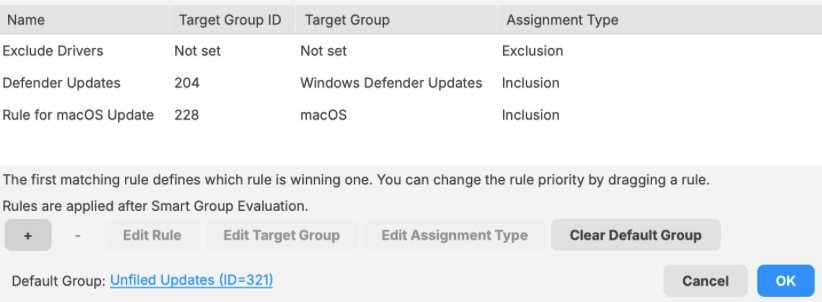
These willrules run in the following order:
| Rule | Description | New |
| 1: Exclude Drivers | The criteria of this rule |
Updates remain as 'New'. |
| 2: Defender Updates | Updates altered to 'Not New' |
|
| 3: Rule for macOS Update | ||
|
4: Default Group
|
Any updates This |
Exclusion Example
As described,described above, excluded updates excludedremain remainmarked as new. Consider the following 3three rules:
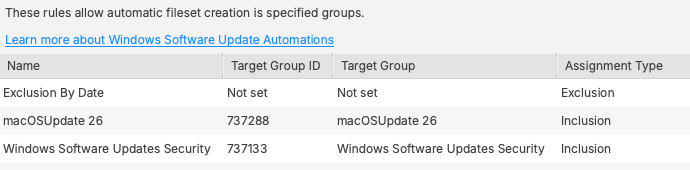
The macOSUpdate 26 rule is set to includeincludes all macOS 26 Updates.updates. Likewise, theThe Windows Software Updates Security isrule set to include allincludes updates that havewith the Categorycategory 'Security Updates'.
The Exclusionexclusion Rulerule has been set to impactaffects both of thesethose otherlater rules:
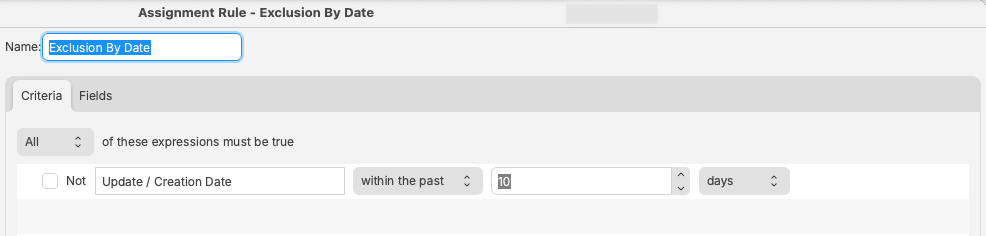
Only where new updates are older than 10 days,days willare thoseprocessed. Newer updates be processed. Any newer updates by date will beare ignored and remain marked as new. However,As astime days pass,passes, those updates willcome become ininto scope offor eachthe belowlater rulerules and Filesets will be subsequentlyare generated.
This providesgives anyou amounta oftesting grace periodperiod, forso testing, ensuring brand-new updates willare not be processed even if theyou run Automation Rules are actioned.Rules.
Updates maycan be manually generated into a test Fileset Group.
Manual Fileset creation from the Software Update view also sets the 'Is New' flag as 'No'. Updates left untouched will remain as new and come into scope after the defined period of time.
AssociatedDevices devicesassociated with thisthe test group should receive the updates. OnceAfter testing has beenis approved, theseyou can consider those updates could then be considered for genericbroader deployment.
EachFor each approved updateupdate, maymanually then havereset the 'Is New' flag manually reset asto 'Yes'. When the updatesupdate comecomes into scope by date, beingAutomation setRules ascan new again, they will now havegenerate Filesets created withinin the groups as targeted by each rule. If an update is not internally approved, thoseleave manuallyit createdset updates will remain asto 'No' andso willit is not be included when the date scope has beenis reached.
This method allowslets foryou pre-assignment ofassign both test group and liveproduction deploymentupdate ofgroups, updates,reducing negating subsequentfollow-up manual actions.work.