
Automated Windows OS Updates Policy
What
A Windows Software Update Policy automatically deploys updates that match defined name, criticality, reboot, and category rules. FileWave 16.2.0 introduced this policy-based option for Windows patching when administrators do not need a separate Fileset for each matching update.
When/Why
Use this approach for repeatable update classes that should deploy whenever they match. Use the linked Software Update Deployment guide when you need tighter testing, timing, grouping, or approval control.
How
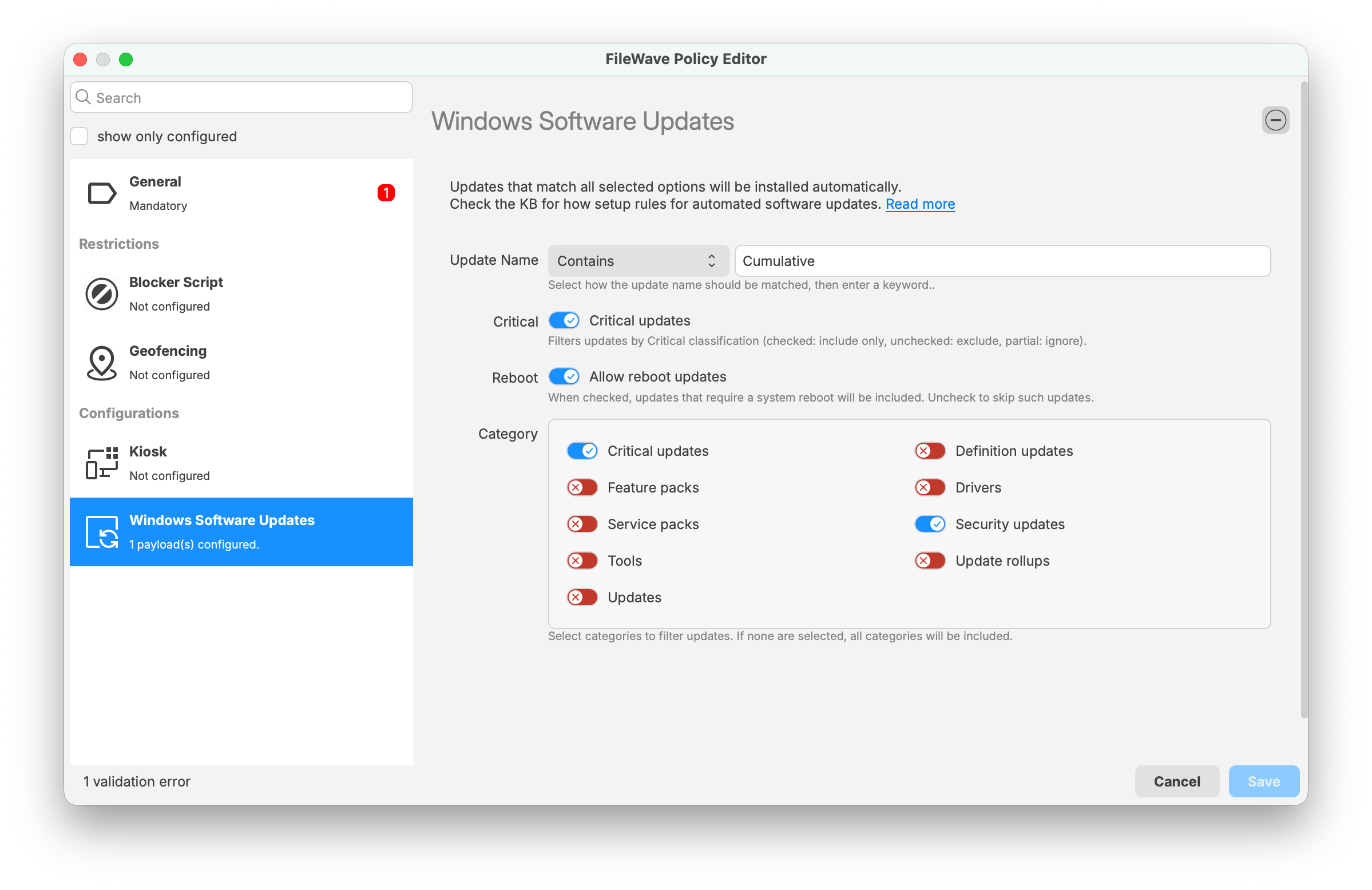
In FileWave 16.2.0 or later, create a Fileset and select General > Policy. The Windows Software Updates section contains the matching rules shown below. Policy Filesets can also support Kiosk appearance, Android geofencing, and Blocker Scripts.
Name the policy in the General section, then configure its Windows Software Updates rules. Every update that satisfies the combined rule will be eligible for deployment, so test the policy with a limited device group before broad assignment.
- Update Name - Here you may want to use "Contains" as the rule if you are looking for a certain name but you can leave this blank if you are just setting the type of update with the switches. Note that the text is localized so if in your language it would be a different word then use what you usually see in Windows Updates.
- Critical - Any update marked by Microsoft as Critical. If enabled then they will be considered.
- Reboot - Any update marked as requiring a reboot. If you do not want reboot updates to be pushed automatically then do not enable this, but know that many Microsoft updates require a reboot.
- Category - Enabled Categories will be considered.
In the example below, an update must contain Cumulative in its localized name, must be marked Critical, may either require or not require a reboot, and must belong to the Critical Updates or Security Updates category.
Starting in FileWave 16.3, updates deployed through this Windows Software Update Policy are labeled Triggered by Policy in the Software Update status view in FileWave Central and FileWave Anywhere, and that status is also recorded in inventory.
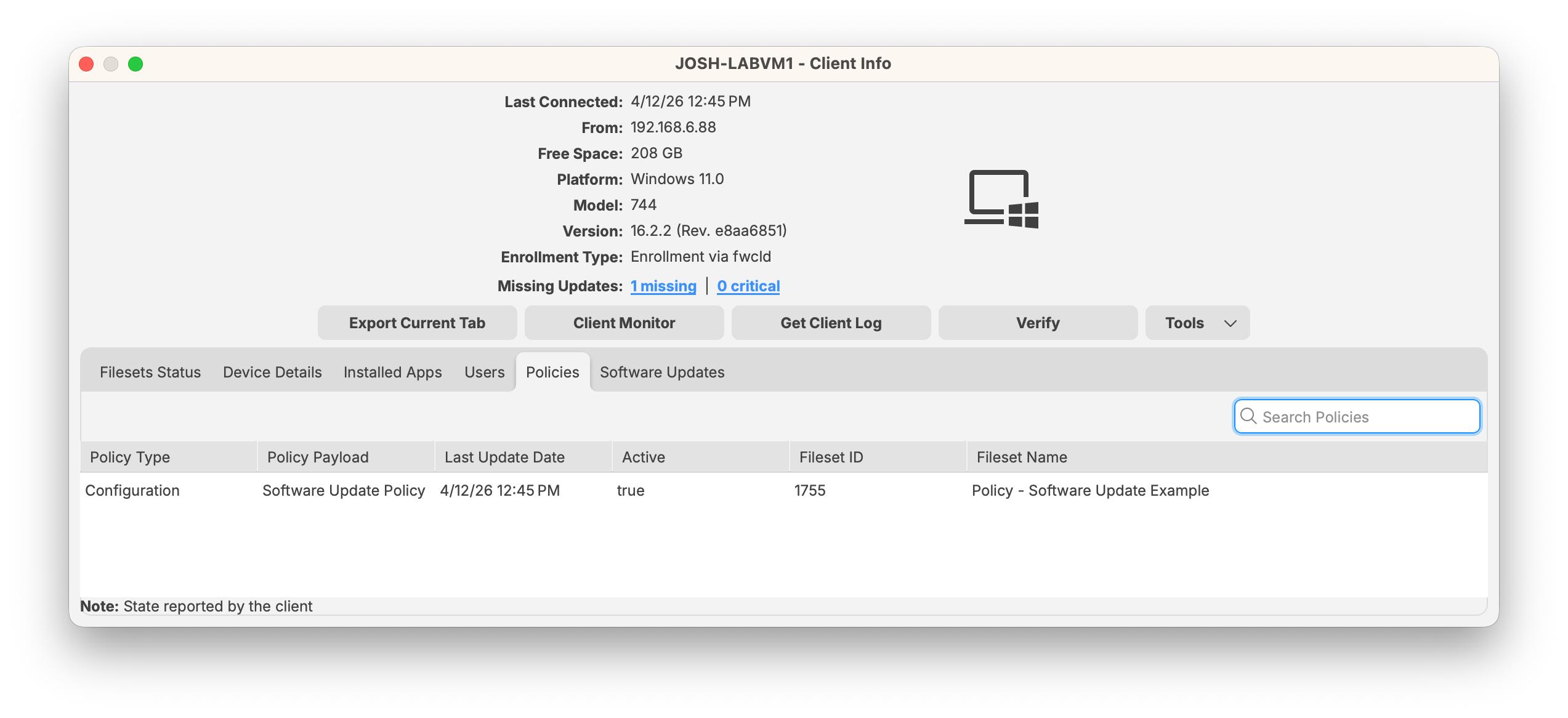
You can also confirm that the policy itself is active on the device in Client Info > Policies, as shown below.
You can also deploy updates with finer control by following the guidance in Best Practice Guide: Software Update Deployment (16.0+)
No comments to display
No comments to display