
OS Software Updates - Automation Rules
What
Managing OS updates can be a burden aswith farthe asquantity lookingand forfrequency of new updates, makingrequiring Filesets,new Filesets and thencorrect puttinggrouping thefor Filesets in the right groups to deploy them.assignment. FileWave 16.2.0 makes this process much more simplesimpler for both Apple as well asand Microsoft updates.
When/Why
UpdatesApple flowand inWindows everydevices dayreport which updates are relevant, back to the SoftwareFileWave Updatesserver. view.The WhenClient youInfo goof toany one device will list those updates reported:

However, the Software Updates view in FileWave Central youshows all updates, reported across all Apple or Microsoft devices, with further filter options. As devices report into FileWave, this view will seecontinually update.
The 'Is New' entry is of key importance for the filtersAutomation have a "New" option. These are updates that you haven't run through the automation rules and have come in fresh. Especially on Windows this list has many kinds of updates so it requires some thinking about what updates to enable and who to target. Would you want to include Driver updates for instance? Rules.

IfEntries youfreshly reported, automatically have some'Is New' set as 'Yes'.
Automation Rules are used to target any chosen updates, set as new, and build out Filesets, aiming at only desired updates thator ignore others, by way of inclusions or exclusions. For example, are all Windows driver packs desirable?
Setting Automation rules allows for futuristic updates, not showingyet existing, but reported by devices subsequently.
When the Automation Rules are actioned, a Fileset per update should be created for any included updates, whilst excluded updates will be ignored. This 'Is New' flag will be set as New'No' youwhen canFilesets vieware generated, meaning excluded updates will remain as new.
It is possible to manually alter the whole'Is listNew' andflag then right clickfor one or more updates, by way of the right click contextual menu:

Resetting the 'Is New' flag for any updates and pickback to mark'Yes', will cause them asto New.be Asincluded you'llonce workmore on your rules you might find yourself deleting Filesets and then markingwhen the updates as New again and trying your Automation Rules run, whilst setting any to see'No', thatwill everythingexclude goesthem wherefor yourule expect.consideration, regardless of rules created.
Once rules are configured, they are actioned by the 'Run Automation' button; a manual process at the time of writing, but will hopefully be an automated, scheduled process in a future FileWave release.
For easy reference, only when a rule will cause a Fileset to be generated, will the 'Is New' flag be altered from 'Yes' to 'No'.
How
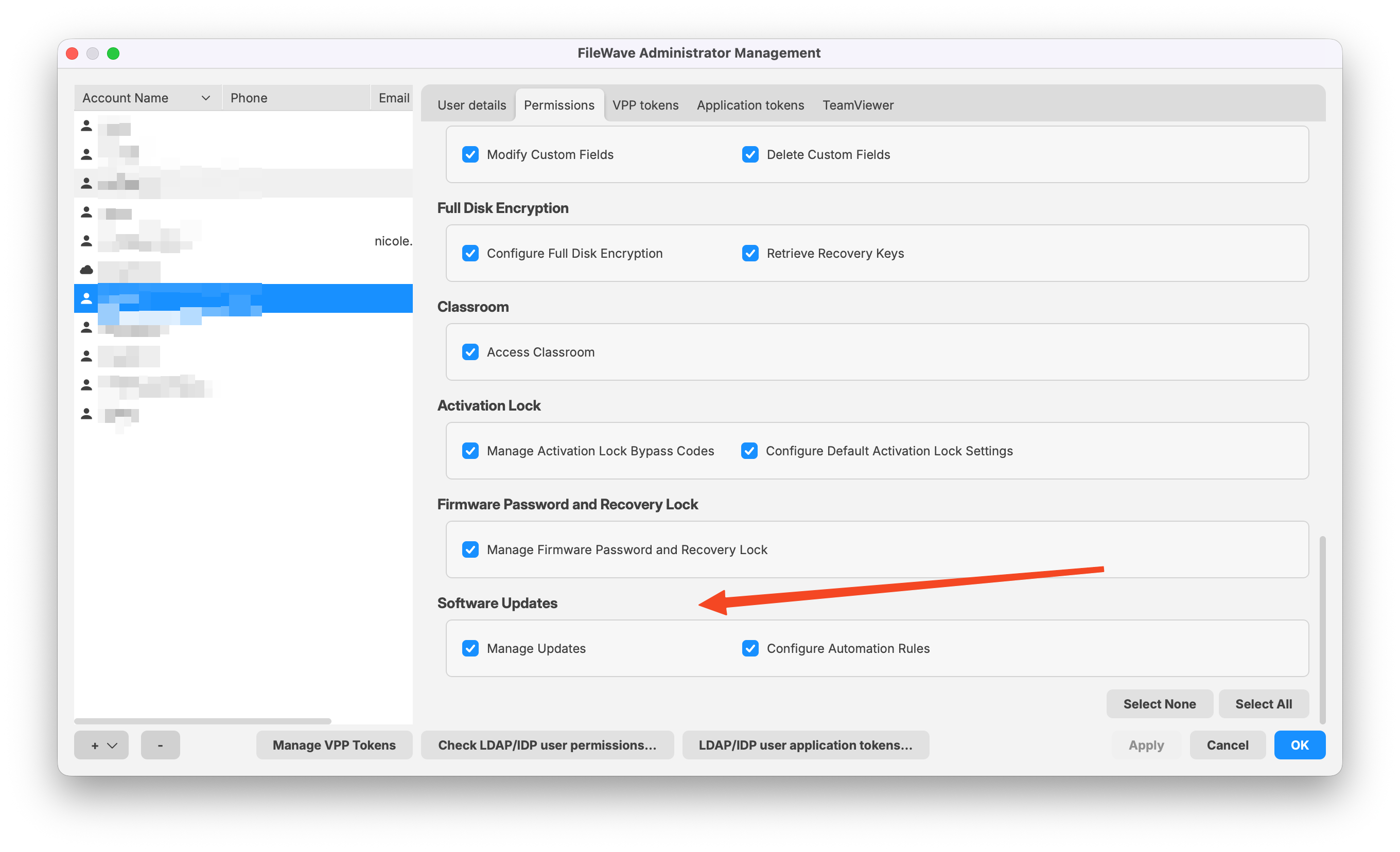
FirstOnly itFileWave isAdministrators importantwith that your account hasnecessary permissions tomay perform some or all of these actions.actions, Inas set in:
Assistants -> Manage AdministratorsAdministrators:
To make your rules you'll click onSelect "Automation Rules" in the Software Update's toolbar when in the Software Updatesto view andcurrent aor windowcreate likenew therules, belowas will appear;below:
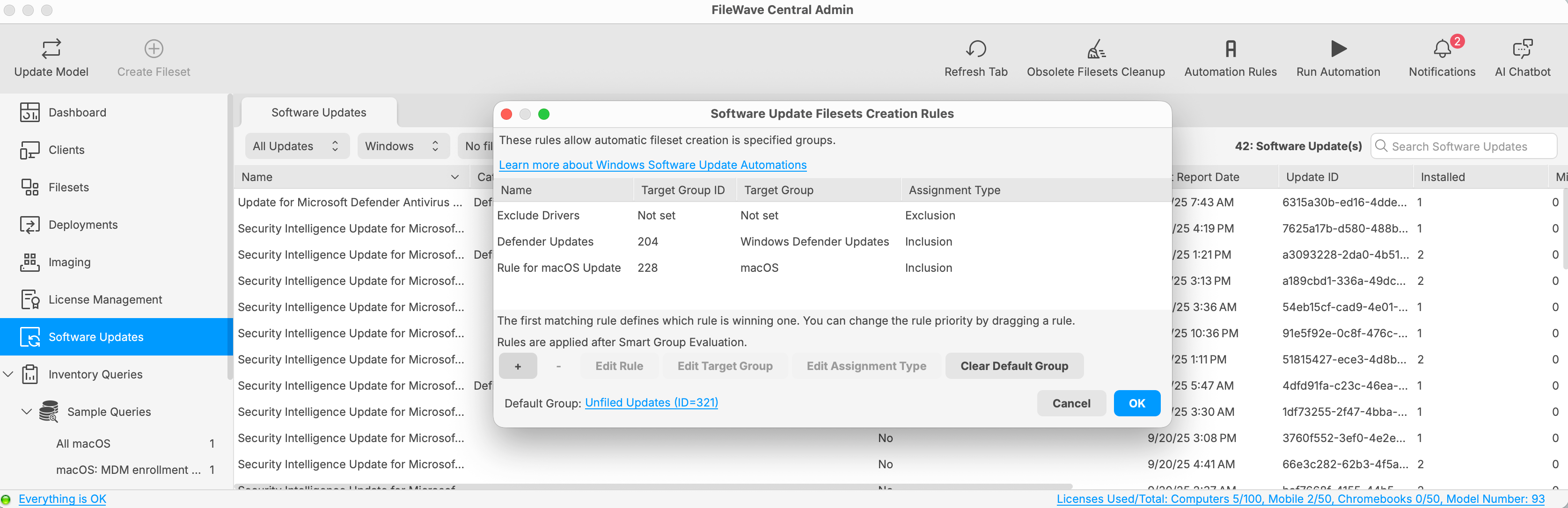
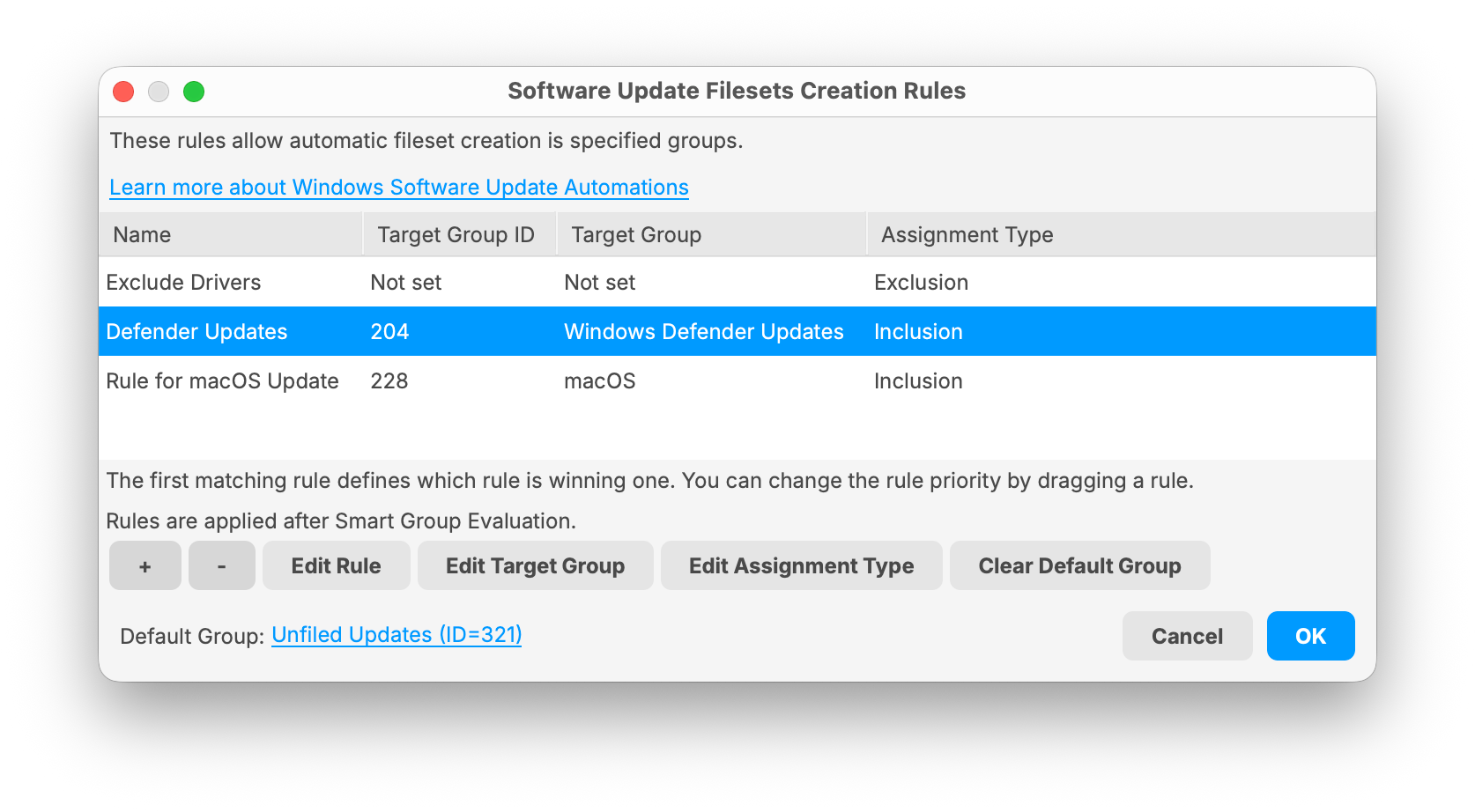
OnThe theabove windowexample you can see that I havehas 3 defined rules in place (one exclusion and thentwo oninclusion) and a designated Default Group. Any updates set as new, which do not meet the bottomcriteria of the dialogrules, iswill agenerate Filesets within the Default Group. TheThis Defaultcan Grouphelp isidentify the Fileset Group that anynew updates thatnot don'timpacted matchby my rules will end up appearing in. It makes an easy way to find what you have missed and then update yourthe rules.
ForUnless the rules themselvesset, there arewill Inclusionbe andno ExclusionDefault rules. Inclusion is meant to send any matching update to a particular Fileset Group, and Exclusion is just to skip that update. Excluded Filesets are simply marked as Not New and skipped. Just because you do that in the Automation doesn't mean you can't later look for the update in Software Updates, right-click it and then pick to Create Fileset. You can always do that. Group.
LookingRules atmay theadded rulesor listremoved you can useusing the + and - tobuttons addrespectively, whilst the highlighted rule may have the target group or removeassignment atype rule. If you highlight a rule you can Edit Rule, Edit Target Group, Edit Assignment Type (Inclusion/Exclusion), and you can Clear the Default Group. At the very bottom of the window you can change the Default Group. If you don't have aedited. Default Group may be cleared if set.
If there is no Default Group, then (as with Exclusions), the 'Is New' flag will remain as 'Yes' for any non-updates not matching updatesInclusion rules; no Fileset will simply be marked as Not New and won't be created.
Rules onrun yourtop preferenceto bottom. Exclusion rules prevent updates from being considered in any subsequent rule. The first matching Inclusion rule will generate a Fileset and then set the 'Is New' flag to 'No', such that maysubsequent rules will no longer be whatappropriate you(for wantany updates matching more than one rule). Hence, only one Fileset will be generated for included updates each time Automation Rules are Ran.
Drag rules up or down to do.alter order.
EditingExclusion a Rule can look like the below example. It has a Namerules at the top thatof showsthe list to prevent Filesets being created for updates meeting the exclusion criteria.
The rules view should seem similar familiar. As with Inventory Queries, each rule should be given an appropriate name, for reference, and criteria components may be added to define rules:
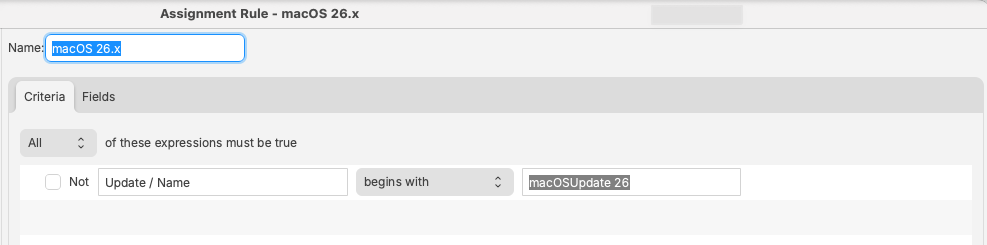
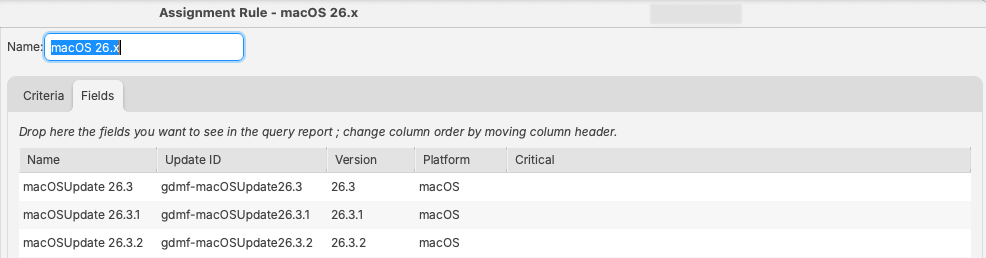
Fields tab should list updates caught by the rule definition:
Example
Consider the following rules:
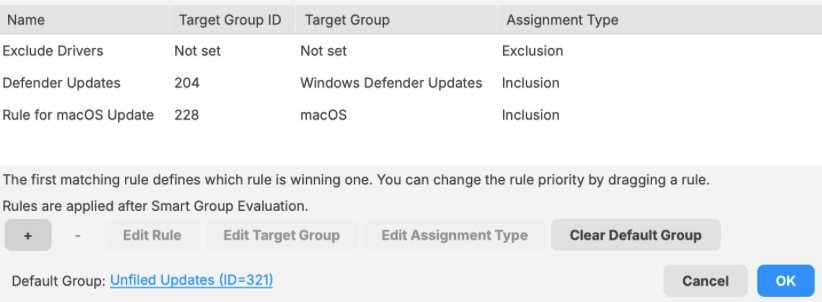
These will run in the Rulesfollowing List.order:
3: Rule for macOS Update Again, the
4: Default Group
Any updates not caught by the sameabove UIrules, yet set as when you create Smart Groups or Queries. By lookingnew at the Fieldstime tabof yourunning canthe seeAutomation whatRules, will have Filesets created with this group; 'Unfiled Updates'
This helps highlights which updates wouldwere matchnew, thisbut not matching any of the rule tocriteria.
Exclusion youExample
As it.described, updates excluded remain as new. Consider the following 3 rules:
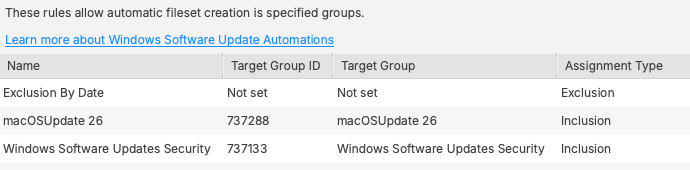
Looking back at the list of rules let's talk about what my rules will do. The firstmacOSUpdate 26 rule is anset Exclusionto rule.include Itall skipsmacOS any26 Updates. Likewise, the Windows DriverSoftware updates.Updates TheSecurity second rule puts my Windows Defender updates in a group that I haveis set to simplyinclude deployall themupdates that have the Category 'Security Updates'.
The Exclusion Rule has been set to machines.impact The last rule takes any macOS Updates and puts them in my macOS Fileset group. Because I have a Default Group set I should see things like iOS updates potentially appear there because I have iPads and have not picked where to file those updates. That's why it can be helpful to have an Unfiled Group at least initially while you are making sure you've taken careboth of all possibilities that you care about.
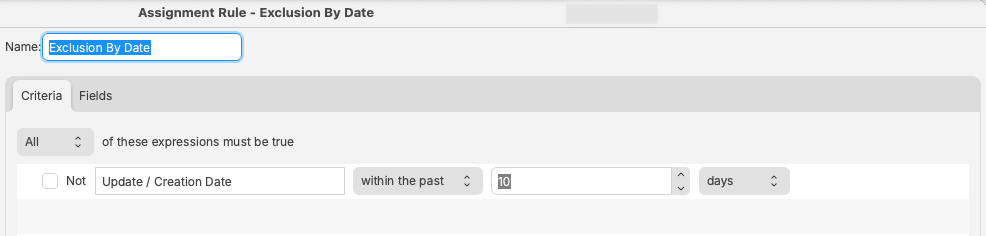
Note that these rulesother are processed in the order they appear and you can re-order them by dragging a rule up or down in the list.rules:
Running
Only where new updates are older than 10 days, will those updates be processed. Any newer updates by date will be ignored and remain as new. However, as days pass, those updates will become in scope of each below rule and Filesets will be subsequently generated.
This provides an amount of grace period for testing, ensuring new updates will not be processed even if the AutomationsAutomation
How do I run the rules once I've created them? When youRules are inactioned.
Updates may be manually generated into a test Fileset Group.
Manual Fileset creation from the Software UpdatesUpdate view inalso Centralsets youthe 'Is New' flag as 'No'. Updates left untouched will seeremain aas "Runnew Automation"and playcome buttoninto onscope after the toolbar.defined Initiallyperiod of time.
Associated devices with this group should receive the processupdates. toOnce executetesting has been approved, these updates could then be considered for generic deployment.
Each approved update may then have the rules'Is isNew' manual,flag butmanually inreset as 'Yes'. When the futureupdates thiscome mayinto scope by date, being set as new again, they will now have Filesets created within the groups as targeted by each rule. If not internally approved, those manually created updates will remain as 'No' and will not be ableincluded towhen bethe scheduled.date scope has been reached.
This method allows for pre-assignment of both test group and live deployment of updates, negating subsequent manual actions.