
VPP and ADE Preferences
What
FileWave Central uses Preferences > VPP & ADE to configure and monitor Apple Apps and Books tokens, Automated Device Enrollment accounts, and the Apple School Manager or Apple Business Manager API integration.
Apple now calls the Volume Purchase Program Apps and Books. FileWave retains the VPP abbreviation in parts of the interface and documentation. Apple's Device Enrollment Program (DEP) is now Automated Device Enrollment (ADE).
Interface version: The screenshots and the Status/Configuration navigation in this article apply to FileWave 16.4.0 and later. Customers running an earlier FileWave version will see the legacy single-pane VPP and ADE interface.
Version differences
| FileWave version | Preferences layout |
|---|---|
| 16.4.0 and later | Separate Status and Configuration tabs, shared Advanced Settings, and the Apple School or Business Manager API configuration. |
| 16.3.x and earlier | Legacy single-pane VPP and ADE layout. Configure tokens and ADE accounts, synchronize with Apple, and manage ownership from the controls shown in that version. The Apple School or Business Manager API section introduced with 16.4.0 is not present. |
The token, account-ownership, synchronization, and ADE certificate concepts in this article still apply to earlier versions, but the control locations and labels differ. Do not replace a working Apple token merely because an older interface does not match the 16.4.0 screenshots.
Before you begin
- Set up the required locations, MDM Servers, and API credentials in Apple Business Manager or Apple School Manager.
- Use a separate Apps and Books token for each production, test, or migration MDM Server.
- Do not use the same token on multiple MDM Servers at the same time. Doing so can cause ownership conflicts, lost control of the token, or unexpected VPP user retirement.
- Have the primary FileWave administrator credentials available. FileWave may require fwadmin authentication when changing tokens, accounts, or certificates.
Apple's current platform instructions are available in the Apple Business Manager User Guide and Apple School Manager User Guide.
Open VPP & ADE Preferences
- Open FileWave Central.
- Select FileWave Central > Preferences.
- Select VPP & ADE.
- On FileWave 16.4.0 and later, use Status for health and synchronization information and Configuration for tokens, accounts, certificates, API credentials, and advanced behavior. On earlier versions, use the equivalent controls in the legacy VPP and ADE pane.
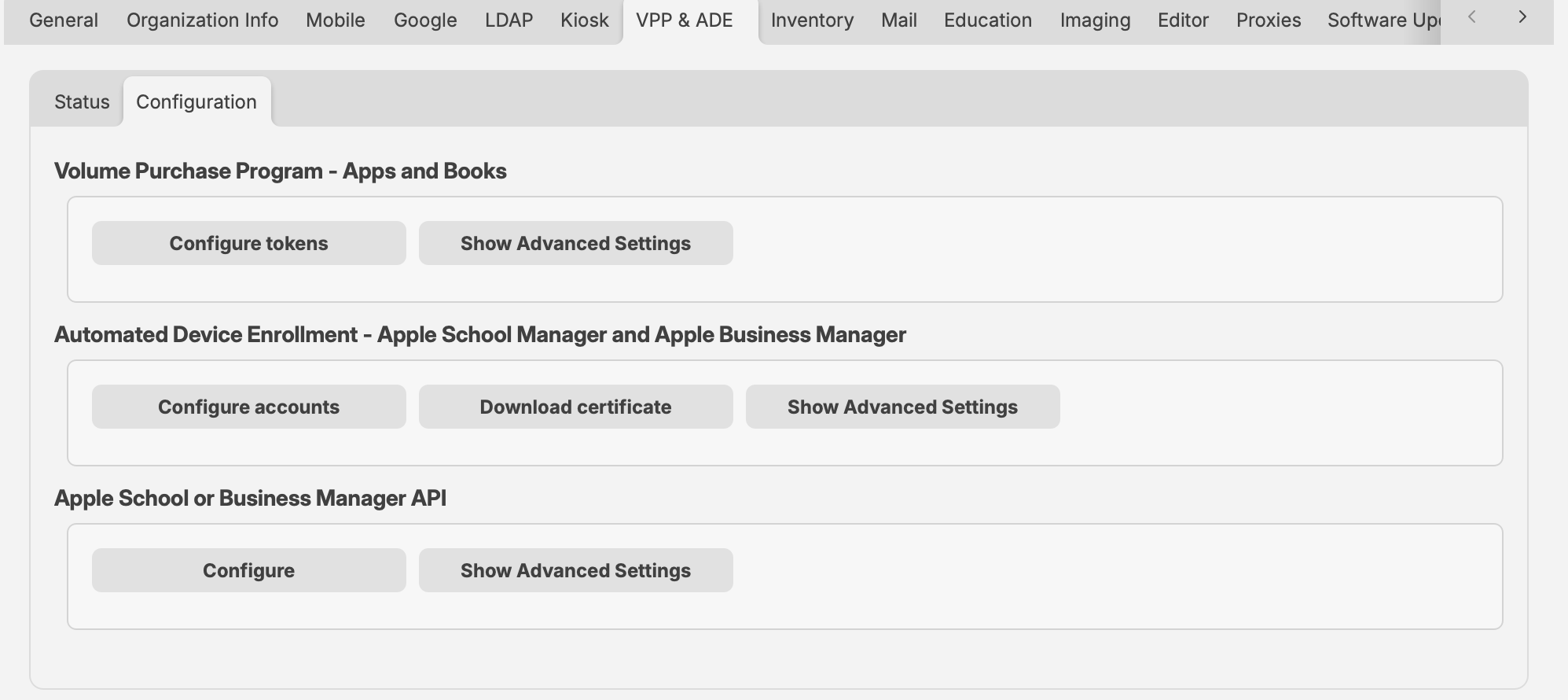
FileWave 16.4.0 and later separates VPP and ADE health information from configuration tasks.
Status
The Status tab provides a quick operational view without exposing detailed account configuration.
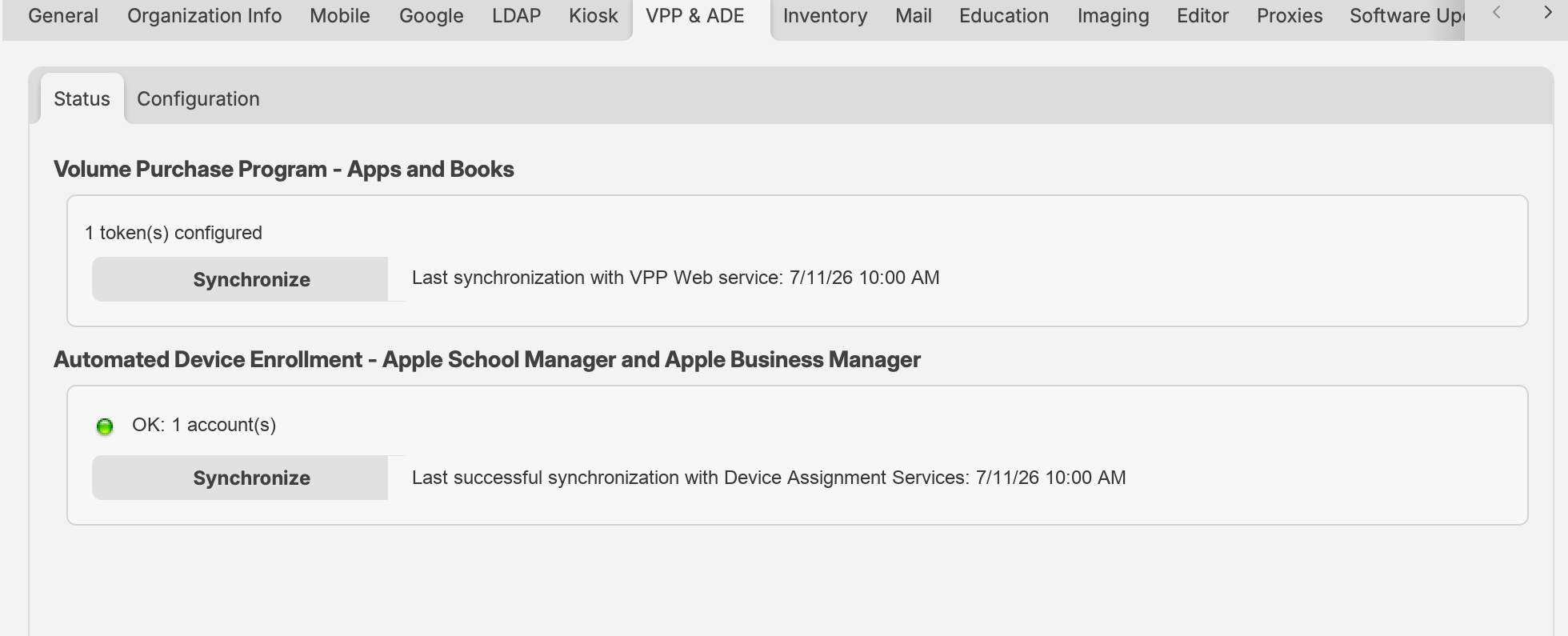
In FileWave 16.4.0 and later, the Status tab shows token and account health, synchronization controls, and the most recent synchronization times. Example counts and timestamps are shown.
Apps and Books status
- Displays the number of configured Apps and Books tokens.
- Shows the most recent VPP Web service synchronization.
- Synchronize requests an incremental synchronization.
- Hold Option on macOS while selecting Synchronize to request a full synchronization. Full synchronization is more expensive and should be used only when needed.
Automated Device Enrollment status
- Shows ADE account health and the number of configured accounts.
- Shows the last successful Device Assignment Services synchronization.
- Synchronize requests an ADE synchronization with Apple.
FileWave synchronizes Apple account data in the background. Use a manual synchronization when recent purchases, token changes, or device assignments cannot wait for the next scheduled synchronization.
Configuration
Volume Purchase Program—Apps and Books
Select Configure tokens to add, renew, remove, or inspect Apps and Books tokens. FileWave supports multiple location-based tokens.
- In Apple School Manager or Apple Business Manager, download the Apps and Books token for the required location.
- In FileWave Central, select Configure tokens.
- Add or replace the applicable token and save the configuration.
- Return to Status and synchronize.
- Confirm that the token is healthy and that purchased applications and books are available to FileWave.
After the initial synchronization, FileWave creates managed-license Filesets for eligible purchases according to the token configuration. Token-specific options can also control VPP users for newly enrolled devices and where automatically created Filesets are placed.
Never import the same Apps and Books token into two active MDM Servers. If FileWave reports that another server owns the token, use Take ownership only when the token has intentionally moved and the previous server or tool is no longer using it.
Apps and Books advanced settings
Select Show Advanced Settings to configure:
- The VPP email invitation template.
- The minimum delay between license assignment and application installation.
- The preferred license distribution model for new associations: Automatic, Device, or User. Automatic assignment uses Device when possible and otherwise uses User.
- VPP v2 notifications.
- LDAP synchronization, automatic email-address association, and invitation behavior for registered users.
Automated Device Enrollment
The ADE configuration connects FileWave to one or more MDM Server entries in Apple School Manager or Apple Business Manager.
- Select Download certificate and authenticate when prompted.
- In Apple School Manager or Apple Business Manager, create or open the FileWave MDM Server entry and upload the certificate.
- Download the resulting ADE server token from Apple.
- In FileWave Central, select Configure accounts and import the token.
- Save the configuration, return to Status, and synchronize.
Select Show Advanced Settings to choose the MDM certificate added to ADE profiles. Using an MDM certificate provides a more secure setup but requires ADE profiles to be updated when that certificate is renewed.
For complete token lifecycle instructions, see Add or Renewing your ADE (DEP) Account Token.
Apple School or Business Manager API
FileWave 16.4.0 and later can connect directly to the Apple School Manager or Apple Business Manager API. This integration provides current Apple device inventory, ADE assignment history, and AppleCare coverage information in FileWave.
Create the API account and private key by following Apple's instructions for Apple School Manager or Apple Business Manager.
- In FileWave Central, select Configure under Apple School or Business Manager API.
- Enter an Account Name for the connection.
- Next to Private Key, select Browse and choose the
.p8private-key file downloaded from Apple. - Enter the Key ID and Client ID supplied by Apple.
- Select OK and allow the initial synchronization to complete.
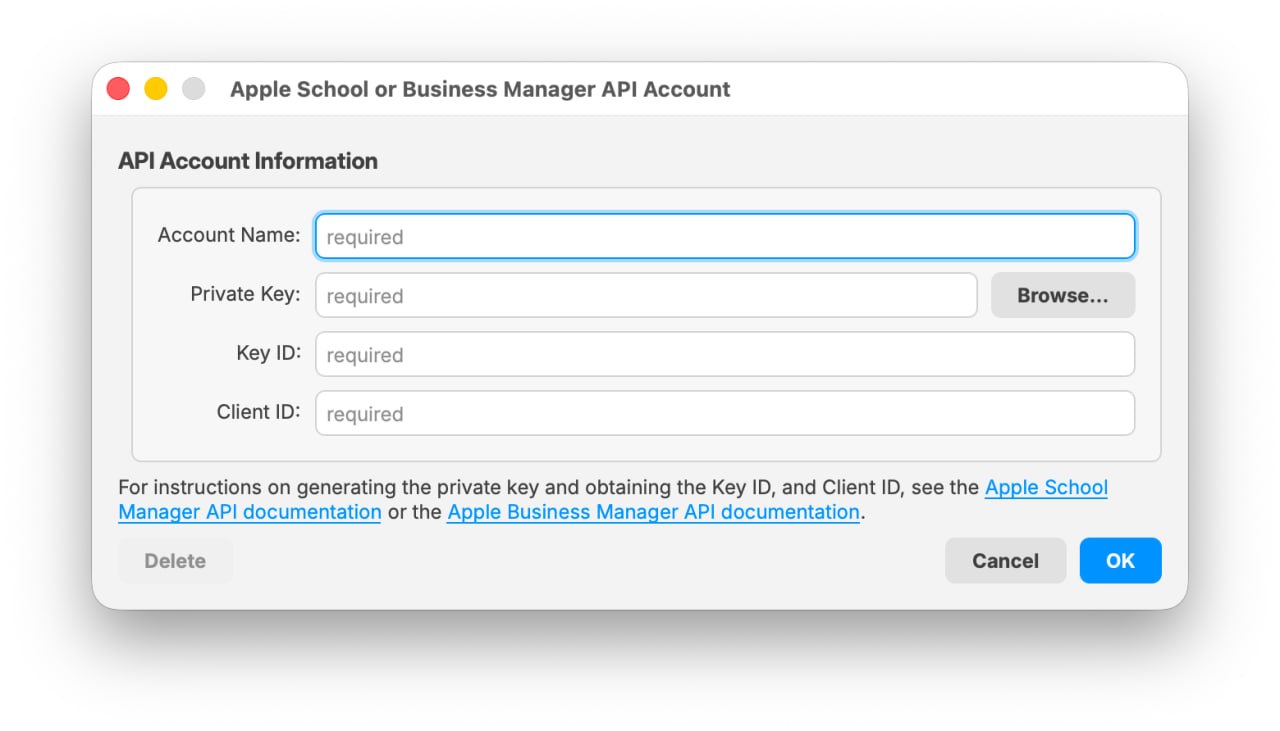
The API Account dialog requires an account name, the Apple .p8 private key, Key ID, and Client ID. The screenshot contains placeholder values only.
Review and assign Organization Devices
After the Apple School or Business Manager API account has synchronized, open the Organization Devices pane in the ADE Assistant. This view includes devices registered to the organization even when they are not currently assigned to a FileWave MDM server.
Organization Devices requires the Apple School or Business Manager API integration introduced in FileWave 16.4. Token-only ADE synchronization does not provide this organization-wide device and AppleCare view.
AppleCare synchronization can take time for a large fleet. Apple's coverage service supports single-device lookups and is subject to undocumented rate limits.
AppleCare smart refresh cycles and intervals
After the initial synchronization, FileWave automatically varies AppleCare refresh frequency according to the device's coverage state, such as renewable, active, or inactive/expired coverage. This reduces unnecessary single-device coverage requests while keeping time-sensitive coverage information fresher.
Select Show Advanced Settings under the API section to configure the separate refresh intervals used for renewable, active, and inactive AppleCare coverage. Shorter intervals keep coverage data more current but increase API load and can trigger throttling. Select Reset to Defaults to restore FileWave's standard smart-refresh intervals.
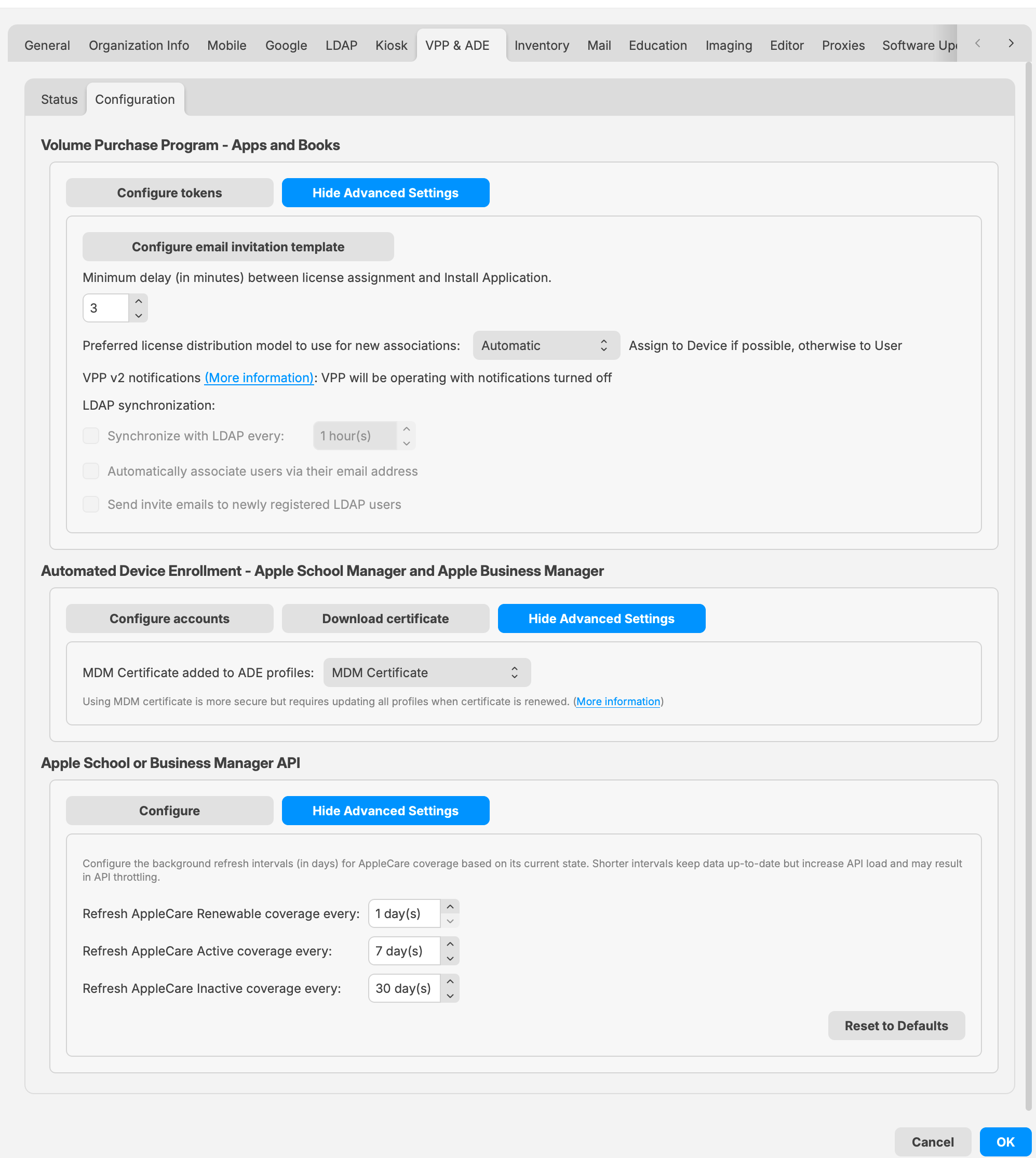
In FileWave 16.4.0 and later, Advanced Settings centralizes Apps and Books behavior, the ADE profile certificate, and AppleCare refresh intervals. Values shown are examples.