
Troubleshooting Windows Client Upgrade Fileset Issues
What
The FileWave Windows Client upgrade fileset uses a more orchestrated process than a typical Windows software deployment.
For most Windows software deployments, the FileWaveWinClient service runs the installer as the local system account. A client upgrade has an extra challenge: it must remove the existing FileWave Client, install the updated one, and keep the process moving even though the service that normally performs installs has to be stopped and replaced.
To handle this, the upgrade fileset installs a temporary upgrade helper, creates a scheduled task, stops the existing FileWave Client service, runs the new client MSI, starts the upgraded service, and then removes the temporary upgrade pieces. This also helps the device continue the upgrade workflow and report back to FileWave when the upgrade completes.
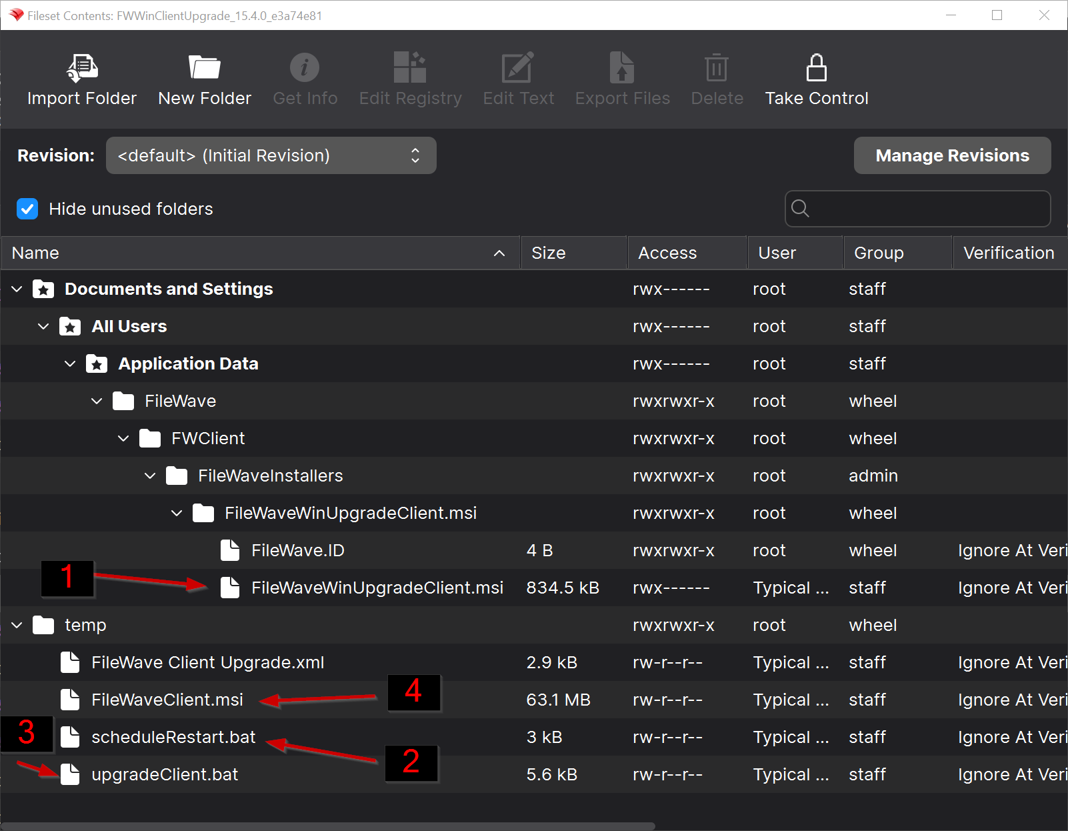
The example above shows the main upgrade fileset components:
FileWaveWinUpgradeClient.msi: installs the temporary upgrade helper.scheduleRestart.bat: creates the scheduled task that starts the upgrade process.upgradeClient.bat: handles most of the upgrade workflow.FileWaveClient.msi: installs the target FileWave Windows Client version.
When/Why
Use this article when a FileWave Windows Client upgrade fileset does not complete, the client version does not update in inventory, the Windows client service does not restart after an upgrade, or a device is left with a non-functional FileWave Client after an attempted upgrade.
This article is also useful before a broad Windows Client upgrade rollout, because most upgrade issues are easier to find and fix during a small pilot than after the fileset has been deployed widely.
How
1. Understand the upgrade flow
The Windows Client upgrade fileset normally works in this order:
FileWaveWinUpgradeClient.msiruns first and installs a temporary upgrade helper.scheduleRestart.batcreates theFileWave Client Upgradescheduled task.upgradeClient.batchecks the target version, disables automatic service restart during the upgrade, stops the existingFileWaveWinClientservice, and starts the client installer.FileWaveClient.msiinstalls the new FileWave Windows Client.- The upgrade process removes the scheduled task and temporary upgrade files after the installer completes.
If the old client service is hung, the upgrade script retries the stop process and may need to terminate the service process. That is expected behavior during this upgrade, but it can expose device-specific problems such as a stuck service, pending Windows Installer issue, or previous failed upgrade cleanup.
2. Collect the upgrade logs
Collect these logs before retrying the upgrade or manually cleaning up the device when possible. They are usually the fastest way to tell whether the issue is the upgrade workflow or the Windows MSI installer.
The primary logs are in C:\temp:
UpgradeClient.log: shows the upgrade script flow, including version checks, scheduled task behavior, service stop attempts, and cleanup.FileWaveClientUpgraderUninstall.log: shows removal of the temporary upgrade helper.FileWaveClient.log: verbose MSI log for the new FileWave Windows Client installer.
Also check the Windows Application log in Event Viewer for Windows Installer errors, such as 1603 or 1638. The normal FileWave Client log may be less useful during the upgrade because the client service is intentionally stopped as part of the process.
3. Check the common failure points
Most failed Windows Client upgrades fall into one of these categories:
- The existing
FileWaveWinClientservice is hung and does not stop cleanly. - A previous failed upgrade left behind the scheduled task or temporary upgrade helper.
- The new
FileWaveClient.msilaunched, but Windows Installer failed to complete the install. - The device has a local Windows issue that would also affect a manual client MSI install, such as a pending reboot, Windows Installer problem, security software interference, or an existing conflicting client install state. In some cases, Windows Installer blocks the new client install until the system restarts, and that condition is not always obvious before the upgrade starts.
If FileWaveClient.log shows an MSI failure, troubleshoot it as a Windows Installer/client MSI issue first. In many cases, the same failure would happen if the MSI were run manually on the device.
4. Clean up leftovers from a previous failed upgrade
Use these commands only when the logs or device state indicate that a previous failed upgrade left behind the scheduled task or temporary upgrade helper. Run them from an elevated Command Prompt.
Delete the scheduled task:
schtasks /delete /f /tn "FileWave Client Upgrade"
Remove the temporary upgrade helper:
start /wait msiexec /l*v C:\temp\FileWaveClientUpgraderUninstall.log /qn /norestart /x "{E3DC560D-C698-41DF-8B6C-EEA0BEFC44EF}"
Start the FileWave Windows Client service if it is installed and should be running:
sc start filewavewinclient
After cleanup, retry the upgrade on the affected device or move the device back into a small test group before attempting broader deployment.
5. Isolate MSI installer issues
On a device that has not yet completed the upgrade, run the full FileWaveClient.msi manually to test the installer outside of the upgrade fileset workflow.
This removes the scheduled task, temporary helper, and service-stop logic from the test. If the manual MSI install fails the same way, focus on the MSI error, the Windows Application log, and the device state rather than the upgrade fileset.
6. Recover a non-functional client
If the FileWave Client is no longer functional and cannot receive a normal fileset, use remote administrative tools to inspect the device, collect logs, restart services, or run cleanup commands.
For one supported approach, see PSExec as a Helper in Troubleshooting.
7. Roll out upgrades in phases
Deployment warning: Do not deploy a Windows Client upgrade fileset globally as the first test.
Start with a small pilot group. After deployment, run a Verify and confirm that inventory reports the expected FileWave Client version. If that pilot succeeds, expand to a larger test group. Move to broad deployment only after the larger group is also successful.
This takes more time up front, but it is much easier than recovering many Windows clients after a failed broad rollout.