
Upgrading your On-Premise FileWave Server
What
NeedingUse this guide to upgrade youran on-premisepremises FileWave server?Server Thisand guidethen willupdate goor oververify the stepsadministrator involvedtools, inBoosters, updatingclients, Kiosk, and enrollment packages that remain under your FileWave server for macOS, Linux, and Windows.control.
If your FileWave server is hosted by FileWave, you may review the KB article here: Your Hosted FileWave Server Has Been Upgraded - What Are Your Next Steps?
When/Why
WhatFollow stepsthe dosequence you needbelow to takeprotect the existing environment, complete the Server upgrade, verify service health, and move each managed component to continuethe managingappropriate your devices? This article will guide you to post-upgrade your FileWave Central/Admin application and your FileWave clients, boosters along side creating custom installers for your macOS DEP enrolled and Windows MDM devices.workflow.
How
ThisThe guideServer willupgrade gois overcompleted first. FileWave Central, Boosters, clients, Kiosk, and enrollment packages are handled after the stepsServer involvedis inconfirmed updating your FileWave on-premise server for macOS, Linux, and Windows.healthy.
Before upgrading, please visit the Known Issues tab of the Known Issues.
For best results, upgrade theUpgrade FileWave components in the followingthis order:
1.
- Lock
Desktopdesktop andiOSiOS/iPadOSClients2.clients.
1. Lock Desktop and iOS Clients
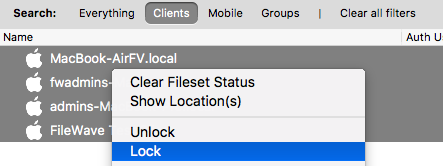
It's always a good idea to lock all your client devices before upgrading your FileWave components. That way you can verify that the server is running correctly and not worry about your macOS and Windows clients getting any of the changes. Keep in mind that Chromebooks cannot be locked - you can sort by platform to skip Chromebooks and use shift-click to select all of your Windows and macOS devices.
-
Highlight all of your Desktop devices → right click → select "Lock".
-
Change the filter to mobile, highlight all iOS devices → right click → select "Lock"
What is a Lock?
See Locking Devices
2. Backup your FileWave server
There are two ways to do so depending on your server. If you are running a Linux or macOS server you need to use the backup script that we provide to backup your server. Please always run a manual backup with the script we offer before starting the upgrade. We offer this knowledge base article for this process and the commands you will need to run as well as a way to check the backup file.
If you are running a virtual machine for your FileWave server you are still able to use the backup script we offer but are also able to take a snapshot of the server in your virtual environment as a backup. Before taking the snapshot of the server please turn off the virtual machine so that FileWave server services are not running when you are backing up the Virtual Machine. This will prevent any issues with fragmented information in the backup.
If you do not want to stop the VM, you can use the below commands to stop the FileWave services and then take the backup.
Stop the FileWave Server Services (for VM Snapshot only)
sudo fwcontrol server stopAfter the backup is complete, please start the services again using the following command
sudo fwcontrol server start3. Upgrading the FileWave Server software
Once you have a backup of your FileWave server created you will first Upgrade the FileWave server software before upgrading your FileWave Central (FileWave Admin Native) app, FileWave boosters, or FileWave clients. If you upgrade your FileWave clients' software first before upgrading the server, for example, your clients may break the connection to the server. Upgrading the FileWave server is not as intimidating as it may seem as it is an in-place upgrade and you do not need to uninstall anything first or stop the FileWave server services. Below you will find sections for macOS, Linux, and Windows Server.
StartingBeginning inwith FileWave 16.3, the serverServer upgrade also performs extended database database-integrity checks and anmigrates automaticthe embedded database to PostgreSQL 18. migration. Because of this database transition, upgradingUpgrading to FileWave 16.34 is supported only supported from FileWave 16.0.0 or newerlater. If yourthe serverServer is older than 16.0.0, first upgrade to 16.0.0 (—16.2.x is recommended)—and verify that intermediate upgrade before movingproceeding to 16.3.0.4. If the PostgreSQL 18 migration fails, FileWave automatically falls back to PostgreSQL 17 and continues in a degraded mode. IfStop you see that warning,and contact FileWave Support before proceeding further.proceeding.
Example upgrade path: 13.3.1 → 14.7.2 (PGSQLPostgreSQL 12) → 16.0/16.1/16.2.x (PGSQLPostgreSQL 12+12 + 17) → 16.3.4.0 (PGSQLPostgreSQL 17+17 + 18).
3.1 macOS Server Upgrade
macOS Server Upgrade
The macOS server upgrade is similar to installing any other pkg software on a macOS machine.
-
On your macOS FileWave server go to the Knowledge Base → Downloads → select the most recent version of FileWave
FileWave Downloads Page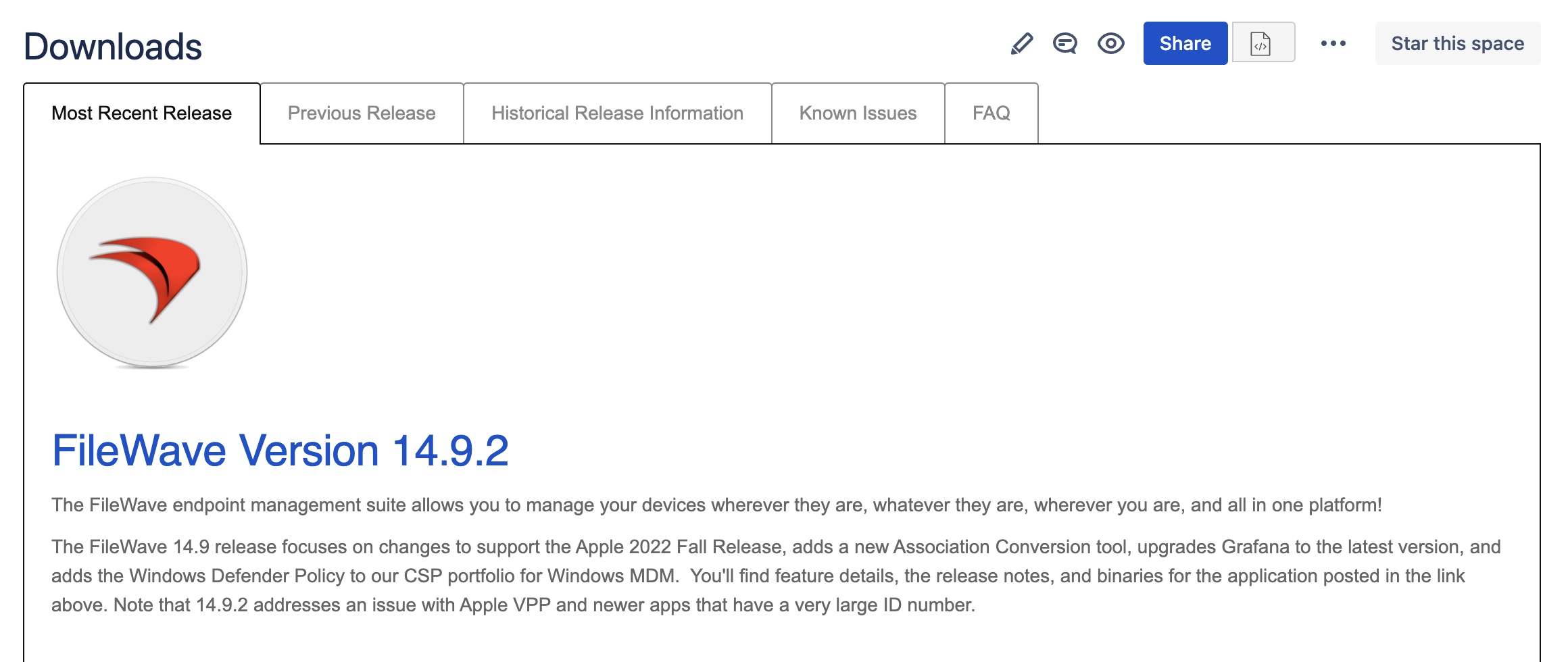
-
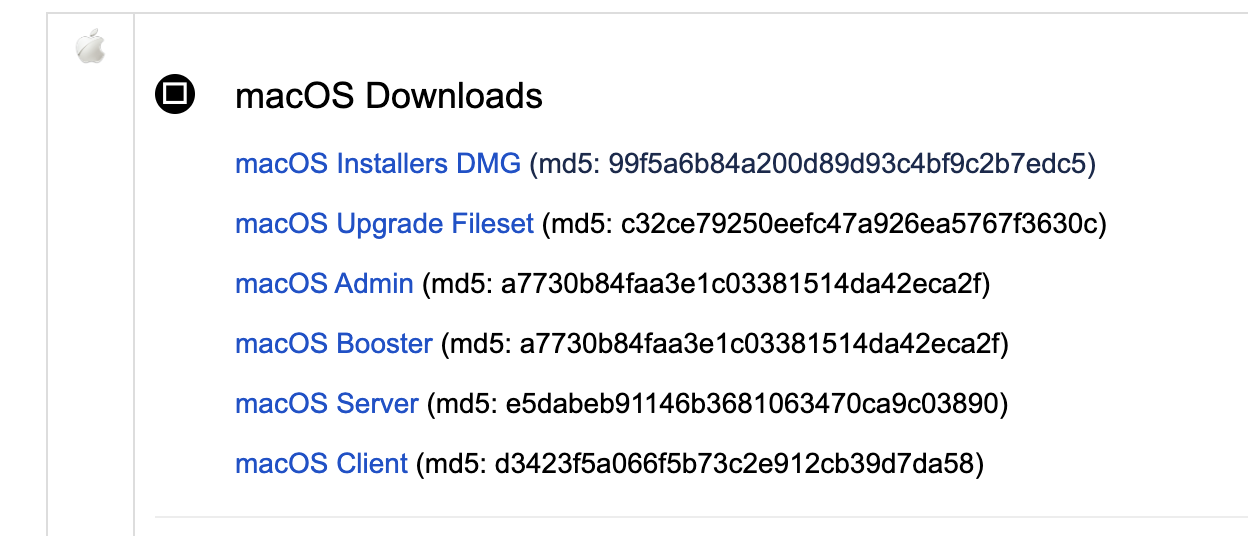
You will then scroll down on the page until you see "macOS Installers" and select it. This will download all of the FileWave Installers for the version of FileWave you want to upgrade to in a .dmg file. If you only want to upgrade the server, select “macOS Server”.
-
Run the installer you just downloaded. If you downloaded the bundle, double-click on the FileWave Server installer after mounting the dmg.
-
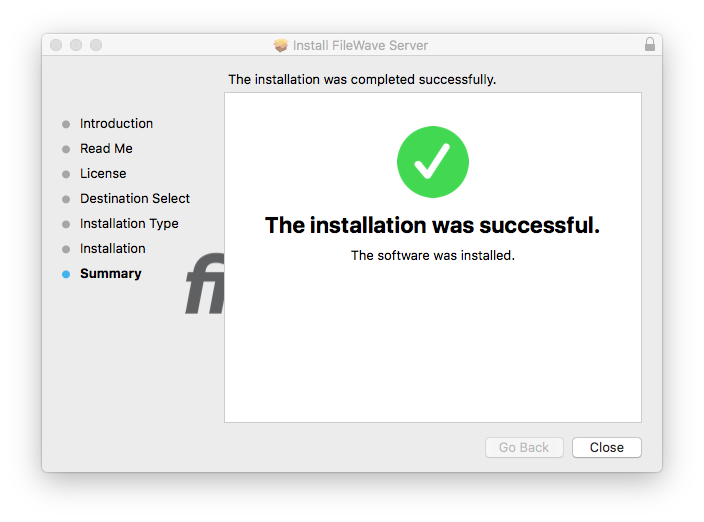
The installer can take a while to run but when it is finished you will be presented with the window below and you are finished with upgrading the server. (If the upgrade reports a failure please contact our Support Team immediately and they can assist you with it)
-
You are now done upgrading the server and will then move to upgrade your FileWave Central (FileWave Admin Native) app.
3.2 Linux Server Upgrade
Linux Server Upgrade
The Linux server upgrade can be intimidating since it will all be done in Terminal but we try to make it as simple as possible for you.
-
Go to the Knowledge Base → Downloads → select the most recent version of FileWave
FileWave Downloads Page -
Scroll down on the page until you see "Linux Downloads". You can download the .deb and move it to the server or just run the one-liner command under Upgrading Linux Servers → Upgrading the FileWave Server to download and install all at once. There is also a one-liner command there for Boosters as well as IVS if you have them.
-
Connect to your FileWave Linux server and run the command to install. If you don’t have direct access to the server, you can connect using SSH in Terminal or Putty on Windows.
-
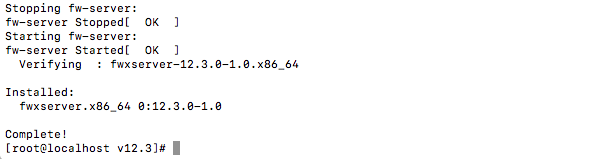
Once you have run the command on your server it can take a little while to finish and you will be presented with a similar message as below. If you see that the installation failed please contact our support team immediately and they can assist you with this. You will see more information on your session but this will show at the end of the messages.
-
Confirm your installed FileWave Version by running the following:
fwcontrol server versionYou are now done upgrading the server and will then move to upgrade FileWave Central (FileWave Admin Native App).
3.3 Windows Server Migration
Windows Server Migration
No longer compatible with FileWave Server 14+
Please contact Professional Services to migrate your server to Linux.
4. UpgradingUpgrade FileWave Central (FileWave Admin Native App)
FileWave Anywhere (Web Admin) is updated automatically updated with the FileWave Server.
ToBeginning with FileWave 16.3.0, FileWave Central for macOS and Windows checks the Server version when connecting. If Central is older than the FileWave Server, it offers to upgrade to the matching version. You normally do not need to download and install FileWave Central manually.
The installer does not require the old versionneed to be uninstalled first.
FileWave Central should match the FileWave Server version unless the release notes explicitly state otherwise.
4.1 Manual FileWave Central upgrade
Use the manual fallback
Use this workflow only if the automatic upgrade is similarunavailable, you previously declined it, or FileWave Support or the release notes direct you to install Central manually.
4.1 macOS FileWave Central
macOS FileWave Central
If you’re upgrading FileWave Central (Admin) on your server and you downloaded the bundle to upgrade the server, the Central/Admin package is already downloaded and you can install it from the .dmg
On your macOS workstation go to the Knowledge Base → Downloads and select the most recent version of FileWave FileWave Downloads Page
You will then scroll down on the page until you see "macOS Downloads" and expand the section. Select and download “macOS Admin”
Double-click on the downloaded PKG to launch the installer and follow the installinstaller instructionsprompts. onYou do not need to uninstall the screen.existing
Once the installation finishes you are ready to connect to your FileWave Server usingLaunch FileWave Central (FileWave Admin).
4.2 Windows FileWave Central
Windows FileWave Central
If you’re upgrading FileWave Central (Admin) on your server and you downloaded the bundle to upgrade the server, the Central/Admin package is already downloaded and you can install it from the .msi
On your Windows workstation goreconnect to the Knowledge Base → Downloads and select the most recent version of FileWave FileWave Downloads Page
You will then scroll down on the page until you see "Windows Downloads" and expand the section. Select and download “Windows Admin”
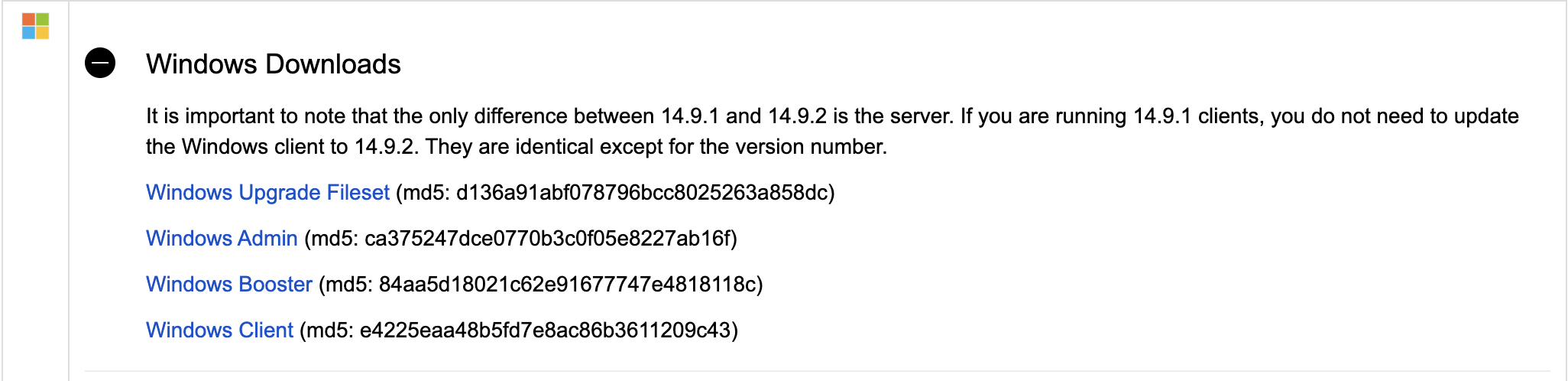
Double-click on the downloaded Windows Installer to launch the installer and follow the install instructions on the screen.
Once the installation finishes you are ready to connect to your upgraded FileWave Server using FileWave Central (FileWave Admin).
5. Launch FileWave Central (FileWave Admin) to Confirm the Upgrade
Launch FileWave Central (FileWave Admin) to Confirm the Upgrade
The next step once the FileWave Central/Admin application is upgraded is to launch the Central/Admin application to connect to the newly upgraded server. After an upgrade, you always want to connect to the server and verify everything is running and working correctly. This will allow you to spot any issues quickly and, if necessary, contact our FileWave Support Team for assistance.
Do not hesitate to contact our Support Team quickly if you think there may be an issue as that will help us get you back up and running as quickly as possible.
-
Check the warning light in the bottom left-hand corner. You are looking for it to say "Everything is OK" as shown below. If you see the light as yellow or red please select the message to view the error. If you’re unsure how to resolve an error, don't hesitate to get in touch with Support.

-
Make sure Filesets are showing. Select the Filesets tab and make sure you see your Filesets and structure. If you are having issues contact our support team.
-
If you have iOS devices, please navigate to Clients view, filter by Mobile devices and select an iOS device you know is on to make sure it is able to check in after being unlocked (it also helps to sort by the Last Connect column; if the most recent checkin is within the last minute or so, should be copacetic). If you receive any errors or information is not showing please contact our Support team.
-
Go to the Clients tab of the FileWave Admin and make sure you see your correct group structure and your Clients showing. Remember your FileWave Clients should still be locked so they will not be getting any changes yet.
-
Update the Model, If this fails please contact our Support team
-
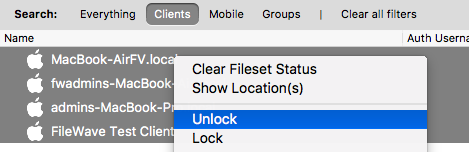
Go back to the FileWave client tab and unlock one or two clients that you know are on to make sure they are checking in correctly. We suggest checking a couple of machines before unlocking all your clients.
-
After you’re confident these devices are working correctly, you can select all of your devices and unlock them.
-
If everything looks good, move on to upgrading your Boosters and Clients if needed.
6. Upgrading yourUpgrade FileWave Boosters
Upgrading yourUpgrade FileWave Boosters
TheFileWave processServer of16.4 upgradingautomatically schedules eligible Boosters isfor similarupgrade to upgradingafter the Central/AdminServer applicationupgrade. asThe itdefault doesdelay notis requireseven you to back up your FileWave Booster before the upgrade or uninstall the existing version. Starting with FileWave 14.4.0, you can upgrade the Boosters inside Admin. If your Boosters are not on 14.4.0 yet, download the installers directly on the Booster to install.days.
In FileWave CentralCentral, (FileWaveopen Admin),Preferences go> Upgrades to thereview Boostersor tab. The simplest way to upgrade multiple boosters is to usechange the "Upgradedelay. AllThis Boosters"pane buttonalso incontains the toolbarclient-upgrade ofbatch thesize, Boosterserror sectionthreshold, ofand thereport native console:schedule.
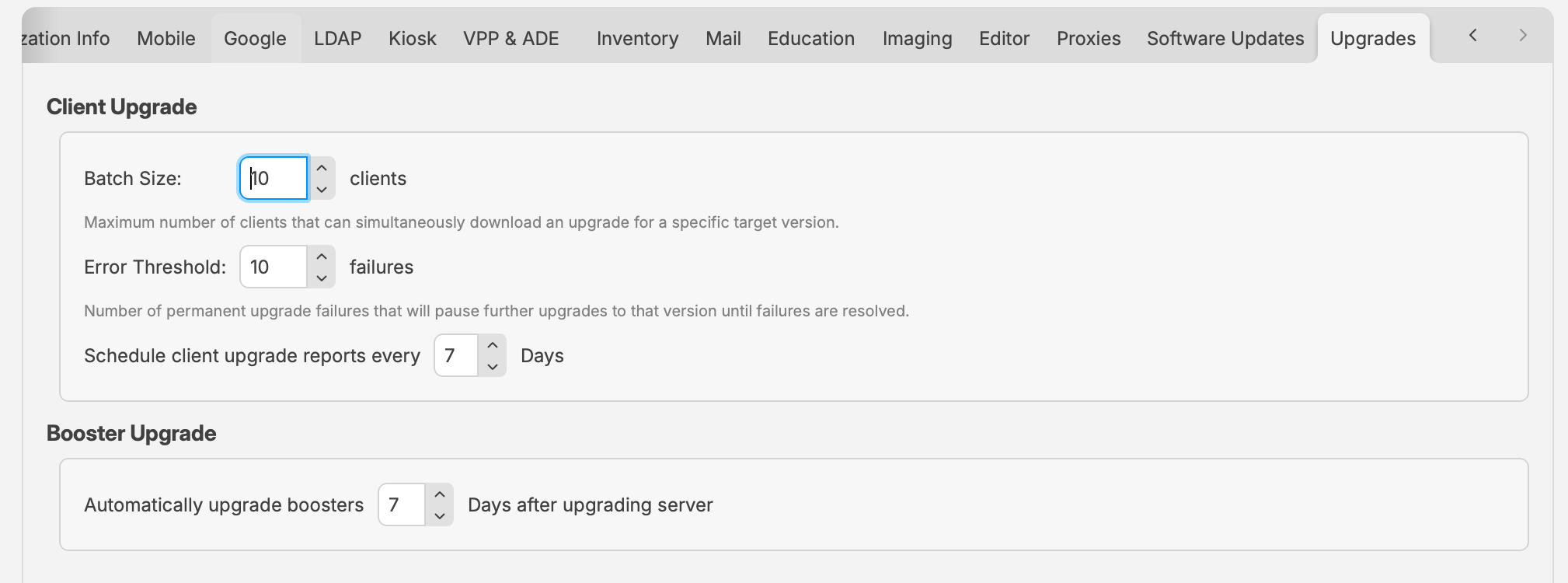
ItFileWave automaticallyCentral schedules16.4 allcentralizes boostersclient-upgrade to upgrade. Alternatively, you can select multiple boosterscontrols and usethe automatic Booster-upgrade delay.
FileWave 16.4 validates both the context menu or toolbar button toreported upgrade them.
To trackand the progressinstalled ofBooster upgradingversion. multipleFailed boosters,automatic youupgrades canare useretried within defined limits, and one failed Booster does not cancel upgrades for the newremaining BoosterBoosters.
that remain below the target version or report repeated failures.
Contact

If onea Booster failscannot complete the upgrade.
FileWave Servers earlier than 16.4 continue to upgrade, all remaining Boosters will canceluse their scheduledversion-specific manual Booster upgrade to prevent any issues.workflow.
7. UpgradingUpgrade FileWave Clients
Client upgrades do not have to begin immediately after the Server upgrade, but keeping clients current is strongly recommended. The correct workflow depends on both the FileWave ClientServer
Upgradingversion and the FileWaveclient version.
Do not use a custom client isPKG notor required immediately after upgrading the FileWave server but is highly recommended. Older versions of the FileWave client are compatible with newer releases of FileWave. When you are readyMSI to upgrade youran FileWavealready clients,enrolled simplydevice. deployCustom client packages are for new installations and enrollment. Use integrated client upgrades or the provided Fileset to do so.
Never deploy the Custom Client PKG/MSI to the devices as a way to upgrade them. They are only for devices that are not currently enrolled in FileWave. Only upgrade the client using theappropriate Upgrade Fileset.
7.1 UpgradingIntegrated yourupgrades for clients running 16.3 or later
Upgrade clients through Software Update
When the FileWave Server is running 16.4 or later, macOS and Windows clients already running FileWave Client 16.3 or later can be upgraded through Software Updates > Manage > FileWave Client Upgrades.
The integrated workflow stages upgrades in controlled batches, monitors progress, retries transient failures, pauses a target version when the configured permanent-failure threshold is reached, and provides reporting.
7.2 Upgrade Fileset bridge for earlier clients
UpgradingBridge yourclients running versions earlier than 16.3
Clients running versions earlier than FileWave Client 16.3 must first use the macOS or Windows Upgrade Fileset from the FileWave Downloads page. The FileWave 16.4 Upgrade Filesets include a client-version requirement and are skipped on clients
macOSalready clientrunning upgrade16.3 filesetor later.
On your workstation go toOpen theKnowledge Base → Downloads and select the most recent version of FileWave
FileWave DownloadsPagepage
and download the macOS or Windows Upgrade Fileset for the target FileWave version.Scroll down on the page until you see "macOS Upgrade Fileset" and select it. This will download a pre-made .fileset file that you can easily deploy to your devices without any modification.
Open your FileWave Central/Admin application and go to the Filesets tab.
Drag and dropImport the downloaded Fileset.fileset into theFileWave Filesets tab. This will automatically create a Fileset in FileWave. We highly recommend dragging it into the root level of the Filesets structure so that it is not accidentally associated without being tested.
Once it is in FileWave you should associateDeploy it to a handfulsmall test group of testclients devicesrunning asversions youearlier wouldthan for any other Fileset in FileWave and Update the model.
After you’ve confirmed that the tested Clients upgraded successfully, associate to all macOS Clients16.3 and update the model.Model.
Each upgradeUpgrade Fileset hasincludes Requirementsoperating-system forrequirements. compatible versions of macOS. If aA client ison tooan oldunsupported tooperating supportsystem your version of FileWave, it will fail and remainremains on theits original version.
7.2 Upgrading your Windows Clients
Upgrading your Windows Clients
Windows client upgrade fileset
On your workstation go to the Knowledge Base → Downloads and select the most recent version of FileWave FileWave Downloads Page
Scroll down on the page until you see "Windows Upgrade Fileset" and select it. This will download a pre-made .fileset file that you can easily deploy to your devices without any modification.
Open your FileWave Central/Admin application and go to the Filesets tab.
Drag and drop the downloaded Fileset into the Filesets tab. This will automatically create a Fileset in FileWave. We highly recommend dragging it into the root level of the Filesets structure so that it is not accidentally associated without being tested.
Once it is in FileWave you should associate it to a handful of test devices as you would for any other Fileset in FileWave and Update the model.
After you’ve confirmed that the tested Clients upgraded successfully, associate to all Windows Clients and update the model. You can remove any old client upgrade Filesets after the new one is associated.
Each upgrade Fileset has Requirements for compatible versions of Windows. If a client is too old to support your version of FileWave, it will fail and remain on the originalClient version.
Windows upgrade troubleshooting: If thea Windows Client upgradeUpgrade filesetFileset does not complete, the client versioninventory does not updateshow inthe inventory,new version, or the client service does not restart, see Troubleshooting Windows Client Upgrade Fileset Issues.
8. Upgrading theConfirm iOS/iPadOS AppKiosk Portal IPAlicensing
Upgrading theConfirm iOS/iPadOS AppKiosk Portal IPAlicensing
FileWave Kiosk onfor iOS /and iPadOS is nowdistributed deployed fromthrough the Apple App Store as a VPP / VPP/Apps and Books app.application. Before upgrading, makeconfirm surethat FileWave is syncingsynchronizing with ASM/ABMApple School Manager or Apple Business Manager and that enough free FileWave Kiosk licenses have already been acquired.
See ReadAutomatic Moreupdating of iOS/iPadOS Kiosk) for the complete workflow.
9. Prepare macOS DEP and Windows MDM:client Upgradepackages Clientfor Packagesnew enrollments
Prepare client packages for new enrollments
FileWave uses custom macOS DEP and Windows MDM:client Upgradepackages Clientfor Packages
When a macOS device finishes DEPinitial enrollment intoand FileWave,new yourinstallations. serverThese sendspackages aare singlenot clientthe installerupgrade package.mechanism Whenfor youalready updateenrolled yourclients.
FileWave toServer a16.4 neweror one, you may also update this package.later
- In FileWave Central, open Preferences > Mobile.
Visit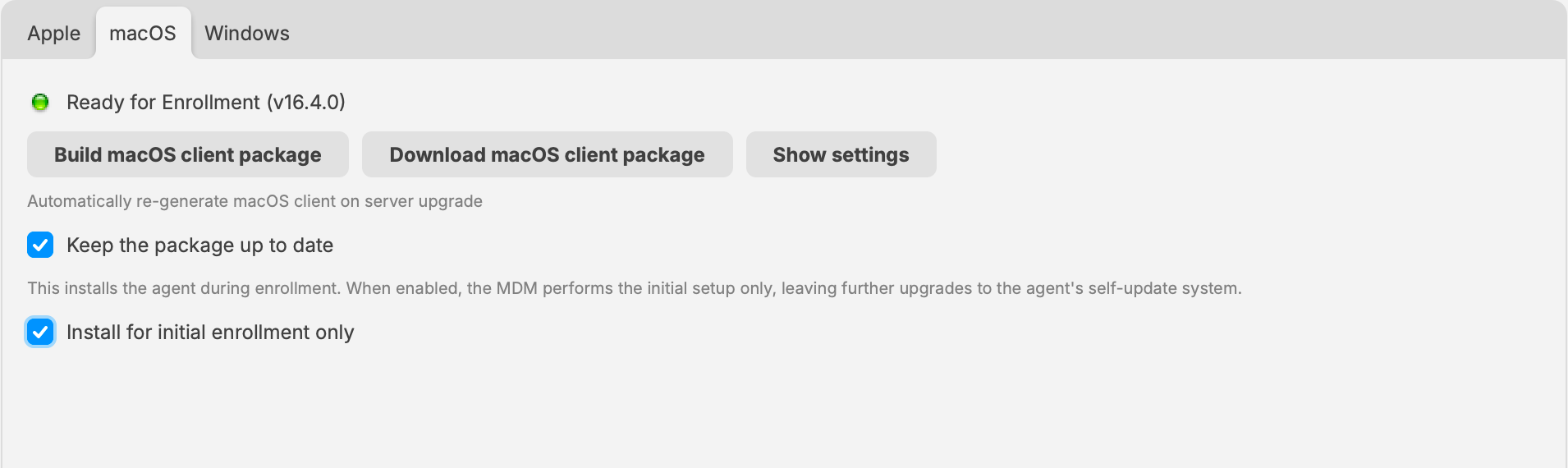
FileWave Server 16.4 manages the macOS enrollment package directly in FileWave Central.
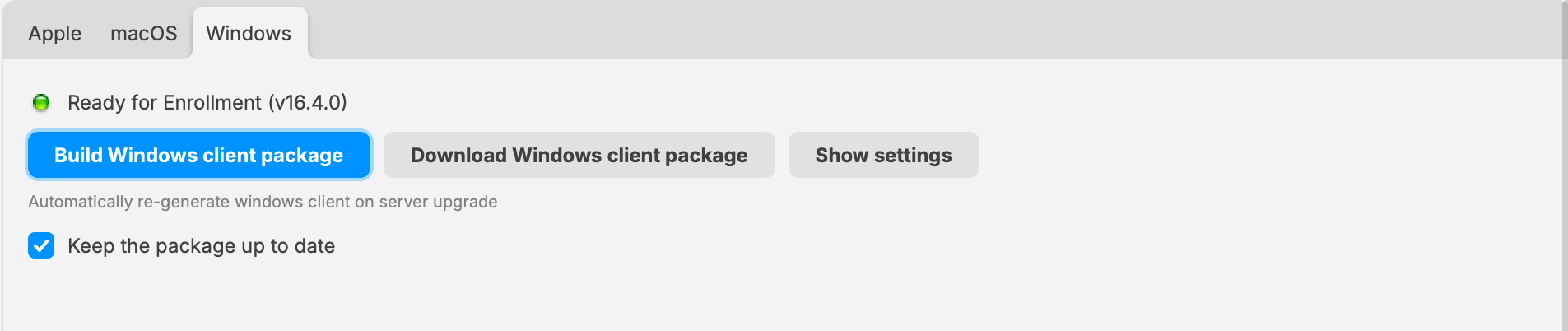
FileWave Server 16.4 manages the Windows enrollment package directly in FileWave Central.
FileWave Server earlier than 16.4
Earlier supported FileWave Server versions continue to use custom.filewave.com anduntil buildthe aServer newis upgraded to 16.4.
Once downloadedand unzip the download
ThenFileWave visitCentral, theopen admin preferences and upload the package into the appropriate tab
macOS DEP:
Windowsthe MDM
Browsewait for the downloadedsuccessful-upload andmessage, unzippedthen installer
Wait forUpdate the messageModel thatwhen itthe ischange uploaded.
PressDo OKnot deploy either package to savean andalready finishenrolled device as an upgrade. Use the client-upgrade workflow described in section 7.