
Integrating with Windows Autopilot
What
AutoPilotWindows Autopilot is Microsoft's cloud-based provisioning workflow for Windows devices. It registers a device's hardware identity with a Microsoft Entra tenant, applies a Windows Autopilot deployment profile during the Windows out-of-box experience (OOBE), and helps the device become ready for organizational use without maintaining a custom Windows image.
Autopilot is not the same thing as FileWave Windows MDM, and it is not traditional re-imaging. Autopilot controls the Microsoft provisioning experience. Microsoft Entra ID then determines which mobile device management (MDM) service should receive the enrollment. In a FileWave Windows MDM deployment, the intended flow is:
Important: Microsoft often manages Autopilot records and profiles through the Microsoft Intune admin center. That portal name does not automatically mean Intune must be the MDM that manages the device. If FileWave is the intended MDM service, scope the FileWave MDM application for the appropriate users in Microsoft
programEntrathatIDallowsand do not scope those same users to Intune or another MDM service for Windows MDM enrollment.
When/Why
Use Windows Autopilot when you towant tienew youror reset Windows devices intoto yourenter organizationthe forcorrect easyMicrosoft onboardingEntra tenant and receive a controlled setup experience without building and deploying a custom Windows image. This is similar in goal to Apple Automated Device Enrollment, but the Microsoft pieces are different: device registration, Autopilot deployment profile assignment, Microsoft Entra automatic MDM enrollment, and easythe "re-imaging"final byMDM leveragingservice thisare process.
When/Why
Configurationparts of AutoPilotthe workflow.
Before adding Autopilot, first verify that normal FileWave Windows MDM enrollment works. Manual enrollment is verystill similarthe fastest way to whatprove that the FileWave server URL, Microsoft Entra MDM application, discovery URL, terms URL, certificate, tenant ID, and user scope are configured correctly.
Before you maybegin
How
1. Register devices with Windows Autopilot
Before a device can use Windows Autopilot, it must be familiarregistered with ifthe youWindows manageAutopilot Appledeployment service and associated with the correct Microsoft Entra tenant. Microsoft recommends having the OEM, reseller, distributor, or CSP register new devices throughwhen DEP. possible. We'llManual needhardware-hash tocollection getis ouruseful devicesfor intotesting, AutoPilot,pilots, asvirtual wellmachines, asand createexisting enrollmentdevices, rulesbut throughit is not the preferred large-scale purchasing workflow.
For an AutoPilotexisting profile. Windows Detailed steps follow below.
How
Gettingdevice, the hardware hash tocan addbe to Autopilot
Microsoft provides technical details here - https://docs.microsoft.com/en-us/mem/autopilot/add-devices - but one option to add devices to Autopilot is to gather the hardware hashescollected from devices and upload a CSV file to Microsoft. The hardware hash for an existing device is available through Windows Management Instrumentation (WMI),. asMicrosoft longdocuments asthe thatcurrent process here: Manually register devices with Windows Autopilot. The PowerShell script Get-WindowsAutopilotInfo.ps1 can collect the device isserial runningnumber aand supportedhardware hash. Use the current version of Windows.the Youscript canbecause useMicrosoft amoved the script workflow to Microsoft Graph PowerShell script (Get-WindowsAutoPilotInfo.ps1) to get a device's hardware hash and serial number. The serial number is useful to quickly see which device the hardware hash belongs to. For more information about running the script, see the Get-WindowsAutoPilotInfo script’s help by using “Get-Help Get-WindowsAutoPilotInfo.ps1”.modules.
To make this step easier wefor haveexisting createdFileWave-managed Windows devices, FileWave provides a customCustom fieldField that willcan populate a custom field callednamed Windows Autopilot Hash. so that you can easily export a list of serial numbers and hashes to later import in to Autopilot. DownloadImport the Custom Field and then import it in the Native Admin infrom Assistants Assistants → Manage Custom Fields. Fields, then use the collected inventory value when preparing a CSV for Autopilot registration.


Importing
2. Import device hashes ininto toWindows Autopilot
Now thatAfter you have capturedcollected hardware hashes in a CSV file, you can add Windows Autopilot devices by importing the CSV file. The following are instructions tohashes, import the CSV usingin the Microsoft Intune admin center:
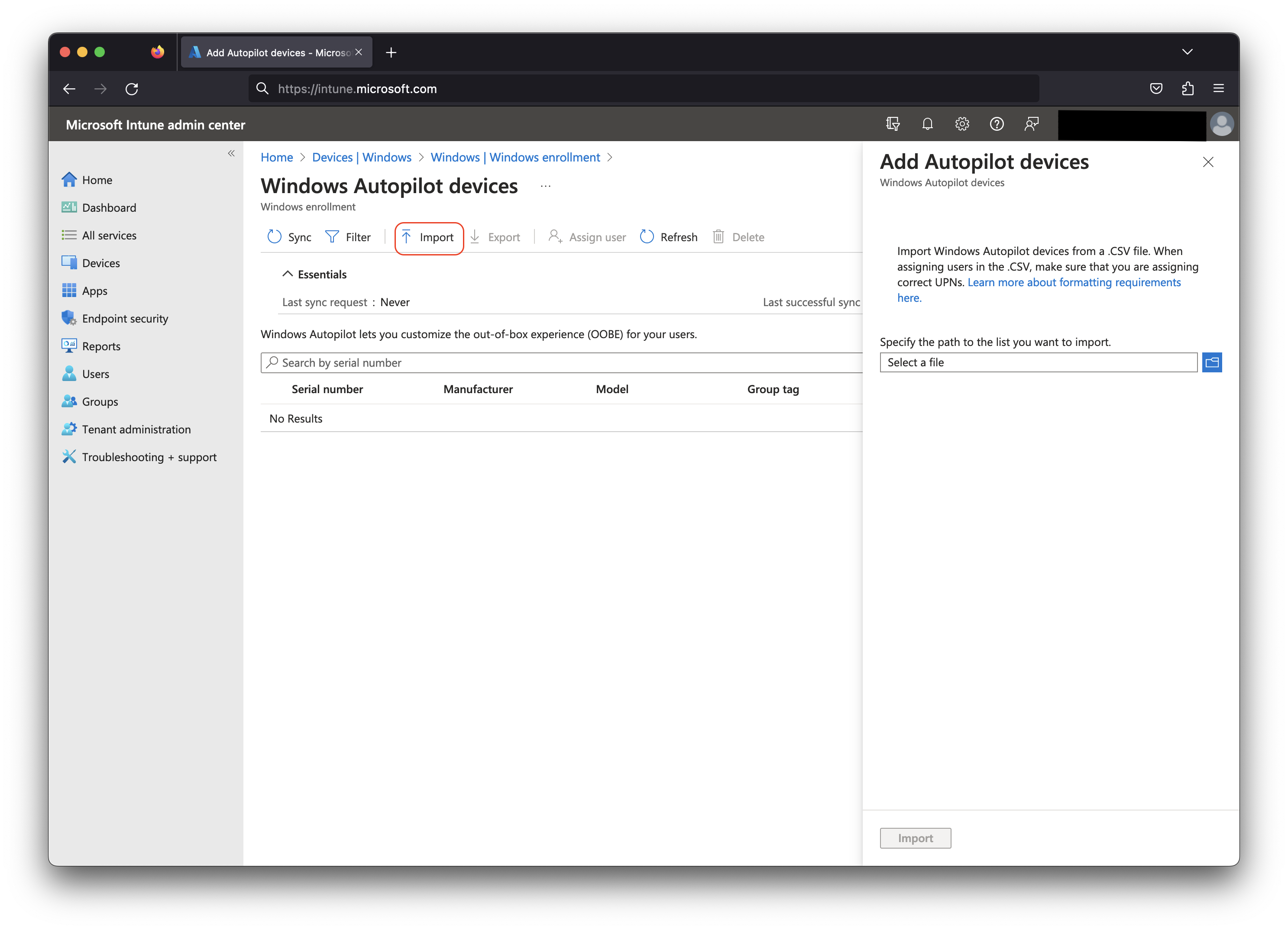
Microsoft's current CSV header supports required and optional fields:
Device Serial Number,Windows Product ID,Hardware Hash,Group Tag,Assigned User
<serialNumber>,<ProductID>,<hardwareHash>,<optionalGroupTag>,<optionalAssignedUser>
3. Create and assign a Windows Autopilot deployment profile
After the device is registered, assign a Windows Autopilot deployment profile. This is not a FileWave profile and should not be described as a generic MDM profile. The Autopilot deployment profile controls the Windows setup experience, including deployment mode, Microsoft Entra join type, privacy/EULA screens, user account type, language options, device name template, and related OOBE behavior.
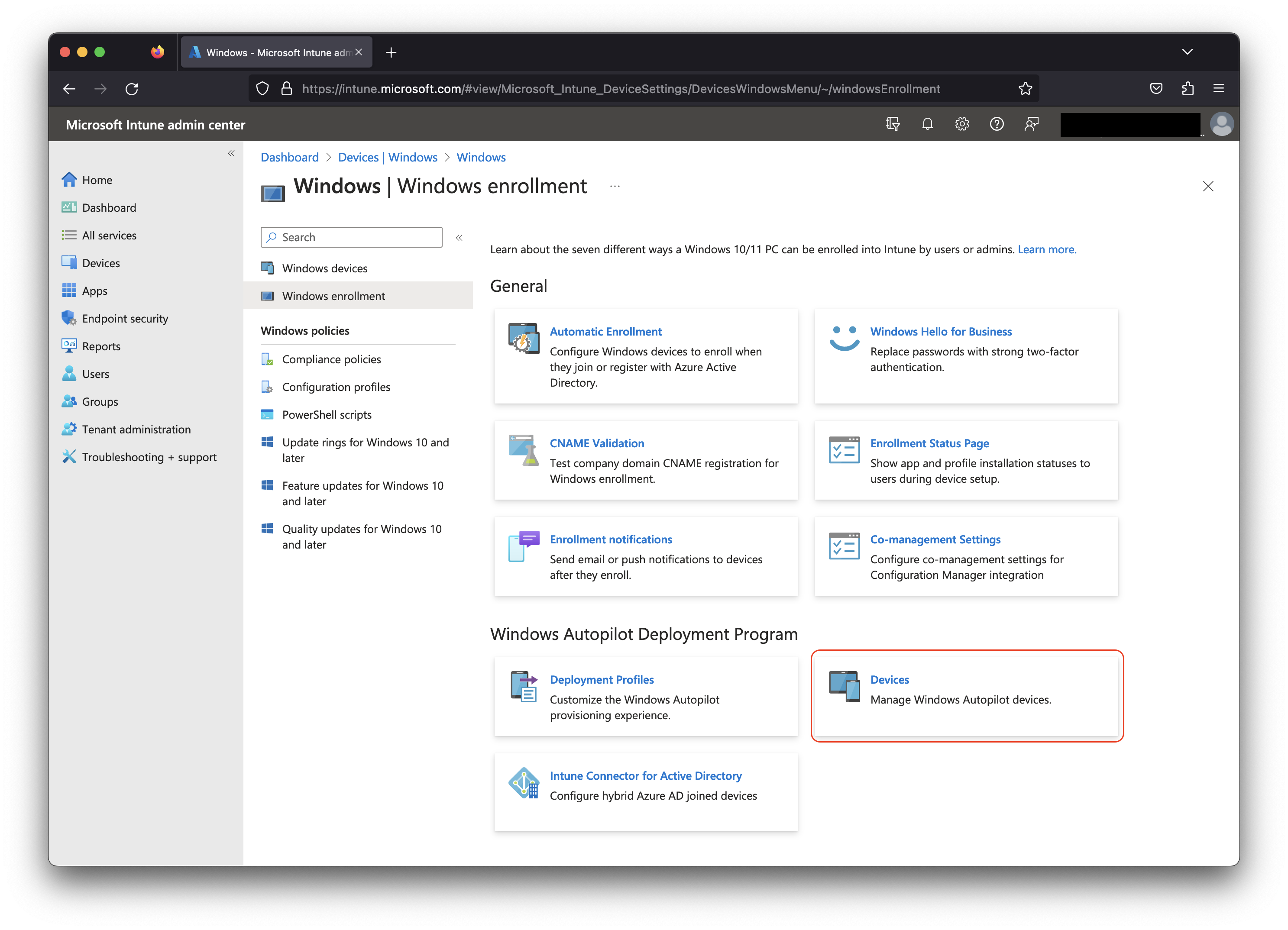
In the the Microsoft Intune admin center, choosego to Devices, choose→ Windows, choose Windows → Enrollment, then→ under Windows Autopilot → Deployment Program, select Devicesprofiles. Create the profile, assign it to the appropriate device group, and wait for the device's profile status to show as assigned before shipping or resetting the device.

Under
4. Enroll the Windows device into FileWave Windows MDM
Autopilot devices,is selectapplied Importduring toWindows uploadOOBE. your .CSV file.

Browse to a CSV file listingIf the devicesdevice is already sitting at the Windows desktop, simply assigning an Autopilot profile will not replay OOBE. Use the path that you want to add. As permatches the documentation,device the CSV file should list:state:
- New
Columndevice:A:RegisterDevicetheSerialdevice,Numberassign the Autopilot deployment profile, then start the device at OOBE with network access. - Existing
ColumndeviceB:test:WindowsUseProductManuallyID (optional, typically blank)
Column C: Hardware Hash
Here'senrolling a sample device information file. Please note that the header row is important or the import will not work:

You may select a group on the next dialog or simply pick "No, thanks" and continue.
Assigning Autopilot Profile
After the import is complete, choose Devices → AutoPilot deployment → Create new profile to create an MDM profile if you have not done this before. Once created then you can select your imported devices, and click on AutoPilot deployment and then pick to apply the MDM profile that you created.
Enrolling the Windows Device
At this point you will want to follow the steps in either Manually Enrolling a Device Intointo FileWave Windows MDM or first if you only need to validate the FileWave/Microsoft Entra MDM configuration.
When the user signs in during OOBE, Microsoft Entra automatic MDM enrollment should route the device to FileWave if youthe areFileWave settingMDM upapplication ais newscoped devicefor that youuser. haveAfter orenrollment resettingcompletes, averify the device in FileWave. In Native Admin, the field.device details should show that the device is Windows MDM enrolled.