
Setting up the Portal App
What
Your Windows MDM integration uses an application that you create in the Microsoft Entra admin center.
When/Why
This application connects Windows Autopilot enrollment, the scoped Microsoft Entra users, and the MDM discovery redirection to your FileWave MDM server. Detailed setup steps follow.
How
Add the Entra ID account in FileWave
-
Open FileWave Anywhere (Web Admin) and navigate to Sources.
-
Click the Microsoft tab.
-
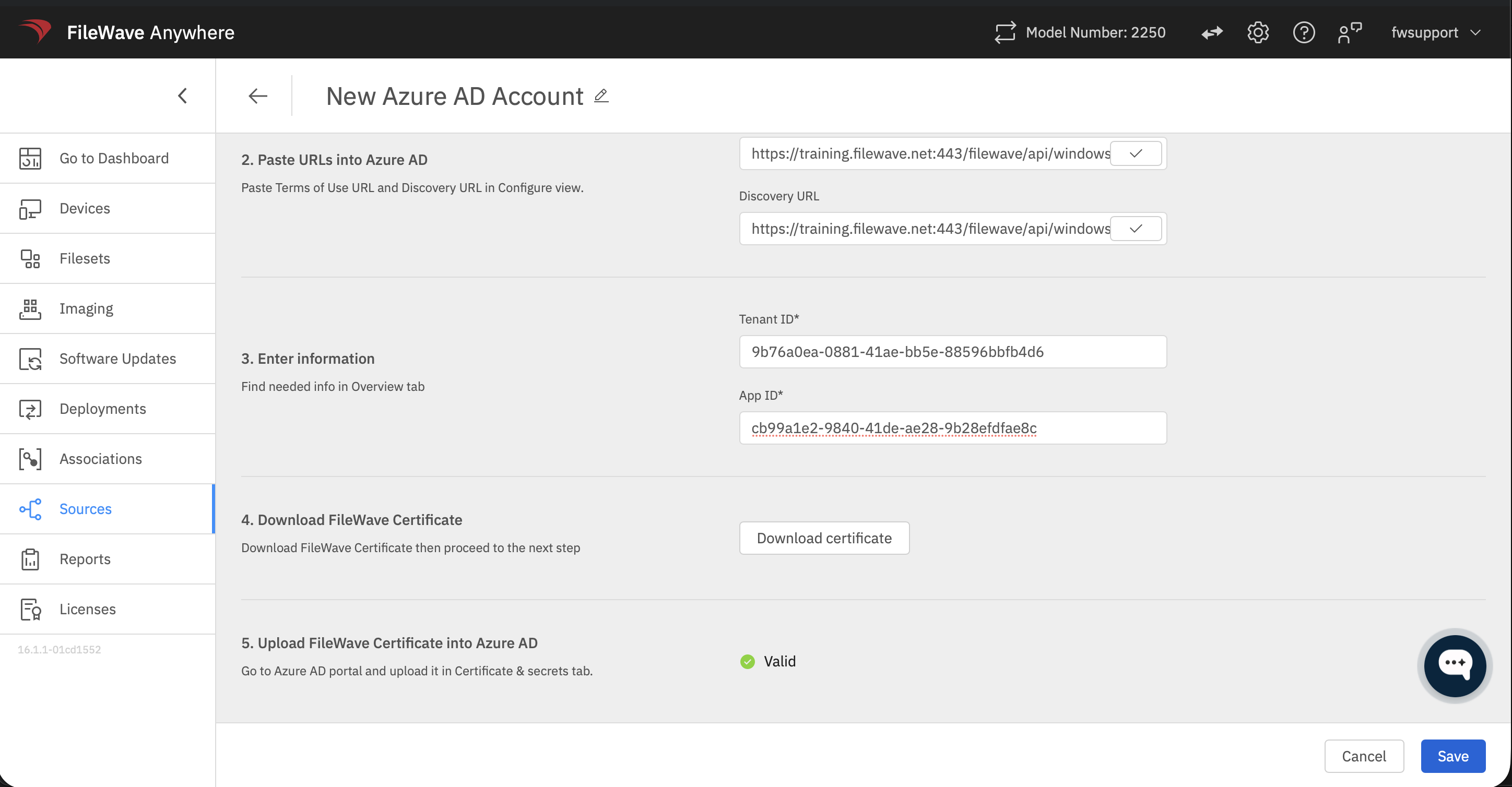
Click on New account, and you should see the following form:
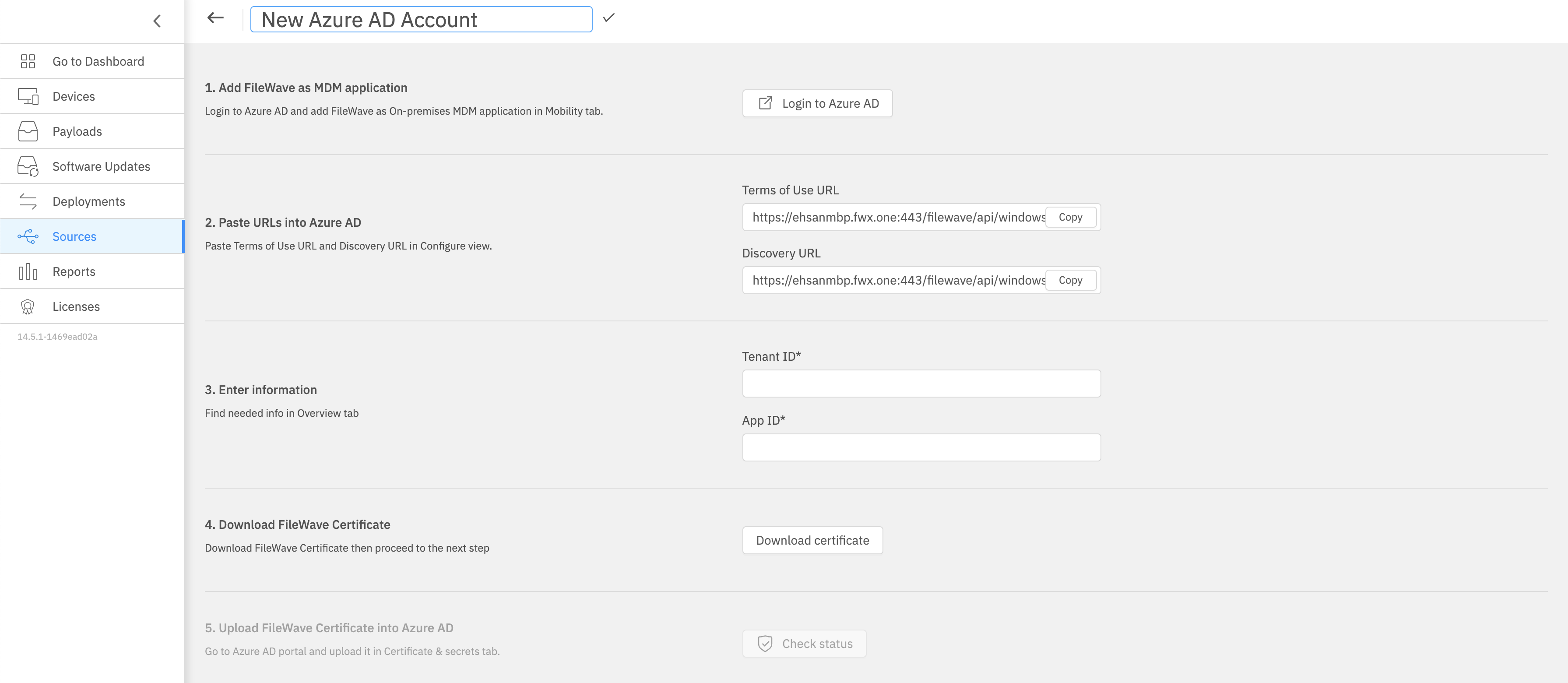
Keep this form open for completion in later steps.
Configuring Microsoft Entra ID
Creating an MDM application
To enable MDM enrollment, first, you need to configure your Microsoft Entra ID to recognize your FileWave server as your MDM.
-
Go to your Microsoft Entra ID portal: https://entra.microsoft.com
-
From Home, navigate to Entra ID → Mobility and then click Add application.
-
Select Create your own application, give it a name and logo if needed, and click Create.
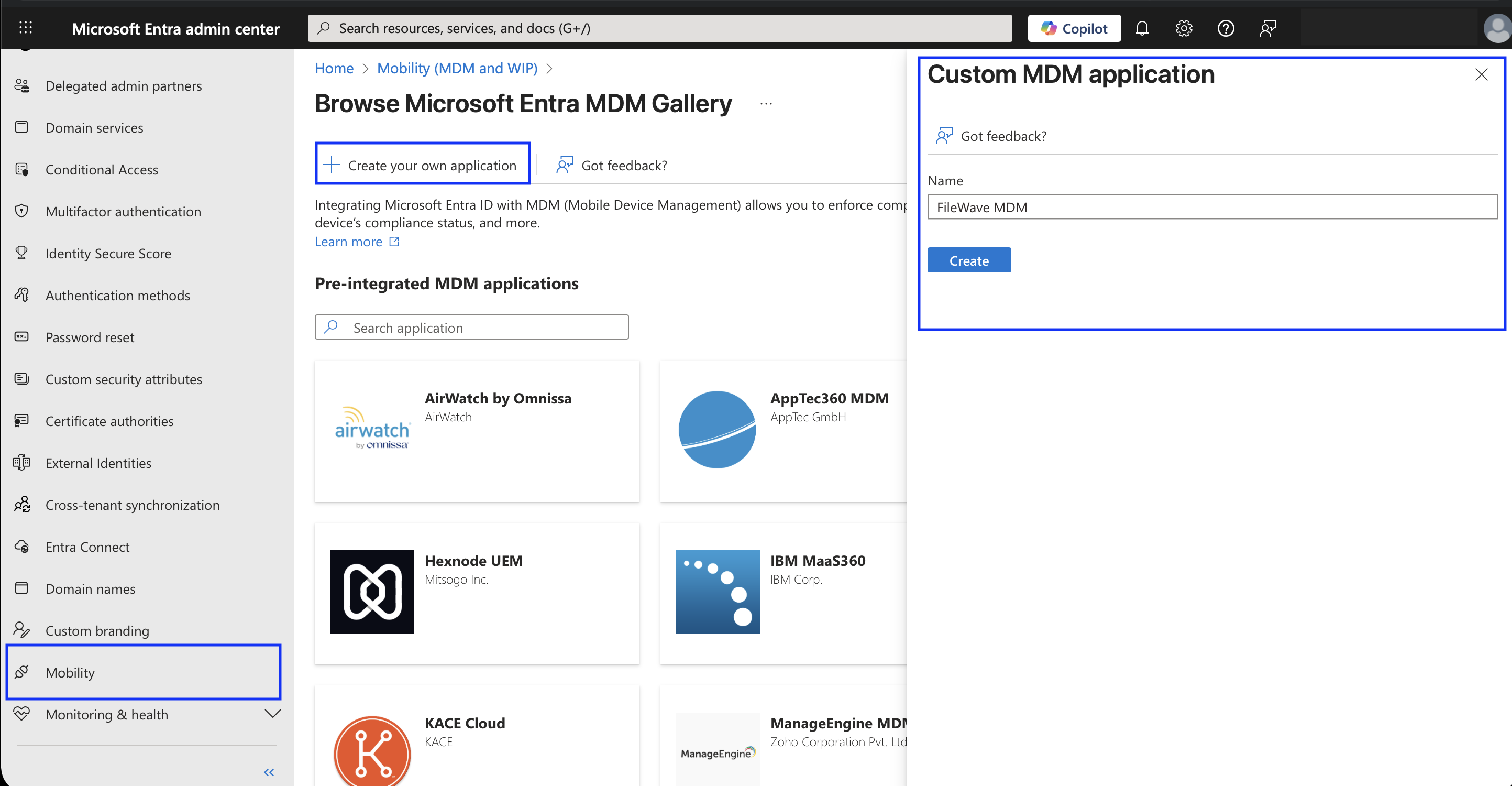
Configuring your MDM application
-
You will now be prompted to configure MDM user scope:
-
MDM user scope: This is where you indicate which users can enroll their devices using this MDM application. You can either choose:
-
All: Force all users to use this MDM application. (Preferred)
-
Some: You can select user groups that are allowed to use this MDM application to enroll their devices. If you do use this, then you will need to make sure that you make a Group to restrict this, and add all of the users who will have their devices managed by MDM in that same group.
-
-
MDM terms of use URL:
Copy the value from the form you opened up in FileWave Anywhere (Web Admin) earlier.
-
MDM discovery URL:
Copy the value from the form you opened up in FileWave Anywhere (Web Admin) earlier.
-
If another MDM service, such as Microsoft Intune, is also configured, do not scope the same users to both Intune MDM and FileWave Windows MDM. A device should only enroll into one Windows MDM service. If the same user is scoped to two MDM services, enrollment can fail with a permissions or enrollment error. To test FileWave enrollment, set the competing MDM user scope to None for the affected users, wait a few minutes, and retry enrollment.
You can still enroll a Windows device into Intune MDM and install the FileWave Client separately, but Windows MDM profiles would then come from Intune, not FileWave. Decide which MDM service owns Windows MDM enrollment for each user group before rollout.
Integrating FileWave and Microsoft Entra
After configuring your MDM application, on the same page, click on the small link that reads: Create MDM application settings.
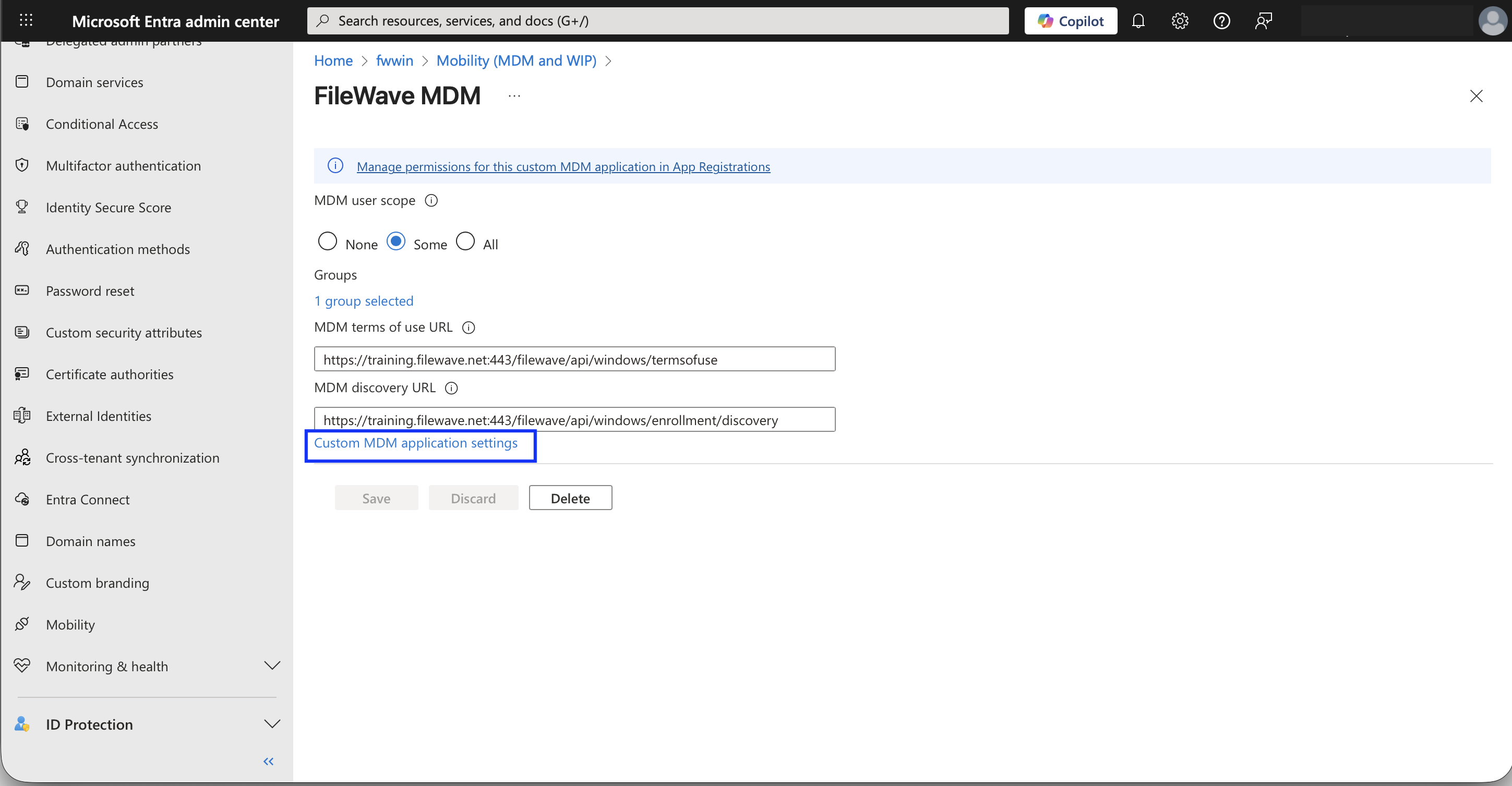
You should see the following page:
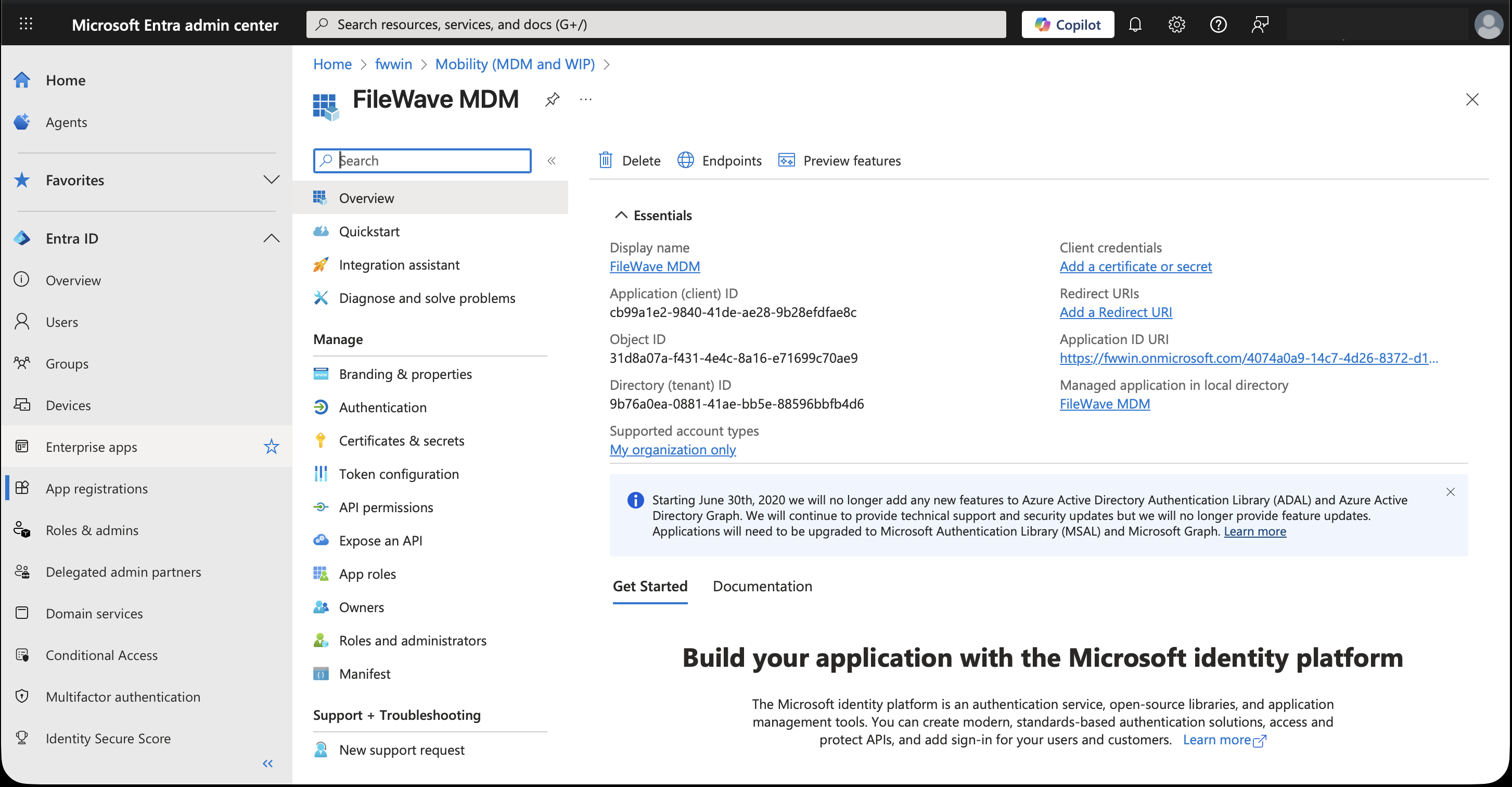
From here there are only few steps left!
-
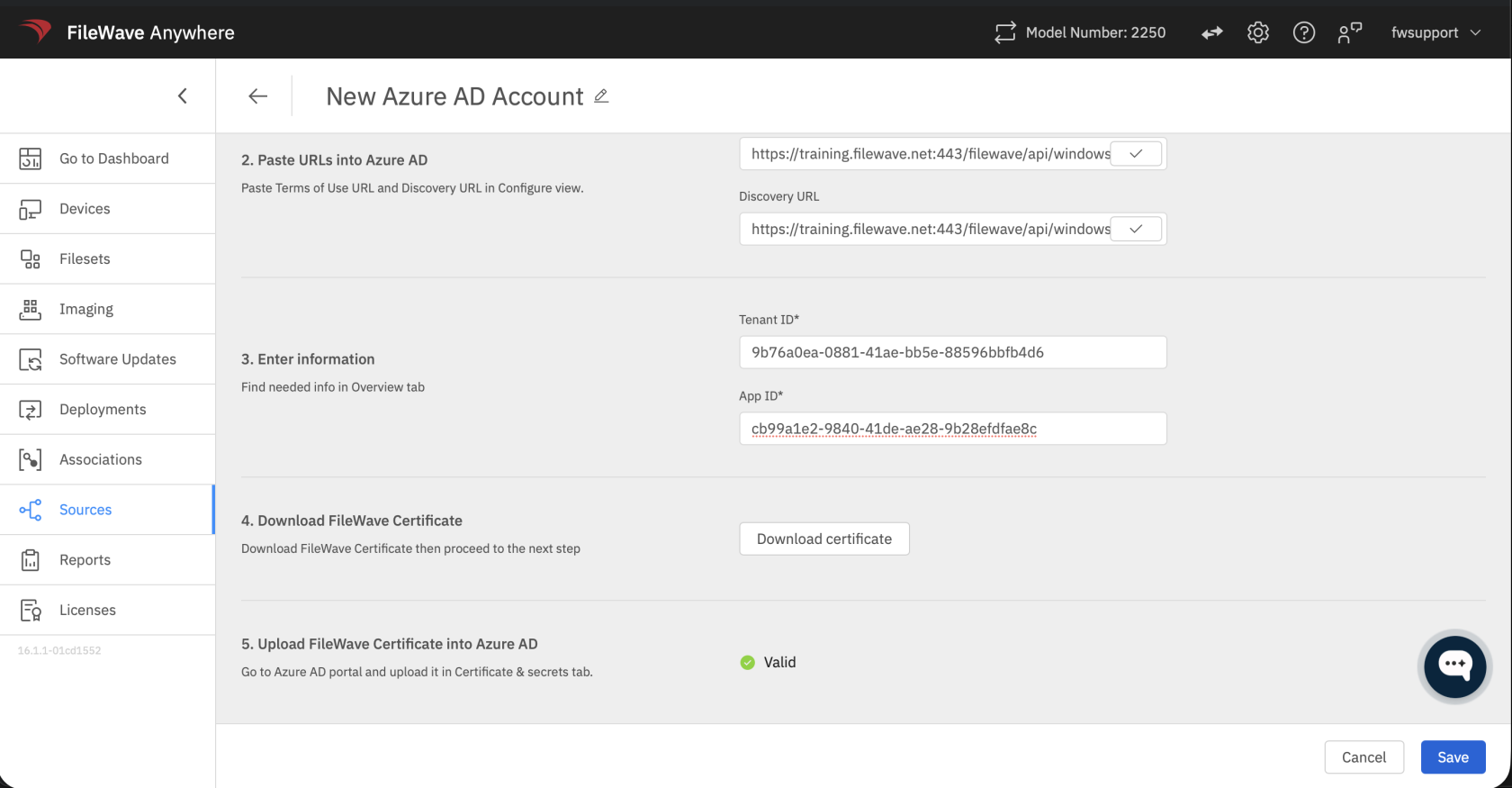
Copy the Application (client) ID and Directory (tenant) ID from this page and paste them into the Microsoft Entra Account form in FileWave Anywhere (Web Admin), which you kept open earlier.
-
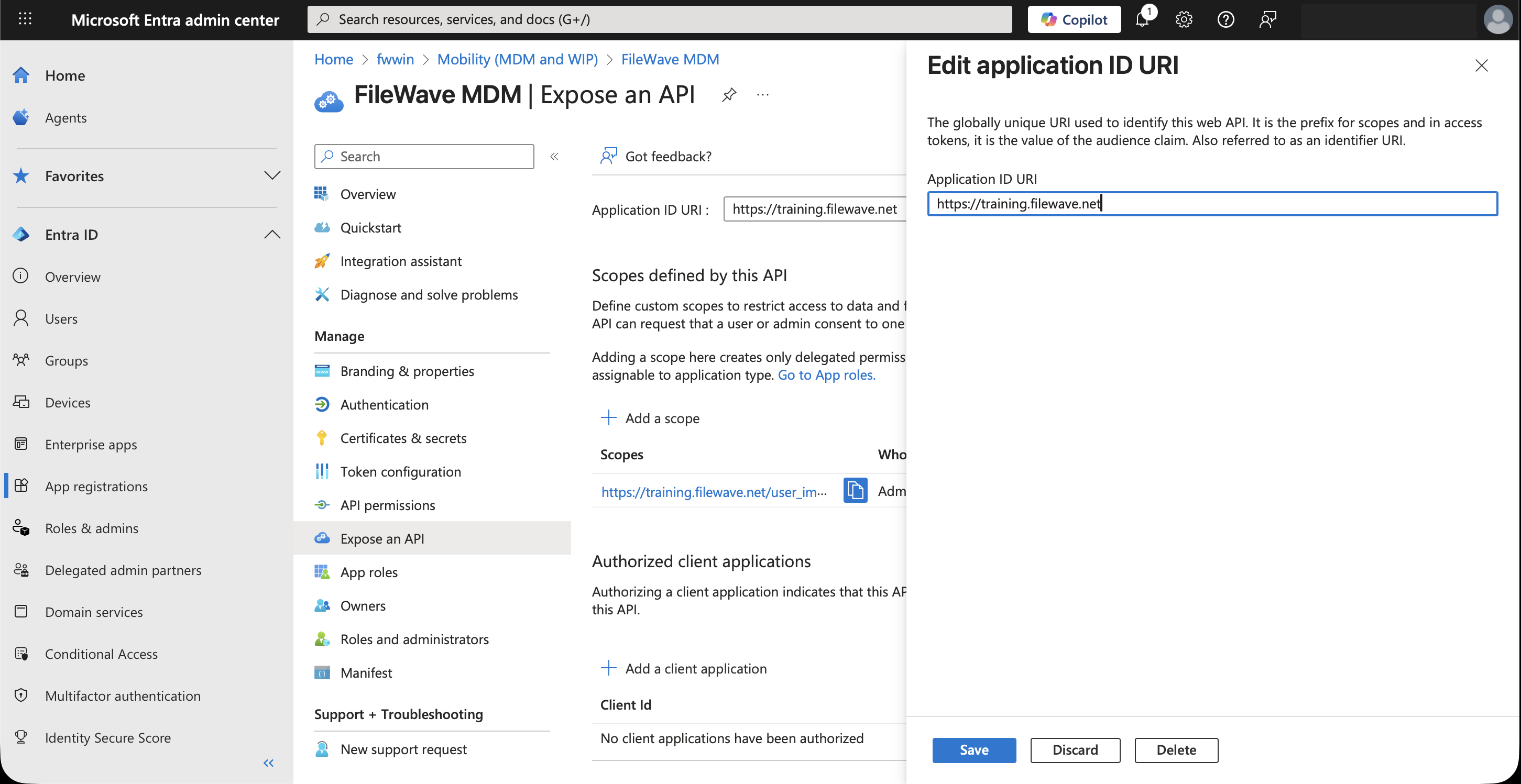
The Application ID URI value in your MDM app must match the FileWave server URL that Windows devices will use. In Microsoft Entra ID, go to Expose an API and edit the URI. Use your customer-owned FileWave server hostname, such as
https://mdm.example.org, replacing it with your server's DNS name.Microsoft requires the hostname used in a single-tenant Application ID URI to be in the tenant's initial
onmicrosoft.comdomain or in a verified custom domain. FileWave-hostedfilewave.nethostnames are owned by FileWave and cannot be verified in the customer's Microsoft Entra tenant. Hosted customers should use a customer-owned custom hostname for Windows MDM and follow FileWave-hosted custom-domain SSL guidance if they need FileWave Support to configure the hosted-server certificate.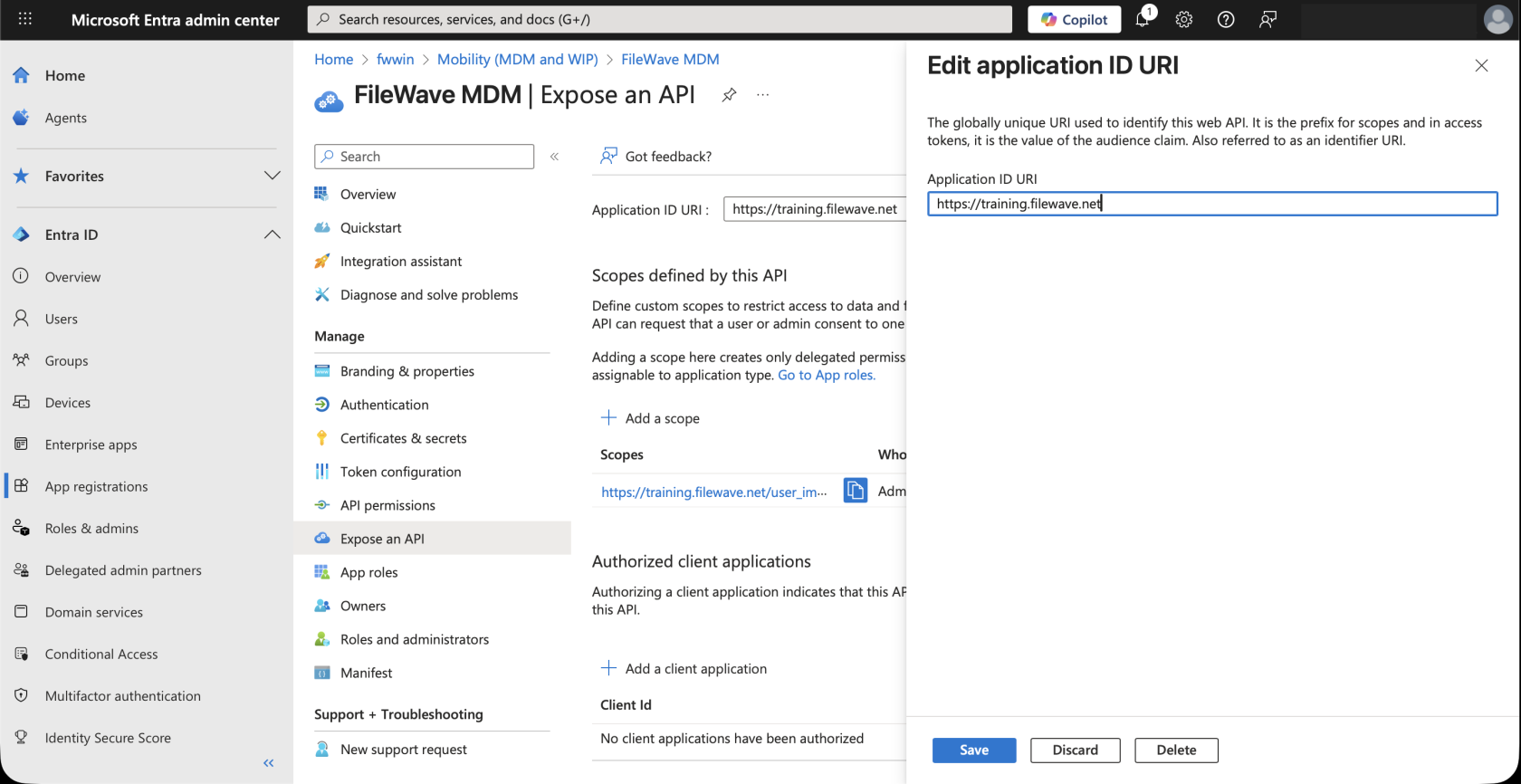
-
Go back to the Microsoft Entra account form in FileWave Anywhere (Web Admin), and download the FileWave certificate.
-
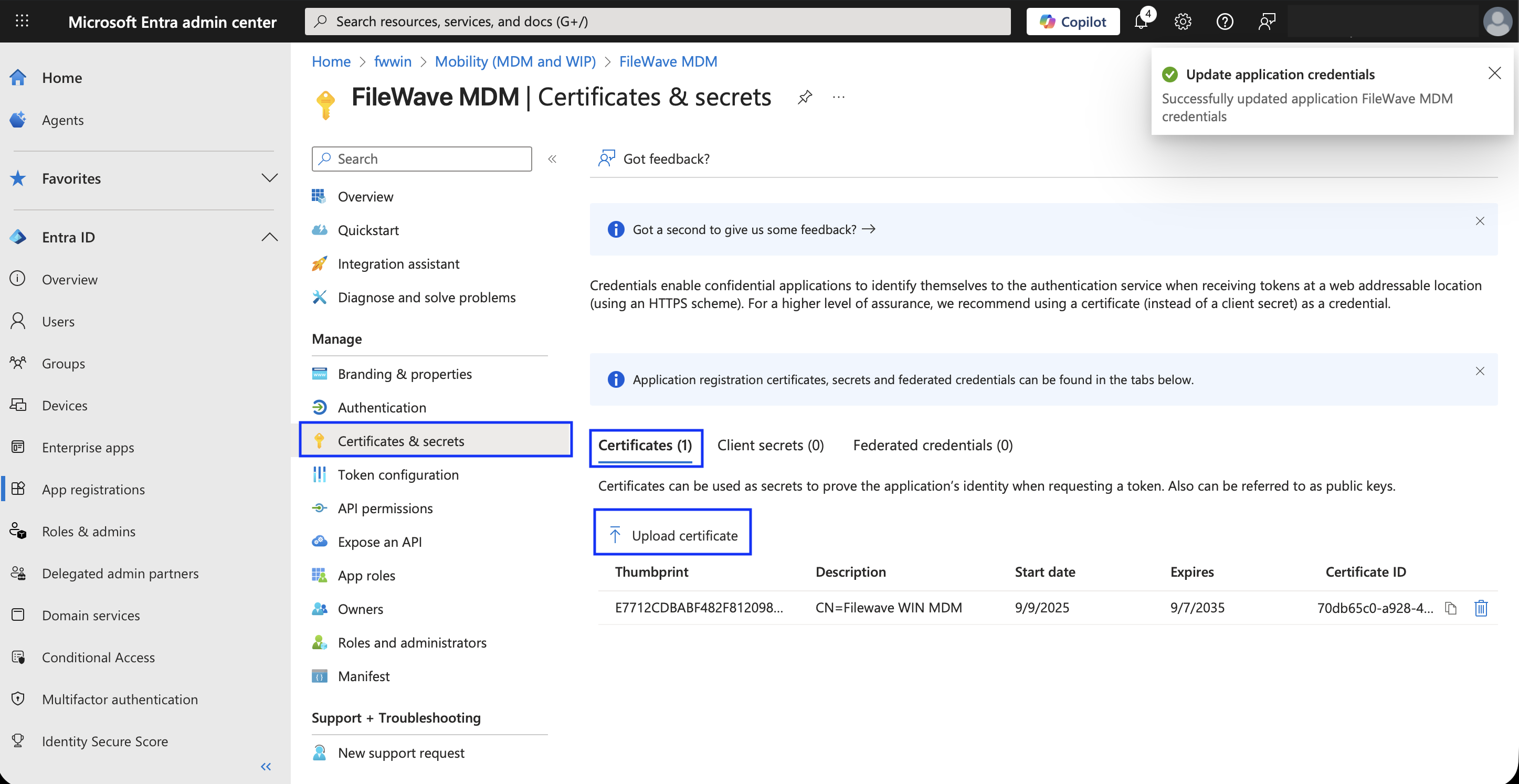
Once you have the certificate, go back to the Microsoft Entra ID portal, navigate to Certificates & secrets > Certificates and upload your certificate to your Microsoft Entra MDM application there.
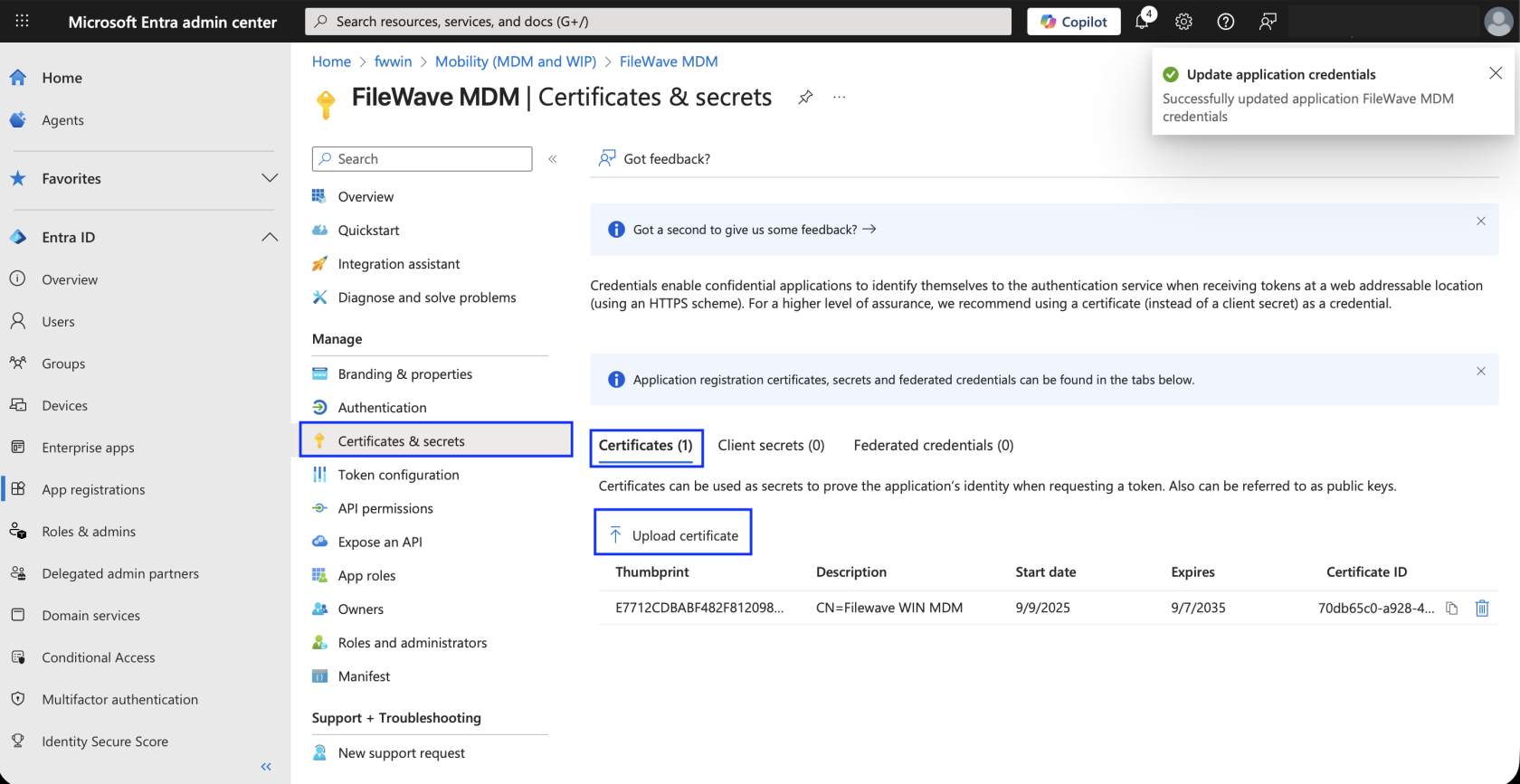
-
After the certificate is uploaded, wait a few seconds, then return to the open Microsoft Entra account form in FileWave Anywhere (Web Admin) and click Check Status.
-
As soon as you see the green light, go ahead and save your Microsoft Entra account.
You are now ready to enroll a device into FileWave Windows MDM.
Application tenant or consent messages
You may see a message similar to below:
- AADSTS500011 – The resource principal named [URI] was not found in the tenant named [guid]. This can happen if the application has not been installed by the administrator of the tenant or consented to by any user in the tenant. You might have sent your authentication request to the wrong tenant.
If you’re trying to log in from an application that doesn’t support user consent flow or you’re unable to use it otherwise, you can use the same special login URL crafting trick that I proposed in my article for resolving consent-related issues when getting error AADSTS650001, and create a URL like this:
If the application requires admin consent, you may replace "consent" with "admin_consent".
No comments to display
No comments to display