Re-enroll an Imaging Virtual Server (IVS)
What this procedure does
YouRe-enrolling mayan needImaging toVirtual removeServer and(IVS) re-enrollrequires more than deleting its FileWave Central record. Remove the IVS toClient troubleshoot. Instead of straightforward deletingconfiguration and enrolling the IVS again,Admin youpreferences will need to remove the client and admin IVS configurations, before removing. Once these configurations have been deleted youfirst, then may remove the IVS from FileWave AdminCentral, Central.restart it, and enroll it again.
When/WhyWhen to use it
WhenUse this reset when an IVS no longer connects or images after routine connectivity and service checks. The procedure deletes local IVS configuration, so record the IVScurrent losesserver connectionaddress orand stopsenrollment imaging,details troubleshootingbefore maystarting.
Reset and re-enroll the IVS.
HowIVS
- Remove the IVS Client configuration
logConnectintotoyourthe IVSbyoversshSSHintoand run theserverfollowingand execute the commands below:commands:
$ sudo killall fwcld
$ rm -rf /etc/xdg/FileWave/Client.conf
- Remove the IVS Admin
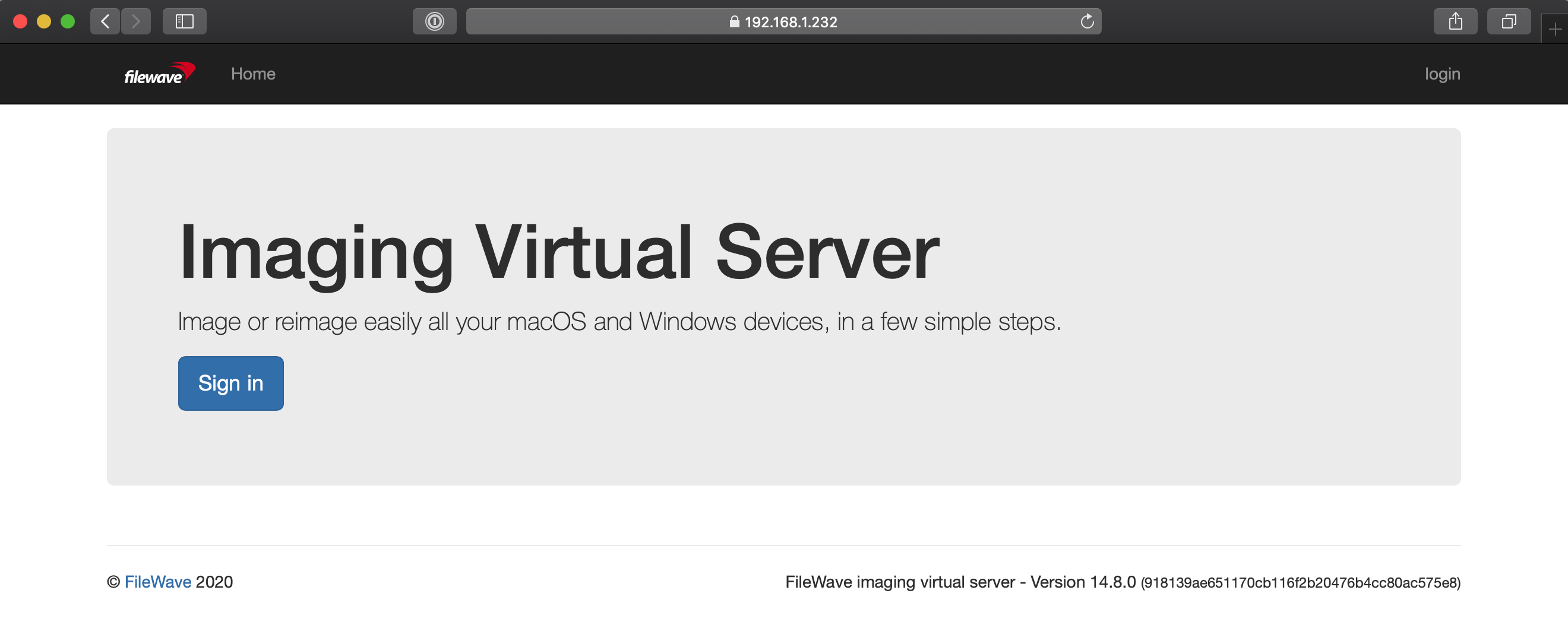
configurationpreferencesOpenIn awebbrowser,browseropenand navigate to yourthe IVSadminAdminaddress,addressi.e.athttps://<IVS.IP.IVS-IP-address>:20444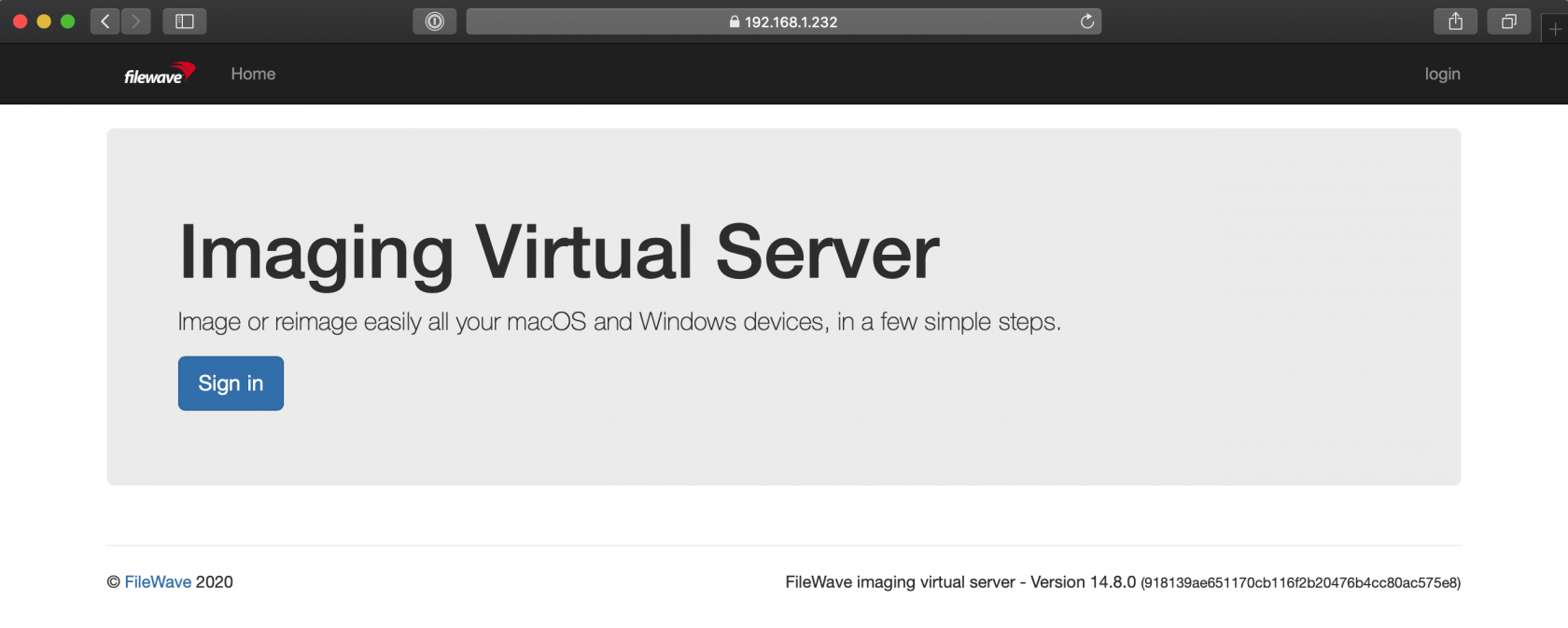
ClickSelect'Signin'in and enter theusernameIVSandadministratorpasswordcredentials. An appliance that still has its initial credentials uses:
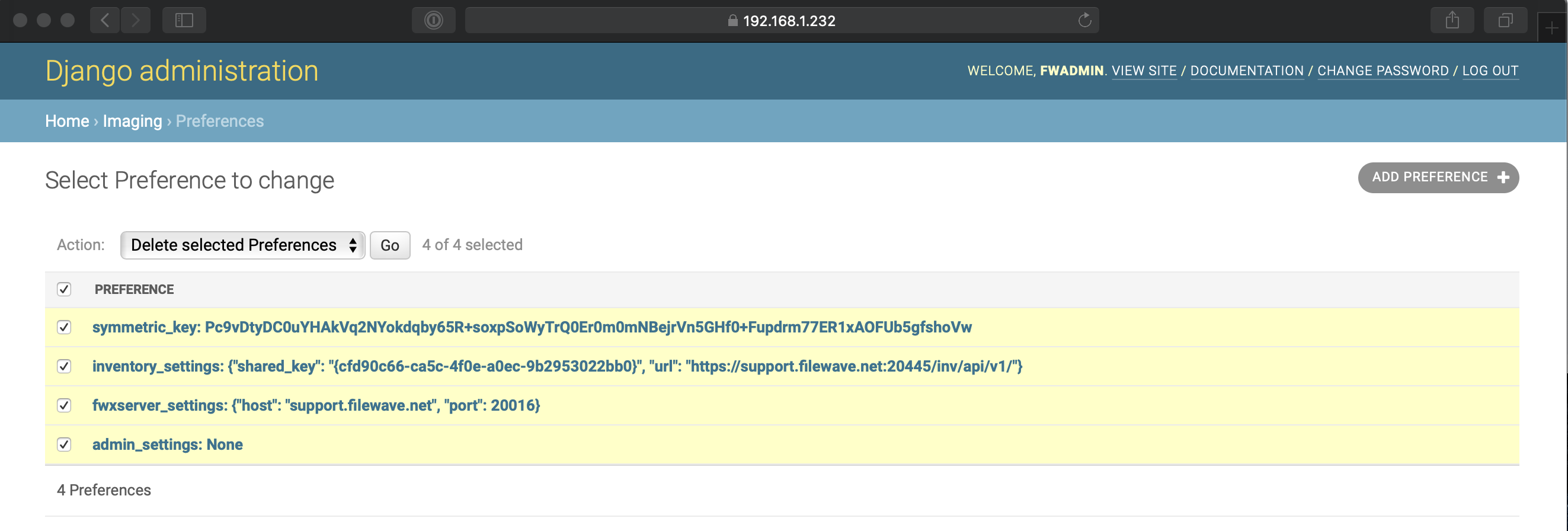
username: fwadmin password: filewaveOnceOpenlogged in, clickAdminat> Preferences. Select thetop,checkboxPreferencesbeside> Check the boxPreference tothe left of Preference to check all boxes > Click the drop-down to the right of Action andselect"every row, then choose Delete selectedPreferences".Preferences from the Action menu.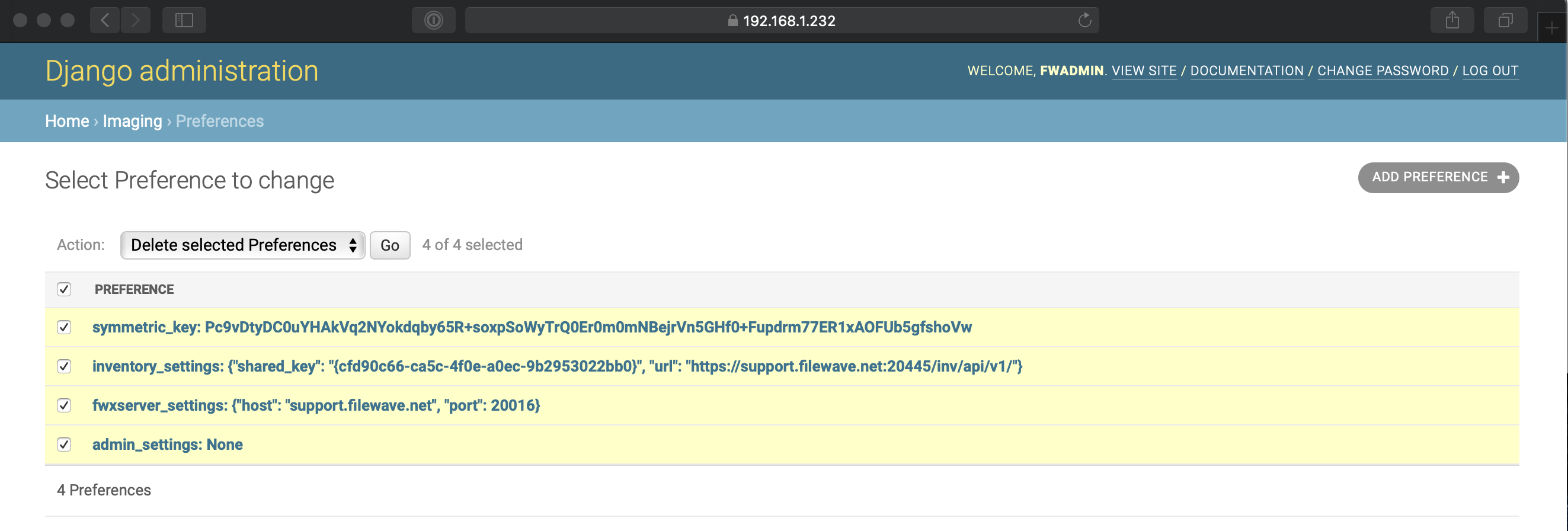
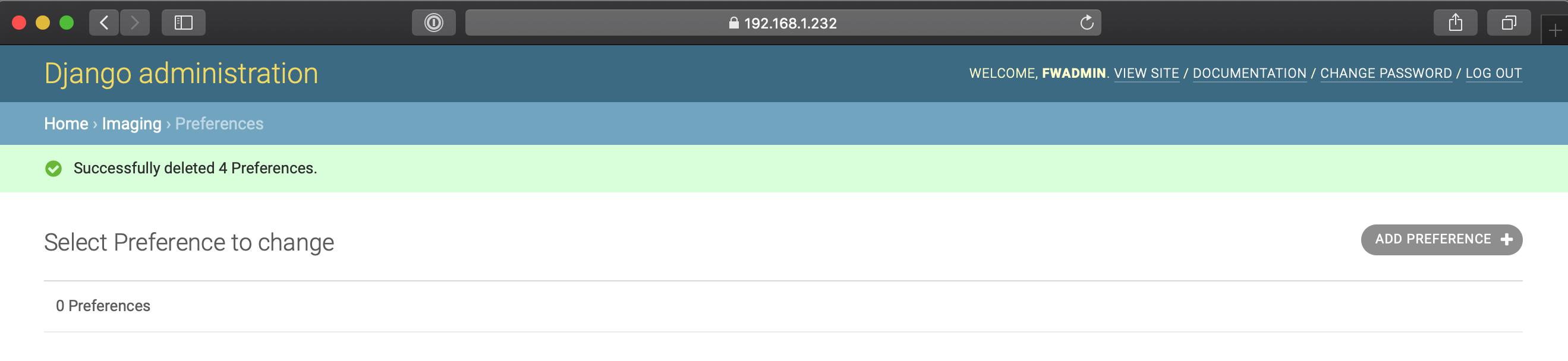
ClickSelectonGo,'Go' andthen confirmbywithclickingYes.'Yes'Verifyto remove. After completedthat thesteps,pageyoureportsshould see0Preferences.Preferences.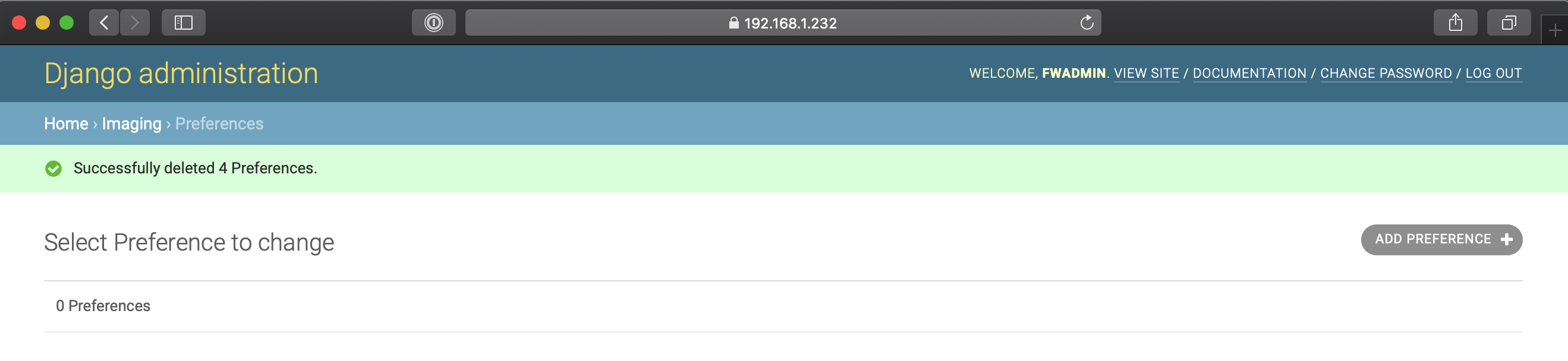
- Remove the IVS from FileWave
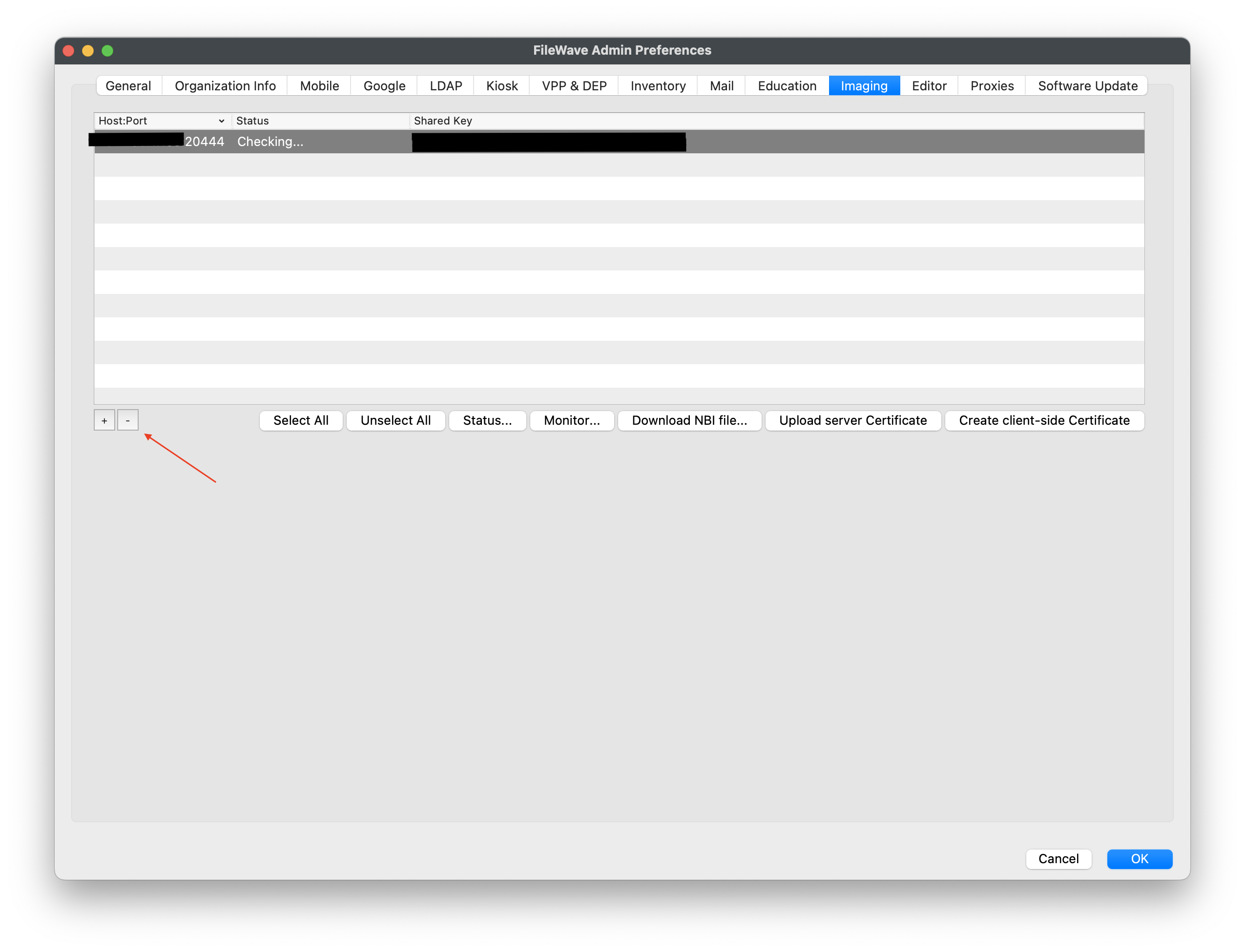
AdminCentralOpenIn FileWaveAdminCentral,Centralopenand navigate toPreferences > Imaging.tabSelect>theclickIVS,your IVS to highlight it > Clickselect the minussign to the bottom leftbutton, andthenchoosehitOK.OKReopento close preferences. Re-openPreferences > Imagingtabandmakeconfirmsurethatyourthe IVShasn'tdoesreappeared.not reappear.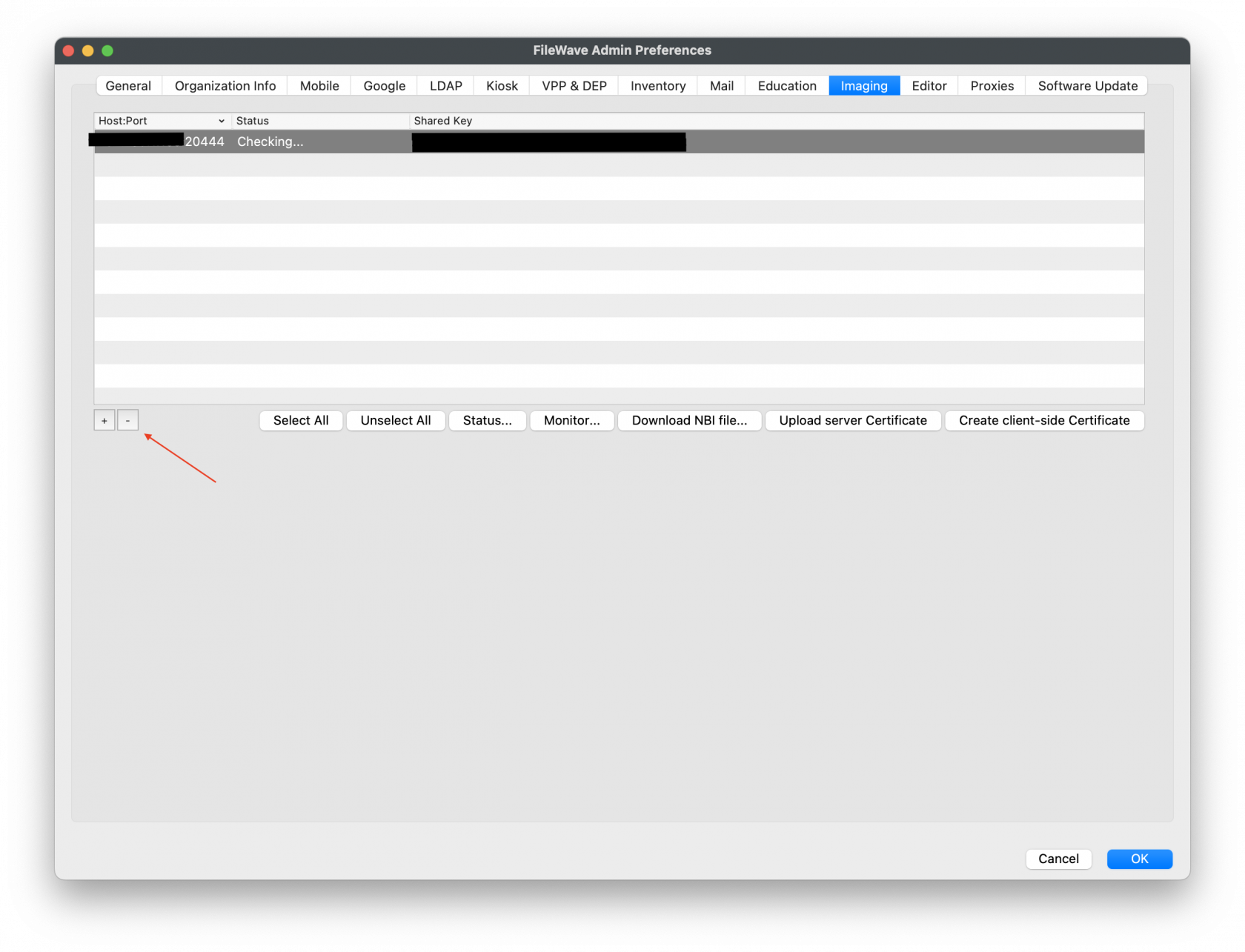
- Restart the IVS. In the SSH
intosession,your IVS and run the command to reboot:run:
$ sudo shutdown -r now OnceEnroll the IVShasagain.restarted,Afteryouitmayrestarts,begin the enrollment process normally;follow Setting up the IVS (Imaging Virtual Server).