
Installing SOLIDWORKS (Windows EXE)
What
NeedThis recipe uses the SOLIDWORKS Administrative Image Creator and a FileWave Fileset to deploy andSOLIDWORKS install SolidWorks onto Windows clients? Not a problem – FileWave has you covered. We need a few components from SolidWorks and some scripting tips to get deployment-ready.clients.
Required components:
-
FileWave Central
-
SolidWorks Administrative Image Creator
When/Why
We will need to downloadDownload and install the SolidWorksSOLIDWORKS Administrative Image Creator on youra Windows machine with FileWave AdminCentral installed. This is to createcreates the SolidWorks image that can be used for deployment and installation. You may review the SolidWorks documentation for further details on setting up and configuring here: Creating an Administrative Image.
ThisThe “image”administrative youimage created will beis downloaded and placed ontoon the Windows machine under the default file path:
C:\SOLIDWORKS Admin\SOLIDWORKS 2022 SP2.0
Once completed, itthe willadministrative beimage is ready to be uploadedupload into FIleWaveFileWave Admin.Central.
How
The SolidWorks image containingUpload the contentsSOLIDWORKS ofadministrative the installation will need to be uploadedimage into a Fileset. Below is a Fileset template with an included PowershellPowerShell script to install SolidWorks and remove the shortcut links from the UsersPublic Desktop. More information on Script Best Practices and Windows Software.
| SolidWorks Template Fileset |
  |
The final version of the Fileset should be around 23Gb23 GB in sizesize, (withincluding includedthe SolidWorksSOLIDWORKS image).image.
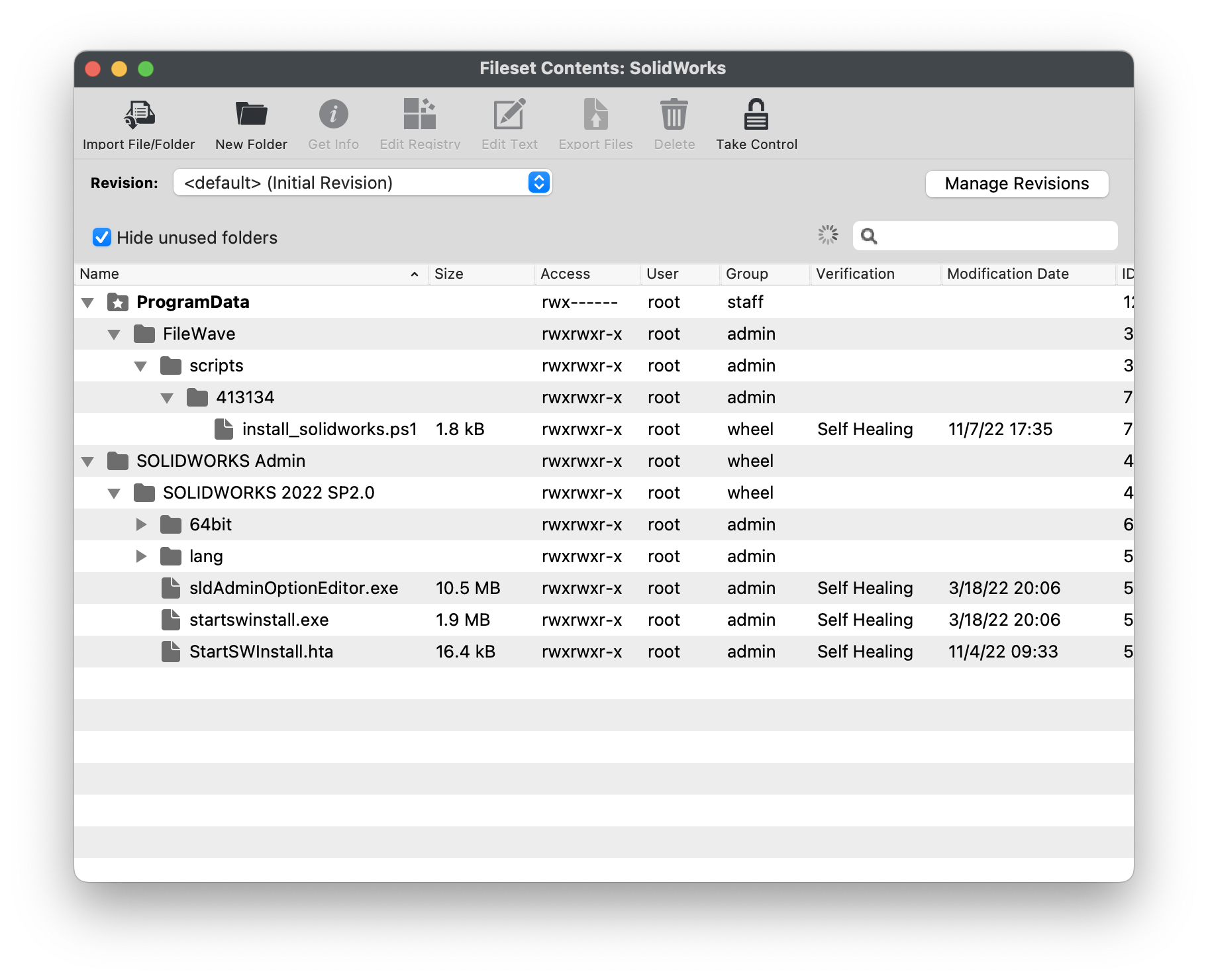
Here is the PowerShell script used in this Fileset.
#############################################################################
#SolidWorks Installation
#############################################################################

If ( [IntPtr]::Size * 8 -ne 64 )
{
    C:\Windows\SysNative\WindowsPowerShell\v1.0\PowerShell.exe -File $MyInvocation.MyCommand.Path
}
Else
{
# Hide Wizard
$regPath = 'Registry::HKEY_LOCAL_MACHINE\SOFTWARE\SolidWorks'
New-Item $regPath -ErrorAction SilentlyContinue | Out-Null
Set-ItemProperty -Path $regPath -Name UnattendedAccessWizardShown -Value 1 -Type DWord -ErrorAction SilentlyContinue | Out-Null
}

# Install MSI
$options = '/i', '/qb',  '/s', '/v', '/qn', "C:\SOLIDWORKS Admin\SOLIDWORKS 2022 SP2.0\startswinstall.exe"

echo "Installing with options: $options"

Start-Process -FilePath "C:\SOLIDWORKS Admin\SOLIDWORKS 2022 SP2.0\startswinstall.exe" -ArgumentList $options -NoNewWindow -Wait -PassThru

# Remove Desktop Icon
Remove-Item -Path "C:\Users\Public\Desktop\SOLIDWORKS 2022.lnk�lnk" -ErrorAction SilentlyContinue
Remove-Item -Path "C:\Users\Public\Desktop\eDrawings 2022 x64 Edition.lnk" -ErrorAction SilentlyContinue
Remove-Item -Path "C:\Users\Public\Desktop\SOLIDWORKS Composer 2022.lnk" -ErrorAction SilentlyContinue
Remove-Item -Path "C:\Users\Public\Desktop\SOLIDWORKS Composer Player 2022.lnk" -ErrorAction SilentlyContinue
Remove-Item -Path "C:\Users\Public\Desktop\SOLIDWORKS Electrical.lnk" -ErrorAction SilentlyContinue
Remove-Item -Path "C:\Users\Public\Desktop\SOLIDWORKS Manage 2022.lnk" -ErrorAction SilentlyContinue
Remove-Item -Path "C:\Users\Public\Desktop\SOLIDWORKS Visualize 2022.lnk" -ErrorAction SilentlyContinue

#############################################################################
#End
#############################################################################