Start a TeamViewer Remote Session on Windows
What
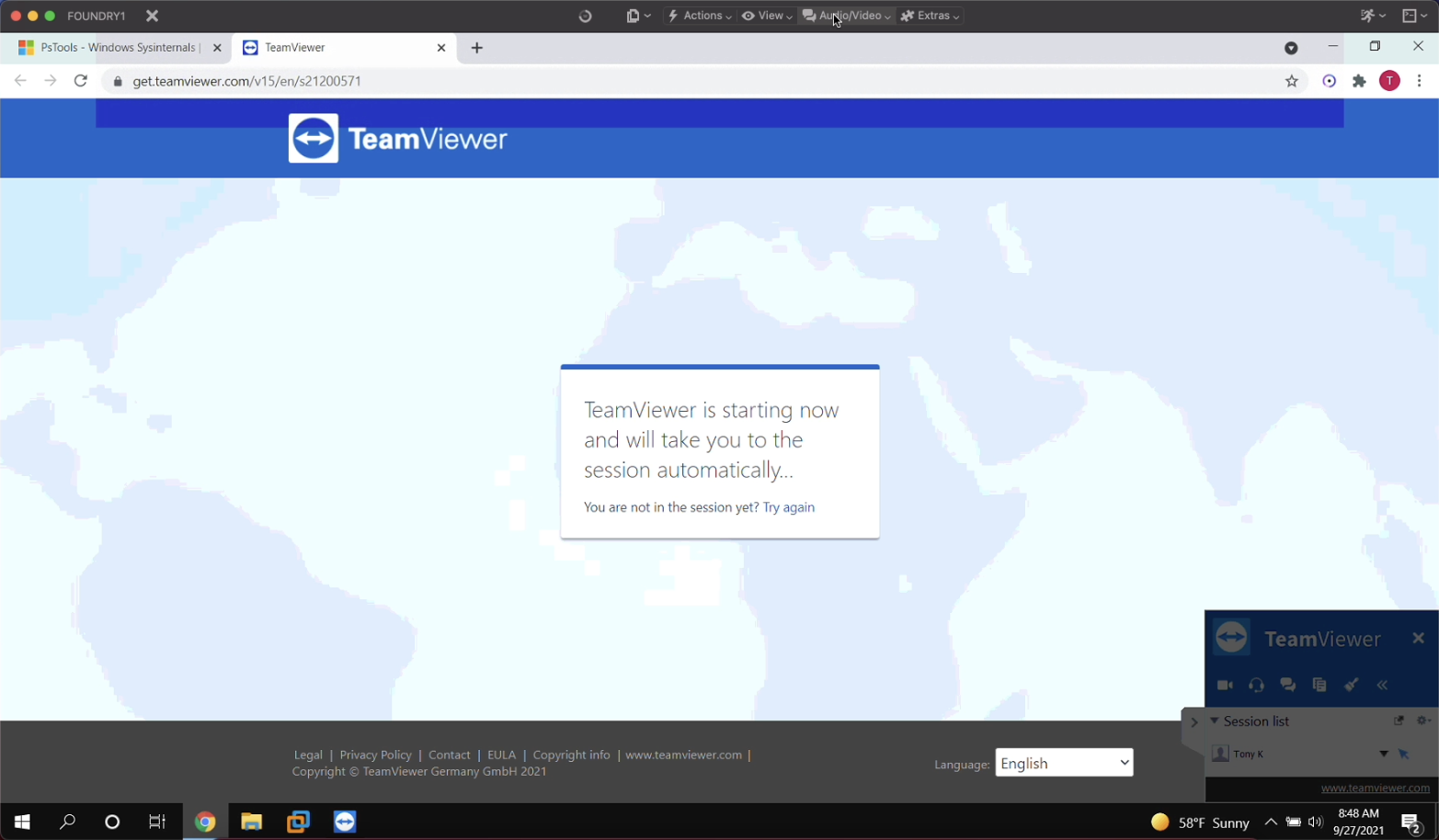
This articlepage picksshows upwhat froma Windows user sees during a prompted TeamViewer session and how FileWave Client preferences control prompted versus unattended access. Complete the administratorTeamViewer requestingprerequisites abefore remote control session through TeamViewer. It presumes that all device pre-requisites are already met.starting.
When/Why
We'llUse usuallythis createworkflow when a remotetechnician sessionneeds to tryview toor resolve some type of support issue on a remote device. When we begin the remote session withcontrol a Windows device,device itwhile istroubleshooting important that we know how it behaves onwith the remote endpoint so that we can assist the end user if need be.user.
Behavior
ForWindows macOSsupports prompted and Windows devices it is possible to have both attended as well as unattended accessTeamViewer tosessions. theIn device.FileWave From any macOSCentral or WindowsFileWave deviceAnywhere, in the admin console that meets pre-requisites (web and native shown below), you can choose to open aselect Remote Session from the device context menu. NoteThe thatavailable choices depend on the adminadministrator's userpermissions, mustthe haveclient rights,state, and the FileWave Client remote-control preferences. Remote Session (Don't Prompt User) appears only when managed remote control is allowed and the client itselfis mustnot haverequired reportedto prompt the rightuser. "state" to be controlled. macOS and Windows clients will be the only ones to show Don't Prompt User but that will only appear if the FileWave client has been set to allow remote control and to allow unattended remote control to see both options. The original Observe client permissions are how TeamViewer permissions are being controlled for macOS and Windows. If you would like to change a client's permissions thenUse a SuperprefSuperprefs Fileset canto changemanage these settings.
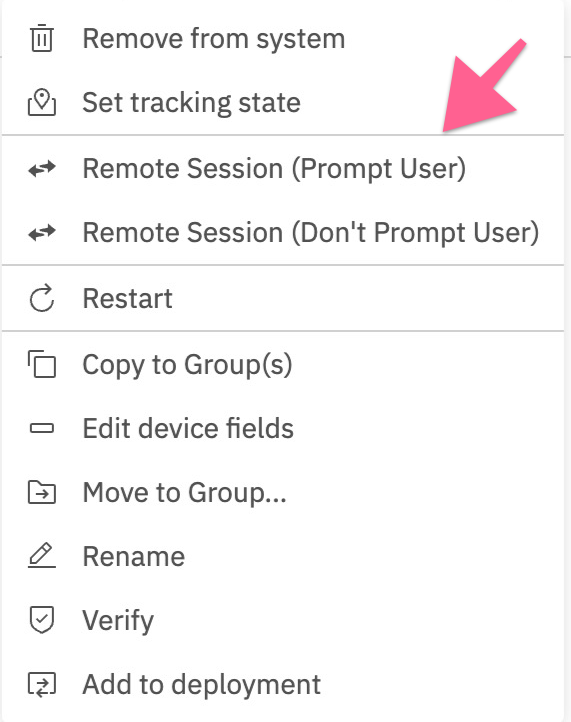
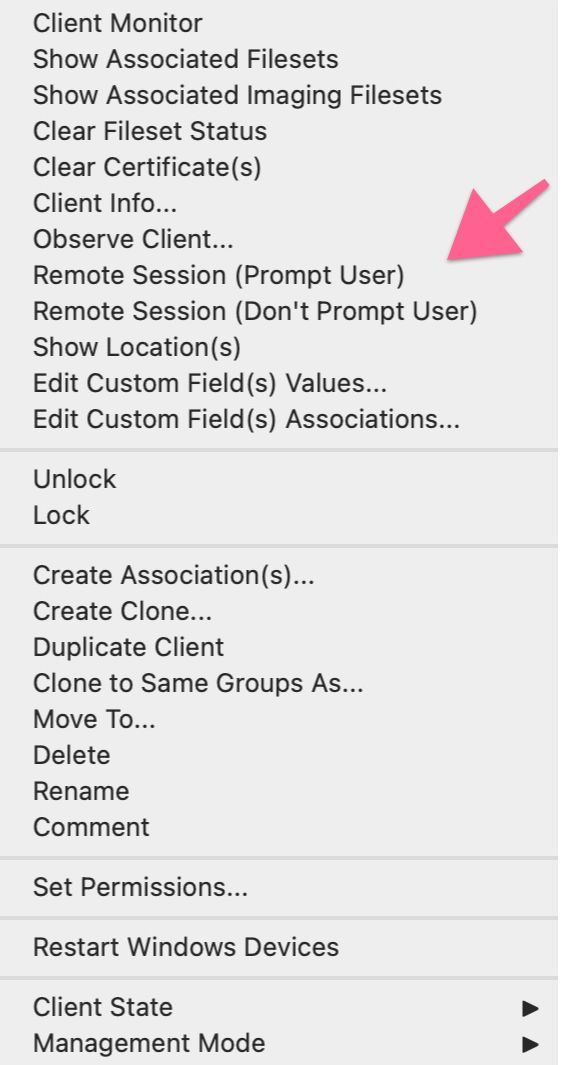
Computer
FileWave Client Preferencespreferences
Computer clients also rely upon the client settings for these options to be available:
- FileWave Client Preferences > Privacy
There are two options available:
- Managed remote control
- Prompt client for remote control access
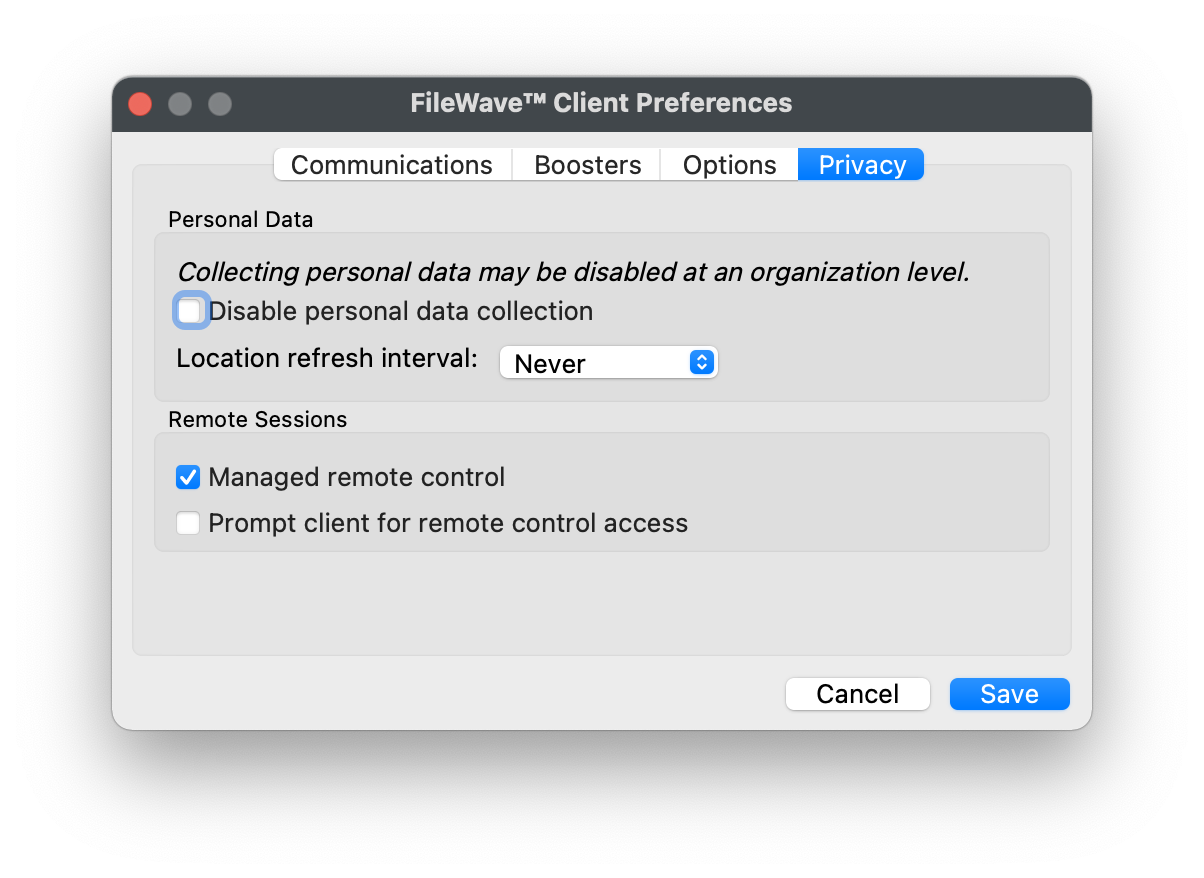
TheManaged firstremote optioncontrol willallows allow/denyor anyblocks connectionTeamViewer viaconnections. TeamViewer.FileWave Theevaluates secondthe optionprompt willsetting be consideredonly when themanaged firstremote optioncontrol is enabled.
ThePrompt second option,client for prompting,remote willcontrol thenaccess eithercontrols allowwhether onlythe oneend oruser bothmust optionsapprove tothe be available.session. When promptit is enabled, technicians can start prompted sessions only. When it is disabled, both theprompted optionsand to either prompt or not prompt should be available. IfDon't Prompt isUser enabledchoices though,are the option to action a 'Don't prompt user' will not be available and only prompted connections may be established.available.
TheseConfigure these options may be configured with a SuperprefSuperprefs Fileset.
If all ofWith the prerequisites havein been met then pickingplace, Remote Session (Don't Prompt User) will simply result inopens TeamViewer opening on boththe your admintechnician workstation and the remote computer.computer without an approval prompt. If TeamViewer or TeamViewer Host areis not installed thenmissing, FileWave will return an errorreports that TeamViewer was not found. Otherwise,Prompted forsessions a prompted sessionfollow the below workflow will get you connected.below.
Remote Session (Prompt User) Workflow
OnceAfter the device receives the remote remote-session notification (think of this as an alert to the device to begin a session),request, the FileWave clientClient will openopens a new browser tab that asks the user to prompt for opening ofopen TeamViewer.
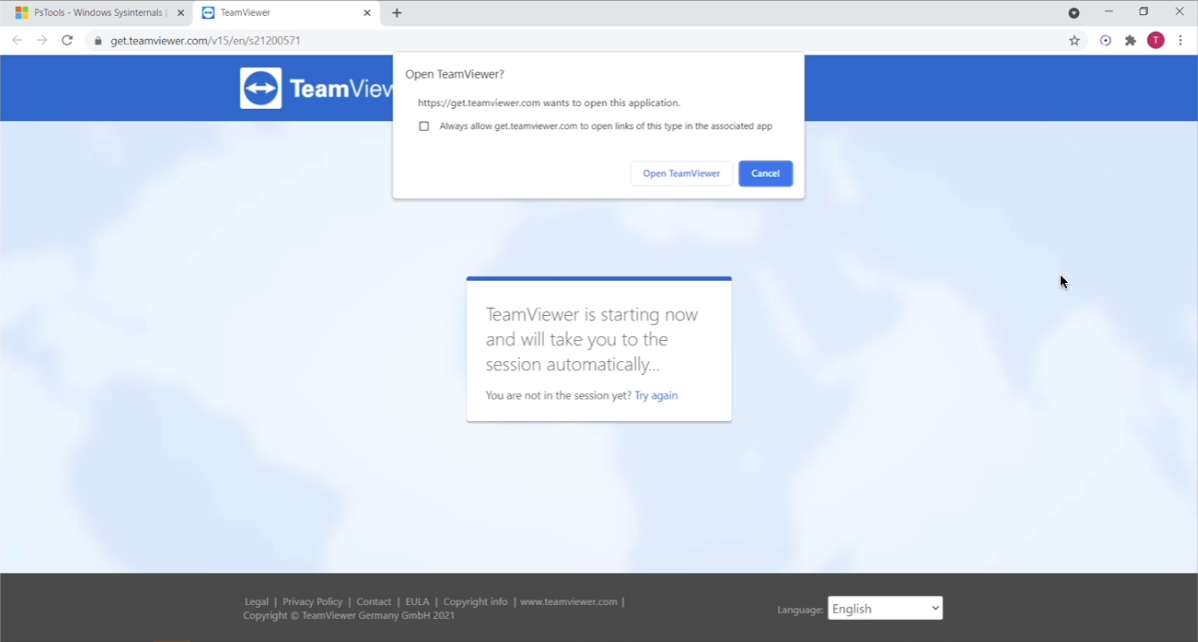
When that notification is acknowledged, the TeamViewer App will open to start a remote session. Note that if the TeamViewer App is not pre-deployed, there is an option to launch a single use version of TeamViewer. The single-use version does not require administrative credentials to run.
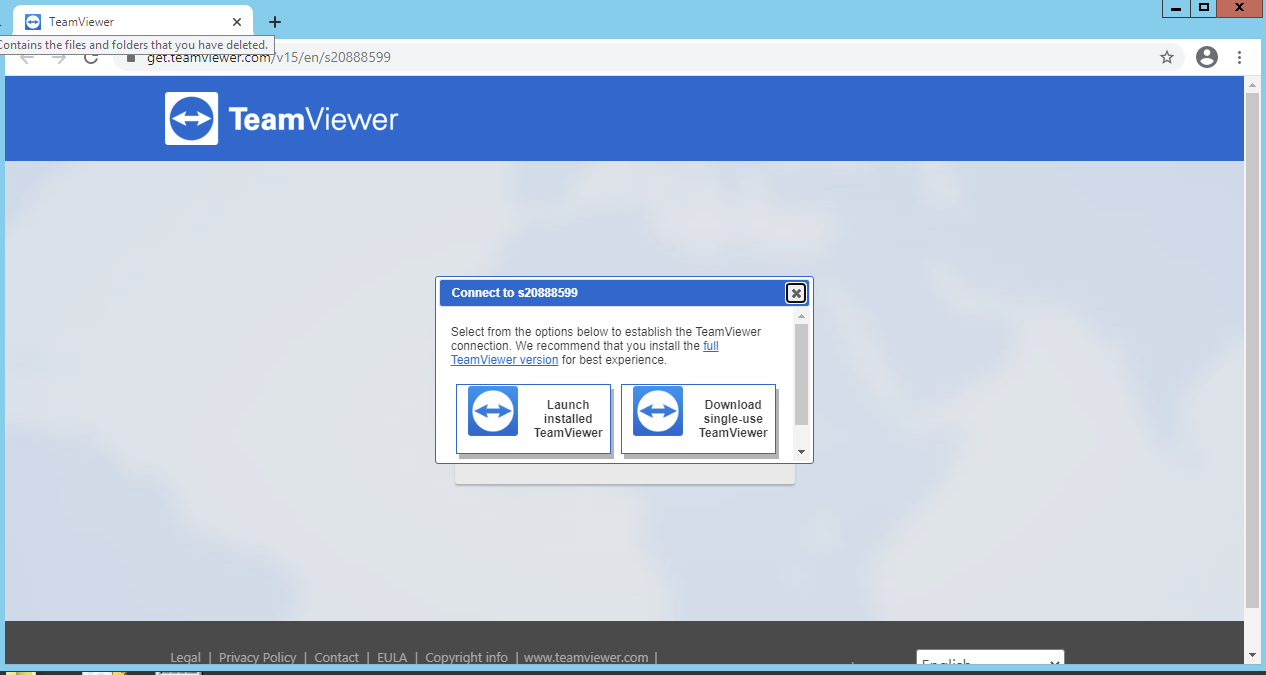
On first launch the TeamViewer app will prompt the user to accept the EULA.
Once the admin and client devices have both acknowledged the session, the remote device will be prompted to allow the session:
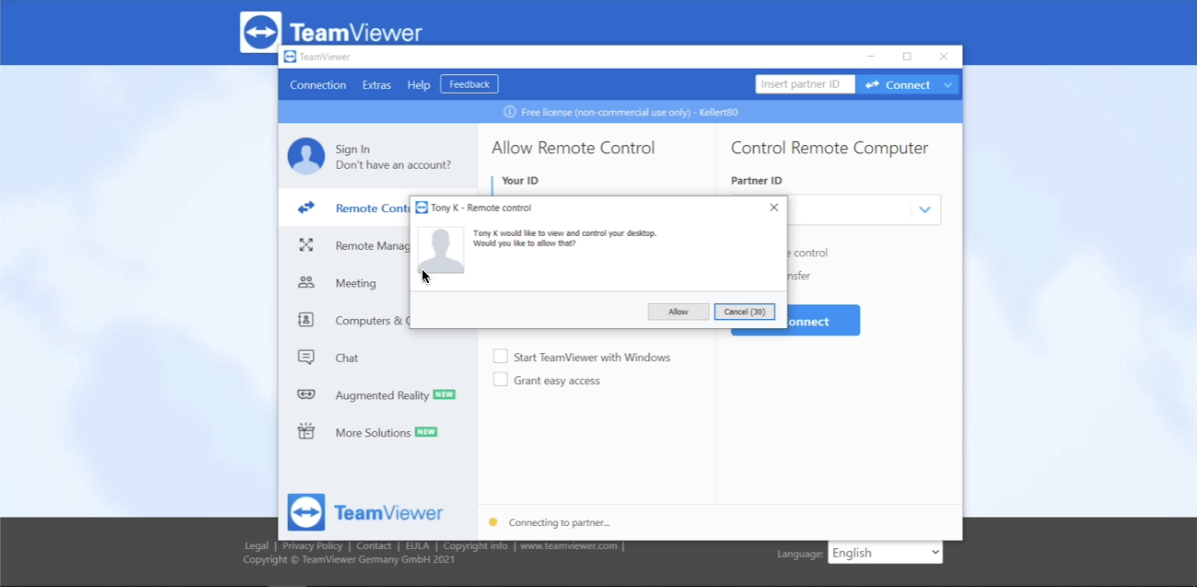
OnceThe thissession begins after the user approves the prompt is acknowledged (and the admintechnician session is also launched), thenlaunches the corresponding sessionTeamViewer will begin:session.