
Start a TeamViewer Remote Session on Windows
What
This page shows what a Windows user sees during a prompted TeamViewer session and how FileWave Client preferences control prompted versus unattended access. Before starting, confirm that the technician has an assigned TeamViewer license and FileWave remote-session permission. Install the full TeamViewer application on the technician's macOS or Windows workstation, including when using FileWave Anywhere in a browser; TeamViewer Host on the remote Windows device does not replace the technician application. Follow TeamViewer General Pre-Requisites and Windows Client Setup for the integration and endpoint preparation.
When/Why
Use this workflow when a technician needs to view or control a Windows device while troubleshooting with the user.
Behavior
Windows supports prompted and unattended TeamViewer sessions. In FileWave Central or FileWave Anywhere, select Remote Session from the device context menu. The available choices depend on the administrator's permissions, the client state, and the FileWave Client remote-control preferences. Remote Session (Don't Prompt User) appears only when managed remote control is allowed and the client is not required to prompt the user. Use a Superprefs Fileset to manage these settings.
The screenshots show older FileWave and TeamViewer interfaces. Current wording may differ, but the prompted and unattended session choices follow the same permission logic described here.
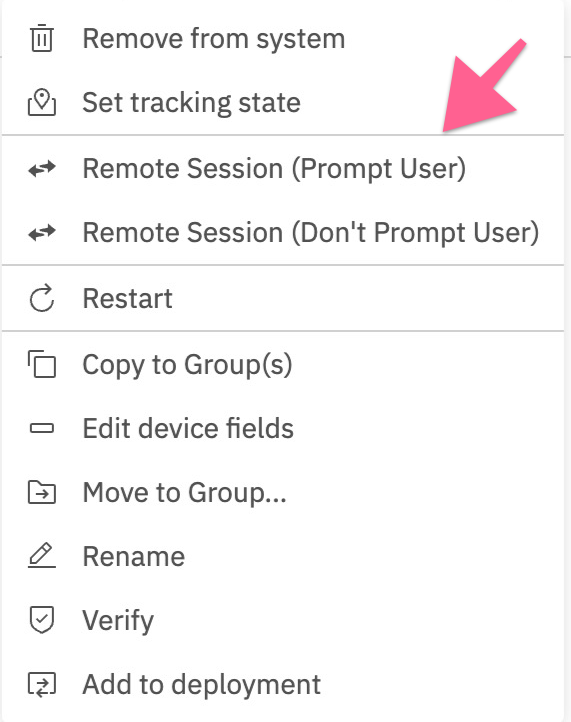
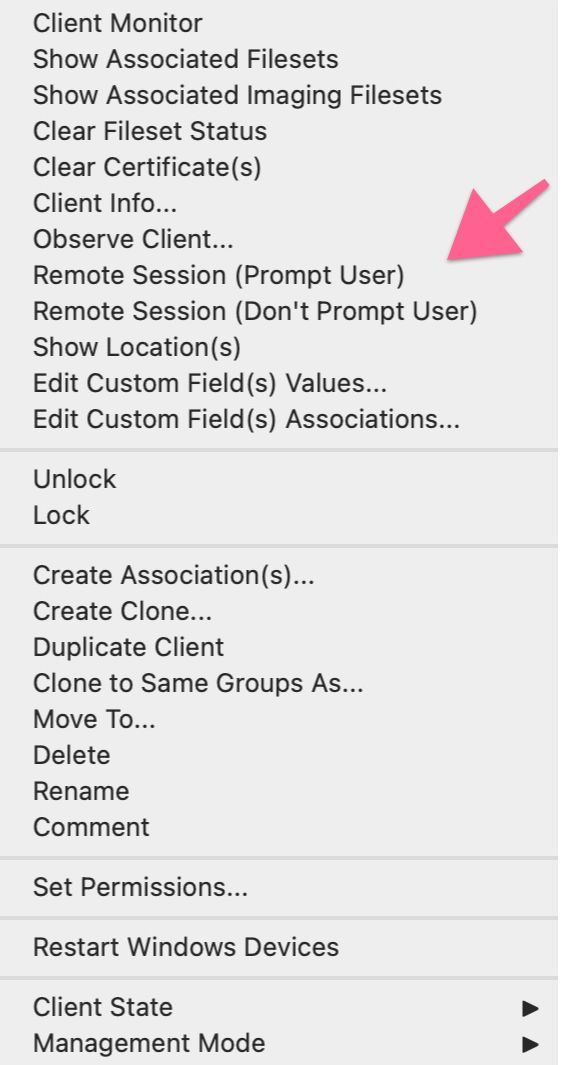
FileWave Client preferences
Computer clients also rely upon the client settings for these options to be available:
- FileWave Client Preferences > Privacy
There are two options available:
- Managed remote control
- Prompt client for remote control access
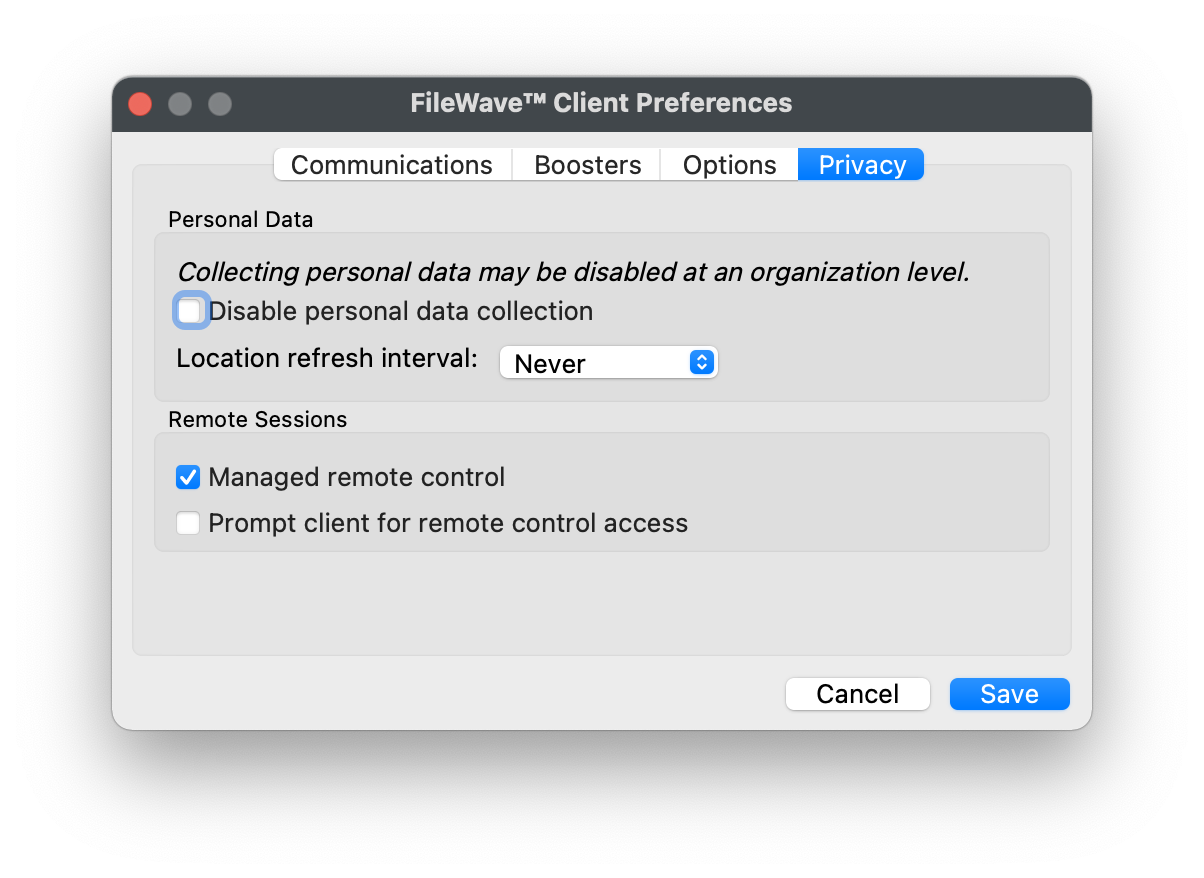
Managed remote control allows or blocks TeamViewer connections. FileWave evaluates the prompt setting only when managed remote control is enabled.
Prompt client for remote control access controls whether the end user must approve the session. When it is enabled, technicians can start prompted sessions only. When it is disabled, both prompted and Don't Prompt User choices are available.
Configure these options with a Superprefs Fileset.
With the prerequisites in place, Remote Session (Don't Prompt User) opens TeamViewer on the technician workstation and remote computer without an approval prompt. If TeamViewer or TeamViewer Host is missing, FileWave reports that TeamViewer was not found. Prompted sessions follow the workflow below.
Remote Session (Prompt User) Workflow
After the device receives the remote-session request, the FileWave Client opens a browser tab that asks the user to open TeamViewer.
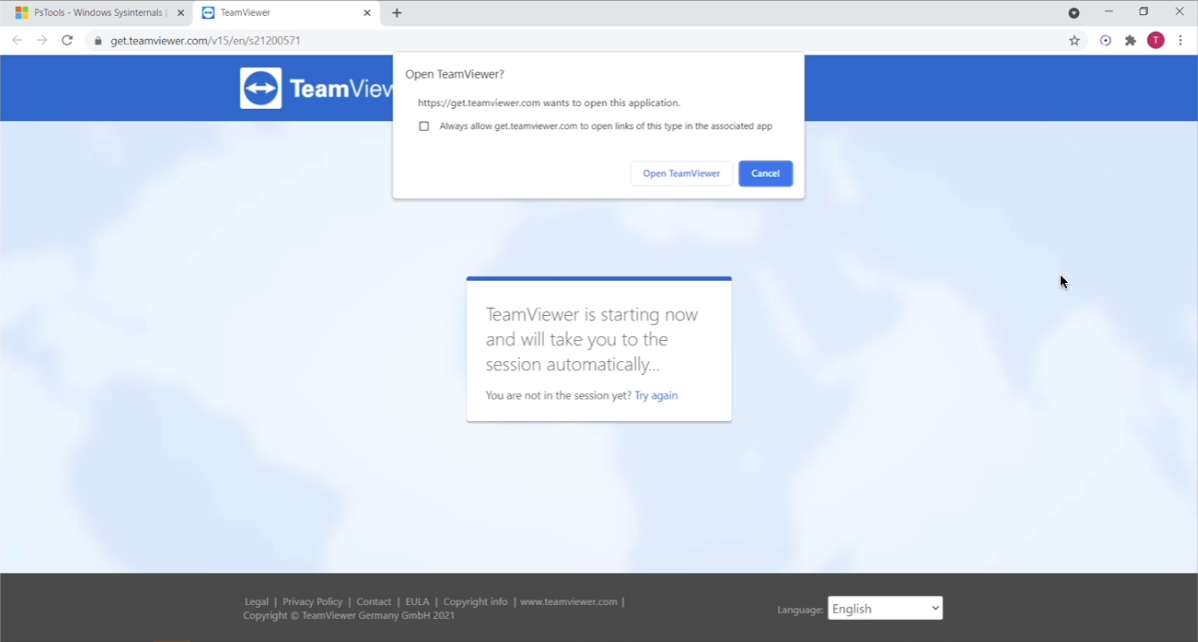
When that notification is acknowledged, the TeamViewer App will open to start a remote session. Note that if the TeamViewer App is not pre-deployed, there is an option to launch a single use version of TeamViewer. The single-use version does not require administrative credentials to run.
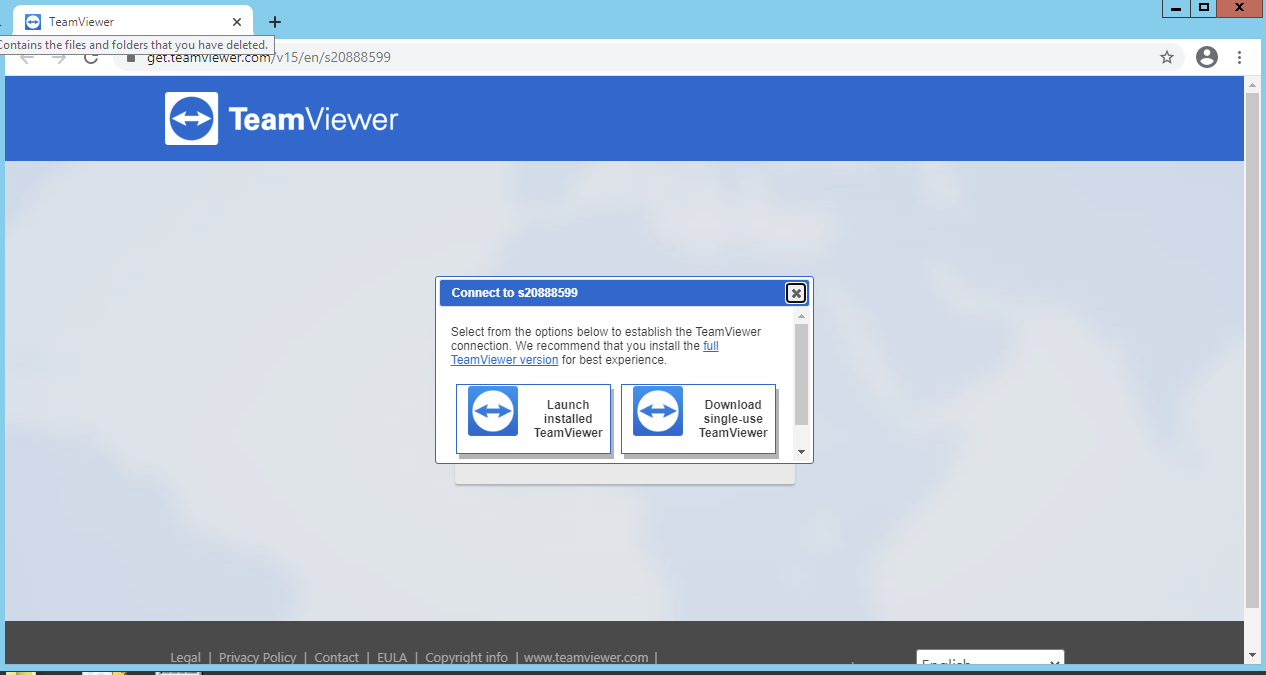
On first launch the TeamViewer app will prompt the user to accept the EULA.
Once the admin and client devices have both acknowledged the session, the remote device will be prompted to allow the session:
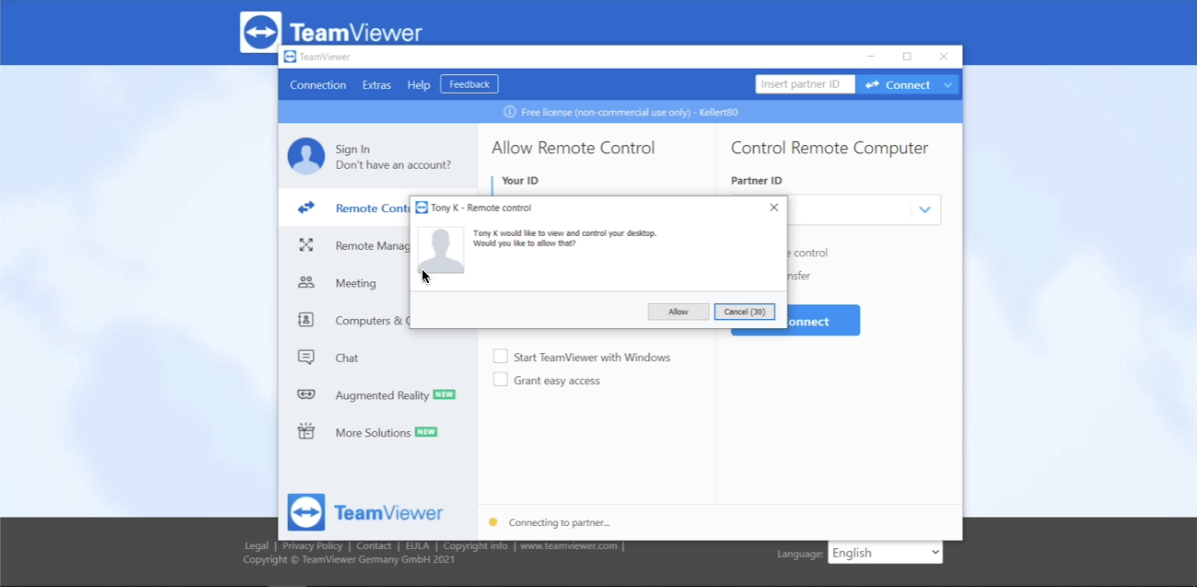
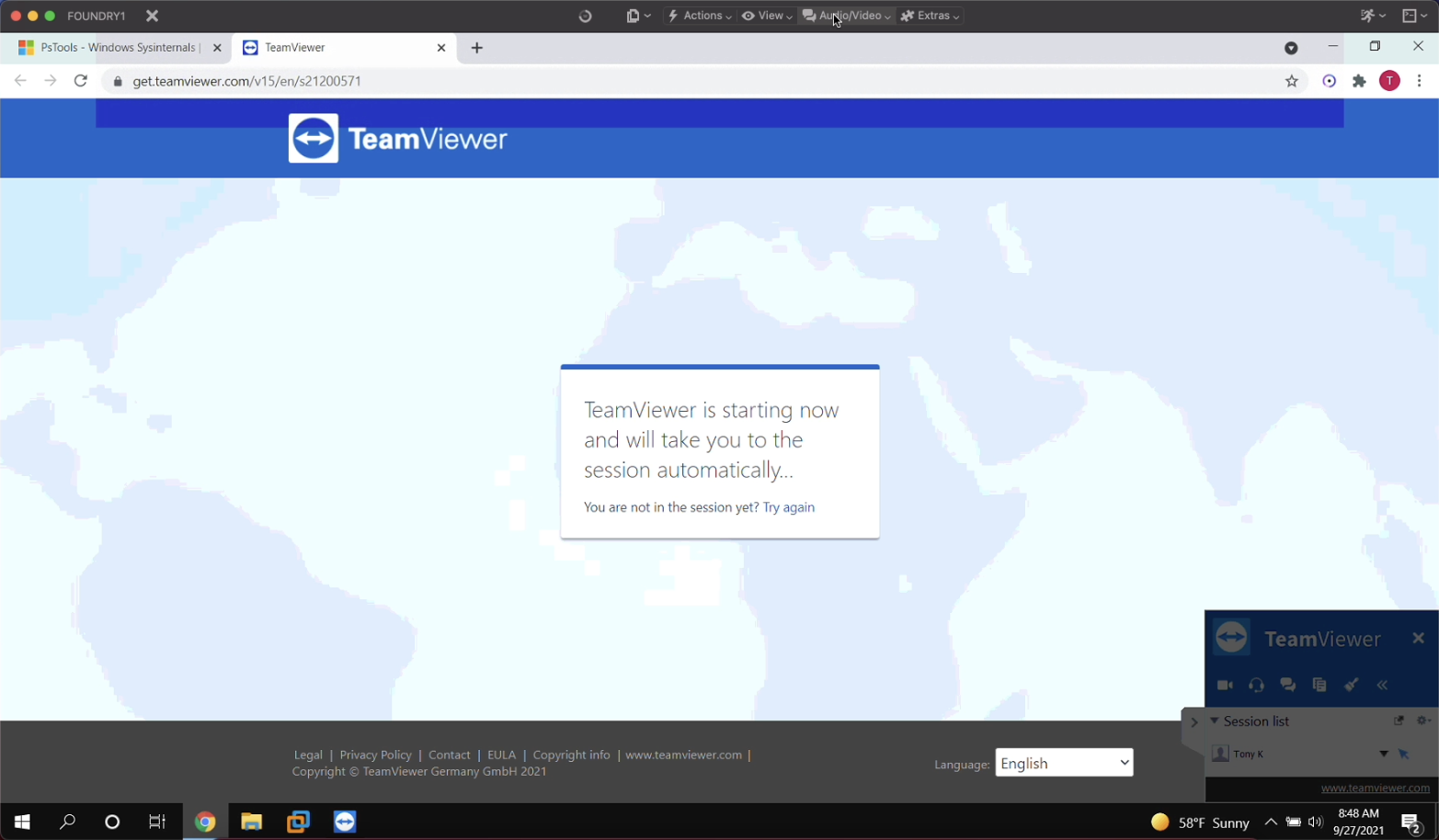
The session begins after the user approves the prompt and the technician launches the corresponding TeamViewer session.
No comments to display
No comments to display