
Start a TeamViewer Remote Session
What
CreatingA FileWave administrator can start a TeamViewer remote support session from a supported device record after the TeamViewer integration, client permissions, and administrator permissions are configured.
When to use it
Start a session when a technician needs attended or approved unattended access to troubleshoot a managed endpoint.
Start the session
In FileWave Central or FileWave Anywhere, open the context menu for a device isthat simple once all pre-requisites are met.
When/Why
We will createreports a newsupported sessionTeamViewer whenever we need remote access to an endpoint. Typically this is done in response to a service call from a customer in the field.
How
From any device in the admin console that meets pre-requisites (webstate and native shown below), you can choose to open a Remote Session. fromThe the context menu. Note that the admin useradministrator must have rights,remote-session andpermission. the client itself must have reported the right "state" to be controlled.On macOS and Windows clients will be the only ones to showWindows, Remote Session (Don't Prompt UserUser) but that willappears only appear ifwhen the FileWave clientClient hasallows been set to allowmanaged remote control and to allow unattended remote control to see both options. The original Observe client permissions are how TeamViewer permissions are being controlled for macOS and Windows. If you would like to changewithout a client'suser permissionsprompt. then aA SuperprefSuperprefs Fileset can changemanage these client settings.
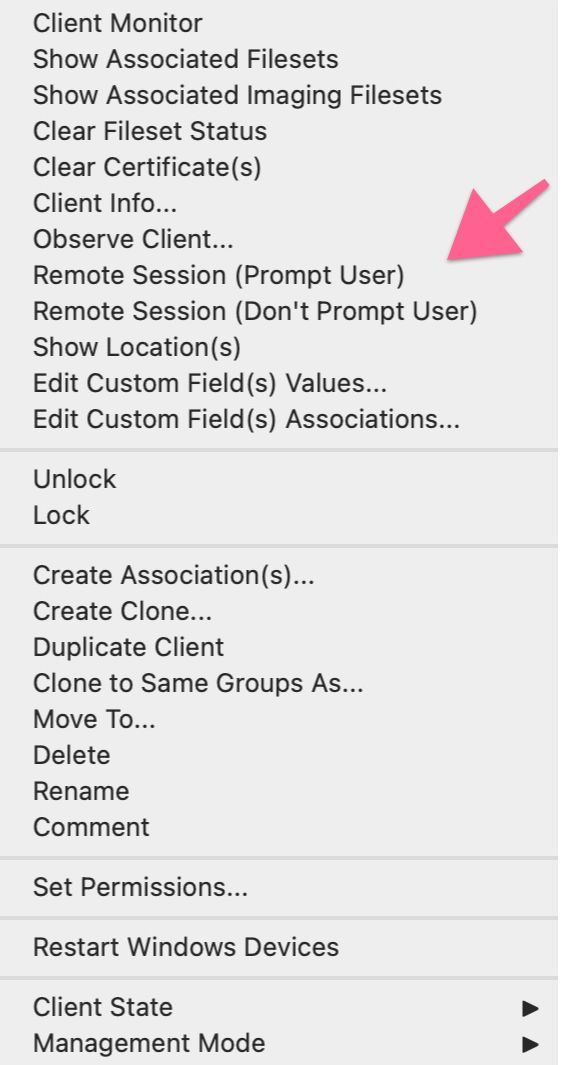
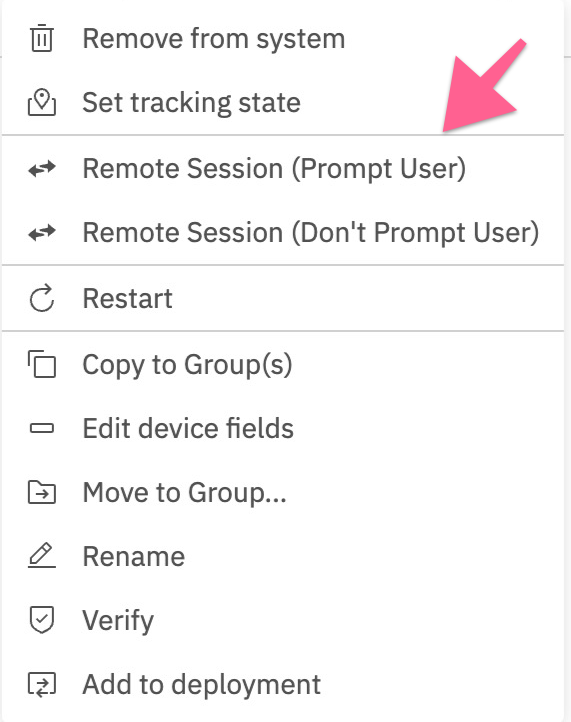
Computer Client Preferencespreferences
ComputerThe clientsavailable alsosession relychoices upondepend theon clienttwo settings forunder these options to be available:
There are two options available::
- Managed remote control enables or disables TeamViewer remote sessions for the client.
- Prompt client for remote control access requires the user to approve a session.
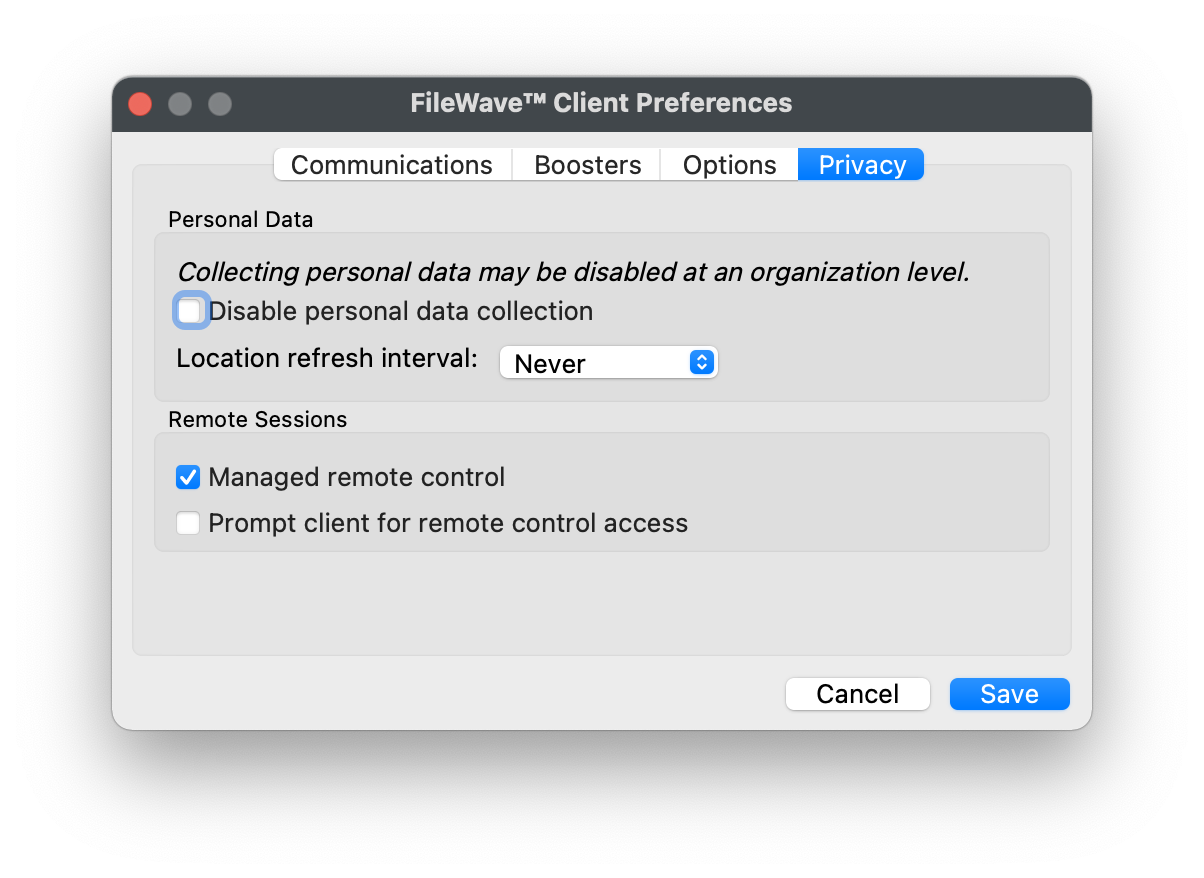
Use a Superprefs Fileset to configure these settings across managed computers.
Test the intended prompt behavior on a pilot device before allowing unattended sessions more broadly.
The firstscreenshots optionabove will allow/deny any connection via TeamViewer. The second option will be considered whenshow the firstprompted optionand isunprompted enabled.context-menu choices in FileWave Central and FileWave Anywhere.
TheStart secondthe option,session forfrom prompting,a willmacOS or Windows administrator workstation with TeamViewer installed. FileWave opens get.teamviewer.com in a browser, which then either allow only one or both options to be available. When prompt is disabled, both the options to either prompt or not prompt should be available. If Prompt is enabled though, the option to action a 'Don't prompt user' will not be available and only prompted connections may be established.
These options may be configured with a Superpref Fileset.
The admin workstation must be a Windows or Mac device to begin a TeamViewer session. The admin workstation will open a browser tab to get.teamviewer.com that will in turn promptasks to launch the installed TeamViewer appapp. in order to connect toAllow the remotepop-up system.or external-application Dependingprompt onif yourthe browser settings,blocks you may have to modify allowing pop-ups to see the page open.it.
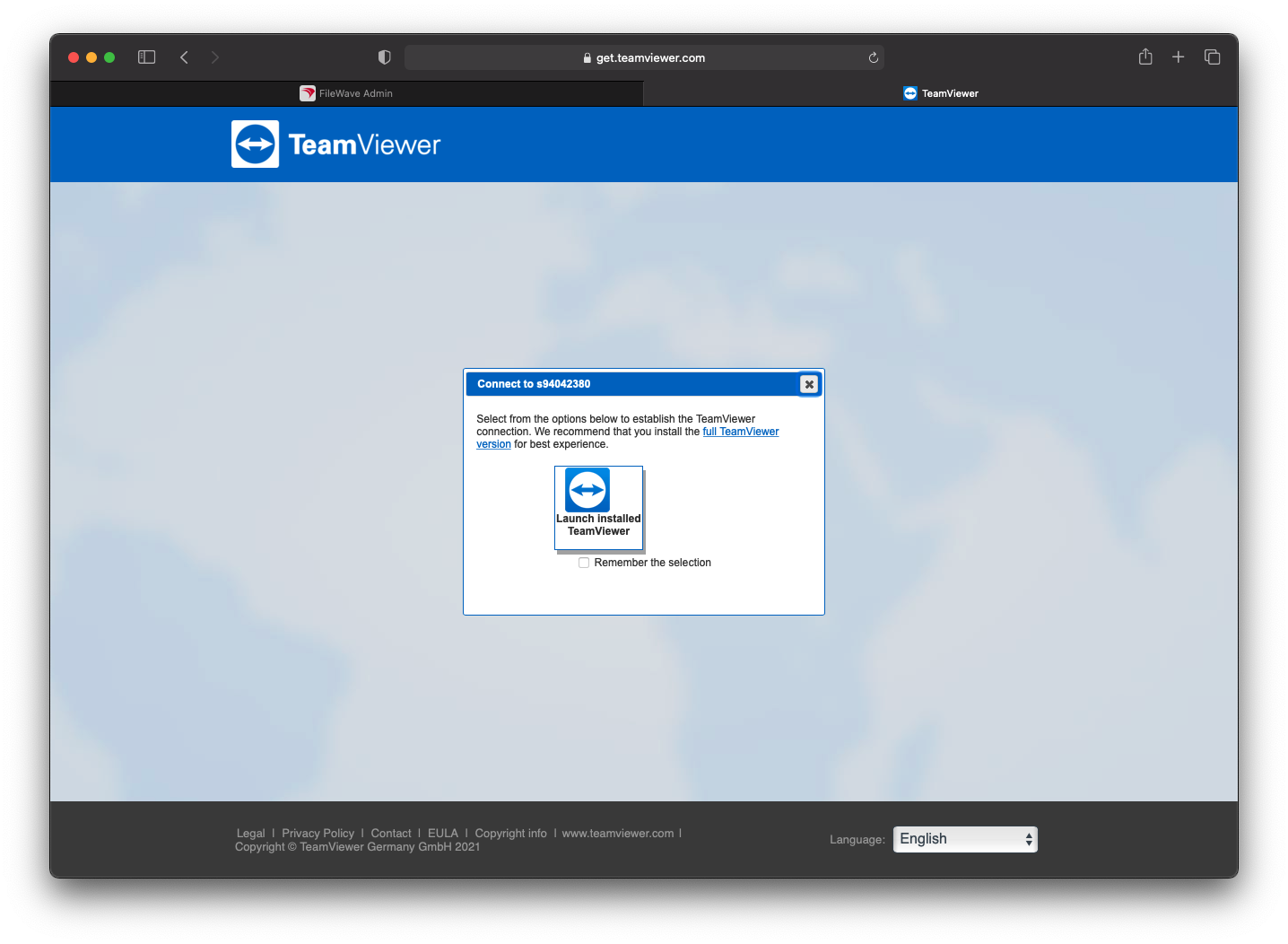
Note that youYou can saveremember yourthe settingbrowser choice for thislater sosessions. that it doesn't prompt the next time. We'll choose to launchChoose the installed version and then the TeamViewer Appapplication itselfto will launch this page:continue:
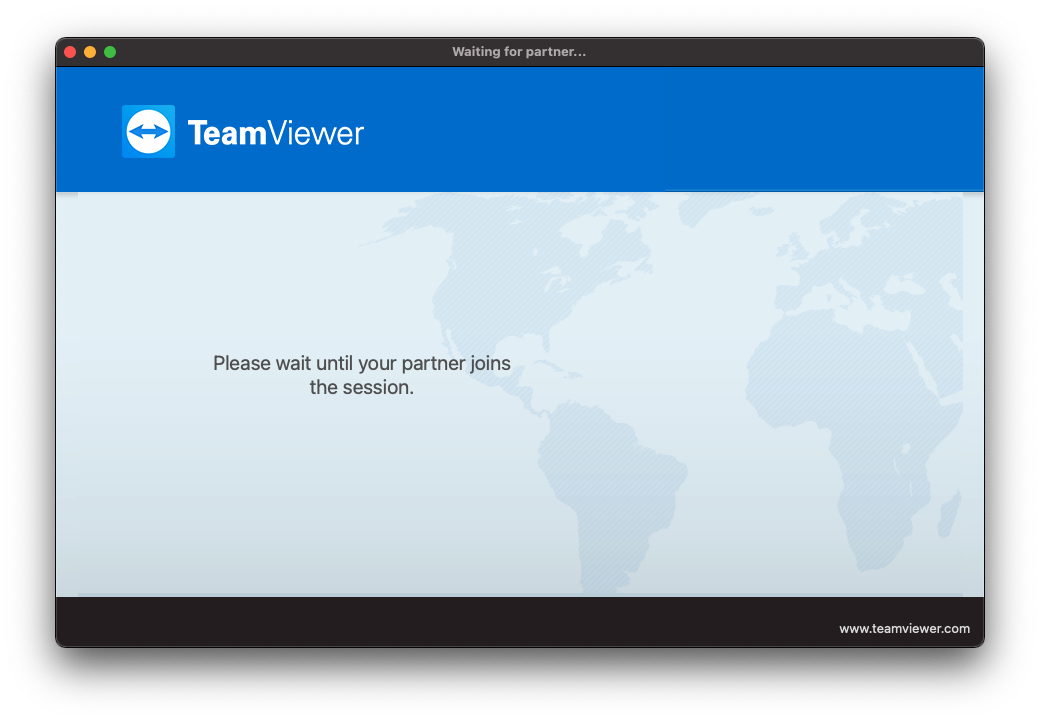
ThisFor windowa willprompted remainsession, open,TeamViewer waitingwaits for the remote user to acceptaccept. After acceptance, the technician is redirected into the session. The Ifrequest theytimes beginout if the session,user youdoes willnot be redirected to the remote session. If no response is sent, the session will time out.respond.