
Start a TeamViewer Remote Session
What
A FileWave administrator can start a TeamViewer remote support session from a supported device record after the TeamViewer integration, client permissions, and administrator permissions are configured.
When to use it
Start a session when a technician needs attended or approved unattended access to troubleshoot a managed endpoint. Before starting, confirm that the technician has a TeamViewer license assigned to their FileWave administrator account as well as remote-session permission. Install the full TeamViewer application on the technician’s macOS or Windows workstation, even when using FileWave Anywhere in a browser. Prepare the target device using the platform-specific TeamViewer setup instructions.
Start the session
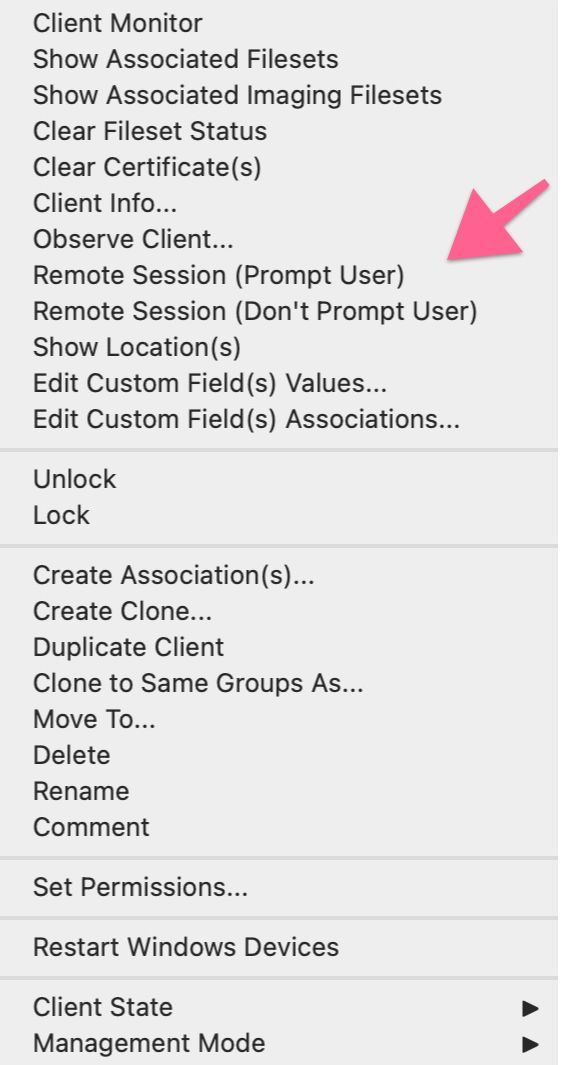
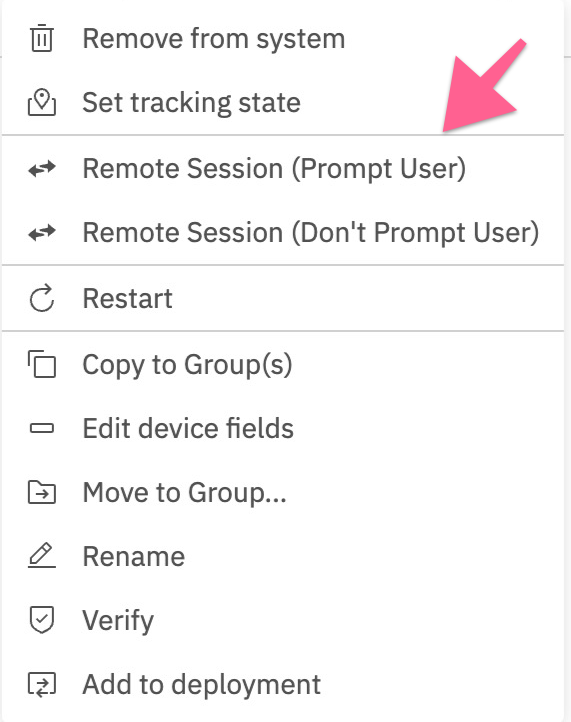
In FileWave Central or FileWave Anywhere, open the context menu for a device that reports a supported TeamViewer state and choose Remote Session. The administrator must have remote-session permission. On macOS and Windows, Remote Session (Don't Prompt User) appears only when the FileWave Client allows managed remote control without a user prompt. A Superprefs Fileset can manage these client settings.
Computer Client preferences
The available session choices depend on two settings under FileWave Client Preferences > Privacy:
- Managed remote control enables or disables TeamViewer remote sessions for the client.
- Prompt client for remote control access requires the user to approve a session.
When prompting is enabled, FileWave offers only the prompted session. When prompting is disabled, the context menu can offer both Remote Session (Prompt User) and Remote Session (Don't Prompt User).
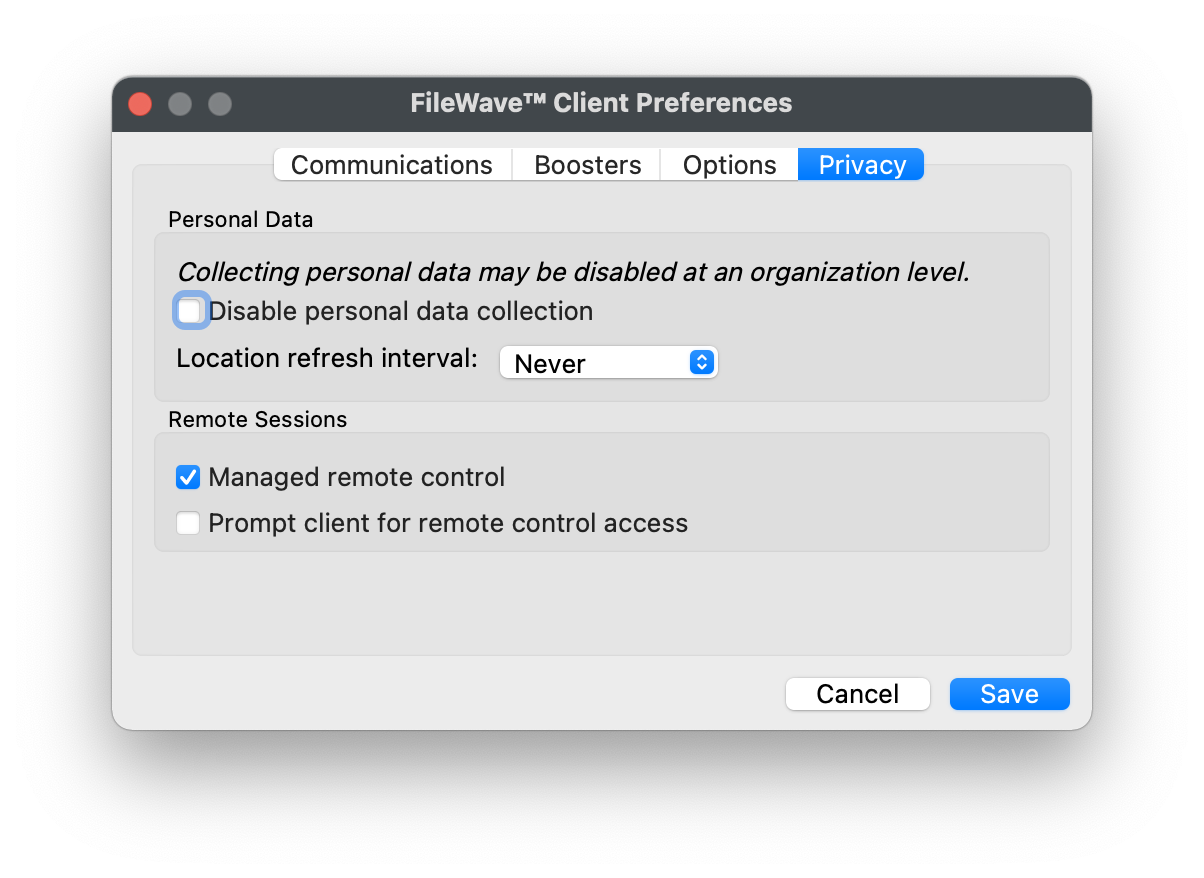
Use a Superprefs Fileset to configure these settings across managed computers.
Test the intended prompt behavior on a pilot device before allowing unattended sessions more broadly. The FileWave prompt setting does not grant macOS privacy permissions; complete the target Mac’s TeamViewer and macOS permission prompts separately. Check the platform capability overview before expecting remote control or unattended access on a mobile device.
The screenshots above show the prompted and unprompted context-menu choices in FileWave Central and FileWave Anywhere.
Start the session from a macOS or Windows administrator workstation with TeamViewer installed. FileWave opens get.teamviewer.com in a browser, which then asks to launch the installed TeamViewer app. Allow the pop-up or external-application prompt if the browser blocks it.
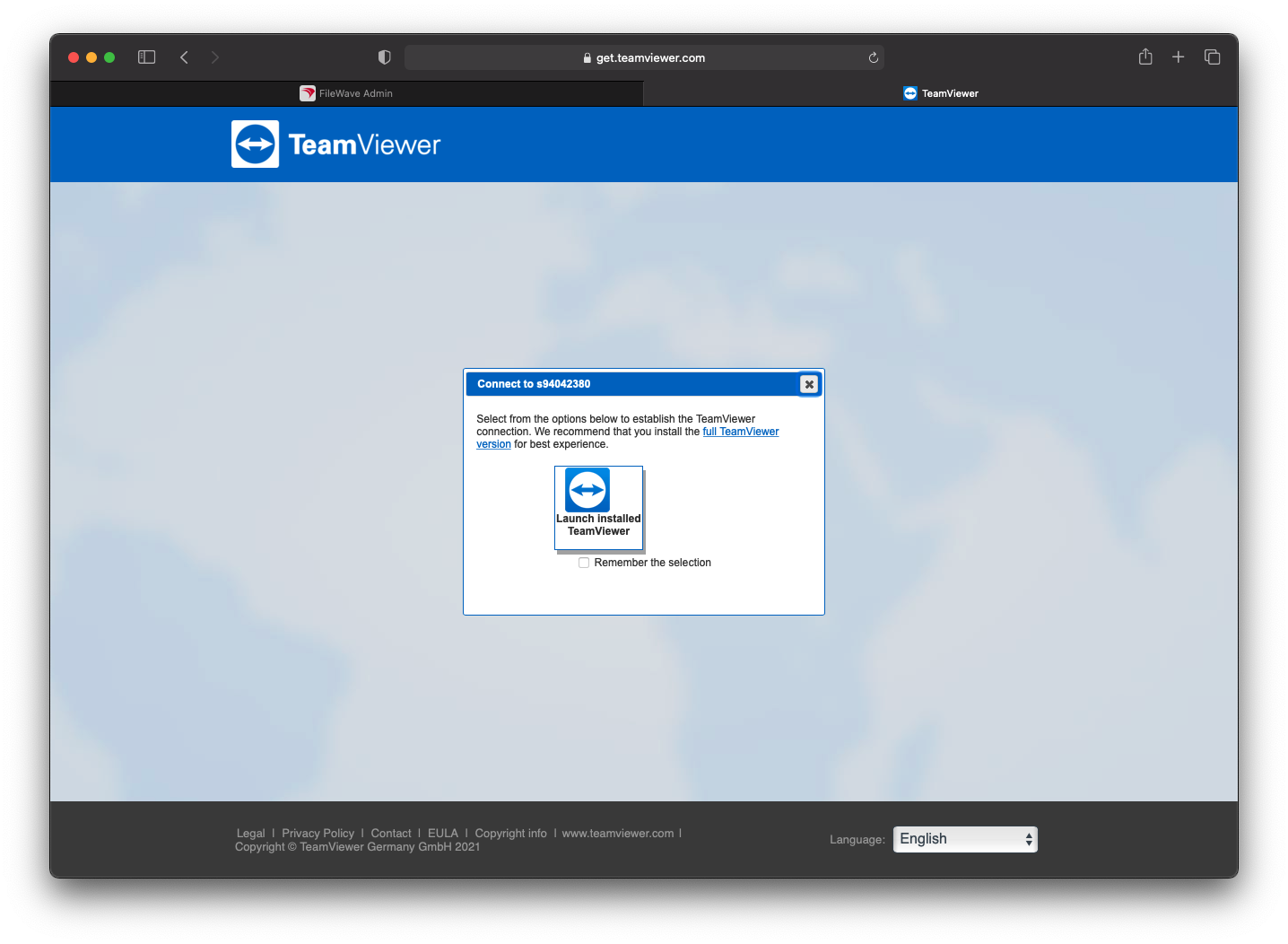
You can remember the browser choice for later sessions. Choose the installed TeamViewer application to continue:
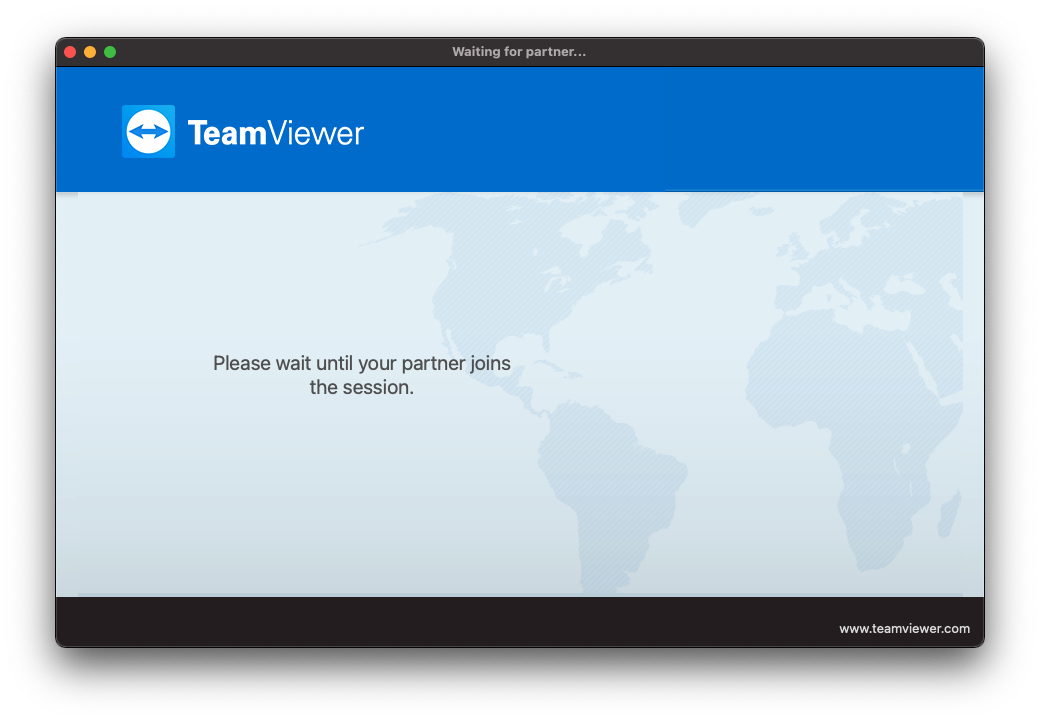
For a prompted session, TeamViewer waits for the remote user to accept. After acceptance, the technician is redirected into the session. The request times out if the user does not respond.
No comments to display
No comments to display