
Temporary Administrator Access on Windows with FileWave
Review status
Draft for technical review. The attached PowerShell passed syntax parsing and PSScriptAnalyzer warning/error checks. It has not yet completed runtime validation on a representative Windows device. Do not publish or deploy it broadly until a Windows pilot confirms grant, renewal, expiration, reboot, rollback, and failure behavior.
Overview
This recipe uses a FileWave Fileset to add an existing dedicated local Windows account to the built-in Administrators group for a limited period. The default window is 10 minutes. A scheduled task running as Local System removes the membership when the window expires.
Use the dedicated account to answer a UAC credential prompt when approved support work requires administrator rights. The script does not create, enable, unlock, or set the password for the account.
Temporary local administrator access is not a security boundary. During the access window, an administrator can disable the cleanup task, change protected files, create another administrator, install persistent software, or interfere with management. Removing group membership also does not terminate processes that were already elevated or invalidate access tokens that Windows already issued. Use a dedicated support account, keep the window short, retain a separate recovery administrator, and investigate any failed cleanup immediately.
Requirements
- FileWave Central and enrolled Windows clients.
- An existing, enabled local Windows account with the same name on each target device. The example uses
Filewave. - The account is normally a standard user and is not used as a permanent administrator or as the user's daily sign-in account.
- 64-bit Windows with Windows PowerShell 5.1, the
Microsoft.PowerShell.LocalAccountsmodule, and theScheduledTasksmodule. Do not use this workflow on a domain controller. - A separate protected administrator or recovery method that does not depend on this workflow.
- A separate managed method for provisioning and rotating the dedicated account password. This workflow does not need the password, so do not add it to this script, Fileset, or its Launch Arguments.
Download
How the script works
- It verifies that FileWave launched it as Local System, confirms the required PowerShell commands are available, and resolves exactly one enabled local account.
- It rejects a reparse-point working directory, replaces the directory ACL with a verified Local System-owned ACL, and permits local administrators read-only access to the artifacts.
- It identifies the account and Administrators group by SID. If the account is already a direct administrator and there is no valid script-owned state, it treats that membership as permanent and leaves it unchanged.
- It serializes grants, renewals, and cleanup with a named mutex. Each approved run receives a new lease ID and UTC expiration.
- Before adding membership, it writes versioned state plus a cleanup script and registers a scheduled task as Local System. The script verifies the task action, principal, and triggers before continuing.
- It adds the account to Administrators only after cleanup enforcement is prepared, then rechecks membership. Renewal replaces the lease while holding the same mutex, so an overlapping cleanup run must reload the current deadline.
- The task starts at expiration, retries every five minutes for seven days, and also runs at system startup. Cleanup rechecks direct membership after removal before deleting enforcement artifacts.
- If the workflow owns the temporary membership but cannot secure or verify automatic cleanup, it attempts to remove that membership immediately and exits with code
1. If rollback fails, it keeps the state and cleanup artifacts for investigation and retry.
Create the Fileset
- Download
Grant-FileWave-Temporary-Admin.ps1. - In FileWave Central, open Filesets and create an empty Fileset named Temporary Administrator Access - Windows.
- Select the Fileset and open the Scripts view.
- Import the PowerShell file as an Activation script.
- Open the script properties and add these Launch Arguments in order:
-UserName
Names the first parameter.
2
Filewave
The dedicated local account. Allowed characters are letters, numbers, periods, underscores, and hyphens, up to 20 characters.
3
-DurationMinutes
Names the duration parameter.
4
10
Temporary access duration. The script accepts 1 through 1,440 minutes; use the shortest operational window.
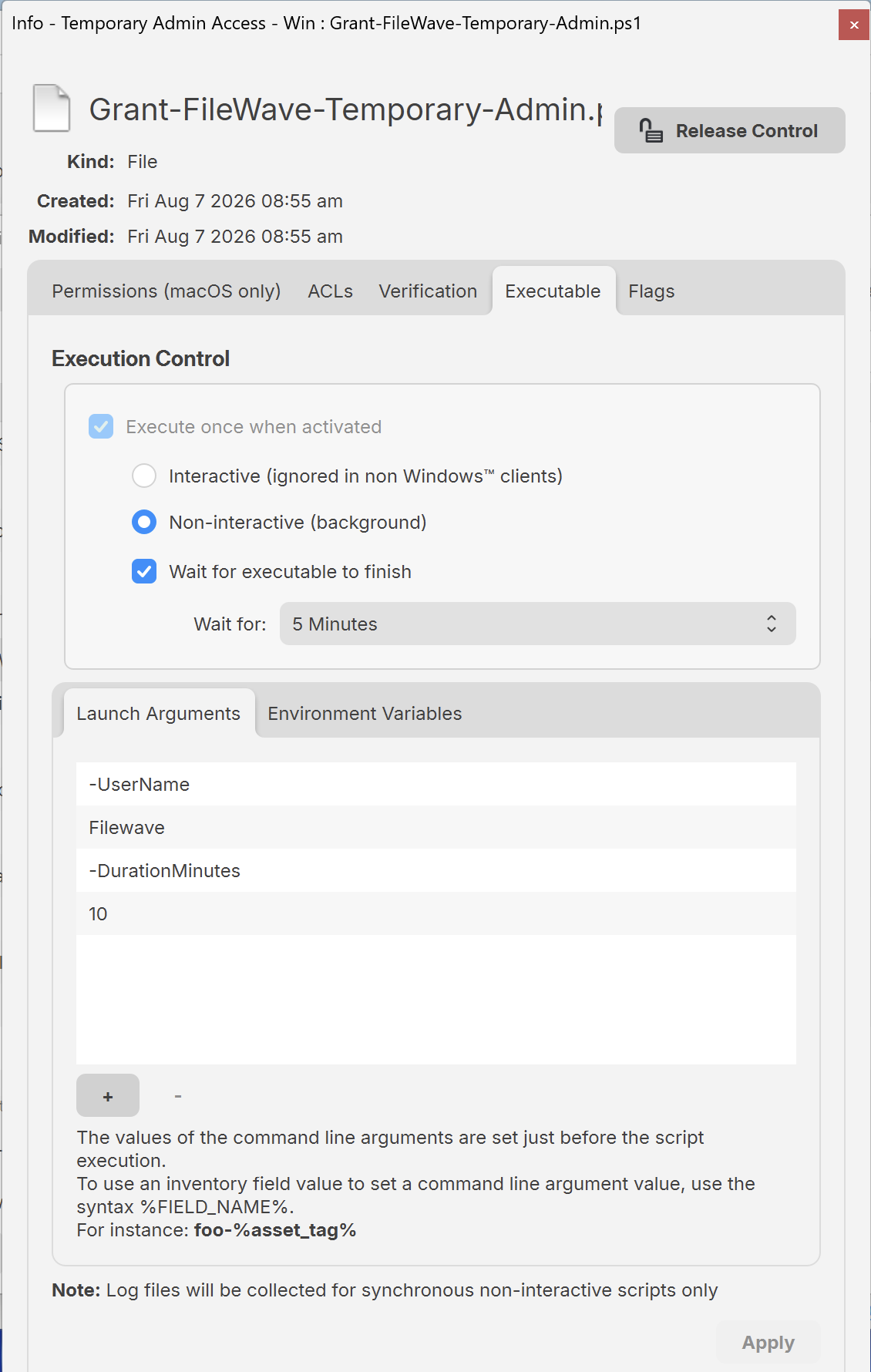
Current FileWave Windows clients and newly created Filesets use 64-bit execution. Upgraded Filesets can retain a legacy 32-bit setting. Review the Fileset bitness before deployment. The script also relaunches itself through Sysnative when a 32-bit process starts it on 64-bit Windows because Microsoft's LocalAccounts module is unavailable in that process.
Deploy and grant access
- Create a Deployment for one representative Windows test device. If your environment still uses legacy Fileset Associations, associate the Fileset only with that device.
- Select Update Model.
- Wait for the Fileset to activate, then confirm the grant and cleanup task using the verification steps below.
- Use the dedicated account only for the approved UAC prompt or support task. Do not sign in interactively with it for ordinary work.
- After expiration, confirm that membership and temporary state were removed before expanding the pilot.
For a later approved request, use Reinstall Fileset from Client Info or Fileset Reports on FileWave 16.3 or later. Reinstalling while access is active renews the expiration window. On an earlier FileWave version, remove the Deployment only after cleanup is verified, select Update Model, then deploy the Fileset again for the next request.
Verify the test device
Run the following in 64-bit Windows PowerShell as an administrator immediately after activation:
$User = Get-LocalUser -Name 'Filewave'
Get-LocalGroupMember -SID 'S-1-5-32-544' |
    Where-Object { $_.SID.Value -eq $User.SID.Value }

Get-ScheduledTask -TaskName 'FileWave-Remove-Temporary-Admin-Filewave'
Get-Content 'C:\ProgramData\FileWave\TempAdmin\Temporary-Admin.log' -Tail 20
Get-Content 'C:\ProgramData\FileWave\TempAdmin\Filewave.temporary-admin.json' -Raw
The account should appear in the Administrators group. The scheduled task should exist with an expiration trigger and a startup trigger. The log and state file should show the current expiration.
After the window expires, allow at least one five-minute retry interval, then run:
$User = Get-LocalUser -Name 'Filewave'
[bool](Get-LocalGroupMember -SID 'S-1-5-32-544' |
    Where-Object { $_.SID.Value -eq $User.SID.Value })

Get-ScheduledTask -TaskName 'FileWave-Remove-Temporary-Admin-Filewave' -ErrorAction SilentlyContinue
Test-Path 'C:\ProgramData\FileWave\TempAdmin\Filewave.temporary-admin.json'
Get-Content 'C:\ProgramData\FileWave\TempAdmin\Temporary-Admin.log' -Tail 20
The membership check and Test-Path should return False, and the scheduled-task command should return nothing. The log should include Removed temporary administrator access from Filewave.
Windows does not revoke existing elevated processes when group membership is removed. Close any elevated tools and sign out of sessions that used the account. The script prevents new elevations after cleanup; it cannot undo changes made or access already granted during the window.
Troubleshooting
C:\ProgramData\FileWave\TempAdmin\Temporary-Admin.log. Confirm the local account exists, is enabled, and uses an allowed account name.
The account is already an administrator, but no removal task appears
This is intentional when no valid script-owned state exists. The script assumes the account is a permanent administrator and does not schedule its removal.
LocalAccounts cmdlets are unavailable
Confirm the target is 64-bit Windows and that the script reached C:\Windows\System32\WindowsPowerShell\v1.0\powershell.exe. Review the Fileset bitness. The Sysnative path applies only when a 32-bit process is crossing into 64-bit Windows.
The device was powered off at expiration
The cleanup task uses Start when available and a startup trigger. Start the device, allow Task Scheduler to run, then verify membership and the log.
The account remains an administrator after the retry window
Treat this as a failed security control. Remove the membership manually, inspect Task Scheduler history and the log, and do not issue another grant until the failure is understood.
A UAC prompt still rejects the account immediately after the grant
Confirm the prompt uses the dedicated local account and correct password. If you changed membership for an account that was already signed in, Windows may continue using its existing logon token. This recipe is designed for a separate credential account, not the current daily-user session.
An elevated application still runs after expiration
Expected Windows token behavior. Close the elevated process or end the session. Membership removal controls later access but does not terminate processes that already hold an elevated token.
Emergency manual revocation
Use this only for an account that this workflow temporarily elevated. Running it against a permanent administrator removes that permanent membership.
$User = Get-LocalUser -Name 'Filewave'
Remove-LocalGroupMember -SID 'S-1-5-32-544' -Member $User -Confirm:$false
Unregister-ScheduledTask -TaskName 'FileWave-Remove-Temporary-Admin-Filewave' -Confirm:$false -ErrorAction SilentlyContinue
Remove-Item 'C:\ProgramData\FileWave\TempAdmin\Filewave.temporary-admin.json' -Force -ErrorAction SilentlyContinue
Remove-Item 'C:\ProgramData\FileWave\TempAdmin\Remove-Filewave-Temporary-Admin.ps1' -Force -ErrorAction SilentlyContinue
Review the log and the Windows Security event log afterward. If an unapproved user or process interfered with cleanup, treat the device as potentially changed while administrator access was active.