Starter Packs
Starter Packs are for getting started with FileWave. They include things like examples of group structure for devices. They are meant to be used when first getting started with FileWave to give you a starting point.
Example Reports Starter Pack
Description
Starter packs are what the name implies...a great way to jump-start your new FileWave installation! Starter packs are built for selected customer verticals and provide client group structure as well as sample reports and dashboards.
Note: Starter packs are NOT meant to be used with long-standing FileWave environments...they are meant for brand-new, or recently setup environments that have little current organization. You can re-import this one if you are ok with it overwriting changes to reports included in the pack.
The examples will really help you jump-start your understanding and capabilities of FileWave! You can use them the way they are as well as further tailor them to your needs! After you get your start with this starter pack, check out our library of other content packs for adding other spectacular stuff!
The Example Reports Content Pack is new in FileWave 16.3.0, so it is not available in older versions. It replaces the Sample Queries that used to be included directly in FileWave Central.
What You Get in this Starter Pack
This content pack provides:
Reports (formerly Inventory Queries):
Reports are ways of looking at data about your devices...that data being hardware, software, and custom field inventory. Reports are a great way to show data (example: show me all macOS devices running Ventura). And reports are used as well to feed data to our included visual dashboard (grafana)
-
-
- Android OS examples
- Chrome OS examples
- iOS OS examples
- macOS OS examples
- Windows OS examples
-
How to Import a Content Pack
In FileWave 16.3.0 and newer, open Reports in FileWave Central and choose Import Reports. This opens the FileWave Content Packs window, where you can select Example Reports, choose the components you want, and click Import.


For more general steps, see How to Import a Content Pack.
Notes
Note that you can freely edit any of the content in this starter pack...in fact, you are encouraged to do so. We recommend reviewing each of the types of content as provided first though so that you can get a feel for how things "fit together" before modification.
Related Content
- Getting an API Token
- Importing a Grafana Dashboard
- Content Packs
- More Info on how to use:
Business/Generic Starter Pack
Description
Starter packs are what the name implies...a great way to jump-start your new FileWave installation! Starter packs are built for selected customer verticals and provide client group structure as well as sample reports and dashboards.
Note: Starter packs are NOT meant to be used with long-standing FileWave environments...they are meant for brand-new, or recently setup environments that have little current organization.
The examples will really help you jump-start your understanding and capabilities of FileWave! You can use them the way they are as well as further tailor them to your needs! After you get your start with this starter pack, check out our library of other content packs for adding other spectacular stuff!
What You Get in this Starter Pack
An example for small and mid-sized businesses.
This content pack provides:
Custom Fields:
"Custom Fields" are a terrific way to extend the "inventory attributes" of your devices. In this starter pack we have provided example custom fields that we think will be valuable to you:
-
-
- Asset Tag: Used by almost every organization, you can use asset tag to help tie your devices from FileWave into an asset management or helpdesk system
- Department: We give you a starter set of custom field values for Department...those most typically in most Small/Medium Business (like HR and IT, Sales, etc)
-
Groups & Smartgroups:
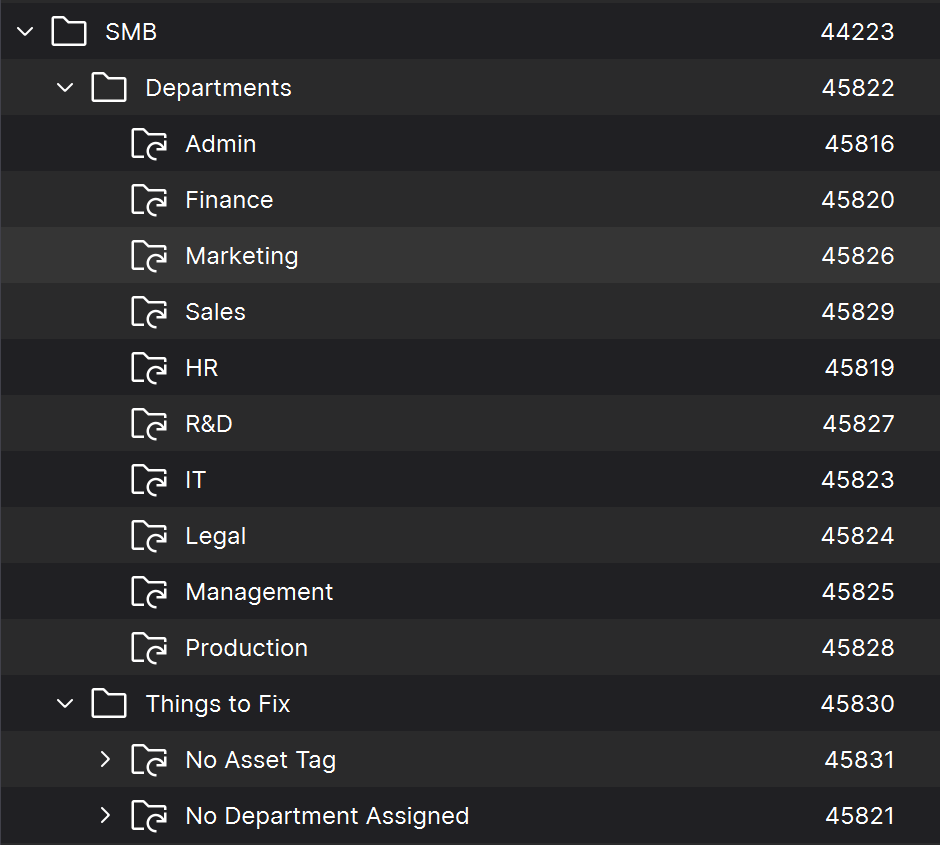
Groups and Smartgroups are a tool for organizing your devices. They can be used in infinite combinations, and you can think of them a little like folders for files, except in this case "files" are computers. In this pack we have provided the following default structure, which is meant to be updated as appropriate with your department names:
Reports (aka Inventory Queries):
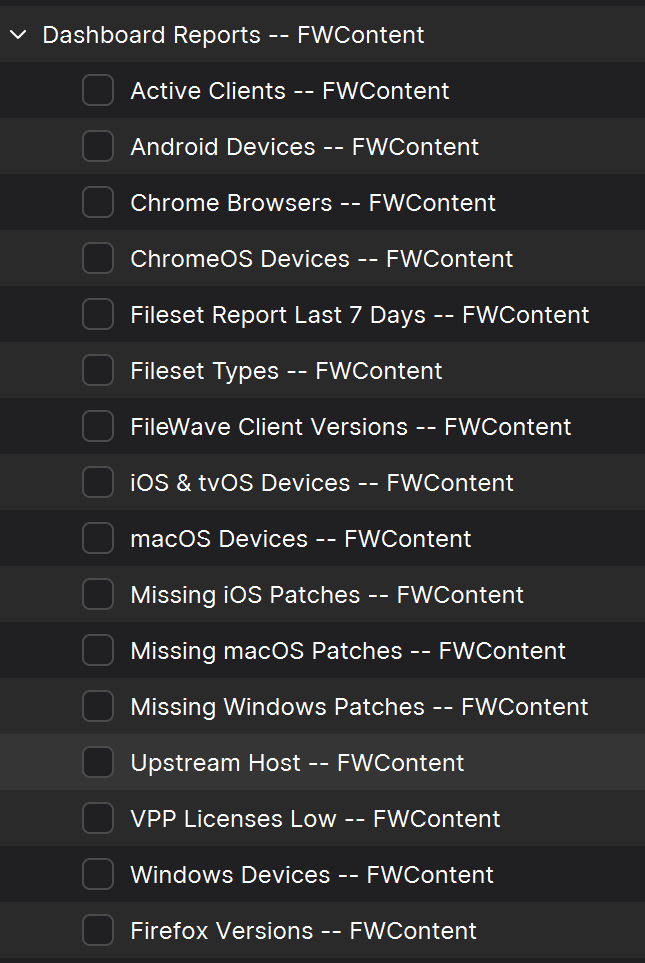
Reports are ways of looking at data about your devices...that data being hardware, software, and custom field inventory. Reports are a great way to show data (example: show me all macOS devices running Ventura). And reports are used as well to feed data to our included visual dashboard(s) (grafana). In this starter pack we have included the following reports.
Dashboards:
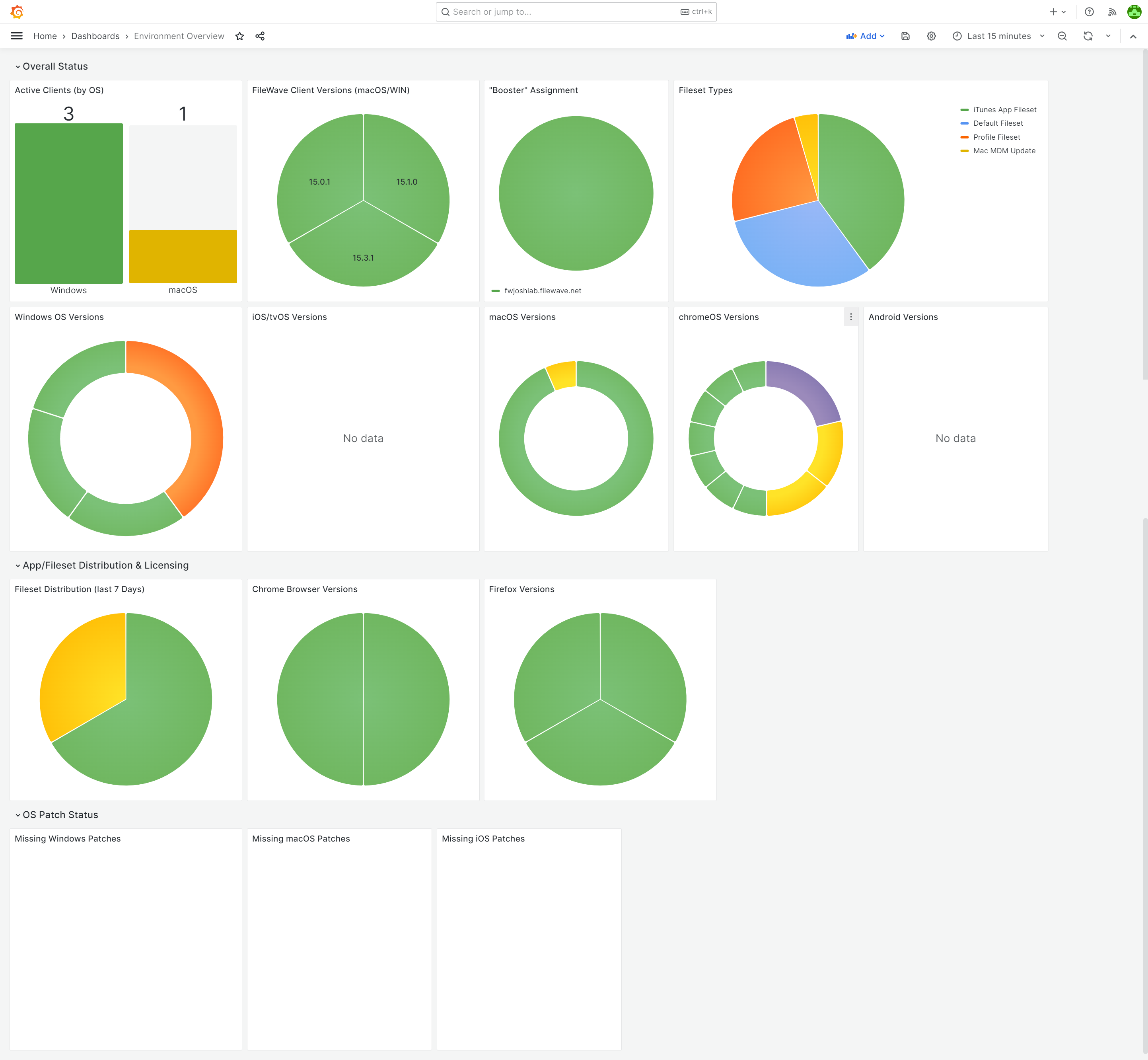
Dashboards are an incredibly powerful tool for showing aggregated data. They are easy to setup, and allow you to do things like track software distributions (etc) in simple-to-read visualizations, like bar and pie charts. Take our word for it: your senior management is going to love these, and it is a way for you to show off all of your great work! This pack provides:
-
-
- Environment Overview Dashboard: A great starter dashboard, built from data fields that devices report right out of the box.
-
Ingredients
-
FileWave Central Admin & Credentials
- Base64 API Token for 'fwadmin' account
| Starter Pack |
|
|

Directions
-
Download the above attached starter pack and unzip it
- Run the import_starter_pack.exe tool, using appropriate credentials for your environment
- import tool is only available on Windows devices currently
- Once completed, verify the new content in your system (and import dashboards, if applicable)
Sample Screenshots
Notes
Note that you can freely edit any of the content in this starter pack...in fact, you are encouraged to do so. We recommend reviewing each of the types of content as provided first though so that you can get a feel for how things "fit together" before modification.
Related Content
- Getting an API Token
- Importing a Grafana Dashboard
- Content Packs
- More Info on how to use:
US K-12 Starter Pack
Description
The US K-12 Starter Pack gives a new FileWave environment a sample device-group structure, Custom Fields, Reports, and Grafana dashboards designed for a school district.
Use this pack for a new or recently configured environment. Importing it into an established environment can add sample structures and fields that overlap with your existing organization.
Review the imported examples, then rename or adjust them for your schools, roles, and reporting needs. Other content packs can add focused examples later.
What You Get in this Starter Pack
This content pack provides:
Custom Fields:
Custom Fields add organization-specific inventory values to device records. This pack includes the following examples:
-
-
- Asset Tag: Used by almost every organization, you can use asset tag to help tie your devices from FileWave into an asset management or helpdesk system
- Graduation Year: Typically used by school districts to assign devices to a "grade". Much more flexible than having to change the grade every year as most districts have the device travel with the student from year to year.
- User Role: An important field for designating the type of device...in this case user role is "Student" by default for every device, but can be switched to Staff or Admin. This field is critical to do things like assign restrictions to student devices.
- School Type: School type is used to define that a school is elementary, junior high, or high school. A great field to have when you want to distribute content widely.
- School Name: This one is self explanatory, but the custom field is provided with some sample data to give you an idea of how you can tailor to your district.
-
Groups and Smart Groups:
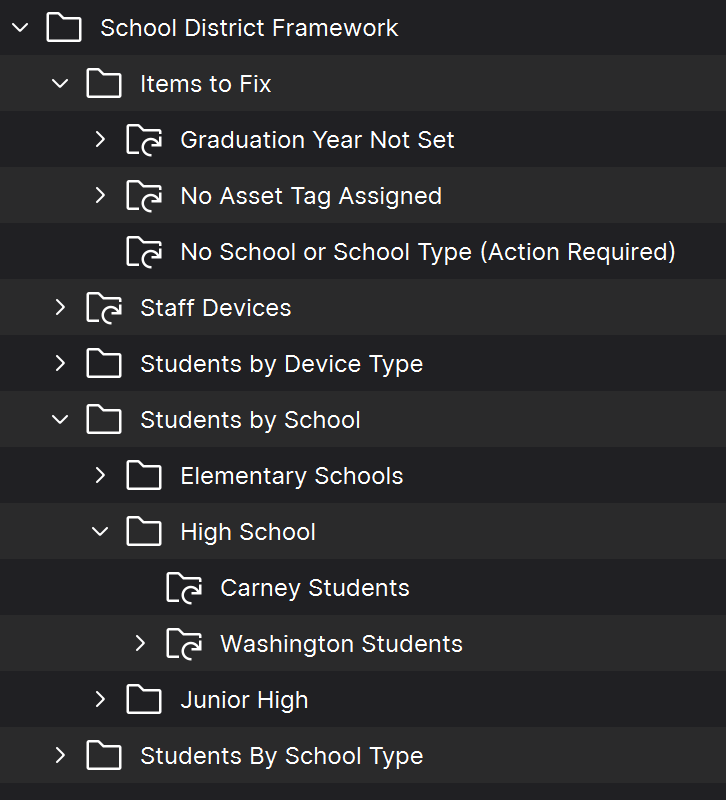
Groups provide a manual device structure, while Smart Groups collect devices that match defined inventory criteria. The sample structure should be updated with your school names and local targeting logic:
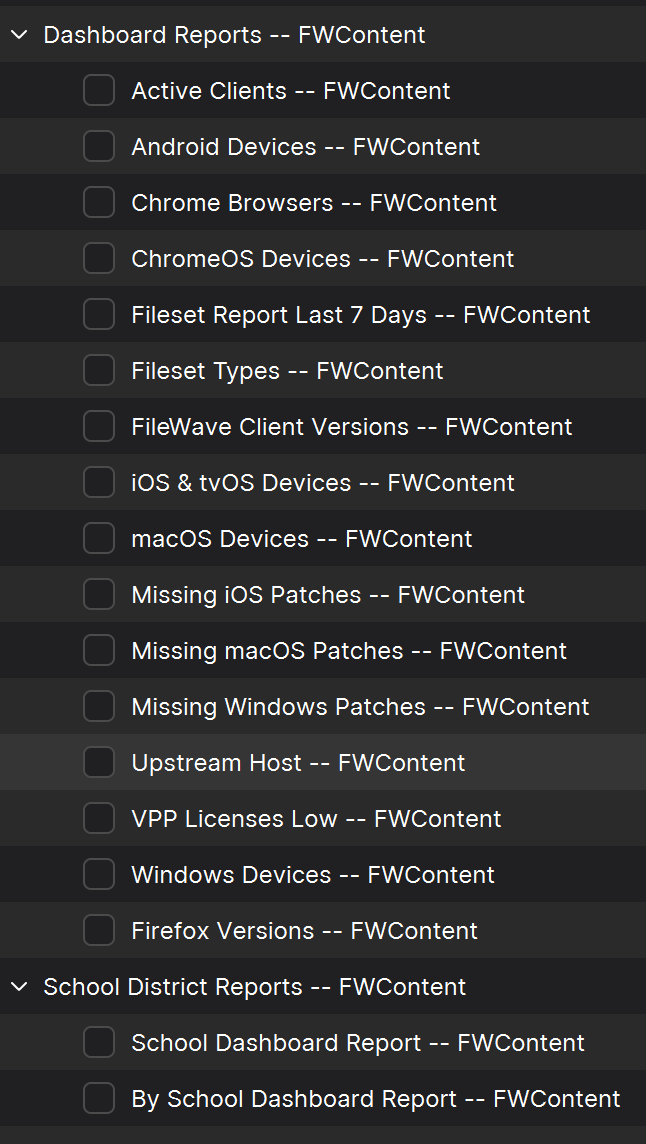
Reports (formerly Queries):
Reports filter and display hardware, software, and Custom Field inventory. For example, a report can list all managed Macs running a selected macOS version. The included Grafana dashboards also use Report data.
Dashboards:
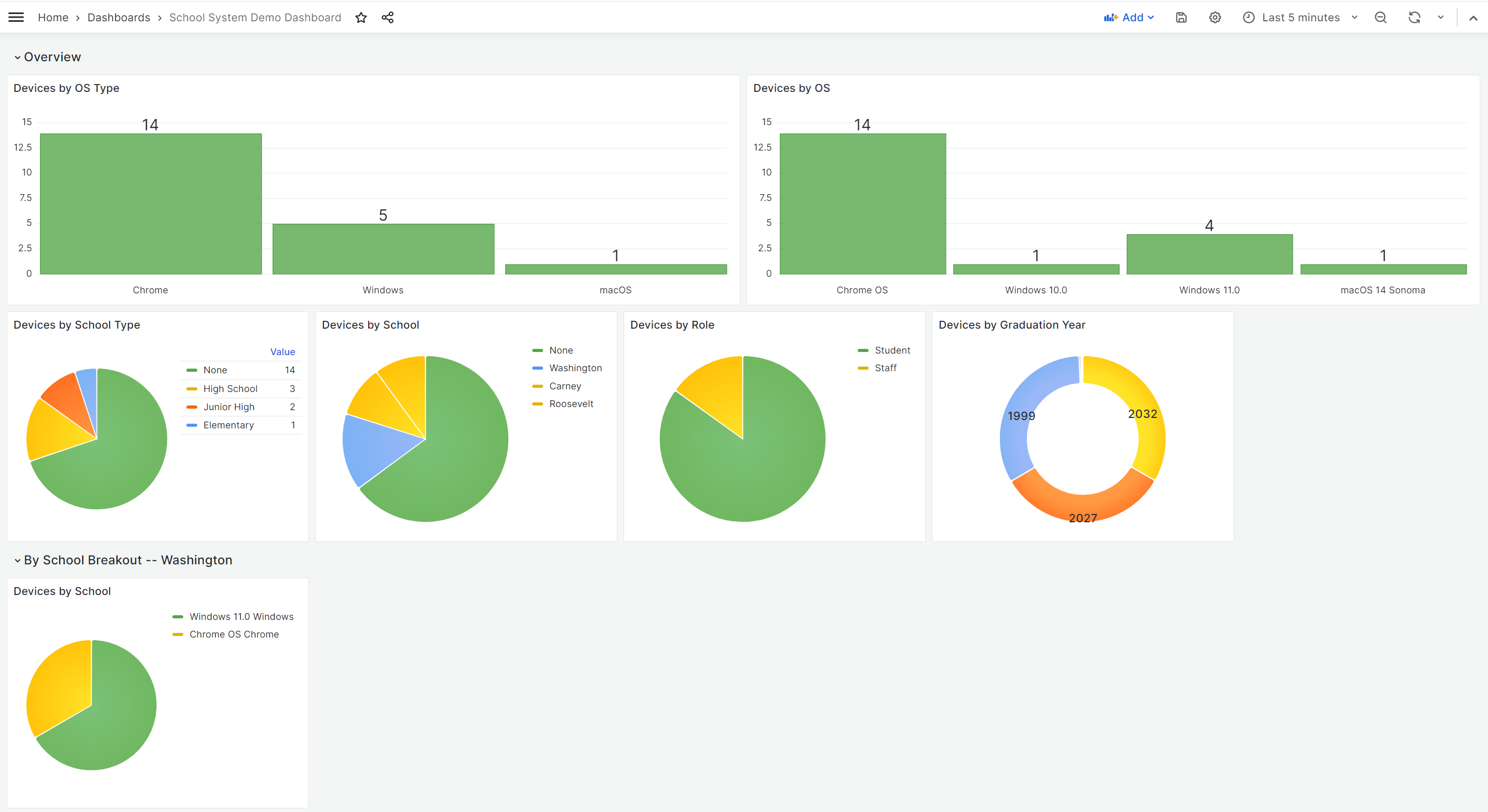
Dashboards summarize Report data in visual panels such as bar and pie charts. Use them to track device counts, operating systems, user roles, locations, and software deployment status. This pack provides:
-
-
- Environment Overview Dashboard: A great starter dashboard, built from data fields that devices report right out of the box.
- School District Dashboard: A breakout of devices by OSes, by user roles, locations, etc.
-
Ingredients
-
FileWave Central administrator credentials
- Base64 API Token for 'fwadmin' account
| Starter Pack |
|
|
Directions
-
Download the above attached starter pack and unzip it
- Run the import_starter_pack.exe tool, using appropriate credentials for your environment
- The import tool currently runs on Windows only.
- Once completed, verify the new content in your system (and import dashboards, if applicable)
Sample Screenshots
Notes
Review the imported Groups, Smart Groups, Custom Fields, Reports, and dashboards before changing them so you understand their dependencies. Then adapt the names, criteria, and sample values to your environment.