
Android Enrollment
Enrolling Android devices to FileWave
If you haven't already, please consult the Client Pre-Requisites > Android section to learn how to enroll Android EMM devices into FileWave.
There are several ways to enroll Android devices;
Devices in Safe Mode may not be enrolled
QR Code or afw#setup Enrollment
FirstIn FileWave Central, create an enrolmentAndroid enrollment token from the menu item: 'Assistants'Assistants > 'Enroll Android Device...'.
MultipleYou tokenscan maycreate bemultiple created,tokens. butFor onenormal tokenevaluation maywork, be configured fora multi-use token with ana 30-day expiration ofis 30usually daysthe (recommended)easiest option.
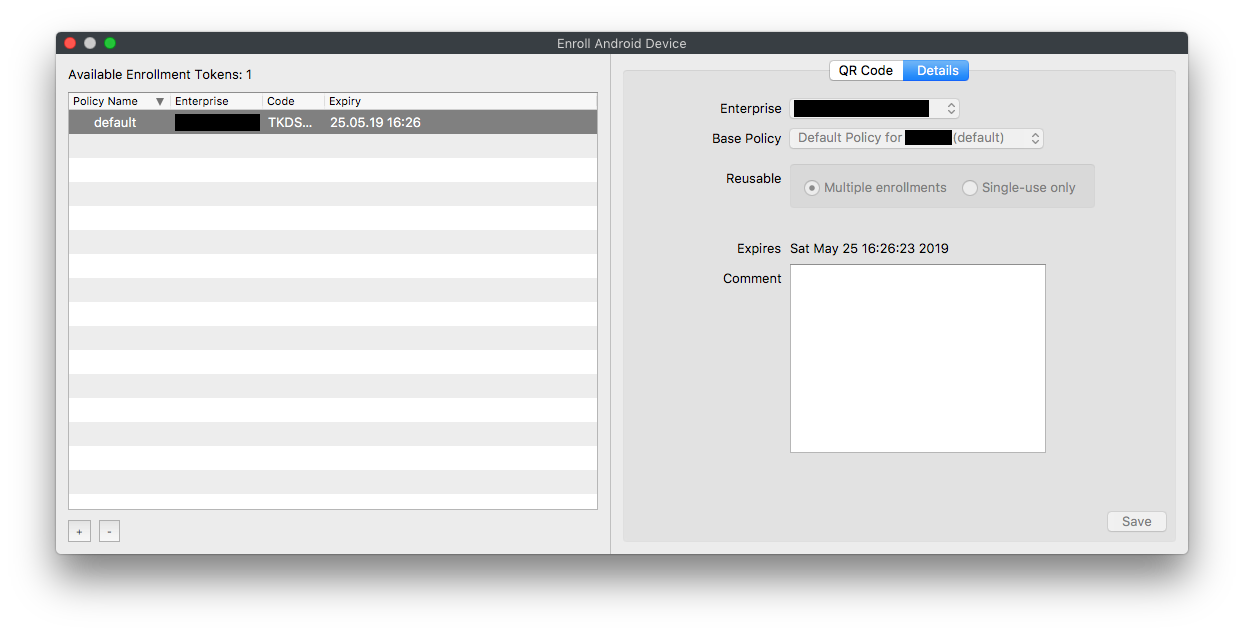
Make sure the device is fully wiped to factory settings and is not yet activated. Most modern Android versions can commence the process by either:
- Tapping the screen seven times (in the same spot)
or - Entering
afw#setupin place of a Google account.
Enter the Wi-Fi code and scan the QR code. A few minutes later, accept the prompt to Install Work Apps. This will install the FileWave Client.
On completion a summary will appear. Click Setup.
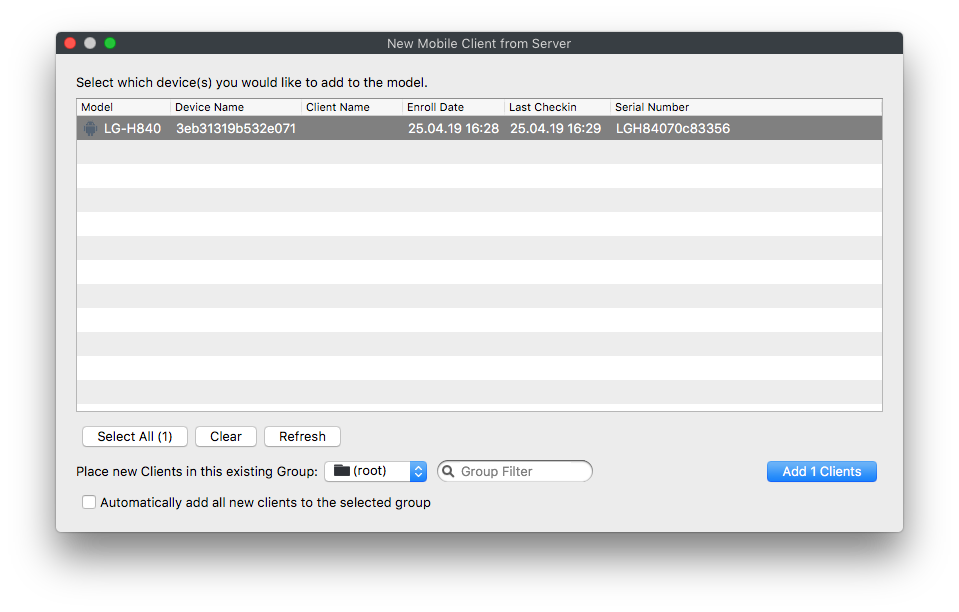
Where auto enrolment is configured in the New Client > Enrolled Mobile Devices, the device should appear within a few minutes. Otherwise use the New Client window to accept the device and then Update Model.
Android BYOD (EMM)
Android BYOD (Bring Your Own Device) Enrollment, also known as Android Enterprise Work Profile, is a method of enrolling personal Android devices in an Enterprise Mobility Management (EMM) system. This allows organizations to manage and secure corporate data and apps on employees' personal devices, while maintaining user privacy and keeping personal data separate from work data.
In this enrollment method, a work profile is created on the user's personal device, which acts as a separate container for work-related apps and data. This ensures that the organization can only manage and access the work profile, without interfering with the user's personal data and apps.
Android BYOD Enrollment offers several benefits, such as:
- Increased flexibility: Employees can use their personal devices for work, reducing the need for organizations to provide dedicated work devices.
- Enhanced security: Corporate data is secured within the work profile, preventing unauthorized access and data leakage.
- Improved privacy: Users maintain control over their personal data and apps, as the organization can only manage the work profile.
- Simplified management: EMM administrators can easily manage and configure work profiles, apply policies, and distribute apps to enrolled devices.
To implement Android BYOD Enrollment, organizations need an EMM solution that supports Android Enterprise, such as FileWave. The EMM solution will guide users through the enrollment process and help administrators manage and configure work profiles on enrolled devices.
Getting Started with BYOD (EMM)
TheBefore very first step before getting start withstarting BYOD (EMM)enrollment, iscomplete to setupthe Android EMM usingsetup at the start of this article.
After going through the EMM setup, continue with the next steps.
- Download Android device policy App (https://play.google.com/store/apps/details?id=com.google.android.apps.work.clouddpc&hl=en_US)
- From the App scan the Enrollment QR code
- Add the devices to admin as normal
- (Observe) you will have a "Play Store" app and a "Work Play Store"
The devices will have the same icon in admin.
If the Inventory field "Is User-Owned" is True, the device is a BYOD.
I would addAdd this field as a column in the client view when you need to moredistinguish easilyfully identify.managed Android devices from BYOD/work-profile devices.

Enrollment Workflow (EMM)
If you have a Google Policy Fileset with NetworkWi-Fi informationor inother it.network You caninformation, select it when you generate athe QR code. ThisFileWave insertsincludes that network configuration in the informationenrollment ontoQR thecode, devicewhich formakes easyfirst-time enrollment.setup easier on wiped devices.
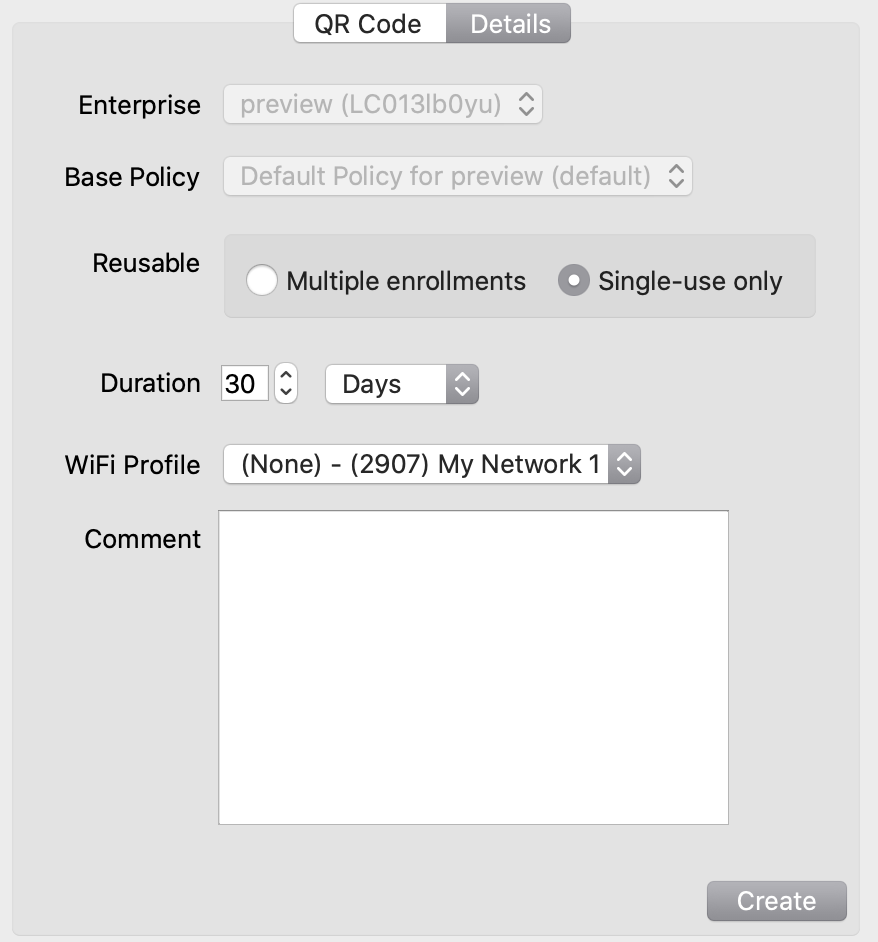 |
| Figure 1.1 - WiFi selected in enrollment QR |
The QR code that is generated contains the WiFi password in plain text.
DO NOT leave the QR code just sitting around.
Android EMM Location Tracking
Android EMM devices need to install a FileWave "companion" application onto the device that will send us location data. Reference Force Location for EMM Android Devices for details.