
Columns Adding and Removing (Customizing)
What
The Edit Fields tool lets you show or hide inventory columns beyond the default fields in FileWave Anywhere views.
When/Why
Use it when a value such as asset tag, location, owner, or a custom inventory field needs to be visible in the table. Once the column is shown, you can search or filter by that value.
FileWave 16.4 Deployment view: Central and Anywhere share the predefined Installation Type, License Assignment, Creation Date, and Tags columns. Show the columns relevant to the review, then sort or filter the list. See Deployments in FileWave Central for the meaning of each Deployment column.
How
You can Edit the fields in a view wherever you see the ( ) icon on the right of the table (it is shown here horizontally, but is vertical in the web admin).
In this example, the custom field Asset Tag is added to the Devices view. If a user reports an issue and gives the asset tag, the admin can filter the device list by that value instead of searching by name or serial number.
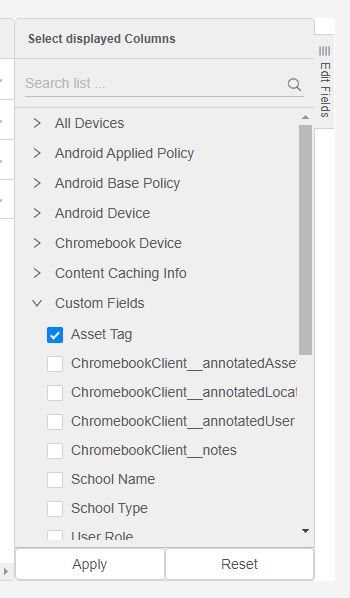
To remove a field from the view, clear its checkbox and save the view.