FileWave Server Mail test receives Bad Request with Google SMTP Accounts
What
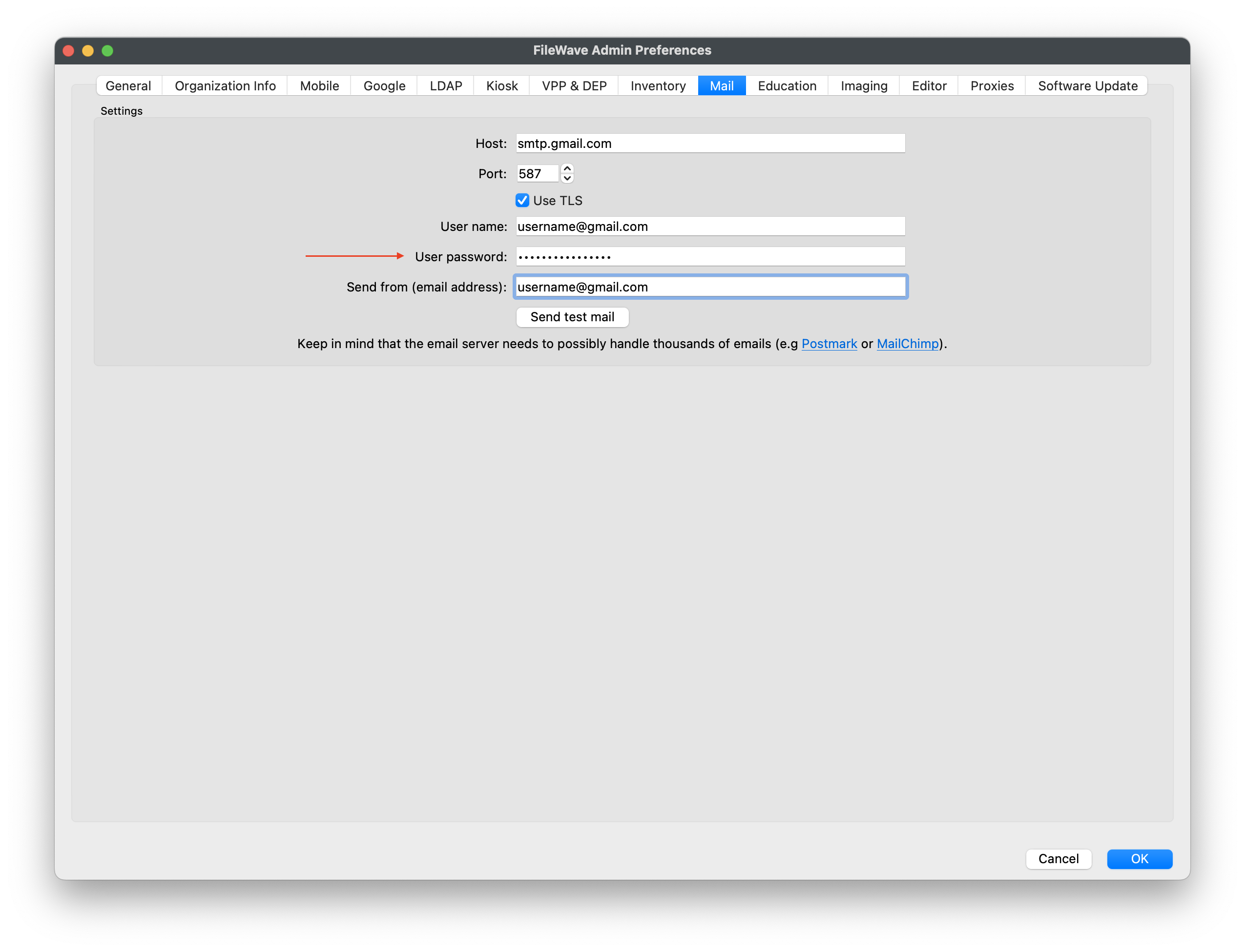
SettingFileWave upcan send scheduled reports and test messages through the Mailmail settings withinin FileWave preferences to send reports is great. However, the first time configuring this feature withpreferences. Google SMTP accounts may runreturn into errors likea Bad Request aserror seenduring setup if the account is not ready for the app-password workflow shown below.
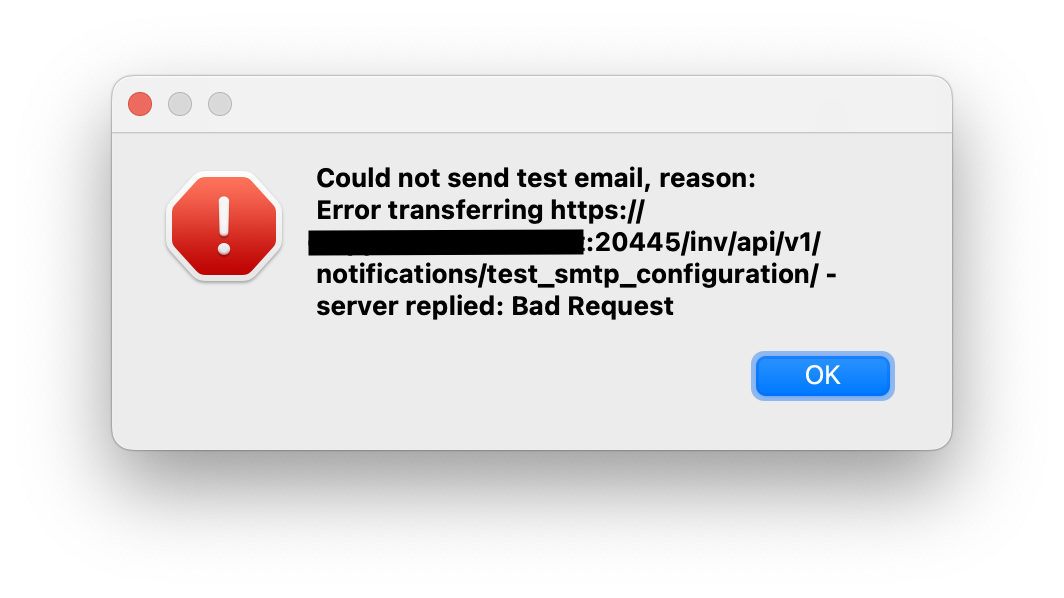
When/Why
WhenFor first-timeGoogle settingaccounts, upenable 2-Step Verification and create a Google App Password for FileWave. Use that generated app password in FileWave mail preferences,preferences youinstead needof tothe setuser's up 2FA with yournormal Google account to add FileWave as a custom application for third-party management. This allows permission for FileWave to send emails to your Google account.password.
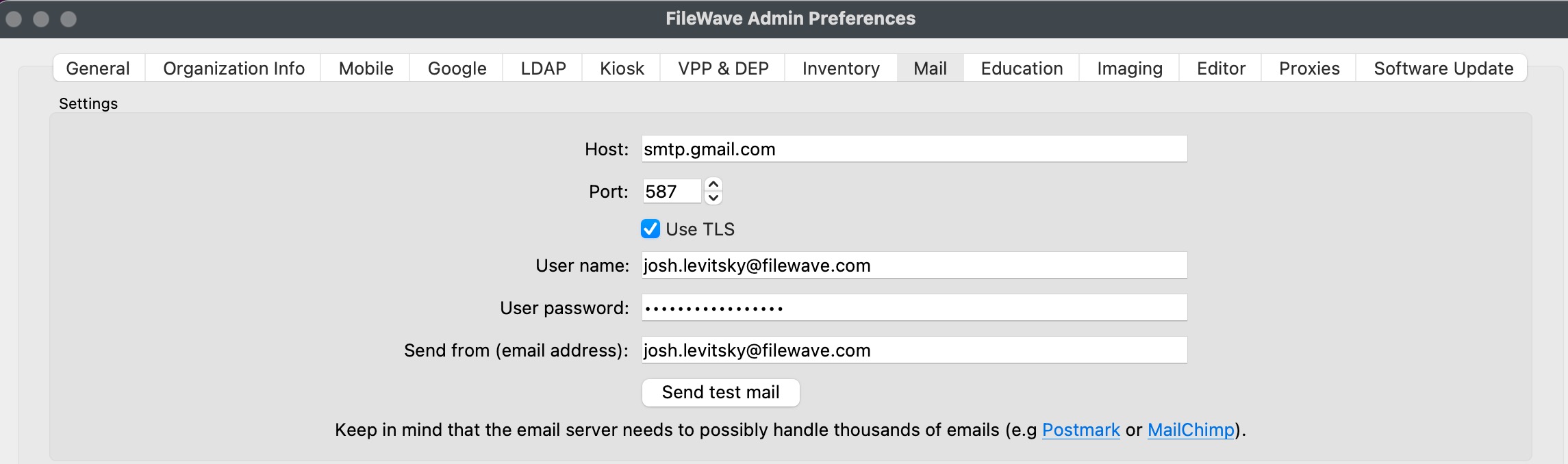
How
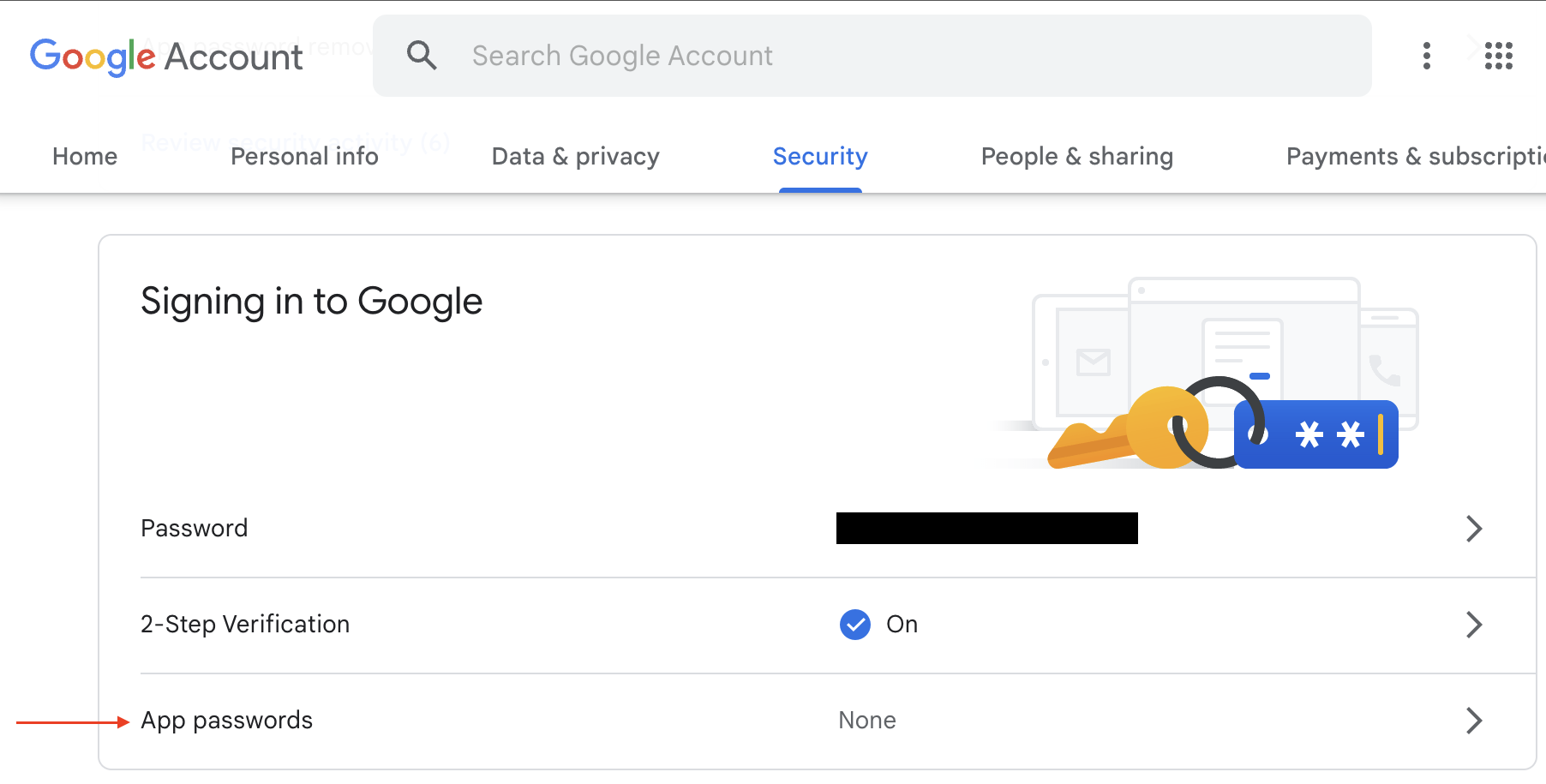
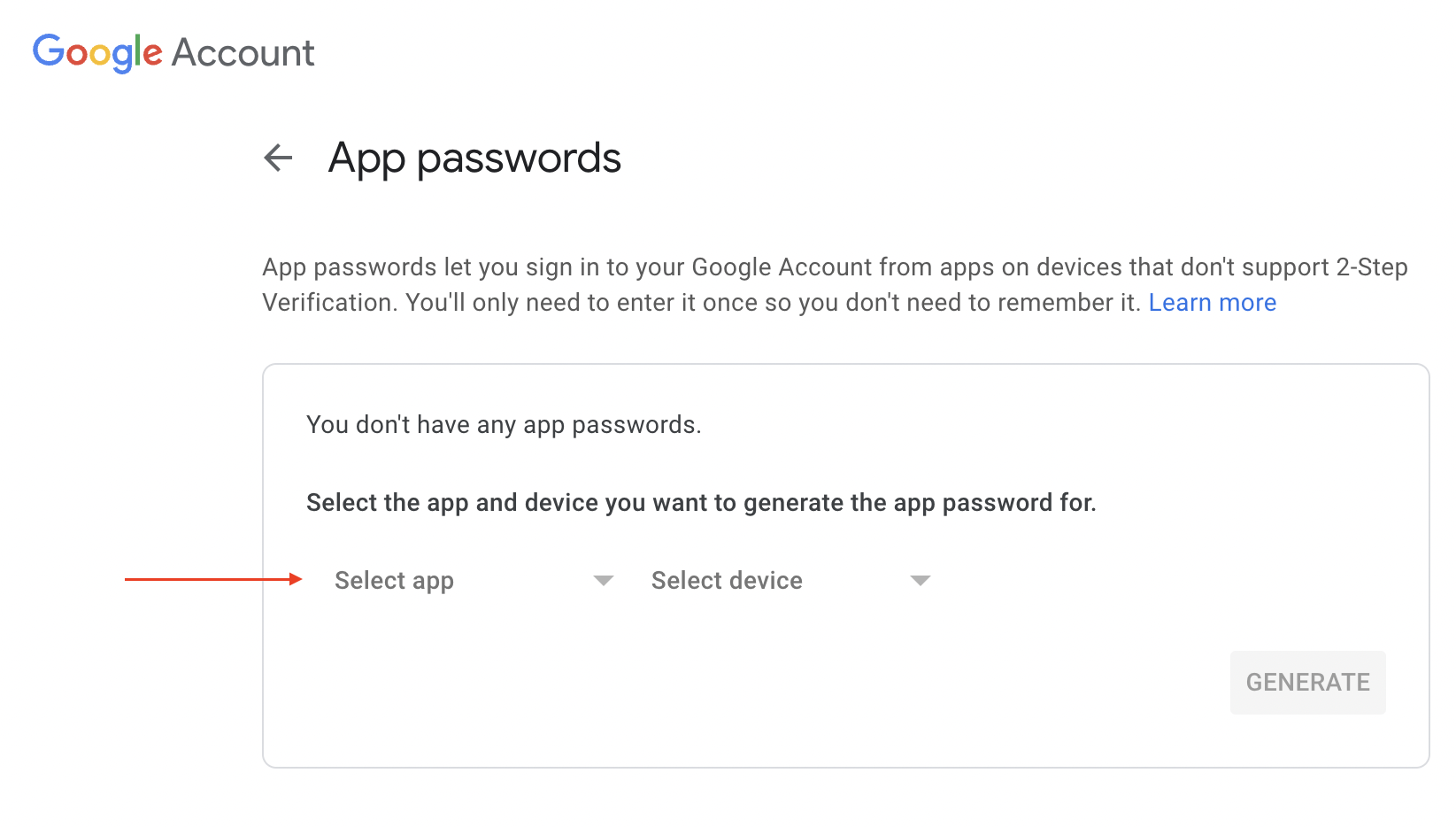
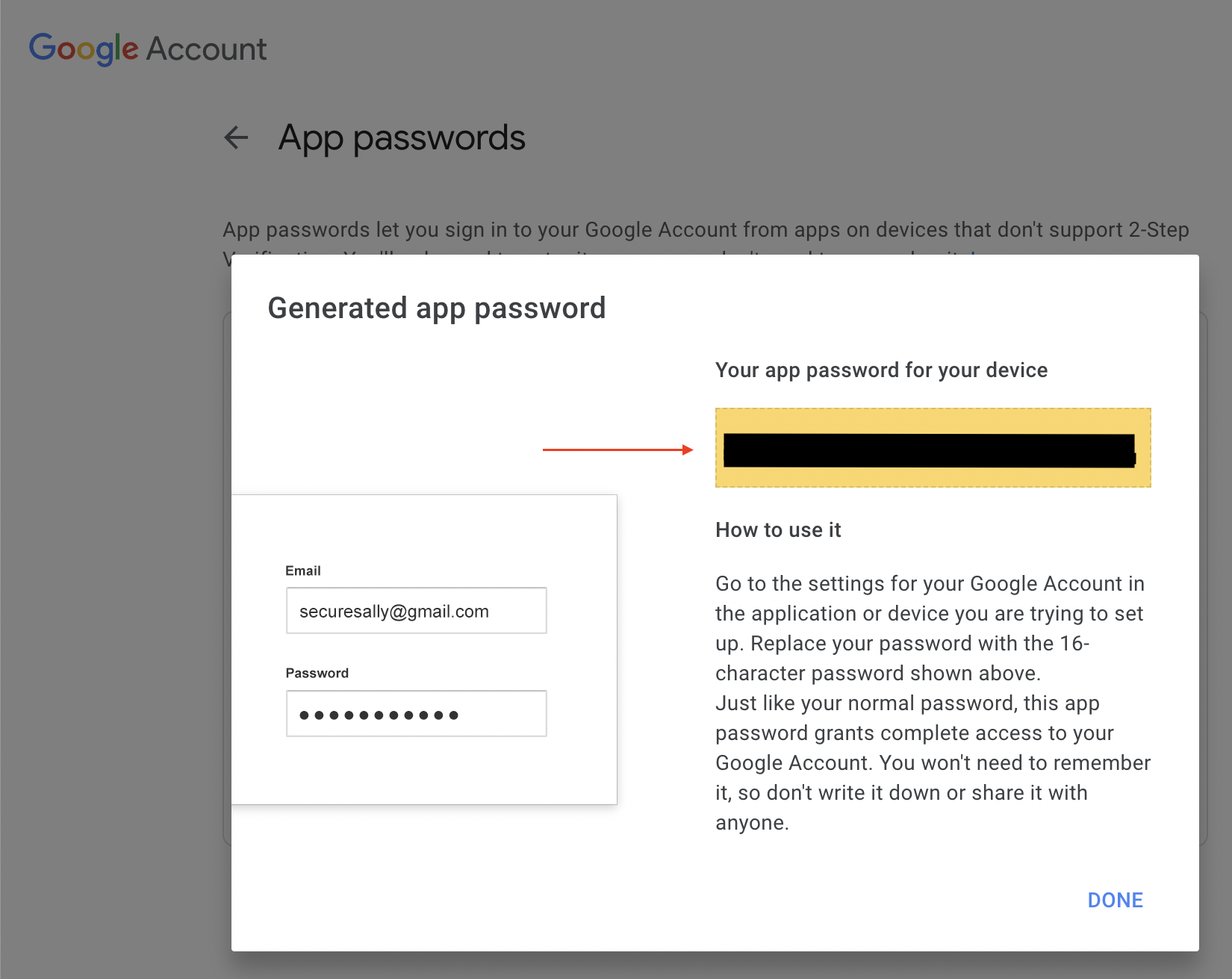
Be sure to enable 2FA on your Google account to have access to Signing in to Google. You may followIn the Google documentationaccount, open the security settings, confirm that 2-Step Verification is enabled, then create an app password. Google's current instructions are here: ManageSign third-party apps & servicesin with accessapp to your Google accountpasswords. Once you have enabled it, there will be an option for App passwords. Here you may create a custom name forCopy the app, and it will generate agenerated password that you will copy and paste into FileWave email preferences.preferences and keep it stored securely with your other service-account credentials.
AttemptSend again by sending aanother test email to verifyfrom FileWave andto confirm that the Google account permissions.and app password are accepted.