
Enrolling Computer Clients into FileWave
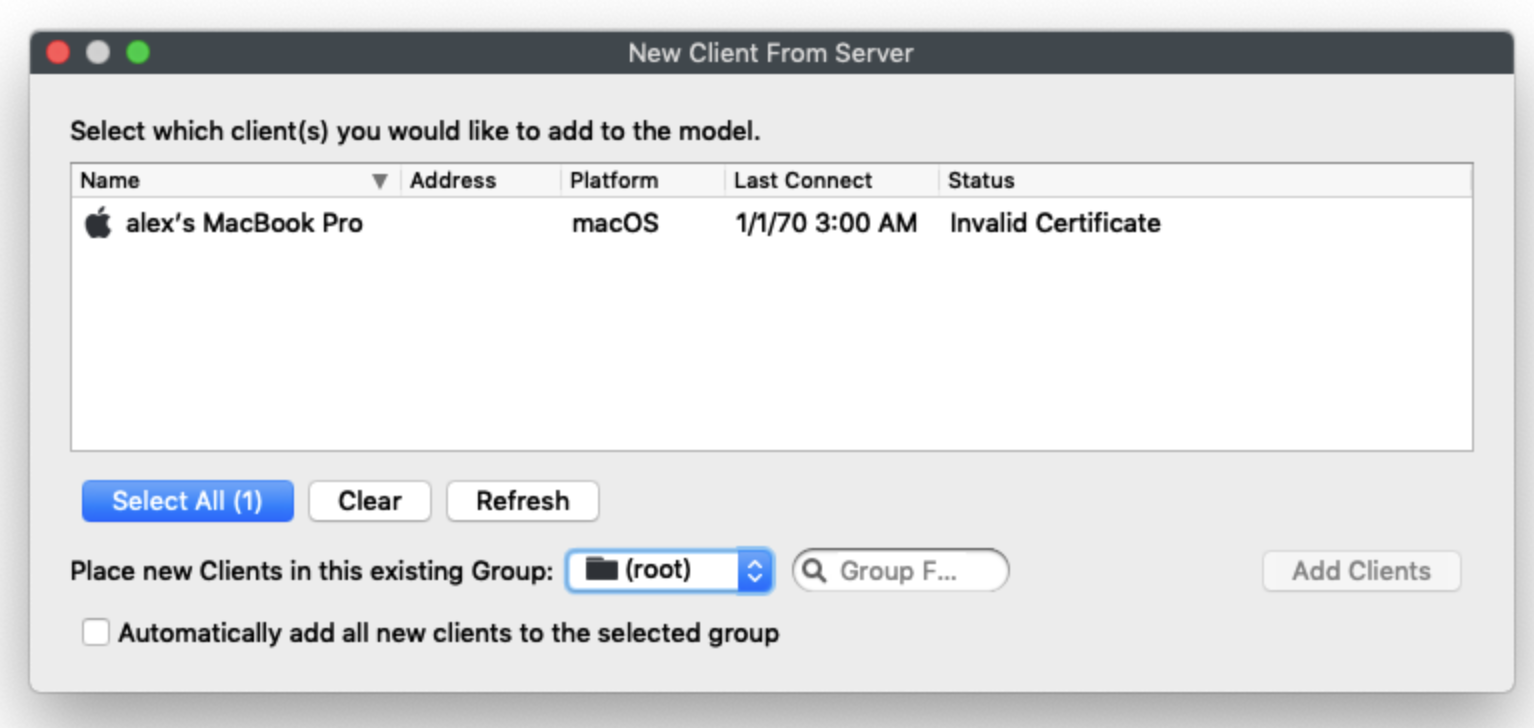
Click on the New Client toolbar icon willto bring upopen the Create New Client window. Clicking onClick Desktop clients willto open the New Client From Server window, which is, where computer clients willappear show up onceafter the FileWave clientClient on the device checks in with the designated FileWave serverServer specified in the client settings. TheseThose settings wereare either entered manually entered when installing theduring client installation or specifiedincluded when a custom client installer wasis producedbuilt usingfrom the FileWave Support webpage.

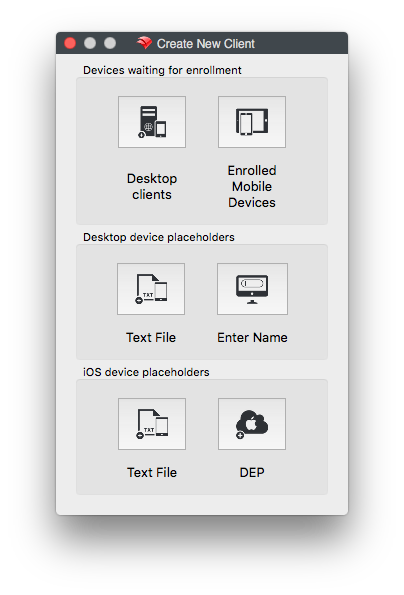
|
For Text File see Importing Computer Clients from a File |

|
Column Name |
Notes |
|
|
Name |
The Client Name the computer is attempting to connect with (see Sync Computer Name) |
|
|
Address |
The IP |
|
|
Platform |
The OS of the client; macOS or Windows |
|
|
Last Connect |
The last time the FileWave Client attempted to |
|
|
Status |
You will see one of three options:
All three status states can be approved by selecting |
You can select Clients and assign themclients to a Group,group during enrollment or leave them in the root Group.group. You can alwaysalso place Clonesclones of thethose Clientsclients into anyother Groupsgroups you wish to administer them from.later.
You may alsoTo pre-assign Clientsnew intoclients to a specific Groupgroup, by checking theselect Automatically add all new clients to the selected Group checkbox.. If you are goingenrolling to be creating new Clientsclients in waves,batches, you can change this selection between each new batch of Clients.batches.