
Importing FileWave OVF (VMware Workstation)
Step-by-Step Guide
1. Open VMware Workstation. Click "Open a Virtual Machine".
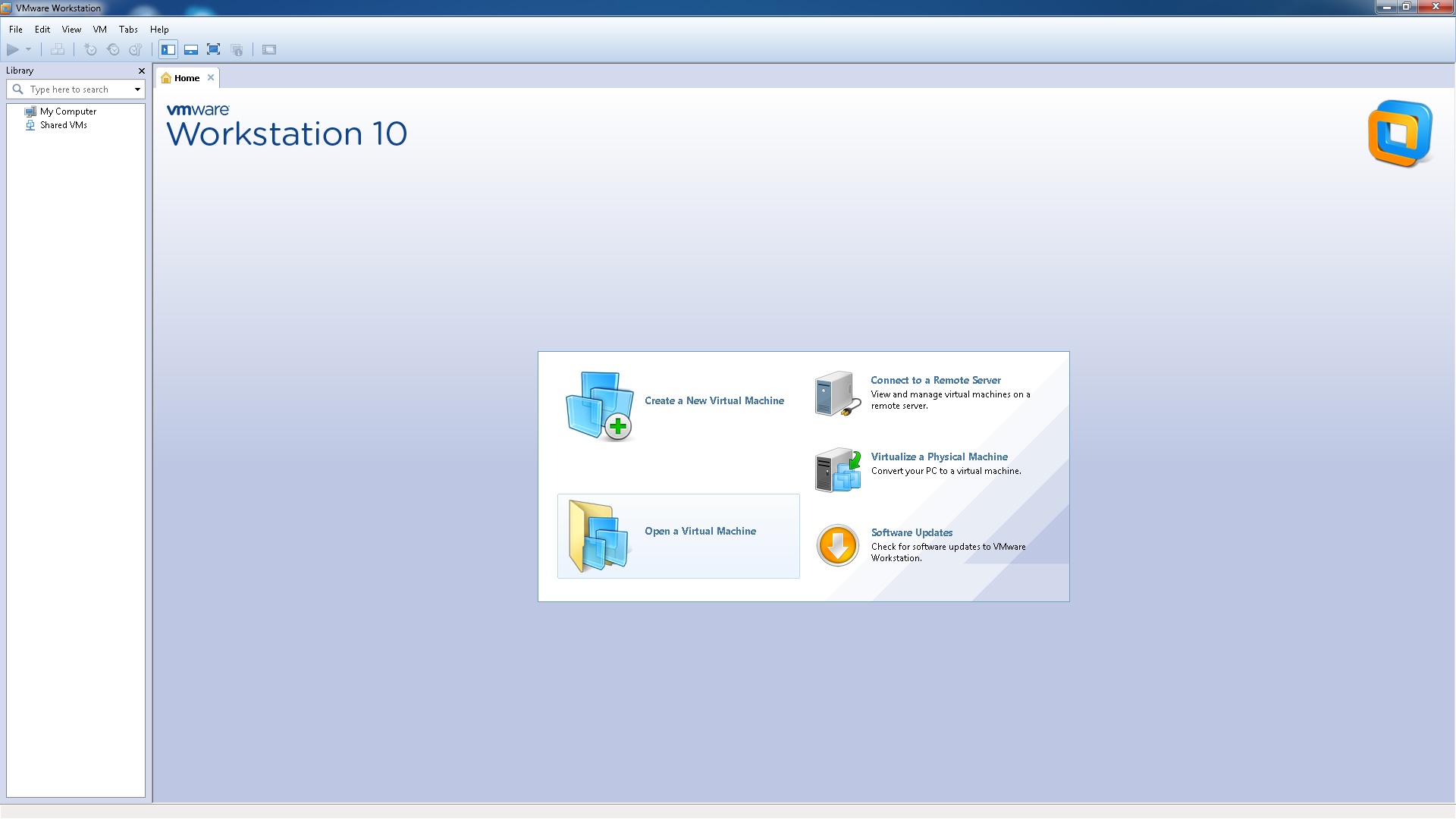
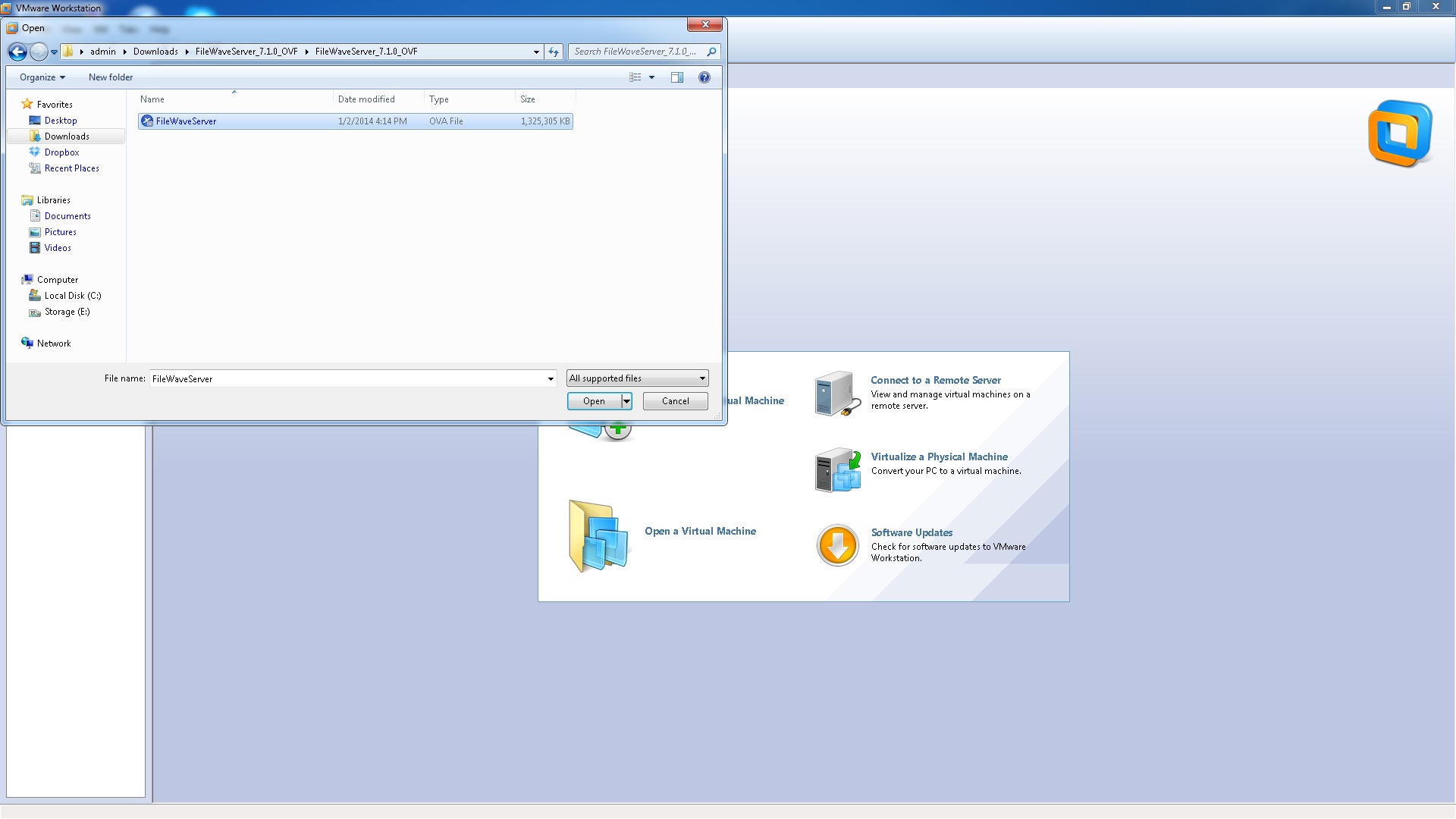
2. Browse your machine for the unzipped OVA/OVF from FileWave and click “Open”.
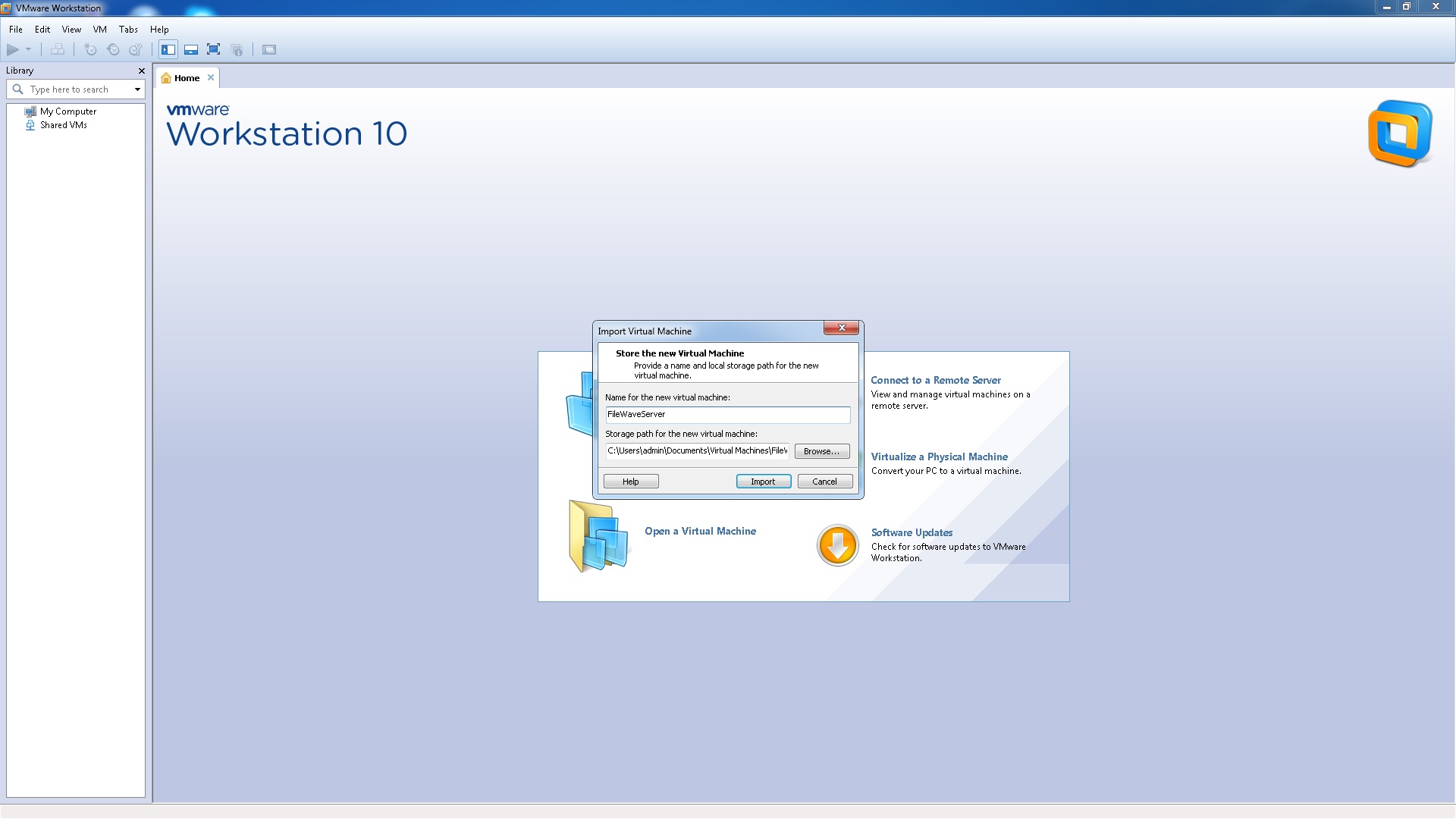
3. Name the Virtual Machine and select a storage location. Click “Import”.
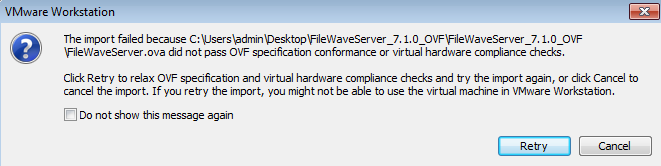
If VMware Workstation reports an OVF specification or virtual hardware compliance failure, read the full message before choosing Retry. Retry relaxes those checks and attempts the import again; it does not guarantee that the virtual machine will import or run correctly. After a successful import, verify that the appliance starts before continuing. If it still fails, retain the error details for troubleshooting rather than treating the import as complete.
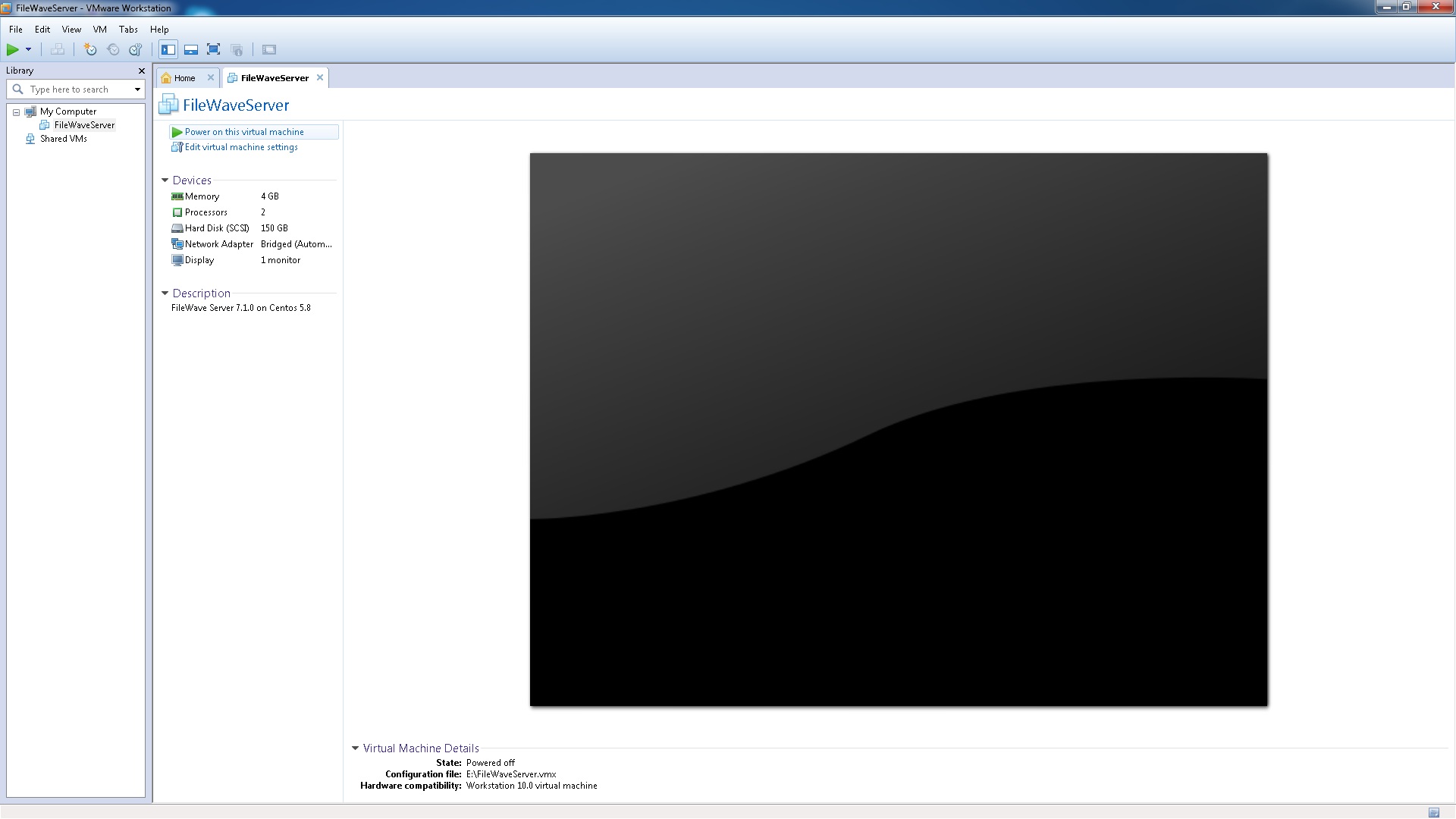
4. Once the OVF has imported successfully, turn it on to ensure that it starts successfully.
Once the appliance has started, complete Setting the Password on First Login to FileWave Appliances (15.5+) if that first-login workflow applies to your imported appliance. For an IVS, follow Changing the IP Address of your IVS (Static) next.
No comments to display
No comments to display