
Importing a FileWave OVF in VMware Fusion
Import the virtual appliance
1. Download the FileWave virtual appliance package and extract the OVA or OVF files before opening VMware Fusion.

2. Open VMware Fusion, then select File > Import.
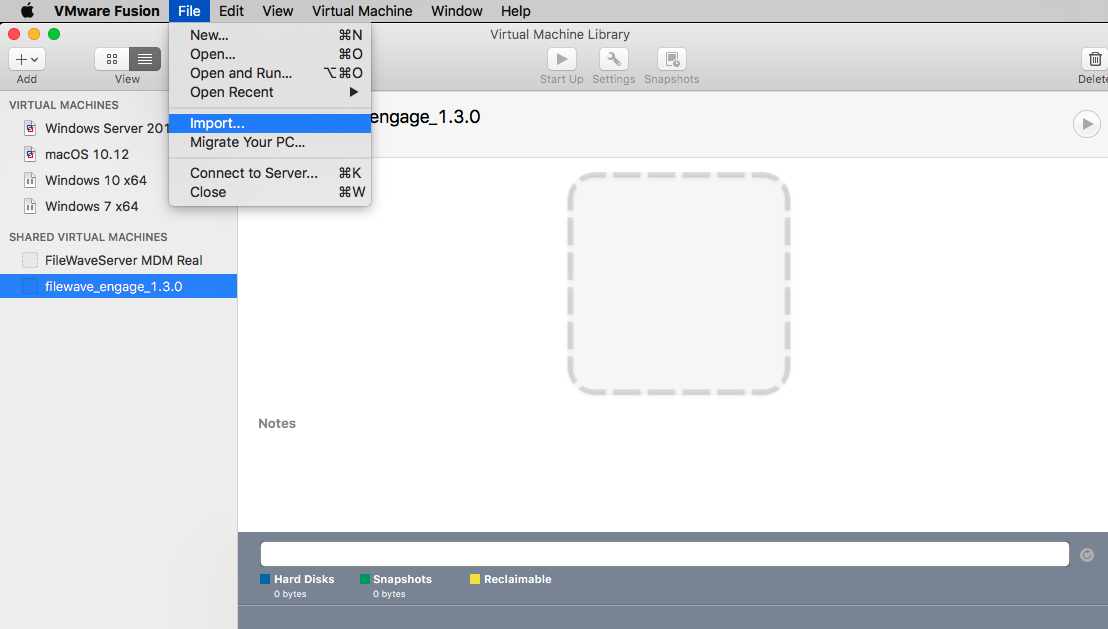
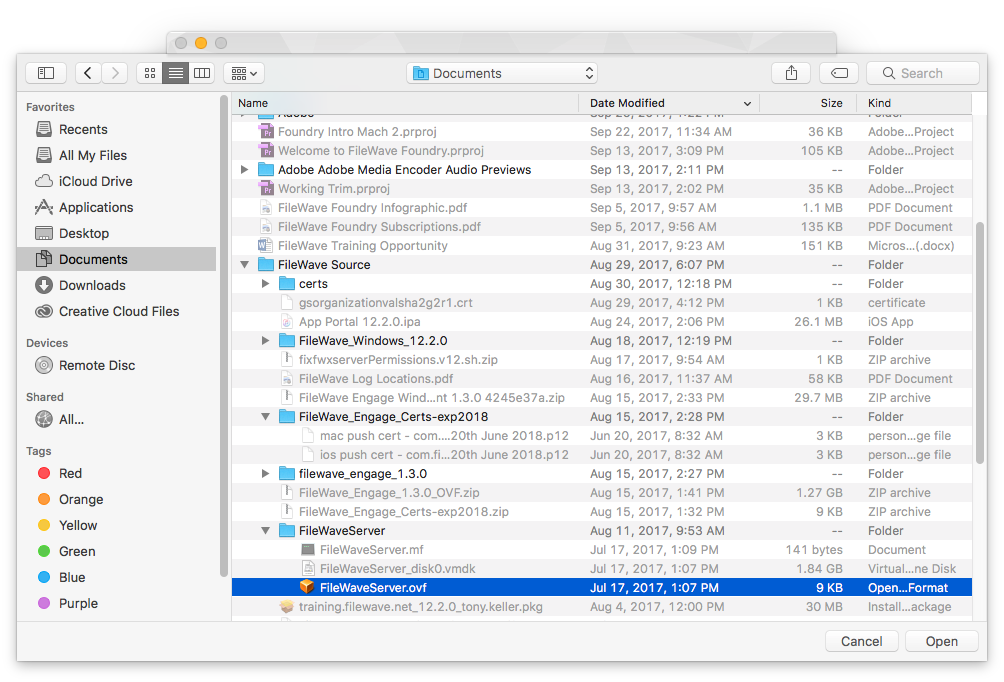
3. Select the extracted FileWave OVA or OVF and click Open.
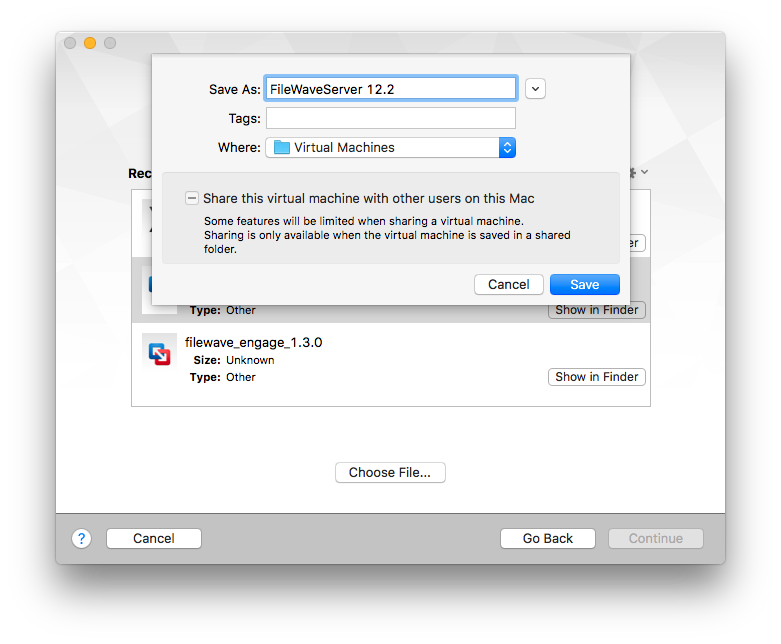
4. Give the virtual machine a recognizable name, choose its storage location, and click Save.
5. If VMware Fusion does not start the imported appliance automatically, select it and click Start.
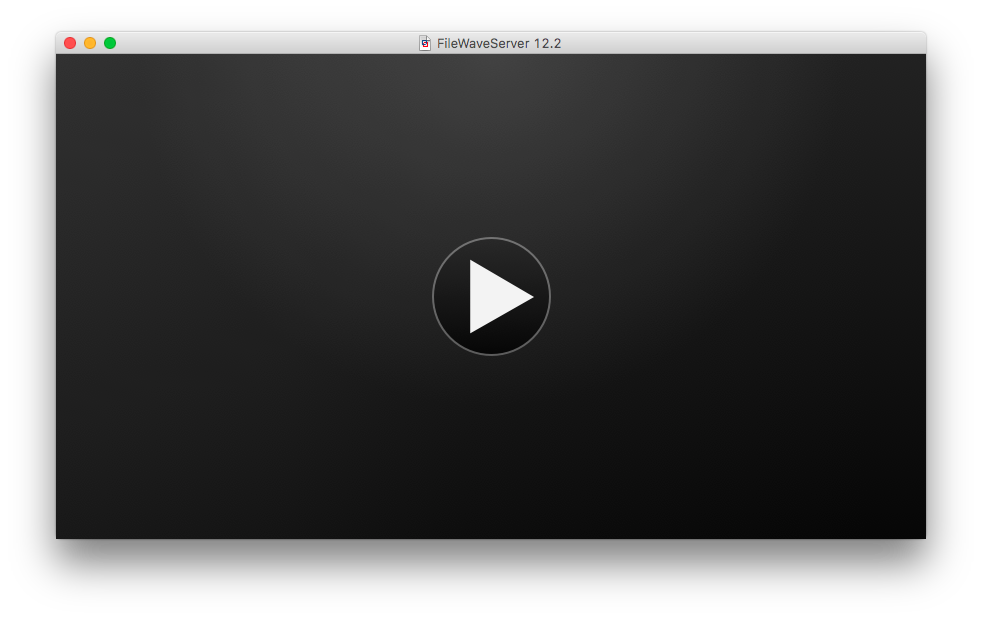
6. Wait for the appliance console to finish starting before continuing with network and first-login configuration.
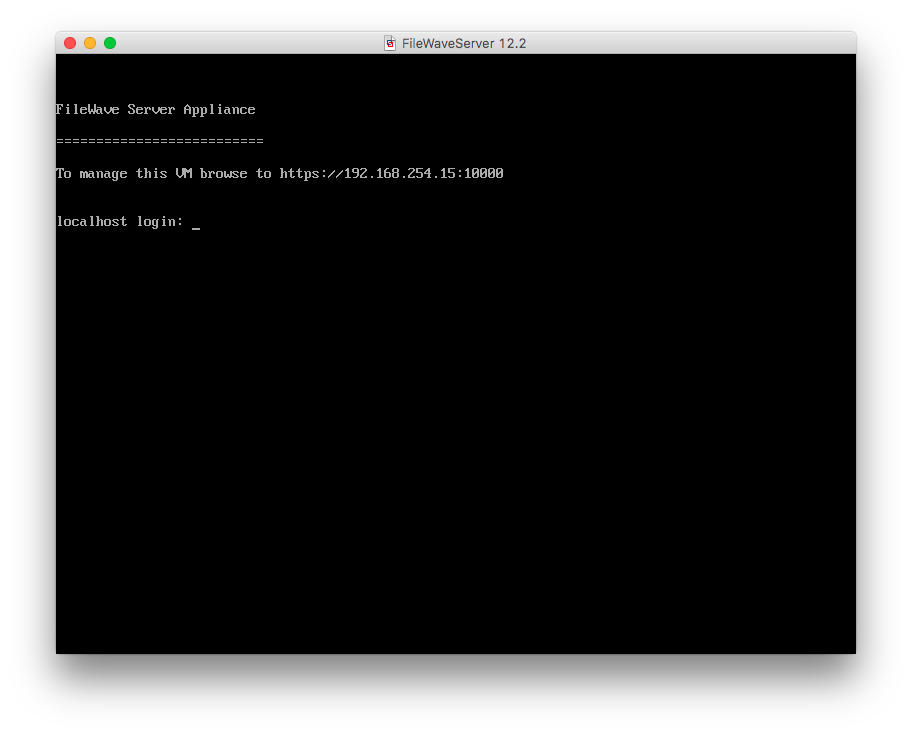
After the appliance starts, configure its network settings with Changing the IP Address of your IVS (Static). Then complete Setting the Password on First Login to FileWave Appliances (15.5+) when that first-login workflow applies to the imported appliance.
No comments to display
No comments to display