
Plan FileWave Windows Imaging and IVS Requirements
FileWave Windows Imaging is a powerful solution to quickly deploydeploys base Windows images over the network.network Beforethrough an Imaging Virtual Server (IVS). Review server placement, PXE routing, appliance capacity, and hardware driver availability before choosing device models or starting thea process of refreshing your device fleet, it is important to understand how Imaging works to understand the requirements and the possible limitations.rollout.
Requirements
TheFileWave PXE server part of FileWaveWindows Imaging isuses supported by athe downloadable FileWave Imaging Appliance. Pleaseas checkits PXE server. It works with self-managed and Hosted FileWave Servers. Hosted customers need FileWave Technical Support for server-side setup because they do not have direct access to the linkHosted forServer; updatedsee detailsFileWave Hosted Servers and releaseIVS notes. Also at this time you can only use Windows Imaging with an On-Premise FileWave server.Setup.
This appliance can be run in:
vmWareVMware Fusion® for MacvmWareVMware Player® or Workstation® for WindowsvmWareVMware ESXi®VirtualboxVirtualBox®- Hyper-V®
ItAllocate needsat a minimum ofleast 8 GB of RAM and at least 100 GB of disk space,space depending onto the sizeappliance. ofAdd capacity for the Imagesimages you willplan beto deployingstore; (imagesa aretypical ~image is about 20 GB each).GB. CPU requirementsdemand areis minimal.
Imaging steps
-
WindowsForImaging works for botha Hostedasdeployment,wellcompleteastheOn-Premiseadditionalcustomters,stepsbut for Hosted please read this note:in FileWave Hosted Servers and IVS Setup.with Technical Support.
Configure the target device for wired PXE network boot.
The target device tobroadcasts beDHCP imaged is configured to boot over the network using NetBoot withand PXE and starts
The device to be imaged broadcasts requests over the networkwhile looking for aan NetBoot/PXEIVS. server. To make this successful you must considerReview the required IVS network ports used and consider that since DHCP, PXE, and BSDP (used by NetBoot) are UDP-based broadcast protocols, they typically do not traverse subnets.. These protocols also do not typically work over wireless connections so you need to make sure that IVS and the clients are using wired connections. Most network administrators do not allow broadcast packets across subnets. If your IVS and the client computers to be re-imaged are located on the same subnet then you do not need to make any changes to your network configuration, as the clients will discover the IVS via broadcasts onnormally stay within the local subnet. If the IVS and target devices toshare bea re-imagedsubnet, areclients can discover the IVS directly. For other subnets, place an IVS on each imaging subnet or configure router IP helpers. Use a differentwired subnet,connection however,for then you have to take one of the following steps to be able toPXE network boot and re-image them.boot.
- Put an IVS on every subnet that you may need to re-image devices on.
- Configure IP helpers on the routers for every subnet that you may need to re-image devices on.
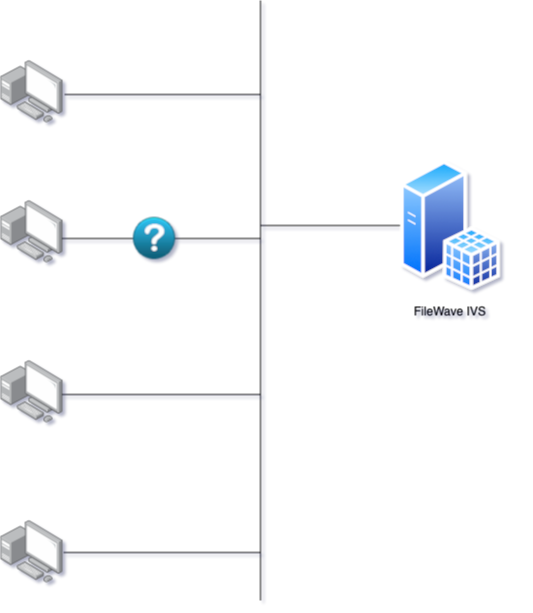
More details about Network Booting can be found here.
If there is an association in FileWave between the MAC address of the Windows device to be imaged and an Imaging Fileset, the FileWave Imaging Virtual Server (IVS) will respond to the request and initiate the PXE boot process.
The IVS will then transfer a customized, very lightweight Linux operating system on which the device will boot: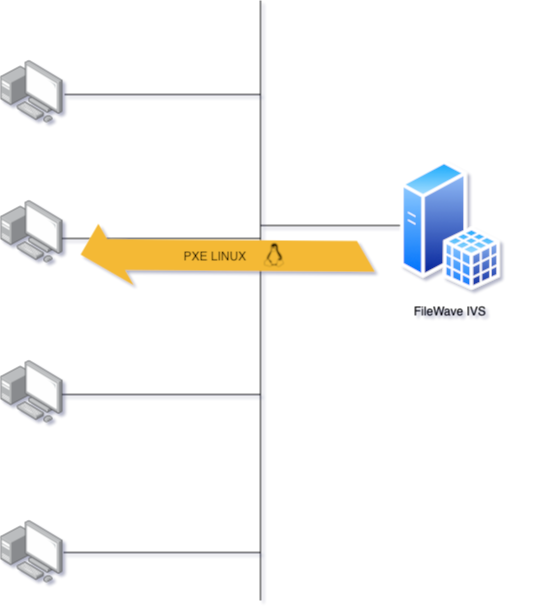
Once the device to be imaged is booted on Linux, the imaging process can start: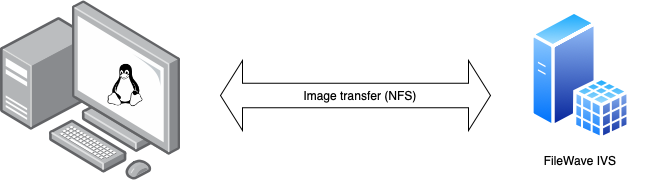
The whole process is managed by a python script responsible for:
- Creating a VPN tunnel to the IVS server
- Mounting NFS share to IVS server via the VPN tunnel
- Communicating with IVS to get and report information
- Preparing local hard disk (partitions), writing disk image, and preparing Windows environment
RequirementsHardware driver requirements
OurThe customizedlightweight Linux boot image is built to be as lightweight as possible. it contains the minimum components requiredneeded for theimaging. imagingNetwork process.adapter Someand modulesdisk arecontroller neverthelesssupport verystill dependentdepends on drivers supplied by the hardware and the hardware vendor: network adapter driversvendor and disk controller drivers are examples.
To work, our Linux kernel/image needs to contain the drivers corresponding to the models you are imaging, which means that it is required that the hardware vendor has made them available to Linux.
The IVS boot image must contain drivers for every model you image. If the vendor has not made a compatible Linux Community.driver available, the IVS cannot use that component.
Without proper drivers, Imaging may not work correctly or even may not work at all.
Most of the drivers are added to the kernel (See: https://www.kernel.org) or separately, this is why we regularly update our customized Linux. But it may happen that some vendors will not provide Linux drivers, which will prevent the FileWave IVS from working. Using a USB Ethernet dongle may be a work-around for a missing integrated NIC driver (assuming the driver for the dongle is available). Unfortunately, missing drivers for the disk controller can't easily be worked around.
Recommendations
AsPilot the complete imaging workflow on at least one device of every hardware model before a wider rollout. FileWave Windowsmay Imagingbe isable dependentto on Hardware Vendors, we recommend you test the imaging process on a single device before choosing a hardware model. Updatingupdate the kernel or addingadd additionala driversdriver maywhen becompatible done upon request - assuming theLinux components are available. Pleaseavailable; contact ourTechnical Support or Professional Services for more information.help.