
Profile Payload Planning
What
- Apple configuration profiles contain one or more payloads.
- Each payload manages a defined set of operating-system or user-experience settings.
- On macOS 11 or later, FileWave delivers profiles through MDM enrollment. iOS and iPadOS profiles also require MDM enrollment.
The difficult part is not creating a profile; it is deciding which payloads belong together, where they apply, and what happens when the profile must be removed or reinstalled.
FileWave 16.4 and later: Use Checking Apple Profile Compatibility to compare the profile with Apple’s published platform, operating-system, and enrollment requirements before deployment.
Key planning points
- A profile can contain multiple payload types.
- A device can receive multiple profiles.
- On macOS, compatible payloads can apply at the User or System level.
Example Profile with multiple Payloads:
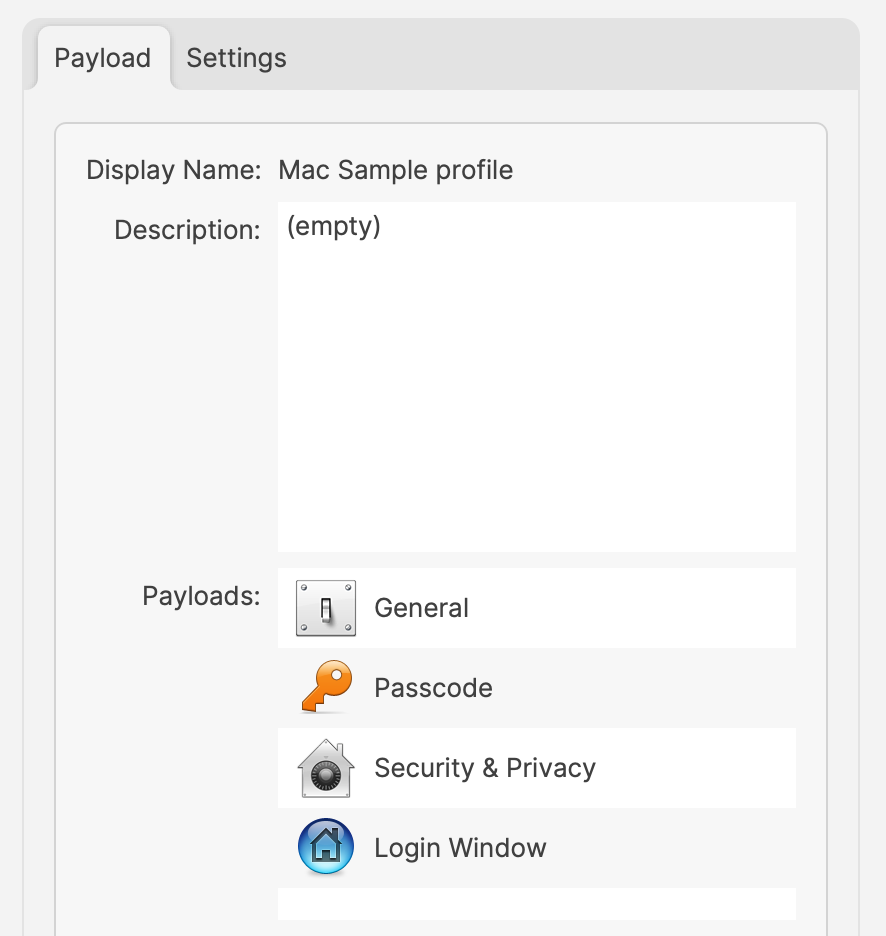
For the same above Payload, the Settings show:
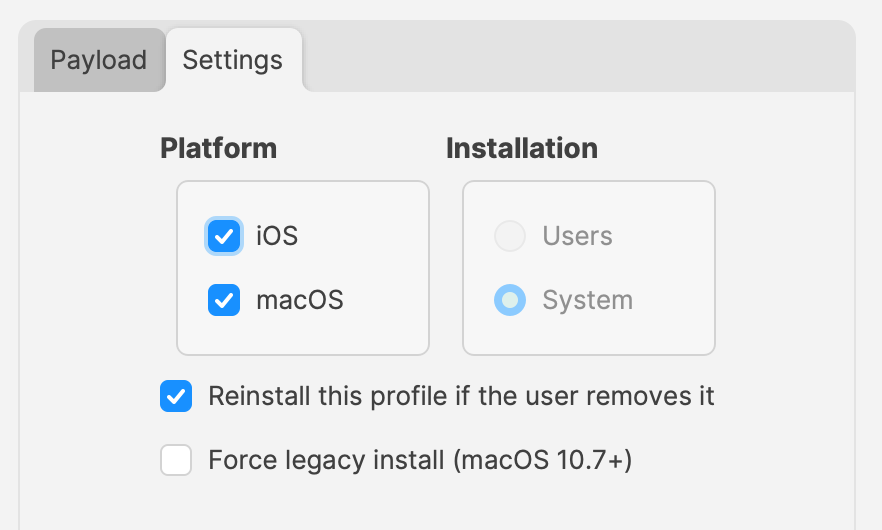
Apple’s implementation is such, that only one local user can be managed (the first user after enrolment). However, any amount of directory users can be managed. This restriction applies to User set Profiles only.
Not all Payload types can be User or System. Some may only be User or only System, rather than the choice. From the screenshot above, the Settings show System is the only choice and is therefore greyed out.
Avoid conflicting management of the same setting:
Do not rely on conflict resolution. When multiple assigned profiles configure the same payload setting differently, the resulting device behavior may not match either administrator's intent. Design one clear source for each managed setting.
How
Avoid overlapping payload settings so the result is intentional and supportable.
A profile can contain many payloads, but smaller functional profiles are easier to diagnose and safer to reinstall. Keep unrelated settings separate without splitting payloads that depend on each other. For example, Apple’s certificate deployment guidance places a macOS identity-certificate payload and the service that uses it in the same configuration profile, such as a Wi-Fi payload using that identity for EAP-TLS authentication. A focused network-access profile can therefore legitimately contain several related payloads. Consider:
- Having an experience that is undesired in the Profile
- Needing to ‘Force Reinstall’ a Profile
Undesired Experience:
The more unrelated settings a profile contains, the harder it is to isolate an unwanted result.
If troubleshooting requires temporarily removing a profile, every payload in that profile is affected. Splitting unrelated payloads into focused profiles limits that disruption and makes the responsible setting easier to identify. Before removing or force-reinstalling a Wi-Fi, VPN or certificate profile, confirm the device has another working connection to FileWave that does not depend on that profile. Otherwise, removing it can also remove the connection needed to receive its replacement. Plan and test that recovery path on a pilot device; see Apple Profile Filesets for deployment and removal checks.
Force Reinstall
This option can be desirable for a few reasons, but consider this example:
- Profile contains a Payload with a value that is set by way of a Custom Field or Inventory item.
- Custom Field or Inventory Item is altered and devices need that new value to be applied within the Profile Payload
An example Web Clip Payload, using a Custom Field to populate the value:
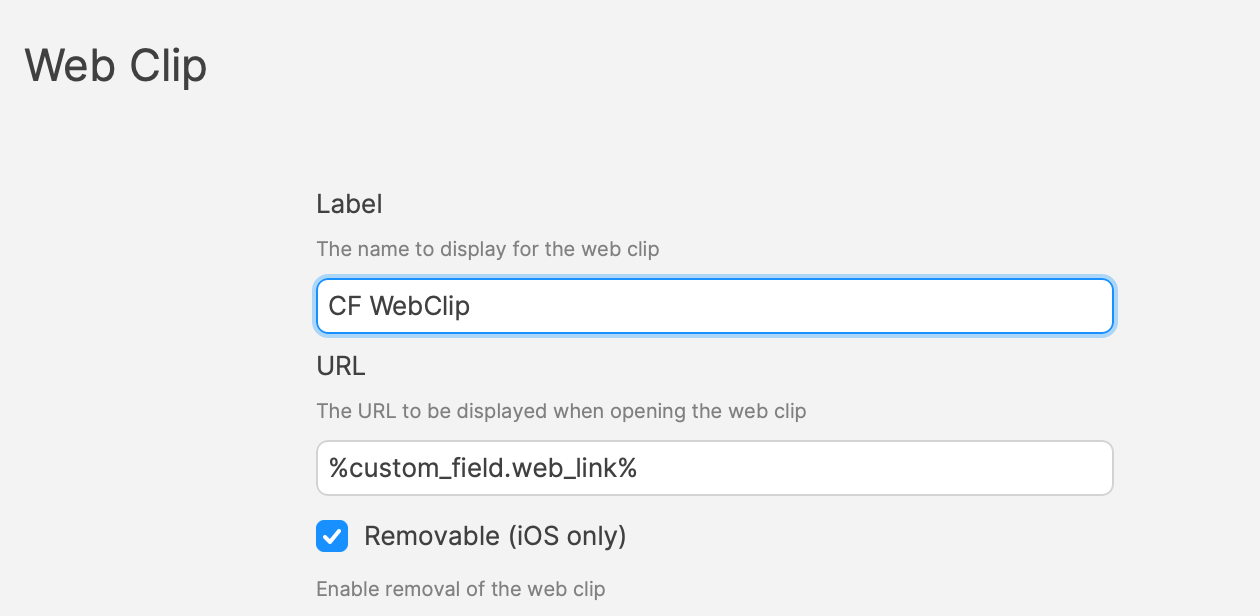
When a Profile is altered, FileWave will note the Profile as Modified and the Profile will be redelivered with the new settings. However, when changing Custom Field or Inventory values, there is no change to the Profile. The Payload referencing the Custom Field or Inventory item is still referencing this, it is only during delivery that the value is noted and entered in the Profile. As such, if the referenced Custom Field or Inventory values are altered for devices, the current Profile will need to be reinstalled. A ‘Force Reinstall’ will ensure this occurs, but two things occur from this action. The current Profile is removed and the updated Profile is installed. Consider, what is the consequence of Profile removal?
With the above in mind, always consider what is being included in a Profile and therefore keep each Profile lean in content; try not to overload too many Payloads into one Profile.
Overlapping Payloads
An overlap occurs when two or more profiles manage the same setting with different values. That is different from payloads that are designed to allow multiple independent items.
For example:
Profiles to manage the Dock. One Profile sets the dock on the right and the other on the left. This is overlapping and should be avoided:
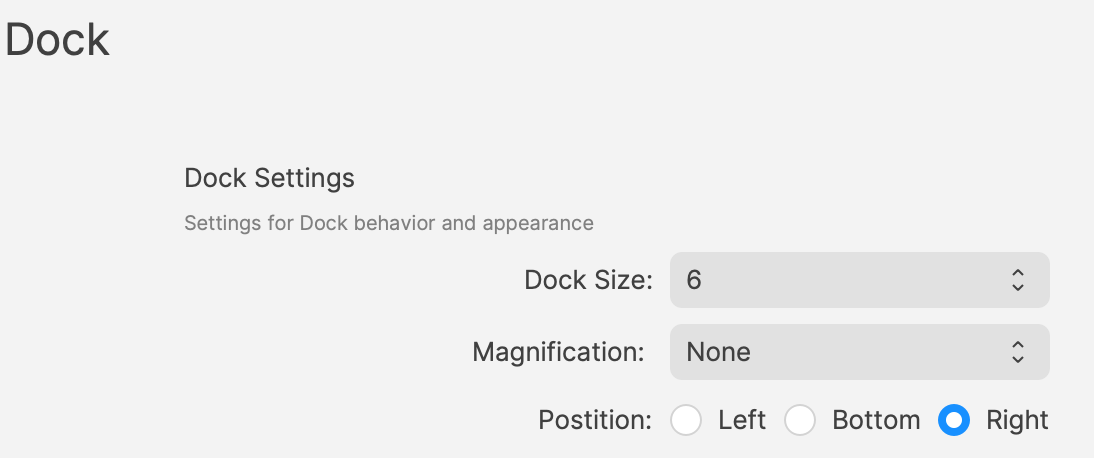
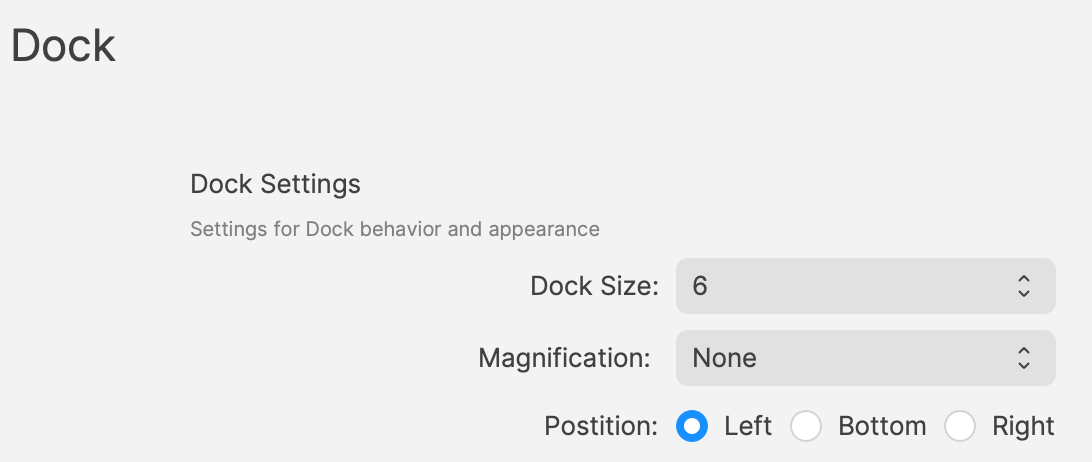
Assigning both Dock profiles creates a conflict because the device receives two different positions for the same setting.
Profile to provide certificates. One Profile provides one certificate and another Profile provides a different certificate. This isn’t overlapping. Providing multiple certificates is desirable and need not be from one single Profile.
User vs System
Within the settings of Profiles is an option to define whether the Profile should apply to users or system. Some Payloads may be set as User or System only, but not either, whilst others may be either. A Profile must have a setting, so a default will be used when a Profile Payload is first added. Always check to confirm it is set as desired.
A Profile may only have one setting applied. FileWave will therefore prevent the addition of a User only Payload to a Profile already containing another Payload set as System. However, where Payloads may be either, if a Profile already contains a Payload, any additional Payloads that can be added will all be set with the same setting.
For example:
- Create a new Profile and add the Login Window Payload
- Save the Profile and re-open to observe the Settings (should be shown as System and greyed out)
- Create another new Profile and add a Dock Payload
- Save the Profile and re-open to observe the Settings (should show as either System or User, but defaulted to System).
- Change to User, save and re-observe the change
The Login Window payload is System-only, while the Dock payload can use either scope.
- Re-open the Login Window Profile created above and add the Dock Payload to this Profile
- Save and re-open to observe the Settings
The Settings remain as System and the applied Dock Payload will therefore be set for the System and not User. If a Dock Profile of User were required, it should not be included in a Profile that already contains a Payload that is set as System.
Why
Should all of the above be of consideration? Why would User be chosen over System? If System will work for all users, why not just set all Profiles as System where possible. However, what if the settings included were only for users, but not for a hidden Admin account. This local admin account is not managed by MDM. By setting System level, any Profiles built this way will impact this user, along with the managed local user and any directory users. This may be undesirable. Passcode policy could be an example.
Some Payload types require certain types of enrolment. Many Payload settings require Supervision, for example. macOS devices managed via User Enrolment, do not qualify as Supervised.
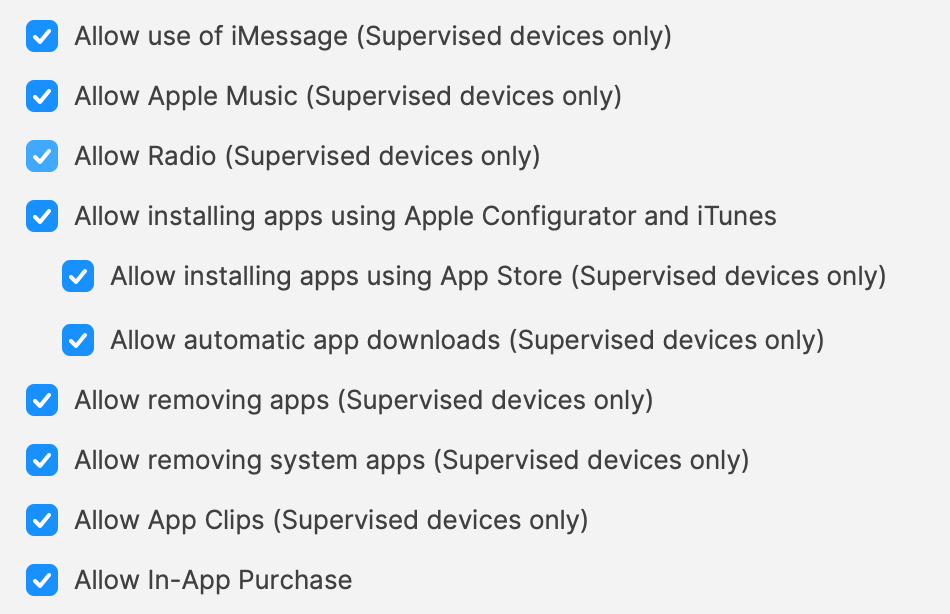
FileWave 16.4 Profile Editor considerations
Configure Dock settings independently
FileWave 16.4 extends granular configuration to the macOS Dock payload. Configure only the Dock settings the profile should manage—for example, the required Dock applications—without forcing unrelated properties such as size or animation behavior.
Granular settings make focused profiles easier, but they do not make overlapping Dock profiles safe. Keep the profile narrow and use Checking Apple Profile Compatibility before targeting mixed macOS versions.
Allow List and Deny List terminology
FileWave 16.4 follows Apple’s current Allow List and Deny List terminology in the Profile Editor. Existing profiles created with the former Whitelist/Blacklist field names continue to work without being rebuilt. When a profile is edited, FileWave maintains compatibility with older and newer Apple operating systems so a mixed-version fleet does not require duplicate profiles solely for the terminology change.
Planning
Plan each profile around one administrative purpose and one compatible scope.
Profiles could contain multiple Payloads based upon functionality and for User or System determined targeting. Who needs to be managed? Local user (all or just managed) and/or directory users.
Consider the impact if a Profile were ‘Force Reinstalled’ or if it was deemed necessary to temporarily remove the association to one or more devices, for whatever reason.
Match the enrollment method to the controls the organization requires. User Enrollment intentionally limits management for personally owned devices, while organization-owned devices enrolled through Automated Device Enrollment (ADE, formerly DEP) can support broader supervised management.
If the chosen enrollment method cannot enforce a required control, address that gap in the device policy before rollout.
No comments to display
No comments to display